
1. Introduction
Thank you for choosing the LOQRON L22 Smart Lock. This manual provides essential information for the proper installation, operation, and maintenance of your new smart lock. Please read these instructions carefully before installation and keep them for future reference.
2. Safety Information
- Do not attempt to disassemble or repair the lock yourself. This may void the warranty and cause damage.
- Use only the specified battery type (4 x AA alkaline batteries). Do not mix old and new batteries or different types of batteries.
- Keep mechanical keys in a safe place outside your home.
- Ensure all components are securely fastened during installation to prevent malfunction.
- Protect your passcodes and eKeys. Do not share them with unauthorized individuals.
3. Package Contents
Please verify that all parts are included in your package:
- Exterior Keypad Assembly
- Interior Assembly
- Deadbolt Latch
- Mounting Plate
- Strike Plate
- Screws and Fasteners
- Mechanical Keys (2)
- IC Cards (2)
- Installation Guide (this manual)
4. Setup and Installation
Follow these steps for proper installation of your LOQRON L22 Smart Lock.
4.1 Prepare the Door
Ensure your door is prepared for installation. The deadbolt should always be in the PULL IN position before installation.

Image: Installation dimensions and hole location diagram for the LOQRON L22 Smart Lock.
4.2 Install the Deadbolt Latch
Insert the deadbolt latch into the door edge. Secure it with the provided screws. Ensure the deadbolt is in the retracted (pulled in) position.
4.3 Determine Door Handing
Identify if your door is left-handed or right-handed. This is crucial for the correct orientation of the internal mechanism.

Image: Diagram illustrating how to determine if a door is left-handed or right-handed by observing hinge placement.
4.4 Adjust the Spindle Direction
Based on your door's handing, adjust the spindle on the interior assembly. For a right-handed door, the arrow on the PCB board should point to 'R'. For a left-handed door, it should point to 'L'. The spindle must always be horizontal.

Image: Diagram showing the correct spindle orientation for left-handed and right-handed doors.
4.5 Install Exterior Keypad and Mounting Plate
Feed the cable from the exterior keypad through the door hole. Align the keypad with the deadbolt and secure the mounting plate on the interior side with screws.
4.6 Connect Cables and Install Interior Assembly
Connect the cable from the exterior keypad to the interior assembly. Carefully tuck the wires into the door. Mount the interior assembly onto the mounting plate and secure it with screws.
4.7 Install Batteries
Insert four (4) AA alkaline batteries into the battery compartment of the interior assembly. Ensure correct polarity.
4.8 Test the Lock
After installation, test the lock using the mechanical key and the thumb turn to ensure smooth operation.
Video: Detailed installation guide for the LOQRON L22 Smart Lock.
5. Operating Instructions
The LOQRON L22 Smart Lock offers multiple ways to unlock and secure your door.
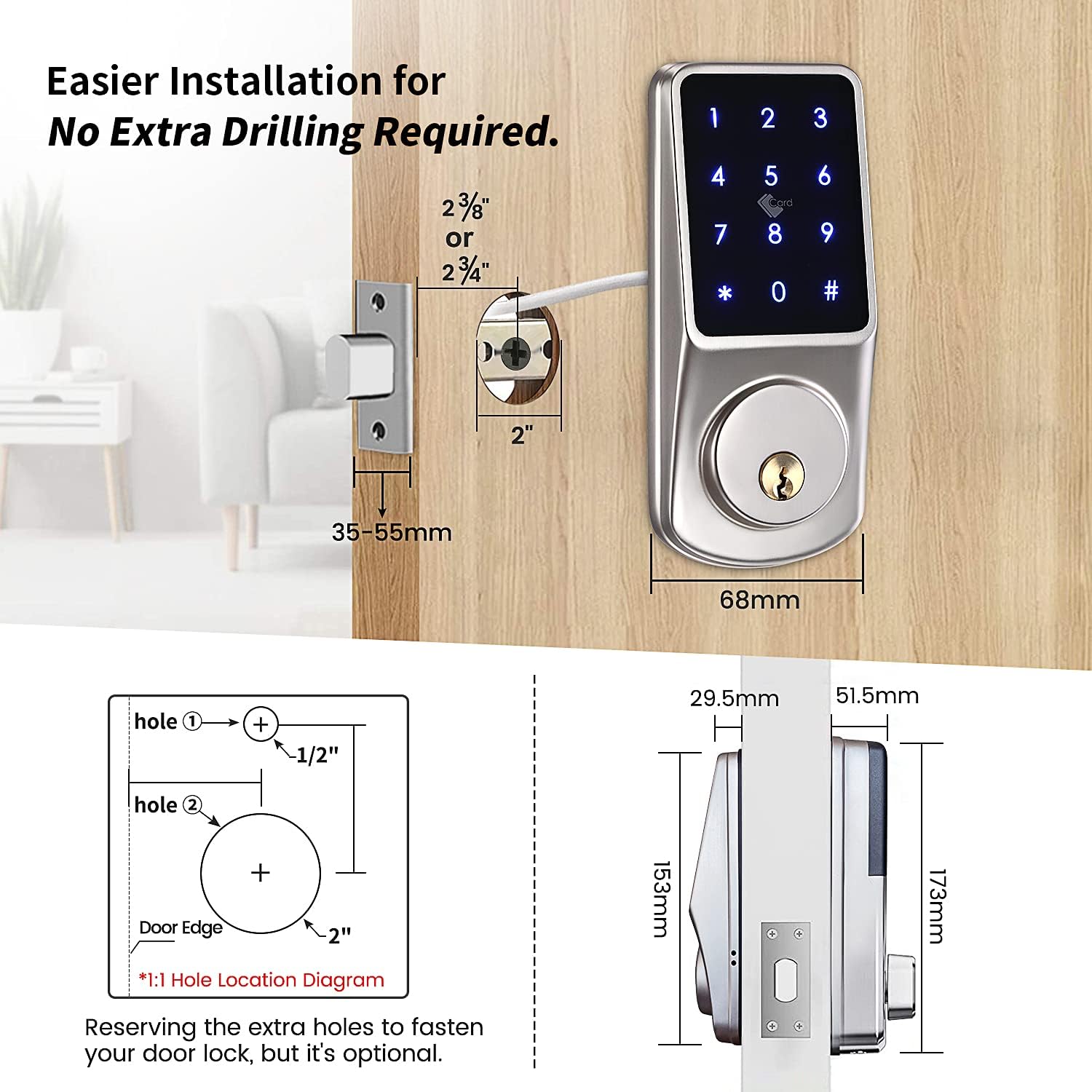
Image: Overview of the multiple unlocking methods available for the LOQRON L22 Smart Lock.
5.1 Unlocking Methods
- Keypad Passcode: Enter your 6-9 digit passcode on the keypad, then press '#'.
- Anti-Peep Function: To prevent others from seeing your passcode, you can enter random digits before or after your actual passcode. For example, if your passcode is 123456, you can enter 987+123456+321 then '#'. The lock will still recognize the correct sequence within the longer entry.

Image: Illustration of the Anti-Peep Password feature for enhanced security.
- IC Card: Tap a registered IC card on the keypad to unlock.
- TTLock App: Use the TTLock mobile application to unlock the door via Bluetooth.
- Mechanical Key: In case of emergency or battery depletion, use the provided mechanical key to unlock the door.
5.2 Locking Methods
- Auto-Lock: The lock will automatically re-lock after a set period (configurable via the TTLock app).
- Manual Lock: Press and hold the '#' key on the keypad for 2 seconds to manually lock the door from the outside.

Image: Manual locking instruction by pressing the '#' button.
5.3 TTLock App Features
The TTLock app provides advanced control and management of your smart lock.
- Generate Passcodes: Create various types of passcodes:
- Permanent: Always active.
- Timed: Active only during specified dates and times.
- One-time: Valid for a single use within a short period.
- Recurring: Active on specific days of the week or intervals.
- Send eKeys: Grant access to others by sending eKeys to their TTLock app accounts.
- View Records: Monitor unlock history and access logs.
- User Management: Add, modify, or delete users and their access permissions.
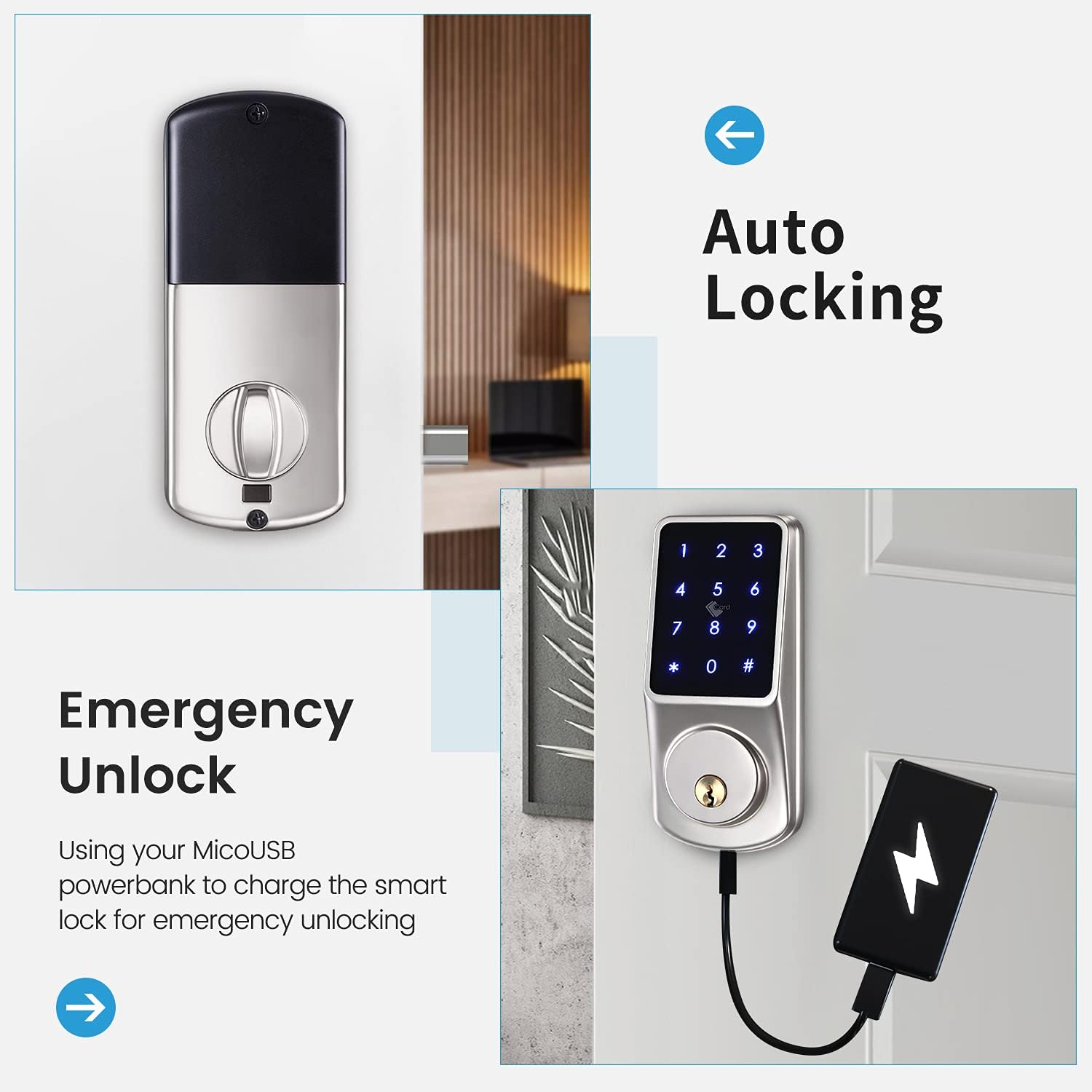
Image: TTLock app interface for managing timed passcodes and viewing unlock records.
Video: Instructions on how to program passcodes using the TTLock App.
Video: Guide on how to unlock the door using an eKey and send eKeys via the TTLock App.
5.4 Deadlock Function
The lock features a deadlock function for enhanced security from the inside. To activate, press the deadlock button for 2 seconds. To cancel, press the deadlock button for 2 seconds and rotate the thumb knob of the back panel once.
Video: Demonstration of the deadlock function for inside security.
6. Maintenance
6.1 Battery Replacement
When the battery level is low, the lock will provide an audible warning. Replace all four AA batteries promptly. Do not use rechargeable batteries.
6.2 Cleaning
Clean the lock's exterior with a soft, damp cloth. Avoid using abrasive cleaners or solvents that could damage the finish or electronic components.
6.3 Weather Resistance
The LOQRON L22 is designed to be weatherproof (IP55 rated) and can withstand temperatures from -4°F/-20°C to 122°F/50°C.

Image: LOQRON L22 Smart Lock highlighting its weatherproof and temperature resistance features.
7. Troubleshooting
- Lock not responding: Check battery levels. If batteries are dead, use the mechanical key or connect a power bank to the emergency Micro USB port for temporary power.
- Passcode not working: Ensure you are entering the correct passcode. Try using the anti-peep function. If still unsuccessful, reset the passcode via the TTLock app.
- App connection issues: Ensure Bluetooth is enabled on your phone and you are within range of the lock. Restart the app or your phone if necessary.
- Emergency Unlock: If the batteries are completely drained, connect a Micro USB power bank to the emergency power port located at the bottom of the exterior keypad to temporarily power the lock and gain entry.

Image: Emergency unlock method using a Micro USB power bank.
8. Specifications
| Feature | Detail |
|---|---|
| Brand | LOQRON |
| Model Number | L22 |
| Lock Type | Keypad, Electronic Deadbolt |
| Material | Aluminum |
| Connectivity Protocol | Bluetooth |
| Control Method | App (TTLock), Hand Control, Mechanical Knob |
| Special Features | Smart Lock, Waterproof (IP55), Wi-Fi (with optional gateway), Anti-Peep, Auto Lock |
| Recommended Uses | Security for Home, Bedroom, Office, Apartment |
| Item Weight | 2.47 pounds |
| Package Dimensions | 8.78 x 8.19 x 3.31 inches |
9. Warranty and Support
LOQRON products are designed for durability and reliability. For warranty information, please refer to the product packaging or contact LOQRON customer support directly.
If you encounter any issues or have questions regarding your LOQRON L22 Smart Lock, please contact our customer support team:
- Online Support: Visit the official LOQRON website for FAQs and support resources.
- Email Support: [Insert Customer Support Email Address Here]
- Phone Support: [Insert Customer Support Phone Number Here]
Please have your product model (L22) and purchase information ready when contacting support.
