1. Introduction and Overview
The Lenovo Tab P11 Plus (1st Gen) is an Android tablet designed for multimedia and productivity. It features an 11-inch 2K IPS LCD touch display, quad speakers with Dolby Atmos, a MediaTek octa-core processor, 6GB RAM, and 128GB storage. This tablet comes with a detachable keyboard and the Lenovo Precision Pen 2, enhancing its versatility for various tasks. Its slim aluminum-alloy design offers portability and a premium feel. This manual provides essential information for operating and maintaining your device.

Image: Lenovo Tab P11 Plus tablet with keyboard and pen.
2. What's in the Box
Upon unboxing your Lenovo Tab P11 Plus, ensure all the following items are present:
- (1) Lenovo Tab P11 Plus Tablet
- (1) 10V/2A (20W) USB-C AC adapter
- (1) Quick Start Guide & User Guide
- Keyboard Pack (detachable keyboard)
- Lenovo Precision Pen 2
3. Product Features
- Display: 11-inch 2K (2000 x 1200) TDDI IPS display for superior streaming and visuals.
- Audio: Quad speakers with user-facing stereo tuned by Dolby Atmos for immersive sound.
- Performance: MediaTek Helio G90T Tab Octa-Core processor (up to 2.05GHz) for smooth operation and gaming.
- Memory & Storage: 6GB RAM and 128GB internal storage for seamless multitasking and ample space.
- Operating System: Android 11 for a user-friendly interface and access to a wide range of applications.
- Battery Life: Up to 15 hours of streaming time on a single charge.
- Connectivity: Bluetooth and Wi-Fi wireless connectivity, and a USB Type-C 2.0 port for data transfer and charging.
- Accessories: Includes a detachable keyboard and Lenovo Precision Pen 2 with 4,096 levels of pressure and tilt detection.
- Cameras: Front and rear cameras for photos and video calls.
- Security: Face Unlock feature for quick and easy login.

Image: Key specifications at a glance.
4. Setup Guide
4.1 Initial Power On and Basic Setup
- Charge the Tablet: Before first use, connect the tablet to the power adapter using the provided USB-C cable and charge it fully. The USB-C port is located on the side of the tablet.
- Power On: Press and hold the Power button (located on the top edge when held horizontally) until the Lenovo logo appears.
- Follow On-Screen Prompts: The tablet will guide you through initial setup steps, including language selection, Wi-Fi connection, Google account login, and setting up security features like Face Unlock.
4.2 Attaching the Keyboard Pack
The detachable keyboard connects magnetically to the tablet. Align the keyboard's connector pins with the corresponding slots on the bottom edge of the tablet. The keyboard will snap into place.
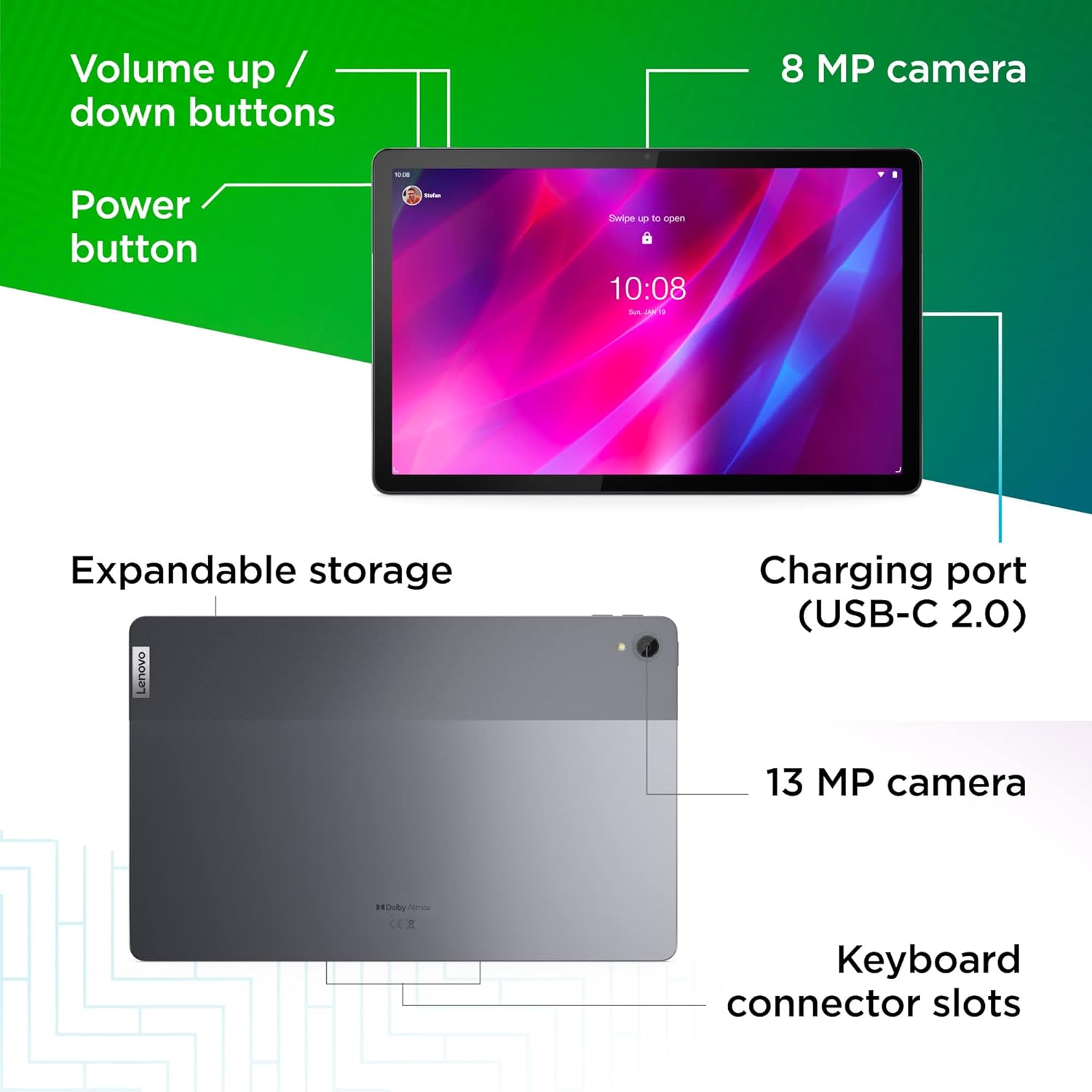
Image: Overview of tablet ports and buttons, including keyboard connector slots.
4.3 Using the Lenovo Precision Pen 2
The Precision Pen 2 allows for precise input. Simply touch the pen to the screen to interact. It supports 4,096 levels of pressure and tilt detection for a natural writing and drawing experience. The pen can be stored magnetically on the tablet's side or in the dedicated loop on the keyboard cover.
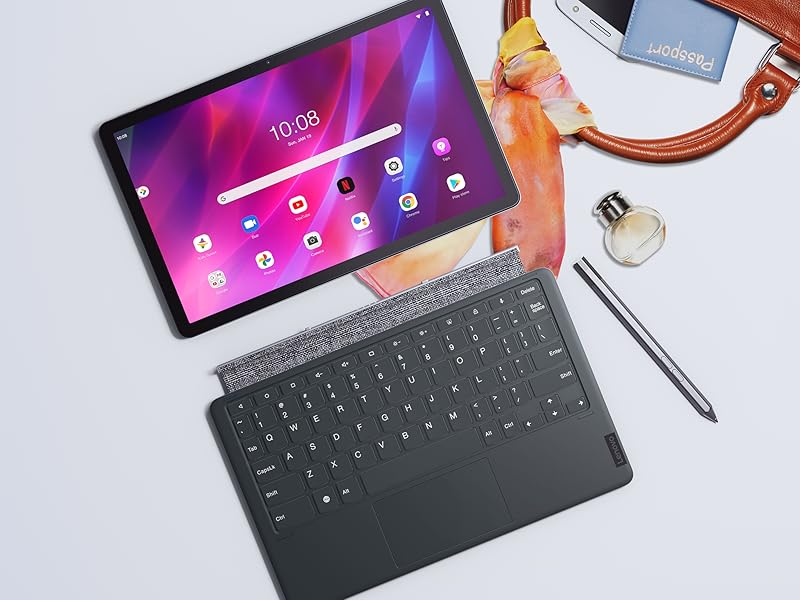
Image: Lenovo Tab P11 Plus with Precision Pen 2.
5. Operating Instructions
5.1 Basic Navigation
- Touchscreen: Navigate the Android 11 interface by tapping, swiping, and pinching on the 11-inch 2K display.
- Keyboard & Touchpad: Use the detachable keyboard for typing and the integrated touchpad for cursor control, similar to a laptop.
- Volume Buttons: Adjust the tablet's volume using the dedicated volume up/down buttons on the side.
5.2 Multimedia Experience
The Tab P11 Plus is optimized for entertainment:
- Video Playback: Enjoy high-resolution video on the 2K IPS LCD display.
- Audio: The quad speakers with Dolby Atmos provide rich, clear audio for movies, music, and games.
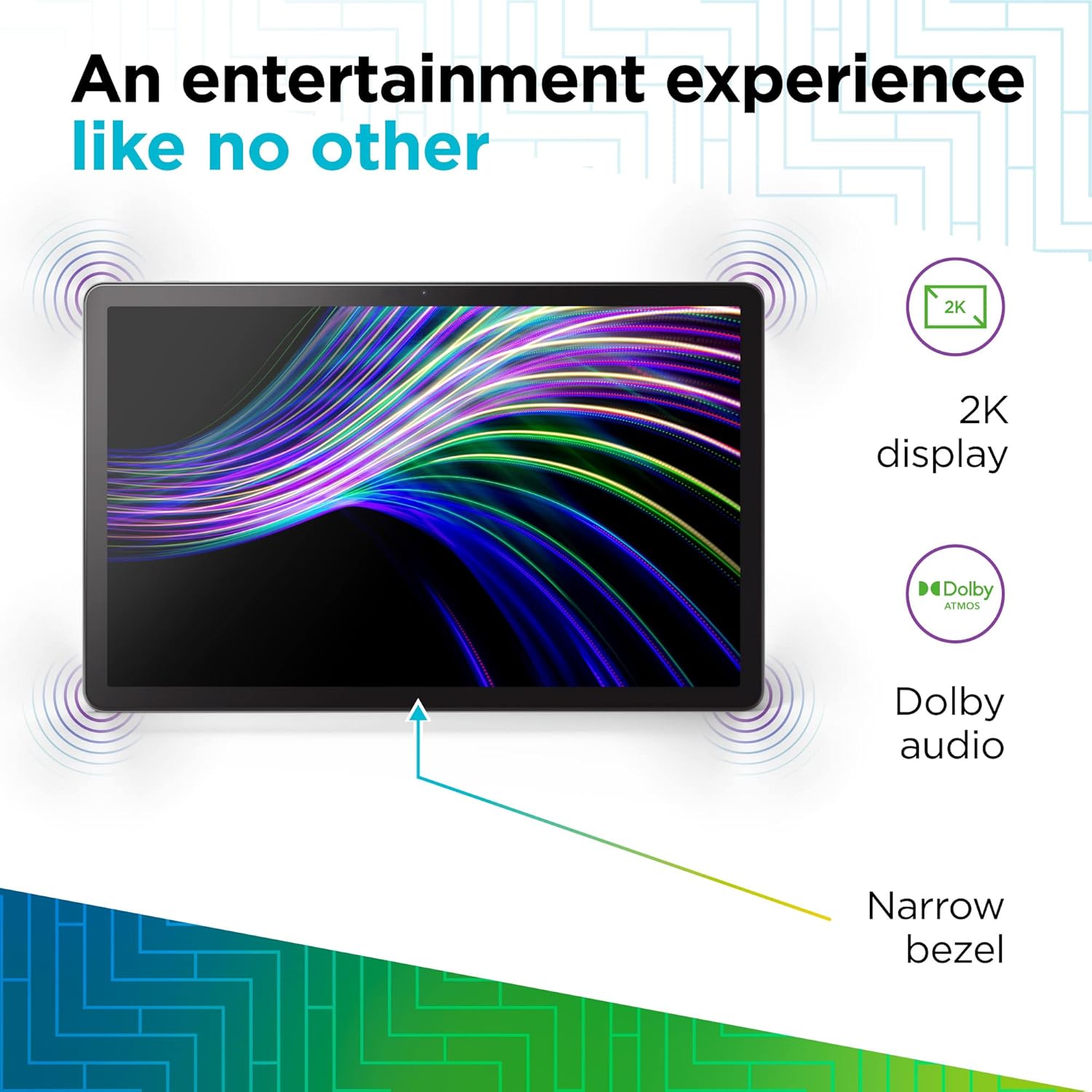
Image: Tablet showcasing entertainment features.
5.3 Productivity and Creativity
Utilize the included accessories for enhanced productivity:
- Typing: The detachable keyboard allows for comfortable and efficient typing for documents, emails, and more.
- Writing & Drawing: The Lenovo Precision Pen 2 is ideal for note-taking, sketching, and precise interactions with the tablet's touch screen.
- Multitasking: Android 11 supports split-screen mode, allowing you to run two apps side-by-side.

Image: Tablet used for productivity tasks.
5.4 Cameras and Communication
The tablet includes front and rear cameras, along with a dual microphone array, for clear communication and photography.
- Photography: Use the rear 13MP camera for capturing photos.
- Video Calls: The front 8MP camera and dual microphone array are suitable for video conferencing and family chats.
5.5 Security
- Face Unlock: Configure Face Unlock in the tablet's settings for convenient and secure access to your device.
6. Maintenance
6.1 Cleaning the Tablet
- Use a soft, lint-free cloth to clean the screen and body of the tablet.
- For stubborn smudges, slightly dampen the cloth with water or a screen-cleaning solution. Avoid harsh chemicals.
- Ensure no liquid enters ports or openings.
6.2 Battery Care
- To prolong battery life, avoid exposing the tablet to extreme temperatures.
- Charge the tablet using only the provided adapter or a compatible USB-C charger.
- While the tablet offers long battery life, frequent full discharges and recharges can impact its long-term capacity.
6.3 Software Updates
- Regularly check for and install system updates to ensure optimal performance, security, and access to new features. Go to Settings > System > System update.
7. Troubleshooting
7.1 Tablet Not Powering On
- Ensure the tablet is sufficiently charged. Connect it to the charger for at least 30 minutes.
- Press and hold the Power button for 10-15 seconds to perform a forced restart.
7.2 Keyboard or Pen Not Responding
- Keyboard: Ensure the keyboard is securely attached to the tablet's magnetic connector. Detach and reattach it.
- Pen: Check if the pen's battery needs charging (if applicable, refer to pen's specific instructions). Ensure the pen is within range and properly paired (if Bluetooth).
- Restart the tablet.
7.3 Wi-Fi or Bluetooth Connectivity Issues
- Toggle Wi-Fi or Bluetooth off and on in the tablet's settings.
- Restart your Wi-Fi router or Bluetooth device.
- Forget the network/device and reconnect.
7.4 Slow Performance
- Close unnecessary background applications.
- Clear cache data for apps that are frequently used.
- Ensure sufficient storage space is available.
- Restart the tablet regularly.
8. Specifications
| Brand | Lenovo |
| Model Name | Tab P11 Plus |
| Item Model Number | ZA940288US |
| Screen Size | 11 Inches |
| Screen Resolution | 2000 x 1200 (2K) |
| Processor | MediaTek Helio G90T Tab Octa-Core (up to 2.05 GHz) |
| RAM | 6 GB |
| Hard Drive / Storage | 128 GB |
| Operating System | Android 11 |
| Wireless Type | 2.4 GHz Radio Frequency, 5 GHz Radio Frequency, 801.11ac (Wi-Fi), Bluetooth |
| USB Ports | 1 x USB 2.0 Type-C |
| Average Battery Life | 15 Hours |
| Item Weight | 1.08 pounds |
| Product Dimensions | 10.17 x 6.42 x 0.3 inches |
| Color | Gray |
| Rear Webcam Resolution | 13 MP |
| Front Webcam Resolution | 8 MP (from product description, not explicit in specs but implied by "front or rear camera") |
9. Warranty and Support
Your Lenovo Tab P11 Plus (1st Gen) comes with a standard manufacturer's warranty. For detailed warranty information, including terms, conditions, and duration, please refer to the warranty card included in your product packaging or visit the official Lenovo support website.
For technical support, driver downloads, and additional resources, please visit the Lenovo Support website at support.lenovo.com. You may also contact Lenovo customer service for assistance with product inquiries or troubleshooting.


