
Teday
Teday MC-AC7265 Half Mini PCI-E WiFi Card Instruction Manual
Model: MC-AC7265
1. Introduction
This manual provides comprehensive instructions for the installation, operation, and maintenance of your Teday MC-AC7265 Half Mini PCI-E WiFi Card. This internal wireless adapter is designed to enhance your laptop's connectivity with high-speed Wi-Fi and Bluetooth capabilities. Please read this manual carefully before proceeding with installation.

Image 1.1: Front view of the Teday MC-AC7265 Half Mini PCI-E WiFi Card, showing the main components and labels.
2. Key Features
- Model: MC-AC7265
- Interface: Half Mini PCI-E
- Frequency Band: Supports both 2.4GHz and 5GHz bands for versatile connectivity.
- Network Standard: Complies with 802.11ac, 802.11a/b/g/n standards.
- Max Speed: Achieves up to 867Mbps on the 5GHz band and 300Mbps on the 2.4GHz band, totaling 1200Mbps.
- Bluetooth Version: Integrated Bluetooth 4.2 for connecting wireless peripherals.
- Operating System Support: Compatible with Windows 7, Windows 8, Windows 10, and Linux.

Image 2.1: Visual representation of the card's maximum speeds across 2.4GHz and 5GHz bands, highlighting the 1200Mbps combined throughput.
3. Compatibility
The MC-AC7265 WiFi card is designed for laptops equipped with a Half Mini PCI-E interface. It supports a wide range of laptop brands and models.
3.1 Compatible Devices
- Almost all laptops with a Mini PCI-E interface.
- Examples include laptops from Asus, Acer, Dell, Samsung, Toshiba, Sony, etc.
3.2 Incompatible Devices
This WiFi card is not suitable for the following laptop brands/models:
- IBM laptops
- HP laptops
- Lenovo laptops
- ThinkPad laptops
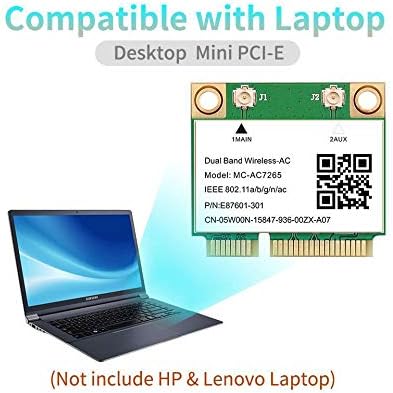
Image 3.1: Illustration of the card's compatibility with various laptops, explicitly stating its incompatibility with HP and Lenovo models.
4. Setup and Installation
Installing an internal WiFi card requires opening your laptop. If you are not comfortable with this process, it is recommended to seek assistance from a qualified technician.
4.1 Safety Precautions
- Always power off your laptop and disconnect it from the power adapter before opening.
- Remove the battery if possible.
- Discharge any static electricity by touching a grounded metal object before handling internal components.
- Use appropriate tools to avoid damaging screws or plastic casings.
4.2 Installation Steps
- Access the Mini PCI-E Slot: Carefully open your laptop's back panel or keyboard area to locate the existing WiFi card or the empty Mini PCI-E slot. Refer to your laptop's service manual for specific instructions on accessing internal components.
- Remove Old Card (if applicable): If replacing an existing card, gently disconnect the antenna cables (usually black and white) from the old card. Then, unfasten the screw holding the card in place and slide it out of the slot.
- Insert New Card: Align the Teday MC-AC7265 card with the Mini PCI-E slot. Gently push it into the slot at an angle until it is fully seated.
- Secure the Card: Press the card down until it clicks into place, then secure it with the small screw.
- Connect Antenna Cables: Carefully reattach the antenna cables to the corresponding connectors on the new card. The main antenna (often black) usually connects to '1MAIN' and the auxiliary antenna (often white) to '2AUX'. Ensure a snug fit.
- Reassemble Laptop: Carefully close and secure your laptop's panels.
- Install Drivers: Power on your laptop. The operating system (Windows 7/8/10, Linux) may automatically detect and install the necessary drivers. If not, you may need to download the appropriate drivers from the manufacturer's website or a reliable driver source.
5. Operating Instructions
Once the card is installed and drivers are in place, you can begin using its Wi-Fi and Bluetooth functionalities.
5.1 Wi-Fi Connectivity
- Enable Wi-Fi: Ensure Wi-Fi is enabled in your operating system settings.
- Connect to a Network: Open your network settings, select the desired Wi-Fi network from the list of available networks, and enter the password if prompted.
- Verify Connection: Confirm that your laptop is connected to the internet.
5.2 Bluetooth Connectivity
The integrated Bluetooth 4.2 allows you to connect various Bluetooth-enabled devices.

Image 5.1: Visual representation of the Bluetooth 4.2 feature and examples of devices that can be connected, such as headphones, speakers, and keyboards.
- Enable Bluetooth: Go to your operating system's Bluetooth settings and turn Bluetooth on.
- Pair a Device: Put your Bluetooth device (e.g., headphones, speaker, keyboard) into pairing mode.
- Discover Devices: On your laptop, search for new Bluetooth devices.
- Connect: Select your device from the list and follow any on-screen prompts to complete the pairing process.
6. Maintenance
The Teday MC-AC7265 WiFi card is a low-maintenance component. However, following these general guidelines can help ensure optimal performance and longevity:
- Keep Drivers Updated: Regularly check for and install the latest drivers for your WiFi and Bluetooth card from your laptop manufacturer's website or the chipset manufacturer's website.
- Maintain Cleanliness: If you open your laptop for other maintenance, gently clean any dust accumulation around the card and its slot using compressed air. Ensure the laptop is powered off and unplugged before cleaning.
- Avoid Physical Stress: Do not bend or apply excessive force to the card or its connectors during installation or handling.
7. Troubleshooting
If you encounter issues with your Teday MC-AC7265 WiFi card, try the following troubleshooting steps:
7.1 No Wi-Fi or Bluetooth Connectivity
- Check Device Manager: In Windows, open Device Manager and check if the network adapter and Bluetooth device are listed without any error symbols (e.g., yellow exclamation mark). If there are errors, try updating or reinstalling the drivers.
- Reinstall Drivers: Uninstall the current drivers and then reinstall the latest drivers.
- Check Physical Connection: Power off your laptop, open it, and ensure the card is securely seated in its slot and antenna cables are properly connected.
- Enable in BIOS/UEFI: Some laptops have an option in the BIOS/UEFI settings to enable/disable wireless devices. Ensure it is enabled.
7.2 Slow Wi-Fi Speed
- Driver Update: Ensure you have the latest drivers installed.
- Router Proximity: Move closer to your Wi-Fi router to improve signal strength.
- Interference: Reduce interference from other electronic devices or Wi-Fi networks. Try changing your router's Wi-Fi channel.
- Router Settings: Ensure your router is configured for 802.11ac (if using 5GHz) and that its firmware is up to date.

Image 7.1: Visual confirmation of operating system support for Windows 7, 8, 10, and Linux, which are crucial for driver compatibility.
8. Specifications
| Specification | Value |
|---|---|
| Model Number | MC-AC7265 |
| Interface | Half Mini PCI-E |
| Frequency Band | 2.4G/5GHz |
| Network Standard | 802.11ac; 802.11a/b/g/n |
| Max Speed (5GHz) | 867Mbps |
| Max Speed (2.4GHz) | 300Mbps |
| Bluetooth Version | Bluetooth 4.2 |
| Supported Operating Systems | Windows 7/8/10, Linux |
| Hardware Interface | Bluetooth, PCI |
| Data Transfer Rate | 1200 Megabytes Per Second (Combined) |
| Manufacturer | Teday |
| Country of Origin | China |
| Date First Available | July 21, 2021 |
9. Warranty and Support
For warranty information and technical support regarding your Teday MC-AC7265 Half Mini PCI-E WiFi Card, please contact the manufacturer, Teday, or the retailer from whom you purchased the product. Keep your proof of purchase for warranty claims.
Manufacturer: Teday