
1. Introduction
The CAMMHD C2 is a compact, head-mounted 4K video camera designed for hands-free recording. It features 6-axis anti-shake stabilization, Wi-Fi connectivity for app control, and a long-lasting 2200mAh battery, making it suitable for various activities such as vlogging, travel, and sports. This manual provides detailed instructions for the proper use and maintenance of your CAMMHD C2 camera.

Figure 1: CAMMHD C2 4K Head-Mounted Video Camera
2. Package Contents
Please verify that all items listed below are included in your package. If any items are missing or damaged, please contact customer support.
- CAMMHD C2 4K Head-Mounted Camera
- Headband Bracket
- Helmet Bracket
- 3M Adhesive Pads
- Mounting Bracket Tools
- USB Type-C Charging Cable
- Power Adapter
- 32GB Memory Card (pre-installed or separate)
- User Manual

Figure 2: Included accessories
3. Product Overview
Familiarize yourself with the camera's components and controls.
3.1 Camera Components
- Lens: Captures video and photos.
- Power/Wi-Fi Button: Powers the device on/off and activates Wi-Fi.
- Photo Button: Takes still images.
- Record Button: Starts and stops video recording.
- Indicator Light: Displays device status (power, recording, Wi-Fi).
- TF Card Slot: Insert microSD card for storage.
- Type-C Port: For charging and data transfer.
- Reset Button: Resets the device to factory settings.

Figure 3: Front view of the CAMMHD C2 camera

Figure 4: Bottom view of the CAMMHD C2 camera showing ports
4. Setup
4.1 Initial Charging
Before first use, fully charge the camera using the provided USB Type-C cable and power adapter. The indicator light will show charging status.
4.2 Inserting the Memory Card
Locate the TF card slot. Gently insert the provided 32GB microSD card (or another compatible card up to 512GB) until it clicks into place. Ensure the camera is powered off before inserting or removing the memory card.
4.3 Mounting the Camera
The CAMMHD C2 offers versatile mounting options:
4.3.1 Head-Worn Installation
Attach the camera to the headband bracket. Adjust the headband for a comfortable and secure fit on your head. This method provides a first-person perspective.
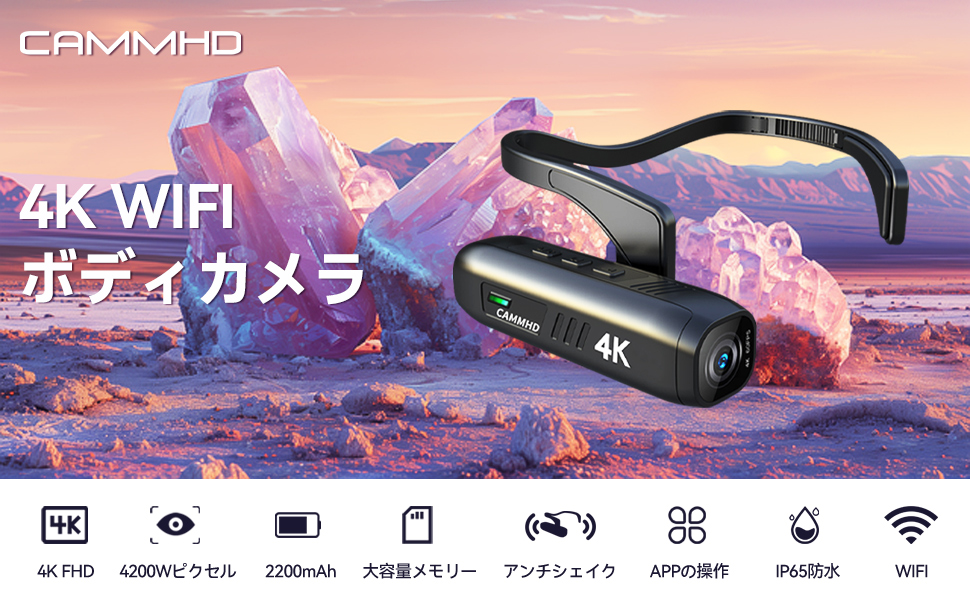
Figure 5: Head-worn installation for hands-free recording
4.3.2 Helmet-Mounted Installation
Use the helmet bracket and 3M adhesive pads to securely attach the camera to your helmet. Ensure the adhesive surface is clean and dry before application for optimal adhesion.

Figure 6: Helmet-mounted installation for secure attachment
5. Operation
5.1 Power On/Off
Press and hold the Power/Wi-Fi Button for a few seconds to turn the camera on or off. The indicator light will illuminate when powered on.
5.2 Recording Video
Press the Record Button once to start video recording. Press it again to stop recording. The indicator light will change to show recording status.
5.3 Taking Photos
Press the Photo Button once to capture a still image.
5.4 Wi-Fi Connection and App Control
The CAMMHD C2 supports Wi-Fi connectivity for real-time viewing, control, and file transfer via a smartphone app.
- Download the "Viidure Camera" app from your smartphone's app store.
- Power on the CAMMHD C2 camera.
- Press the Power/Wi-Fi Button briefly to activate Wi-Fi mode on the camera. The indicator light will show Wi-Fi status.
- On your smartphone, go to Wi-Fi settings and connect to the camera's Wi-Fi network (e.g., "M20Pro_20F_XXXXXXXXXX"). The default Wi-Fi password is 12345678.
- Open the "Viidure Camera" app. You can now view live footage, control recording, adjust settings, and transfer files directly to your smartphone.
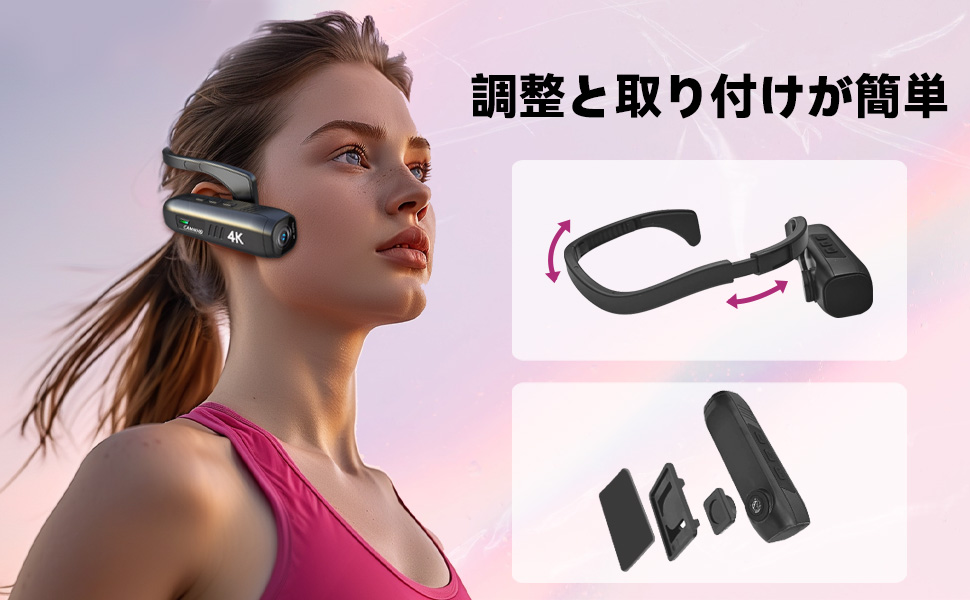
Figure 7: Wi-Fi app control interface
5.5 Key Features
- 4K High Resolution: Records videos in 3840 x 2160 4K at 30fps or 2704 x 1520 2K at 30fps for clear and vivid footage.
- 6-Axis Anti-Shake: Advanced stabilization technology minimizes blur from movement, ensuring smooth video.
- Long Battery Life: Integrated 2200mAh battery provides approximately 5-7 hours of continuous recording.
- Wide-Angle Lens: 130-degree wide-angle lens captures a broader field of view.
- Expandable Storage: Supports microSD cards up to 512GB.
6. Maintenance
- Keep the camera lens clean using a soft, lint-free cloth. Avoid abrasive materials.
- Store the camera in a cool, dry place away from direct sunlight and extreme temperatures.
- Regularly back up your recorded data to prevent loss.
- Ensure the Type-C port cover is securely closed when not in use to protect against dust and moisture.
7. Troubleshooting
| Problem | Possible Cause | Solution |
|---|---|---|
| Camera does not power on. | Low battery; device malfunction. | Charge the camera fully. If problem persists, contact support. |
| Cannot connect to Wi-Fi. | Incorrect password; Wi-Fi not activated on camera; app issue. | Ensure Wi-Fi is active on camera. Verify password (12345678). Restart camera and app. |
| Video quality is poor. | Lens is dirty; low light conditions; incorrect resolution settings. | Clean the lens. Ensure adequate lighting. Check resolution settings in the app. |
| Camera freezes or becomes unresponsive. | Software glitch. | Press the Reset button. |
8. Specifications
| Feature | Detail |
|---|---|
| Brand | CAMMHD |
| Model | C2 |
| Video Capture Resolution | 4K (3840 x 2160) @ 30fps, 2K (2704 x 1520) @ 30fps |
| Photo Sensor Technology | CMOS (Sony 386 sensor) |
| Video Capture Format | MP4 |
| Audio Format | WAV |
| Connectivity | USB, Wi-Fi |
| Special Features | 4K, Wi-Fi, Vlog, 6-axis Anti-shake |
| Battery Capacity | 2200mAh Lithium-ion |
| Average Battery Life | 5-7 Hours |
| Storage Support | Up to 512GB microSD card (32GB included) |
| Weight | 75g |
| Dimensions (D x W x H) | 28 x 26 x 101 mm |
9. Warranty and Support
The CAMMHD C2 camera comes with a 1-year warranty from the date of purchase. For technical support, warranty claims, or any inquiries, please contact CAMMHD customer service through the retailer where you purchased the product or visit the official CAMMHD website.
Online Resources: For additional support, FAQs, and firmware updates, please refer to the CAMMHD official store or product page: CAMMHD Official Store
