
ZIYOU LANG T61
ZIYOU LANG T61 Wireless Gaming Keyboard and Mouse Combo Instruction Manual
Model: T61
Brand: ZIYOU LANG
Introduction
Welcome to your ZIYOU LANG T61 Wireless Gaming Keyboard and Mouse Combo. This manual provides detailed instructions for setup, operation, maintenance, and troubleshooting to ensure optimal performance of your new gaming peripherals.
What's in the Box
- 1 x 61 Key Wireless Keyboard
- 1 x Wireless Mouse
- 1 x Mouse Pad
- 1 x Charging Cable (Micro USB to USB-A)
- 1 x User Manual

Image: The ZIYOU LANG T61 wireless gaming keyboard, mouse, and mouse pad, as packaged in the box.
Setup
Initial Connection
The keyboard and mouse share a single USB receiver.
- Locate the USB receiver in the bottom slot of the mouse.
- Plug the USB receiver into an available USB port on your computer (PC or MAC).
- Ensure both the keyboard and mouse are turned ON using their respective power switches. They will automatically connect to the receiver.

Image: Diagram showing the wireless connection setup with the USB receiver.
Charging
For optimal performance, fully charge the keyboard and mouse before first use.
- Connect the provided charging cable to the Micro USB port on the device and a USB-A port on your computer or a DC 5V adapter.
- The keyboard has a 3000mAh battery, and the mouse has a 1000mAh battery.
- Do not use quick charger adapters, as this may damage the built-in battery.

Image: Close-up of the keyboard and mouse, highlighting the USB receiver storage and charging cable.
Operating Instructions
Keyboard Functions
- Backlight Control: Press FN + P to switch or turn on/off the Rainbow LED backlight effect.
- Brightness Adjustment: Press FN + " or FN + ;: to increase or decrease backlight brightness (4 levels).
- Breathing Speed Adjustment: Press FN + ]} or FN + [{ to speed up or slow down the backlight breathing speed (3 levels).
- FN Key Combinations:
- FN + 1-0, -_, =+: F1-F12 functions.
- FN + Y: PrtSc (Print Screen)
- FN + U: Scroll Lock
- FN + I: Pause
- FN + H: Insert
- FN + J: Home
- FN + K: PgUp (Page Up)
- FN + N: Delete
- FN + M: End
- FN + ,<: PgDn (Page Down)
- FN + W: Toggle W/A/S/D direction function (default: off).

Image: The keyboard displaying its rainbow LED backlight and key combinations for controlling lighting and functions.

Image: A detailed view of the keyboard highlighting the FN key combinations for various shortcuts.
Mouse Functions
- Buttons: 6 buttons (Right, Left, Scroll Wheel, DPI, Backward, Forward). Power switch and LED control switch are on the bottom.
- DPI Adjustment: 3 adjustable DPI levels (800/1600/2400) for sensitivity control.
- Backlight Effect: 7-color auto-switching breathing backlight.
- Silent Click: Designed for quiet operation.
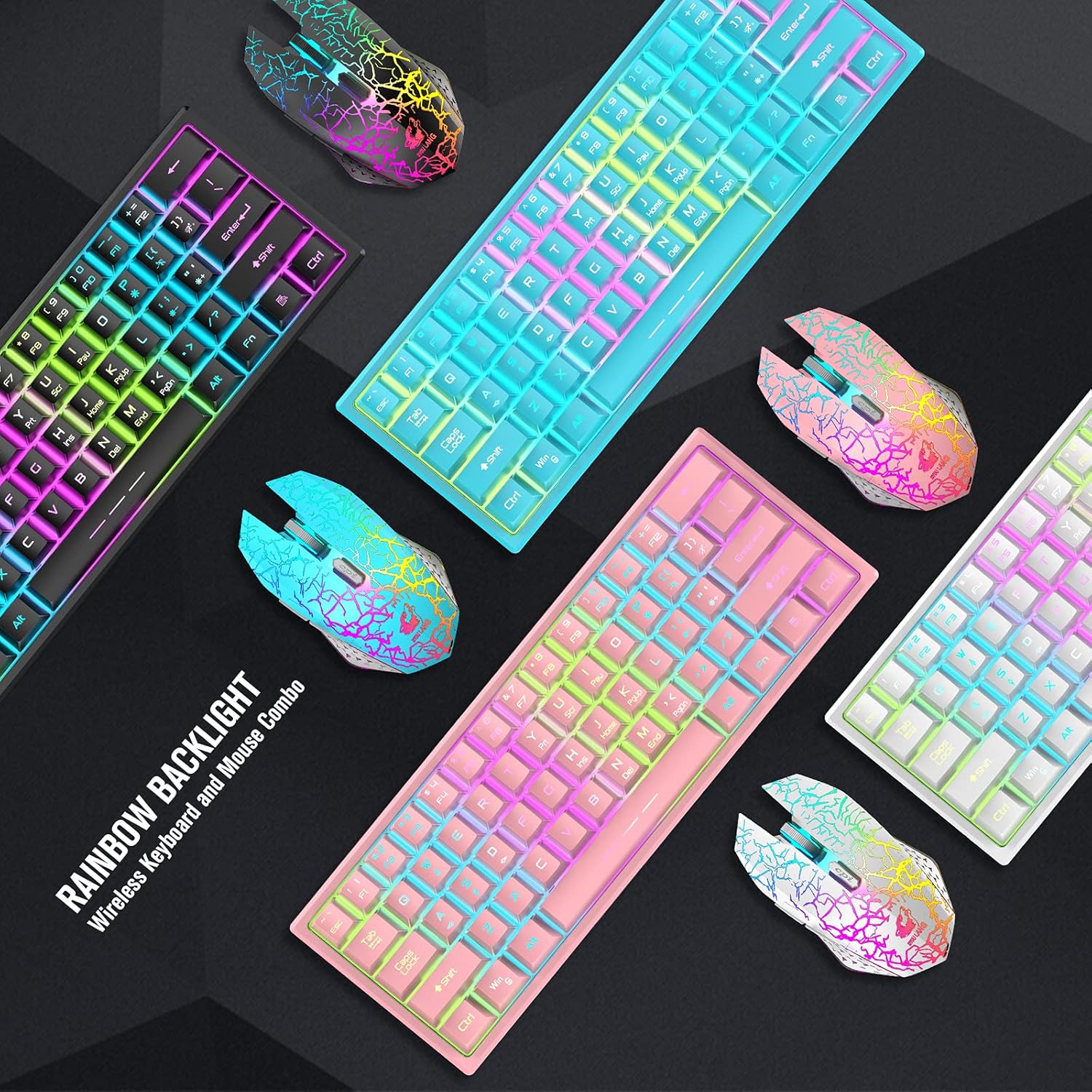
Image: The gaming mouse with its cracked pattern design, showing its 6 buttons and DPI adjustment.
Video: An official product video demonstrating the ZIYOU LANG T61 Wireless Combo, including the keyboard and mouse.
Maintenance
- Cleaning: Use a soft, dry cloth to clean the keyboard and mouse. For deeper cleaning, removable keycaps allow for easy access.
- Storage: Store in a cool, dry place away from direct sunlight and extreme temperatures.
- Battery Care: To prolong battery life, avoid fully discharging the devices frequently. Recharge when the battery indicator is low.
Troubleshooting
Device Not Connecting
- Ensure the USB receiver is securely plugged into a computer USB port.
- Verify that both the keyboard and mouse are turned ON.
- Make sure the devices are within 10 meters of the receiver.
- Try plugging the receiver into a different USB port.
- Fully charge both devices.
Backlight Not Working
- Press FN + P to toggle the backlight on/off.
- The keyboard will auto-enter sleep mode if no operation for 2 minutes, turning off the backlight. Press any key to wake it up.
- Ensure the keyboard battery is sufficiently charged.
Mouse Not Responding
- Check the power switch on the bottom of the mouse.
- Ensure the mouse battery is charged.
- Verify the USB receiver is properly connected.
Charging Issues
- Use only the provided charging cable or a standard DC 5V adapter. Avoid quick chargers.
- Ensure the charging cable is securely connected to both the device and the power source.
Specifications
| Feature | Detail |
|---|---|
| Connectivity | 2.4GHz Wireless (shared USB dongle) |
| Keyboard Keys | 61 Key Layout |
| Keyboard Battery | 3000mAh Rechargeable |
| Mouse Buttons | 6 Buttons |
| Mouse DPI | 800/1600/2400 Adjustable |
| Mouse Battery | 1000mAh Rechargeable |
| Backlight | Rainbow LED (Keyboard), 7-Color Auto-Switching Breathing (Mouse) |
| Compatibility | Windows 7/8/10/Vista/XP/Mac OS/Linux |
| Automatic Sleep | Yes (Keyboard: 2 mins idle, Mouse: 10 mins idle) |

Image: Visual representation of the keyboard and mouse dimensions, along with supported operating systems.
Warranty and Support
For warranty information and technical support, please refer to the contact details provided on the product packaging or visit the official ZIYOU LANG website.
Ask a question about this manual
Ask about setup, troubleshooting, compatibility, parts, safety, or missing instructions. Manuals+ will review the question and use this page’s manual context to help answer it.