1. Product Overview
This manual provides detailed instructions for the Generic HW22 Smart Watch Series 6. This device features a 45mm full touch screen, Bluetooth connectivity, and water resistance, designed to enhance your daily activities and health monitoring.
Key Features:
- Long Battery Life: Equipped with a 210mAh battery. A full charge takes approximately 2-3 hours, providing up to 10 days of normal use and 45 days of standby time.
- Multiple Sports Modes: Features nine distinct sports modes including walking, running, hiking, cycling, treadmill, fitness, mountaineering, spinning, and yoga. The watch records and displays real-time data during your workout. It also supports GPS sports mode when connected to your phone, allowing for real-time tracking of your routes.
- Smart Notifications: Once connected to your phone via Bluetooth, the smartwatch will vibrate to alert you of incoming calls, SMS messages, and notifications from various social media applications (e.g., Facebook, Twitter, Instagram, Skype, WhatsApp, LinkedIn, Messenger). This ensures you do not miss important communications. Note: Some Samsung phone models may have compatibility limitations.

Image 1.1: The HW22 Smart Watch Series 6 displayed on a user's wrist, showing the watch face.
2. Setup Guide
2.1 What's in the Box
Upon unboxing your HW22 Smart Watch, verify that all components are present:
- HW22 Smart Watch (with Black Silicone Band)
- Charging Cable
- User Manual (this document)

Image 2.1: The HW22 Smart Watch, its packaging, and the charging cable laid out.
2.2 Initial Charging
- Connect the charging cable to the charging port on the back of the smartwatch.
- Plug the USB end of the charging cable into a standard USB power adapter (not included) or a computer's USB port.
- Allow the watch to charge completely before first use. The screen will indicate charging status. A full charge typically takes 2-3 hours.
2.3 App Installation and Pairing
To unlock the full functionality of your HW22 Smart Watch, you need to connect it to your smartphone via a companion application.
- Download the App: Scan the QR code provided in the watch's quick start guide (if available) or search for the recommended app (e.g., 'WearFit Pro' or similar, as per product packaging) in your phone's app store (Google Play Store for Android, Apple App Store for iOS).
- Enable Bluetooth: Ensure Bluetooth is enabled on your smartphone.
- Open the App: Launch the installed app on your phone and follow the on-screen instructions to create an account or log in.
- Pair the Device: Within the app, navigate to the 'Device' or 'Add Device' section. The app will search for available smartwatches. Select 'HW22' from the list of found devices.
- Confirm Pairing: A pairing request may appear on both your phone and the watch. Confirm the pairing on both devices.
- Grant Permissions: Grant necessary permissions (e.g., notifications, location, contacts) to the app for full functionality.
3. Operating Instructions
3.1 Basic Navigation
- Touch Screen: Swipe left/right, up/down to navigate through menus and watch faces. Tap to select an option.
- Side Button: Typically used to return to the home screen, turn the screen on/off, or access the app menu. A long press might power the device on/off.
3.2 Sports Modes
The HW22 Smart Watch offers various sports modes to track your physical activity.
- From the main watch face, swipe to find the 'Sports' or 'Workout' icon and tap to enter.
- Select your desired activity (e.g., Running, Cycling, Yoga).
- Tap 'Start' to begin tracking. The watch will display real-time data such as duration, calories burned, heart rate, and distance.
- To use GPS tracking, ensure your phone is connected and its GPS is active. The watch app will record your route.
- To pause or end a workout, swipe or press the side button as indicated on the screen.
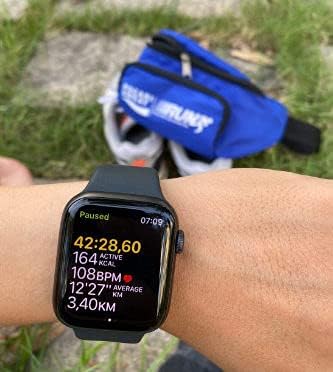
Image 3.1: The HW22 Smart Watch showing active fitness data, including duration, calories, heart rate, and distance.
3.3 Smart Notifications
Once paired with your smartphone, the watch will alert you to incoming calls and messages.
- Ensure the companion app is running in the background on your phone and Bluetooth is active.
- Configure which app notifications you wish to receive on your watch through the settings in the companion app.
- When a notification arrives, the watch will vibrate and display the message or caller ID.
4. Maintenance
4.1 Cleaning Your Smart Watch
Regular cleaning helps maintain the watch's appearance and functionality.
- Watch Body: Wipe the watch body with a soft, lint-free cloth. If necessary, slightly dampen the cloth with water. Avoid using harsh chemicals or abrasive materials.
- Silicone Band: The silicone band can be cleaned with mild soap and water. Rinse thoroughly and dry completely before reattaching to the watch or wearing.
- Ensure the charging contacts on the back of the watch are clean and dry for optimal charging.
4.2 Water Resistance
The HW22 Smart Watch is water resistant. However, it is important to understand its limitations:
- It is designed to withstand splashes, rain, and brief immersion (e.g., washing hands).
- Avoid wearing the watch during swimming, showering with hot water, or diving, as steam and high water pressure can compromise the seals.
- If the watch gets wet, dry it thoroughly with a soft cloth before charging or operating.
4.3 Battery Care
- Avoid extreme temperatures, which can degrade battery performance.
- Do not leave the watch fully discharged for extended periods.
- Use only the provided charging cable.
5. Troubleshooting
If you encounter issues with your HW22 Smart Watch, refer to the following common solutions:
5.1 Watch Not Turning On
- Ensure the watch is fully charged. Connect it to the charger for at least 30 minutes.
- Press and hold the side button for 10-15 seconds to attempt a forced restart.
5.2 Unable to Pair with Phone
- Make sure Bluetooth is enabled on your phone and the watch.
- Ensure the watch is within Bluetooth range (typically 10 meters or 33 feet).
- Restart both your phone and the watch.
- Clear the Bluetooth cache on your phone (if applicable) and try pairing again.
- Verify that you have downloaded the correct companion app for the HW22 Smart Watch.
- Note: Some Samsung phone models may have compatibility issues, preventing successful pairing or full functionality.
5.3 Notifications Not Appearing
- Check the notification settings within the companion app to ensure app notifications are enabled for the watch.
- Ensure the companion app is running in the background on your phone and has all necessary permissions granted.
- Verify that your phone's notification settings allow the companion app to display notifications.
- Ensure the watch is not in 'Do Not Disturb' mode.
5.4 Inaccurate Fitness Data
- Ensure the watch is worn snugly on your wrist, about one finger's width above your wrist bone.
- Calibrate your personal information (height, weight, age) accurately in the companion app.
- For GPS tracking, ensure your phone's GPS is active and you are in an open area with good satellite reception.
6. Specifications
| Feature | Detail |
|---|---|
| Brand Name | Generic |
| Model Name | HW22 |
| Operating System | Android Wear, Watch OS |
| Product Dimensions | 4.5 x 3.85 x 1.28 cm |
| Item Weight | 231 grams |
| Wireless Communication | Bluetooth |
| Connectivity Technologies | Bluetooth |
| GPS | Integrated GPS system |
| Special Features | Water Resistant, Smart, Bluetooth, GPS, Drop Resistant |
| Display Technology | LCD |
| Device Interface | Touchscreen |
| Screen Resolution | 240 x 240 |
| Color | Black |
| Battery Capacity | 210 mAh |
| Memory Storage Capacity | 64 MB |
| Item Shape | Rectangular |
| Screen Size | 1.7 inches |
| First Available Date | July 17, 2021 |
7. Warranty and Support
7.1 Warranty Information
Specific warranty details for the Generic HW22 Smart Watch Series 6 may vary depending on your region and retailer. Please refer to the warranty card included with your product or contact your point of purchase for precise warranty terms and conditions.
7.2 Customer Support
For further assistance, technical support, or inquiries not covered in this manual, please contact the retailer or manufacturer's customer service. Contact information can typically be found on the product packaging or the official website of the brand.


