
SP611E
SP611E RGB Smart Music Bluetooth Smart Controller User Manual
Model: SP611E
Brand: Generic
Product Overview
The SP611E RGB Smart Music Bluetooth Smart Controller is designed to manage addressable LED strip lights, offering versatile control options through both a mobile application and an IR remote. It supports a wide range of LED driver ICs and features built-in dynamic and music effects, along with a timing function for automated operation.
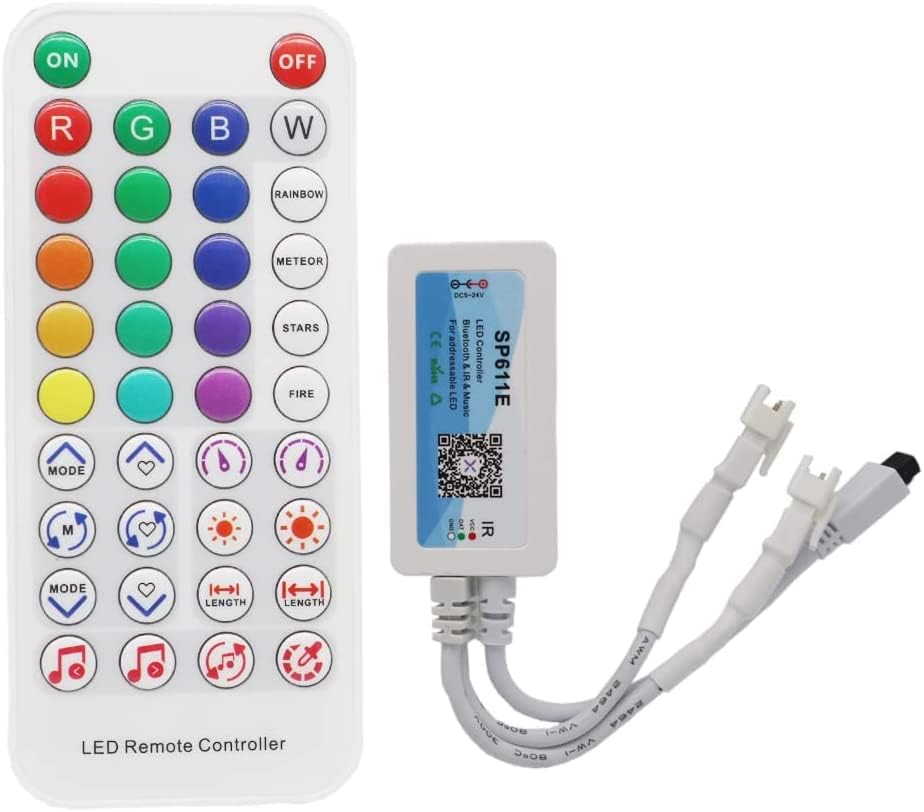
Image: The SP611E controller unit with its included IR remote control, showcasing the compact design of both components.
Key Features:
- Supports both APP control and IR remote control for flexible operation.
- Automatic device connection and re-connection for seamless use with the APP.
- Multiple device grouping control for synchronized lighting setups.
- Diverse sound collection methods: phone microphone, player streaming, and on-board microphone for music synchronization.
- Customizable settings including device name, RGB channel sequence calibration, and timer function.
- Compatible with common single-line LED driver ICs (e.g., WS2811, WS2812B, SK6812, US1903, WS2801), capable of driving up to 600 pixels.
- Features 142 built-in dynamic effects with adjustable length and a favorite effects collection function.
- Includes 18 built-in music effects with adjustable length and sensitivity.
- Wide voltage input range of DC5~24V with anti-reverse connection protection.
- Automatic saving function for setting parameters.
Setup and Installation
1. Power Connection:
Connect the DC5-24V power supply to the controller's input. Ensure the power supply voltage matches the voltage requirements of your LED strip (e.g., use a DC5V power supply for a 5V LED strip). The controller has anti-reverse connection protection.
2. LED Strip Connection:
Connect your addressable LED strip to the controller's output. The controller supports up to 600 pixels (e.g., 600 WS2812B LEDs or 1800 WS2811 LEDs). Ensure the LED strip is compatible with the controller's output signal (SPI TTL Digital Signal).

Image: Detailed view of the SP611E controller showing the power input, LED strip channel output, and IR receiver. Dimensions are also indicated.
3. App Download and Connection:
Scan the QR code on the controller or search for the relevant app in your device's app store. The app supports iOS 10.0/Android 4.4 or later. Enable Bluetooth on your mobile device and open the app. The controller should automatically connect or appear in the device list for pairing.
4. IR Remote Control:
Ensure the IR remote control has batteries installed (not included). Point the remote towards the IR receiver cable extending from the controller for optimal signal reception.
Operating Instructions
A. Using the IR Remote Control:
The 38-key IR remote provides direct control over various functions. Ensure the remote is pointed at the IR receiver.

Image: Close-up of the SP611E IR remote control, detailing the function of each button for static colors, dynamic modes, and adjustments.
- ON/OFF: Turns the LED lights on or off.
- R, G, B, W: Direct selection for Red, Green, Blue, and White colors.
- 16 Static Colors: Select from a palette of 16 predefined static colors.
- 4 Dynamic Modes (RAINBOW, METEOR, STARS, FIRE): Activates various pre-programmed dynamic lighting effects.
- MODE +/-: Cycles through the 142 built-in dynamic effects.
- FAVORITE +/-: Adds or removes current effect to/from favorites.
- SPEED +/-: Adjusts the speed of dynamic effects.
- BRIGHTNESS +/-: Adjusts the overall brightness of the LED lights.
- COLOR LENGTH +/-: Adjusts the length of the color segments in certain dynamic effects.
- MUSIC MODE +/-: Cycles through the 18 built-in music effects.
- MUSIC MODE AUTO: Activates automatic music effect selection.
B. Using the Mobile Application:
The mobile app provides comprehensive control and customization options.
- Device Management: View connected devices, rename them, and group multiple controllers for synchronized control.
- Color & Effects Selection: Access a full color palette, select from 142 dynamic effects, and 18 music effects. Adjust parameters like speed, brightness, and effect length.
- Music Synchronization: Choose between phone microphone, player streaming, or the controller's on-board microphone for music reactive lighting. Adjust sensitivity for optimal performance.
- RGB Channel Calibration: Calibrate the RGB channel sequence to match your specific LED strip's wiring (e.g., GRB, RGB, etc.) for accurate color display.
- Timer Function: Set up to 5 timing events to automatically turn lights on/off or activate specific effects at scheduled times. Note: All timing events will be deleted if the controller is powered down.
Maintenance and Safety
General Care:
- Keep the controller and remote clean and dry. Avoid exposure to moisture or extreme temperatures.
- Operating temperature range: -20℃ to 60℃.
- Storage temperature range: -40℃ to 80℃.
Safety Precautions:

Image: The product packaging, which includes important caution and attention notes regarding handling and installation.
- This device contains moisture-sensitive and electrostatic-sensitive components. Handle with care.
- Installation surface must be smooth, clean, and dry.
- The part of LED components cannot be fixed on the surface of a sharp edge.
- LED strip should not be collided or crushed.
- If cutting the LED strip, follow the designated cutting lines only.
- Ensure the output voltage of the LED strip and the power supply are consistent. Using an incorrect voltage (e.g., 12V for a 5V strip) can damage the components.
Troubleshooting
- Controller Not Powering On:
- Verify that the power supply is correctly connected and providing the correct voltage (DC5-24V) to the controller. Ensure the power supply is functional.
- Check for any loose connections between the power supply and the controller.
- LEDs Not Responding or Displaying Incorrect Colors:
- Confirm that the LED strip is correctly connected to the controller's output channel.
- Ensure the LED strip type (e.g., WS2812B, WS2811) is compatible with the controller and that the pixel count does not exceed 600 pixels.
- Use the mobile app to calibrate the RGB channel sequence if colors appear incorrect (e.g., red shows as green).
- Verify that the power supply voltage matches the LED strip's voltage requirement.
- Mobile App Cannot Connect to Controller:
- Ensure Bluetooth is enabled on your mobile device.
- Make sure the controller is powered on and within Bluetooth range.
- Close and reopen the app, or restart your mobile device.
- Check app permissions to ensure it has access to Bluetooth.
- IR Remote Control Not Working:
- Check if batteries are correctly installed in the remote and are not depleted.
- Ensure there is a clear line of sight between the remote and the controller's IR receiver.
- The IR receiver cable should be fully extended and not obstructed.
- Timing Events Disappear After Power Off:
- This is expected behavior. The controller's timing events are not saved permanently and will be deleted when the controller is powered down. They must be re-set after a power cycle.
Technical Specifications
| Feature | Specification |
|---|---|
| Model Number | SP611E |
| Input Voltage | DC5-24V |
| Working Temperature | -20℃ ~ 60℃ |
| Supported Operating Systems | iOS 10.0/ Android 4.4 or later |
| Output Signal | SPI (TTL) Digital Signal |
| Connection Type | IR 38 Keys Remote Control or Bluetooth APP Control |
| Controllable Pixels | Up to 600 pcs IC (e.g., 600 WS2812B LEDs, 1800 WS2811 LEDs) |
| Application | Digital Addressable LED Light |
| Special Features | Color Changing, Music Sync, Timer Function, Automatic Parameter Saving |
| Power Source | Wired Electric |
| Manufacturer | XINCHENDIANZI |
Warranty and Support
This product is manufactured by XINCHENDIANZI. For any questions regarding product operation, troubleshooting, or warranty claims, please contact the retailer from whom you purchased the product. They will be able to provide assistance or direct you to the appropriate support channels.
Please retain your proof of purchase for any warranty-related inquiries.
Related Documents - SP611E
 |
WeeTisa SPI Amplifier User Manual for Addressable LED Strips User manual for the WeeTisa SPI Signal Amplifier, designed to boost and distribute control signals for 5V-TTL addressable LED strips like WS2811, WS2812B, and SK6812. Learn how to connect it with various controllers for expanded lighting projects. |
 |
BTF-LIGHTING FCOB WS2812B SPI RGB IC LED Strip User Manual User manual for the BTF-LIGHTING FCOB WS2812B SPI RGB IC LED Strip, detailing product parameters, installation, precautions, and controller compatibility for optimal lighting setups. |
 |
Guía de Uso del Controlador SP611E para Tiras de Luz COB Guía de usuario completa para el controlador SP611E con tiras de luz LED COB. Aprenda la configuración, control de app Bluetooth para iOS/Android, modos estático, dinámico, música, calibración de color y funciones de temporizador. |
 |
BTF-LIGHTING FCOB WS2812B SPI RGB IC LED Strip User Manual User manual for BTF-LIGHTING FCOB WS2812B SPI RGB IC LED Strip. Details product specifications, precautions, controller and power supply recommendations, wiring diagrams, installation instructions, and professional lighting solutions. |
 |
SP611E LED Controller User Guide User guide and feature overview for the KTRLIGHT SP611E Bluetooth music sync LED controller, covering app control, dynamic effects, and compatibility. |
 |
SP611E Bluetooth Music Pixel LED Controller: Features, App & Remote Control Guide Explore the features, app control (iOS/Android), and RF remote functions of the Sperll SP611E Bluetooth Music Pixel LED Controller. Learn about its technical specifications and wire connection for LED lighting projects. |
Ask a question about this manual
Ask about setup, troubleshooting, compatibility, parts, safety, or missing instructions. Manuals+ will review the question and use this page’s manual context to help answer it.