
1. Introduction
Thank you for choosing the Galax Quasar GX600-WH Gaming PC Case. This manual provides essential information for the proper installation, operation, and maintenance of your new PC case. Please read this manual thoroughly before beginning installation to ensure optimal performance and safety.
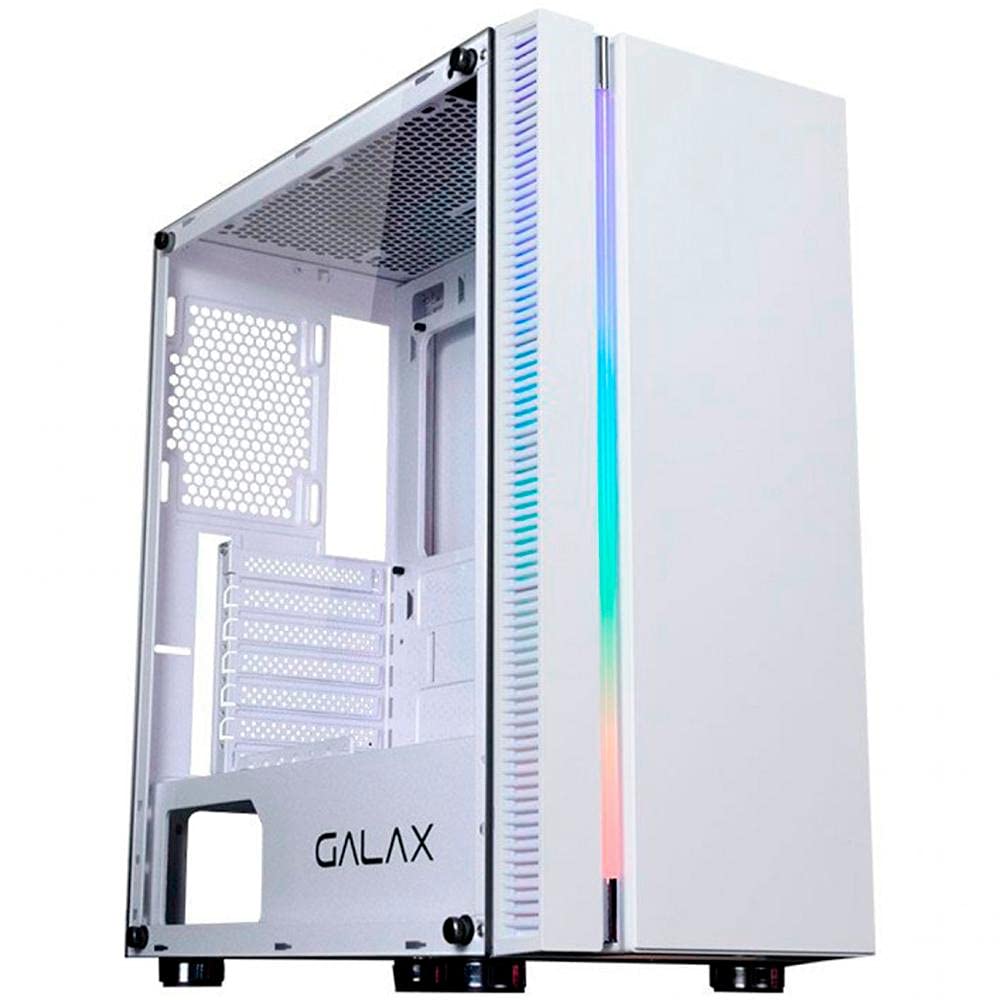
Figure 1.1: Front view of the Galax Quasar GX600-WH Gaming PC Case, showcasing its integrated RGB lighting and minimalist design.
2. Safety Information
Please observe the following safety precautions to prevent damage to the product and ensure user safety:
- Always disconnect the power supply from the wall outlet before installing or removing any components inside the PC case.
- Handle the tempered glass panel with care. It is fragile and can break if dropped or subjected to impact.
- Avoid placing the PC case in direct sunlight, near heat sources, or in areas with high humidity.
- Ensure proper ventilation to prevent overheating. Do not block the air vents.
- Keep small parts and screws away from children.
3. Package Contents
Verify that all items are present in the package:
- Galax Quasar GX600-WH Mid Tower PC Case
- Accessory Box (screws, standoffs, cable ties)
- User Manual (this document)
Note: Fans are not included with this product and must be purchased separately.
4. Product Overview
4.1. Key Features
- Integrated RGB lighting on the front panel.
- Simple and minimalist design.
- Tempered glass side panel for component display.
- Front panel connectivity: 1x USB 3.0, 2x USB 2.0, 1x 3.5mm Audio, 1x 3.5mm Microphone.
- Rubber grommets for cable management.
- PSU shroud cutout to display power supply model.
- Magnetic dust filter on the top panel.
4.2. Component Identification
Familiarize yourself with the main parts of the PC case:
- Front Panel with RGB Lighting
- Tempered Glass Side Panel
- Steel Side Panel (right side)
- Top Panel with Magnetic Dust Filter
- Rear Panel (I/O shield cutout, PCI-E slots)
- Front I/O Ports (USB, Audio)
- PSU Shroud
- Drive Bays (2.5" and 3.5")
Figure 4.1: Internal layout of the GX600-WH case, highlighting motherboard tray, drive bays, and cable routing options.
5. Setup and Installation
Follow these steps to install your PC components:
5.1. Preparing the Case
- Place the case on a flat, stable surface.
- Remove the tempered glass side panel by unscrewing the thumb screws and carefully pulling it away. Set it aside on a soft, non-abrasive surface.
- Remove the steel side panel by unscrewing the thumb screws and sliding it backward.
5.2. Motherboard Installation
- Install the I/O shield into the cutout on the rear panel of the case.
- Align your ATX, Micro-ATX, or Mini-ITX motherboard with the pre-installed standoffs. Additional standoffs may be required for certain motherboard sizes; install them as needed.
- Secure the motherboard with the provided screws.
5.3. Power Supply Unit (PSU) Installation
- Position the PSU into the dedicated compartment at the bottom rear of the case.
- Ensure the PSU fan faces downwards (if the case has a bottom vent) or upwards (if no bottom vent).
- Secure the PSU with screws from the rear of the case.
5.4. Storage Drive Installation
- 2.5" Drives (SSDs): Locate the 2.5" drive mounts behind the motherboard tray or on the PSU shroud. Secure the SSDs using the provided screws.
- 3.5" Drives (HDDs): Locate the 3.5" drive cage. Slide the HDDs into the trays and secure them, typically with tool-less clips or screws.
5.5. Expansion Card (GPU, etc.) Installation
- Remove the necessary PCI-E slot covers from the rear of the case.
- Insert your expansion card (e.g., graphics card) into the appropriate PCI-E slot on the motherboard.
- Secure the card with a screw.
5.6. Fan and Radiator Installation (Optional)
The GX600-WH supports various fan and radiator configurations:
- Top: Up to 2x 120mm fans or a 240mm radiator.
- Front: Up to 2x 120mm fans, 1x 140mm fan, or a 240mm radiator.
- Rear: 1x 120mm fan or a 120mm radiator.
Install fans/radiators using the appropriate screws, ensuring correct airflow direction.
5.7. Cable Management
Route all cables (PSU, data, front panel) through the rubber grommets and cable tie points behind the motherboard tray to maintain a clean interior and optimize airflow.
Figure 5.1: Illustration of the cable routing space behind the motherboard tray, demonstrating the use of rubber grommets for neat cable management.
6. Operating Instructions
6.1. Connecting Peripherals
Once all internal components are installed and secured, replace both side panels. Connect your monitor, keyboard, mouse, and other peripherals to the appropriate ports on your motherboard's I/O shield and graphics card.
6.2. Powering On
- Connect the power cable to your PSU and then to a wall outlet.
- Flip the power switch on the PSU to the "ON" position.
- Press the power button on the front panel of the GX600-WH case. The integrated RGB lighting should illuminate, and your system should begin to boot.
Figure 6.1: Detailed view of the front I/O panel, showing the power button, USB 3.0, USB 2.0, and audio jacks.
7. Maintenance
Regular maintenance helps prolong the life of your PC components and ensures optimal performance.
- Dust Filters: The top panel features a magnetic dust filter. Regularly remove and clean it with water or a soft brush. Ensure it is completely dry before reattaching.
- Interior Cleaning: Periodically open the side panels and use compressed air to remove dust buildup from fans, heatsinks, and other components.
- Exterior Cleaning: Wipe the exterior surfaces with a soft, damp cloth. Avoid abrasive cleaners or solvents. For the tempered glass, use a glass cleaner and a microfiber cloth.
8. Troubleshooting
If you encounter issues with your PC case, refer to the following common problems and solutions:
| Problem | Possible Cause | Solution |
|---|---|---|
| PC does not power on. | PSU switch off, power cables loose, front panel connector issue. | Ensure PSU switch is ON. Check all power connections (24-pin, 8-pin CPU, GPU). Verify front panel power button connector is correctly attached to the motherboard. |
| Front panel USB ports not working. | USB header cable not connected or incorrectly connected to motherboard. | Check the USB 3.0 and USB 2.0 header cables are securely connected to the correct pins on your motherboard. |
| Front panel audio jacks not working. | HD Audio cable not connected or incorrectly connected to motherboard. | Ensure the HD Audio cable is securely connected to the correct audio header on your motherboard. |
| RGB lighting not working. | RGB cable not connected to motherboard or controller. | Verify the RGB cable from the front panel is connected to a compatible RGB header on your motherboard or an external RGB controller. |
9. Specifications
| Feature | Detail |
|---|---|
| Case Type | Mid Tower |
| Materials | SGCC Steel, Tempered Glass |
| Color | White |
| Motherboard Support | ATX, Micro-ATX, Mini-ITX |
| Expansion Slots | 7 Horizontal PCI-E |
| Drive Bays | 2x 2.5", 2x 3.5" |
| Front I/O Ports | 1x USB 3.0, 2x USB 2.0, 1x 3.5mm Audio, 1x 3.5mm Microphone |
| Fan Support (Top) | 2x 120mm |
| Fan Support (Front) | 2x 120mm or 1x 140mm |
| Fan Support (Rear) | 1x 120mm |
| Radiator Support (Top) | Up to 240mm |
| Radiator Support (Front) | Up to 240mm |
| Radiator Support (Rear) | 120mm |
| Max GPU Length | 345mm |
| Max CPU Cooler Height | 160mm |
| Dimensions (L x W x H) | 474mm x 257mm x 488mm |
| Item Weight | 6.25 kg |
Figure 9.1: Technical drawing illustrating the dimensions of the Galax Quasar GX600-WH case.
10. Warranty and Support
The Galax Quasar GX600-WH PC Case comes with a 12-month warranty from the date of purchase. This warranty covers manufacturing defects and material faults under normal use.
The warranty does not cover:
- Damage caused by improper installation, accident, abuse, misuse, natural disaster, or unauthorized modification.
- Cosmetic damage, including but not limited to scratches, dents, and broken plastic on ports, that does not affect functionality.
- Normal wear and tear.
For technical support or warranty claims, please contact your local Galax distributor or retailer with your proof of purchase.