
Avolusion HD250U3-Z1-PRO
Avolusion HD250U3-Z1-PRO 2TB USB 3.0 External Gaming Hard Drive User Manual
For Xbox One X, S & Series X | S Consoles
1. Introduction
This manual provides detailed instructions for the setup, operation, maintenance, and troubleshooting of your Avolusion HD250U3-Z1-PRO 2TB USB 3.0 Portable External Gaming Hard Drive. Please read this manual thoroughly to ensure proper use and to maximize the performance and lifespan of your device.

Image 1.1: Avolusion HD250U3-Z1-PRO 2TB USB 3.0 External Gaming Hard Drive. This image shows the sleek, piano black finish of the portable hard drive.
Package Contents:
- Avolusion HD250U3-Z1-PRO External Gaming Hard Drive
- USB 3.0 Cable
- User Manual (this document)

Image 1.2: Package contents including the Avolusion USB HDD, USB 3.0 cable, and retail box.
2. Setup
The Avolusion HD250U3-Z1-PRO is designed for easy plug-and-play installation with your Xbox console. It comes pre-formatted for immediate use.
2.1 Connecting the Hard Drive to Your Xbox
- Ensure your Xbox console is powered on.
- Connect the included USB 3.0 cable to the Avolusion HD250U3-Z1-PRO hard drive.
- Connect the other end of the USB 3.0 cable to an available USB port on your Xbox console. The drive is USB bus-powered, so no external power adapter is needed.
- Wait approximately 10 seconds for the Xbox to detect the external hard drive. A pop-up format screen should appear.
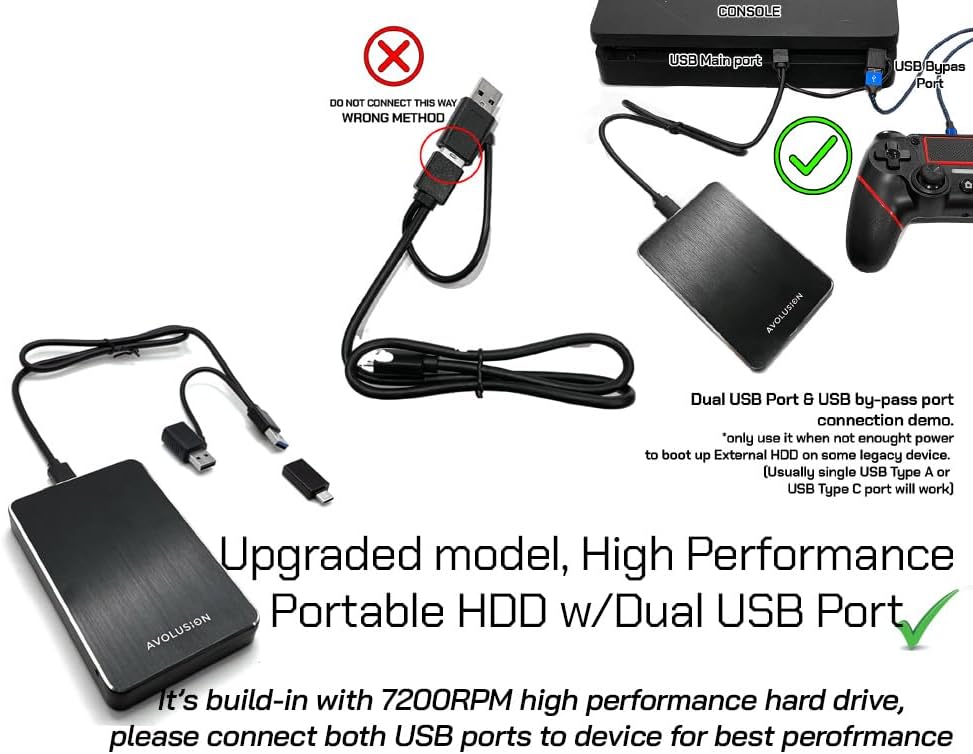
Image 2.1: Demonstration of connecting the Avolusion HD250U3-Z1-PRO to an Xbox console using the dual USB port cable. Ensure both USB ports are connected for optimal performance.
2.2 Initial Formatting (if prompted)
Upon first connection, your Xbox may prompt you to format the drive. Follow the on-screen instructions:
- Select "Format Storage Device" if you intend to use the drive exclusively for games and apps. This will erase any existing data on the drive.
- If you choose "Use for Media", the drive will be formatted for media (music, videos, pictures) and cannot be used for games and apps.
- You may be asked to name your device.
- Choose whether to install new games and apps to this drive by default. You can change this setting later in Settings > System > Storage.
Video 2.1: This video demonstrates the process of connecting and formatting an external USB hard drive for an Xbox console. It shows the steps from plugging in the drive to completing the formatting process within the Xbox system settings.
3. Operating Instructions
The Avolusion HD250U3-Z1-PRO provides additional storage for your Xbox games and apps. Understanding how it interacts with different Xbox game types is crucial.
3.1 Game Compatibility and Usage
- Xbox One Games: You can play Xbox One games directly from the Avolusion external USB 3.0 hard drive. This helps free up valuable space on your Xbox Series X|S console's internal storage.
- Xbox Series X|S Games: Games optimized for Xbox Series X|S must be played directly from the console's internal SSD. The external USB HDD can be used to store these games as a buffer, but they cannot be played directly from it.
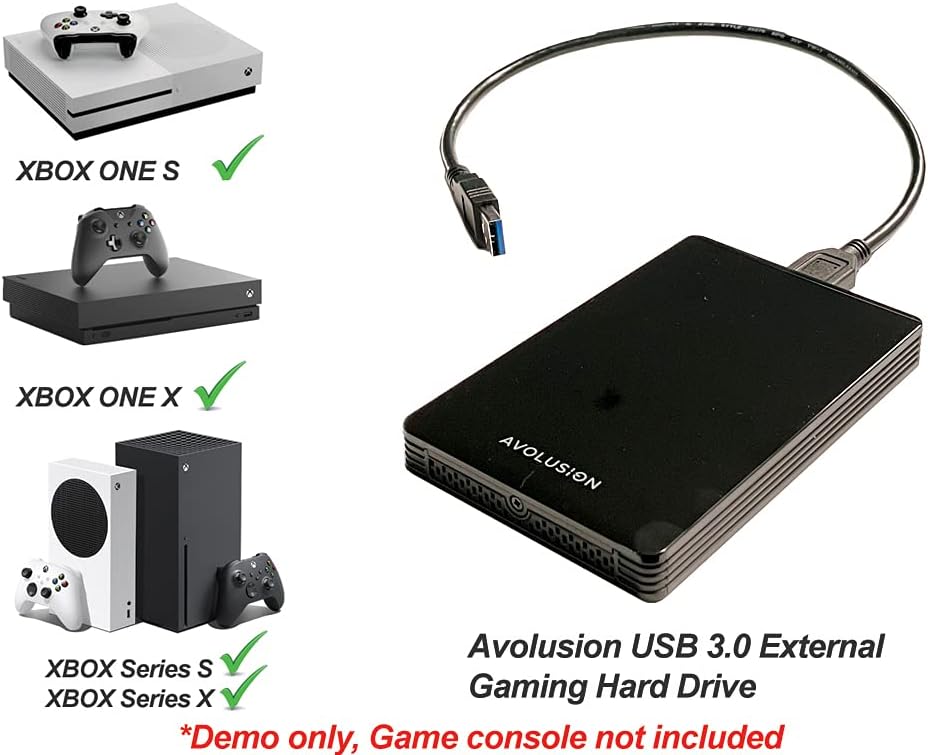
Image 3.1: The Avolusion HD250U3-Z1-PRO is compatible with Xbox One S, Xbox One X, Xbox Series S, and Xbox Series X consoles.
3.2 Moving Games Between Storage Devices
To manage your game library efficiently, you can move games between your console's internal storage and the Avolusion external hard drive.
- Go to Settings > System > Storage devices on your Xbox console.
- Select the game you wish to move.
- Choose "Move or copy" and select the destination storage (either internal storage or the Avolusion USB device).
Moving Xbox Series X|S games from the external drive back to the internal SSD is significantly faster than re-downloading them.
Video 3.1: This video illustrates how to move an Xbox game from your console's internal storage to the Avolusion USB hard drive. It guides you through the Xbox system settings to initiate the transfer.
Video 3.2: This video demonstrates the process of moving an Xbox game from the Avolusion USB hard drive back to the Xbox console's internal storage, which is necessary for playing Xbox Series X|S optimized titles.
4. Maintenance
Proper care and maintenance will ensure the longevity and optimal performance of your Avolusion HD250U3-Z1-PRO hard drive.
- Safe Disconnection: Always safely eject the hard drive from your Xbox console before unplugging it to prevent data corruption. Go to Settings > System > Storage devices, select the Avolusion drive, and choose the option to safely remove it.
- Physical Care: Avoid dropping or subjecting the drive to physical shocks, as this can damage the internal mechanical components.
- Cleaning: Use a soft, dry cloth to clean the exterior of the drive. Do not use liquid cleaners or solvents.
- Ventilation: Ensure the drive is placed in a well-ventilated area to prevent overheating. The drive is designed with excellent heat dissipation features.

Image 4.1: Icon representing excellent heat dissipation, a key feature for maintaining drive performance.
5. Troubleshooting
If you encounter issues with your Avolusion HD250U3-Z1-PRO, refer to the following common solutions:
- Drive Not Detected:
- Ensure the USB cable is securely connected to both the hard drive and the Xbox console.
- Try connecting the drive to a different USB port on your Xbox.
- Unplug and re-plug the USB cable.
- Restart your Xbox console.
- If using the dual USB cable, ensure both connectors are plugged into the Xbox for sufficient power.
- Game Not Playing from External Drive (Xbox Series X|S):
- Remember that Xbox Series X|S optimized games must be played from the console's internal SSD. The external drive is for storage only.
- Move the game back to the internal storage to play it (refer to Section 3.2).
- Slow Performance:
- Ensure you are using a USB 3.0 port on your Xbox for optimal speed.
- Verify the USB cable is not damaged.
- Avoid placing the drive in an enclosed space where it might overheat.
- Unusual Noises:
- A slight humming or clicking sound is normal for mechanical hard drives.
- If the noise is loud or persistent, ensure the drive is on a stable, flat surface.
- If the noise is excessive or accompanied by performance issues, contact support.
6. Specifications
Key technical details for the Avolusion HD250U3-Z1-PRO 2TB USB 3.0 External Gaming Hard Drive:
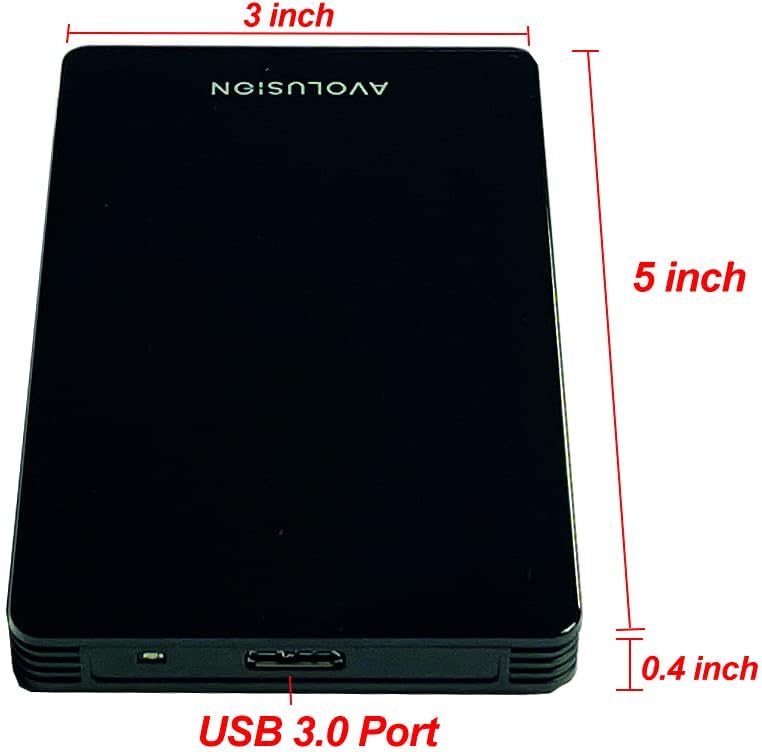
Image 6.1: Dimensions of the Avolusion HD250U3-Z1-PRO, showing its compact size of 5 x 3 x 0.4 inches.
| Feature | Detail |
|---|---|
| Brand | Avolusion |
| Model Number | HD250U3-Z1-PRO-2TB-XBOX |
| Digital Storage Capacity | 2 TB |
| Hard Disk Type | Mechanical Hard Disk (2.5 Inches) |
| Hard Drive Rotational Speed | 5400 RPM |
| Interface | USB 3.0 |
| Connectivity Technology | USB |
| Product Dimensions (LxWxH) | 5 x 3 x 0.4 inches |
| Item Weight | 8.4 ounces |
| Color | Black |
| Special Feature | Durable, Portable |
| Installation Type | Plug In |
| Compatible Devices | Gaming Console (Xbox One S, X, Original & Series X, S) |

Image 6.2: The Avolusion HD250U3-Z1-PRO is designed with a mini compact size for portability.
7. Warranty Information
Your Avolusion HD250U3-Z1-PRO 2TB USB 3.0 Portable External Gaming Hard Drive comes with a 2-Year Warranty from the date of purchase.
Additionally, optional data recovery plans are available:
- 2-Year Data Recovery Plan
- 3-Year Data Recovery Plan
For specific terms and conditions of your warranty or data recovery plan, please refer to the documentation provided at the time of purchase or contact Avolusion customer support.
8. Support
For further assistance, technical support, or warranty claims, please contact Avolusion customer service. You can also visit the official Avolusion store for more product information and resources:
Visit the Avolusion Store on Amazon
When contacting support, please have your product model number (HD250U3-Z1-PRO) and proof of purchase readily available.