
Welcome
Thank you for choosing the HTC HS01 Bluetooth Headphones. This manual provides essential information for setting up, operating, maintaining, and troubleshooting your new headphones. Please read it carefully to ensure optimal performance and longevity of your device.
Package Contents
Verify that all items listed below are included in your package:
- 1 x HTC HS01 Bluetooth Headphones
- 1 x USB Charging Cable
- Multiple sizes of ear tips (Small, Medium, Large)
- 1 x User Manual

Image: The package contents, including the headphones, charging cable, various ear tips, and the user manual.
Product Overview
The HTC HS01 features a lightweight neckband design with in-ear earbuds, equipped with intuitive controls for easy operation.
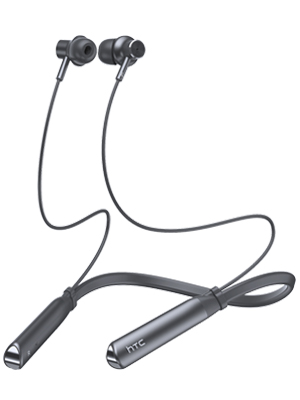
Image: A full view of the HTC HS01 Bluetooth Headphones, showcasing the neckband and earbuds.
Controls
The control panel is located on the neckband for easy access:
- ANC Button: Activates or deactivates Active Noise Cancellation.
- Volume + / Next Track: Increases volume or skips to the next track.
- Power / Multi-function Button: Powers the device on/off, plays/pauses music, answers/ends calls.
- Volume - / Previous Track: Decreases volume or goes to the previous track.
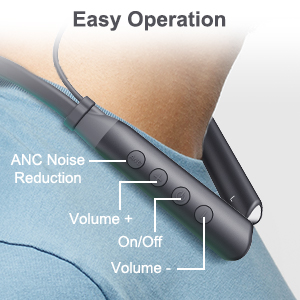
Image: A close-up view of the control buttons on the HTC HS01 neckband, detailing their functions.
Setup
1. Charging the Headphones
- Connect the USB charging cable to the charging port on the headphones.
- Plug the other end of the cable into a USB power source (e.g., computer, wall adapter).
- The indicator light will show charging status. A full charge typically takes approximately 2 hours.
A fully charged battery provides up to 12 hours of music playback, 10 hours of talk time, and 180 days of standby time.
2. Pairing with a Bluetooth Device
- Ensure the headphones are turned off.
- Press and hold the Power/Multi-function button until the indicator light flashes red and blue, indicating pairing mode.
- On your device (smartphone, tablet, computer), enable Bluetooth and search for available devices.
- Select "HTC HS01" from the list of found devices.
- Once connected, the indicator light will turn solid blue or flash blue slowly.
The headphones utilize Bluetooth 5.0 technology for stable and efficient wireless transmission.
Operating Instructions
Power On/Off
- To Power On: Press and hold the Power/Multi-function button for 3 seconds.
- To Power Off: Press and hold the Power/Multi-function button for 5 seconds.
Music Playback
- Play/Pause: Press the Power/Multi-function button once.
- Next Track: Press and hold the Volume + button.
- Previous Track: Press and hold the Volume - button.
- Volume Up: Press the Volume + button briefly.
- Volume Down: Press the Volume - button briefly.

Image: A woman enjoying music with the HTC HS01 headphones, illustrating the 9D stereo sound experience.
Call Management
- Answer/End Call: Press the Power/Multi-function button once.
- Reject Call: Press and hold the Power/Multi-function button for 2 seconds.
Active Noise Cancellation (ANC)
- Press the dedicated ANC button to activate or deactivate the noise cancellation feature.
The ANC+ENC technology uses both outward-facing and inward-facing microphones to detect and counteract environmental noise, providing a clearer audio experience.

Image: A man wearing the HTC HS01 headphones in an outdoor setting, highlighting the ANC feature.
Maintenance
Cleaning
Regularly clean your headphones to maintain optimal performance:
- Wipe the earbuds and neckband with a soft, dry cloth.
- Remove ear tips and clean them with mild soap and water if necessary, ensuring they are completely dry before reattaching.
- Do not use abrasive cleaners or solvents.
Storage
When not in use, store your headphones in a cool, dry place away from direct sunlight and extreme temperatures. The earbuds feature a secure magnetic design for tangle-free storage.
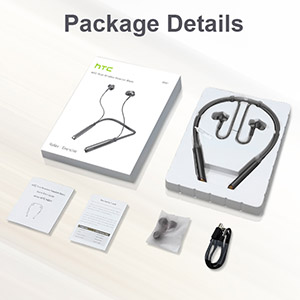
Image: A woman wearing the headphones, demonstrating the magnetic earbuds that secure them around the neck.
Water Resistance (IPX5)
The HTC HS01 headphones are IPX5 water-resistant, meaning they can withstand light rain and sweat. They are suitable for sports and outdoor activities. However, they are not designed for submersion in water.

Image: A man exercising, highlighting the IPX5 waterproof design of the headphones, suitable for workouts.
Troubleshooting
If you encounter any issues with your HTC HS01 headphones, refer to the following common problems and solutions:
- Headphones will not power on:
Ensure the battery is charged. Connect the headphones to a power source using the USB charging cable. - Cannot pair with a device:
Make sure the headphones are in pairing mode (indicator light flashing red and blue). Ensure Bluetooth is enabled on your device and it is within range. Try restarting both the headphones and your device. - No sound or low volume:
Check the volume levels on both the headphones and your connected device. Ensure the headphones are properly paired and connected. Try re-pairing the headphones. - Poor sound quality:
Ensure the ear tips provide a secure and comfortable seal in your ear canal. Clean the earbuds to remove any debris that might be obstructing the sound. Move closer to your paired device to avoid interference. - Short Bluetooth range or frequent disconnections:
Bluetooth range can be affected by obstacles and interference. Try to keep your paired device closer to the headphones, ideally within 10 meters (33 feet) in an open environment.
Specifications
| Model Number | HS01 |
| Connectivity Technology | Bluetooth 5.0 |
| Noise Control | Active Noise Cancellation (ANC+ENC) |
| Speaker Unit | 10mm |
| Battery Capacity | 130 mAh Lithium Ion |
| Music Playtime | Up to 12 hours |
| Talk Time | Up to 10 hours |
| Standby Time | Up to 180 days |
| Charging Time | Approx. 2 hours |
| Water Resistance Rating | IPX5 |
| Item Weight | 35 Grams (1.23 ounces) |
| Material | Plastic |
| Ear Placement | In Ear |
| Control Method | Touch, Button |
Warranty and Support
HTC products are designed for reliability and performance. For warranty information or technical support, please refer to the warranty card included in your package or visit the official HTC support website. Keep your purchase receipt as proof of purchase for any warranty claims.


