Introduction
This manual provides detailed instructions for the setup, operation, and maintenance of your EVAWGIB EV-B208 1D 2D Wireless Barcode Scanner. Please read this manual thoroughly before using the device to ensure proper functionality and to prevent damage.
Product Overview
Key Features
- Supports 1D and 2D barcode scanning.
- Multiple transmission modes: Bluetooth, 2.4GHz Wireless, and Wired (USB).
- Compatible with various operating systems including Mac OS X, Android, Windows 11, and iOS.
- Two working modes: Instant upload and Storage mode (up to 50,000 barcodes offline).
- Two scanning modes: Manual trigger and Automatic continuous scanning.
- Identification accuracy: ≥ 4mil.
- Minimum Contrast: 25%.
- Wireless transmission distance: Bluetooth up to 50m (164.04 ft), 2.4GHz up to 100m (328.08 ft).
- Decoding Speed: 300 times/s.
- Ergonomic design with IP42 protection grade and 1.8m anti-fall height.

Image: The EVAWGIB EV-B208 barcode scanner shown with its included stand, USB charging cable, and 2.4GHz wireless USB dongle, highlighting its versatile connectivity options.
Setup Instructions
1. Charging the Scanner
Connect the scanner to a USB power source using the provided USB cable. The indicator light will show charging status.
2. Connecting the Scanner
The EV-B208 scanner supports three connection modes: 2.4GHz Wireless, Bluetooth, and Wired USB.
2.1. 2.4GHz Wireless Connection
Insert the 2.4GHz USB dongle into an available USB port on your computer or device. The scanner will automatically pair with the dongle. No additional drivers are typically required.

Image: Illustration of the USB and 2.4GHz wireless plug-and-play setup, showing the scanner, a laptop displaying a barcode, a USB cable, and the 2.4GHz dongle, indicating ease of connection without driver installation.
2.2. Bluetooth Connection
- Ensure your device (smartphone, tablet, PC) has Bluetooth enabled.
- Power on the scanner. Scan the Bluetooth pairing barcode (refer to the quick start guide or scanner settings for this barcode).
- On your device, search for available Bluetooth devices and select "EV-B208" or a similar name.
- Once paired, the scanner's indicator light will confirm the connection.
2.3. Wired USB Connection
Connect the scanner directly to your computer's USB port using the provided USB cable. The scanner will function as a wired device, and no additional power source is needed as it will draw power from the USB port.

Image: The barcode scanner is shown alongside logos for Windows XP, 7, 8, and 10, illustrating its compatibility with various operating systems and software for barcode scanning.
Operating Instructions
1. Scanning Modes
The scanner offers two primary scanning modes:
1.1. Manual Trigger Mode
Press the trigger button on the scanner to activate the laser/light and scan a barcode. Release the button after a successful scan.
1.2. Automatic Continuous Scanning Mode
To enable automatic scanning, scan the specific "Automatic Mode" configuration barcode (refer to the quick start guide or scanner settings). In this mode, the scanner will continuously scan without requiring the trigger button to be pressed.
2. Working Modes
The scanner supports two data transmission modes:
2.1. Instant Upload Mode
In this default mode, scanned barcodes are immediately transmitted to the connected device. Ensure the scanner is within range of the receiver (2.4GHz dongle or Bluetooth device) for data transmission.
2.2. Storage Mode (Offline Mode)
To activate storage mode, scan the "Storage Mode" configuration barcode. In this mode, scanned barcodes are stored internally in the scanner's memory. This is useful when the scanner is out of range of the connected device. The scanner can store up to 50,000 barcodes. To upload stored data, reconnect the scanner to your device and scan the "Upload Data" configuration barcode.
3. Supported Barcode Types
The EV-B208 supports a wide range of 1D and 2D barcodes, including but not limited to:
- 1D Codes: EAN-8, EAN-13, UPC-A, UPC-E, Code 39, Code 93, Code 128, Codabar, Interleaved 2 of 5, Industrial 2 of 5, Matrix 2 of 5, GS1 DataBar.
- 2D Codes: QR Code, Data Matrix, PDF417, Aztec Code.
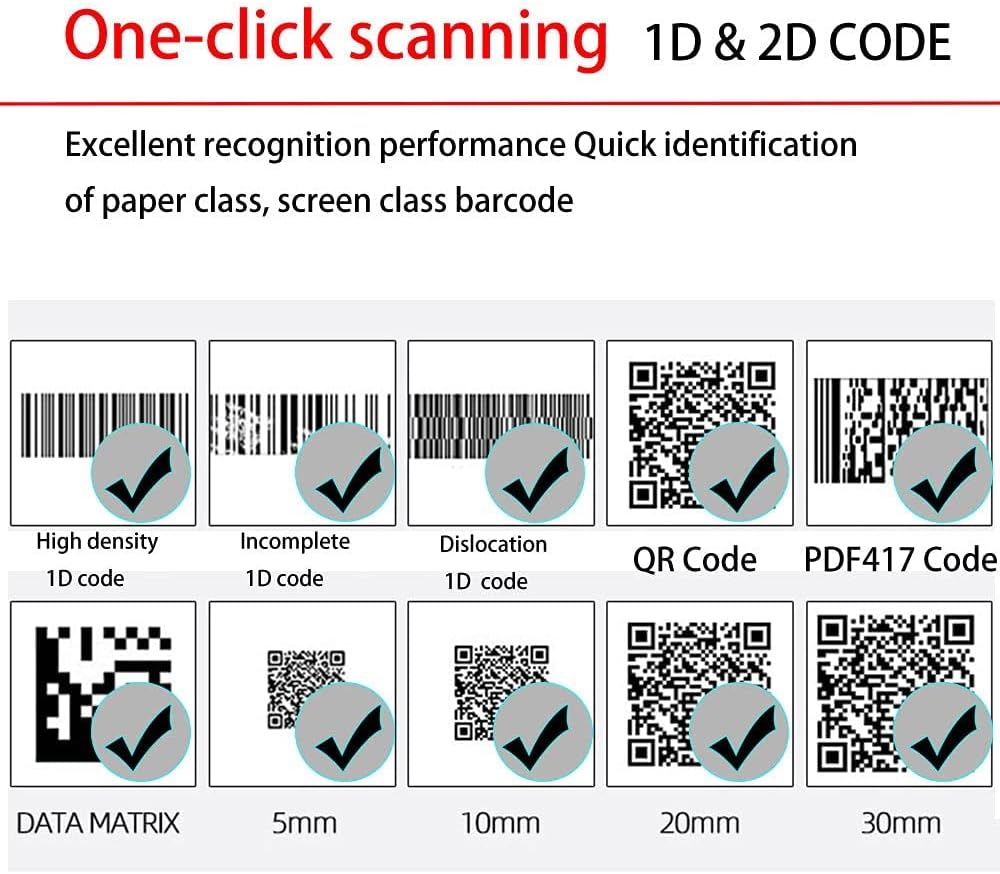
Image: Examples of various 1D and 2D barcodes, including High density 1D, Incomplete 1D, Dislocation 1D, QR Code, PDF417 Code, and Data Matrix, demonstrating the scanner's ability to recognize different code types and conditions.
Maintenance
1. Cleaning
Regularly clean the scanner's scanning window and body with a soft, dry, lint-free cloth. Do not use abrasive cleaners, solvents, or excessive moisture, as these can damage the device.
2. Battery Care
To prolong battery life, avoid fully discharging the battery frequently. If the scanner will not be used for an extended period, charge it to approximately 50% before storage and recharge every few months.
3. Storage
Store the scanner in a cool, dry place away from direct sunlight, extreme temperatures, and corrosive materials.

Image: The barcode scanner is depicted on a cracked surface, illustrating its anti-earthquake and anti-fall design, emphasizing its durability and ergonomic build for comfortable use.
Troubleshooting
Scanner Not Connecting
- Check Power: Ensure the scanner is charged and powered on.
- 2.4GHz Connection: Verify the USB dongle is securely inserted into the device's USB port. Try a different USB port.
- Bluetooth Connection: Ensure Bluetooth is enabled on your host device and the scanner is in pairing mode. Remove previous pairings and re-pair if necessary.
- Wired Connection: Ensure the USB cable is securely connected to both the scanner and the host device. Try a different USB port or cable.
Scanner Not Reading Barcodes
- Barcode Type: Confirm the barcode type is supported by the EV-B208.
- Barcode Quality: Ensure the barcode is clear, undamaged, and has sufficient contrast.
- Distance and Angle: Adjust the distance and angle between the scanner and the barcode.
- Lighting: Ensure adequate lighting, but avoid direct glare on the barcode.
- Scanning Mode: Verify the scanner is in the correct scanning mode (manual or automatic).
Data Transmission Issues
- Range: Ensure the scanner is within the effective transmission range for Bluetooth or 2.4GHz wireless modes.
- Working Mode: Check if the scanner is in Instant Upload mode. If it's in Storage mode, you need to upload the data manually.
- Interference: Minimize potential interference from other wireless devices.
Specifications
| Feature | Detail |
|---|---|
| Model Number | EV-B208 |
| Identification Accuracy | ≥ 4mil |
| Minimum Contrast | 25% |
| Interface | USB |
| Transmission Modes | Bluetooth, 2.4GHz Wireless, USB Wired |
| Bluetooth Distance | Up to 50m (164.04 ft) |
| 2.4GHz Wireless Distance | Up to 100m (328.08 ft) |
| Dimensions (Scanner) | 92.5 × 70 × 154.6 mm (3.64 × 2.76 × 6.09 in) |
| Weight (without cable) | 150g (0.33 lb) |
| Decoding Speed | 300 times/s |
| Drop Height (Free Fall) | 1.8 meters (70.87 in) |
| Protection Grade | IP42 |
| Compatible Devices | Tablet, PC, Smartphone |
| Power Source | Battery Powered |

Image: A hexagonal graphic illustrating various application environments for the barcode scanner, including Supermarket, Restaurant, Express, Library, Toggery (clothing store), and Pharmacy, demonstrating its versatility.
Warranty and Support
For warranty information and technical support, please refer to the product packaging or contact your retailer. Keep your purchase receipt for warranty claims.