Product Overview
The Samsung Galaxy Tab S7 FE is an Android tablet designed for a balance of productivity and entertainment. It features a large 12.4-inch display, dual speakers, and includes an S Pen for note-taking and creative tasks. This tablet is equipped with a powerful processor and offers multi-device connectivity.
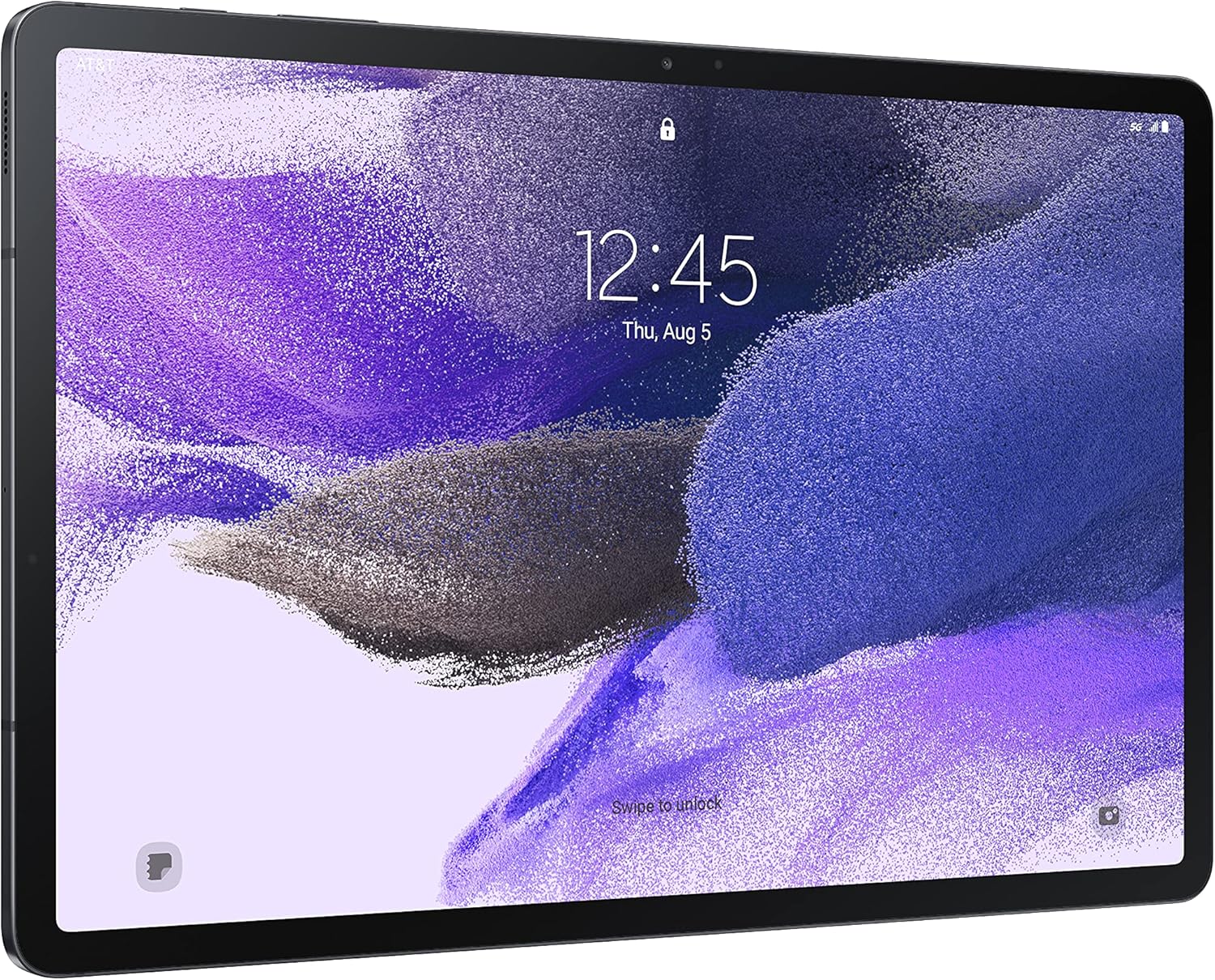
Front view of the Samsung Galaxy Tab S7 FE, showcasing its large 12.4-inch display. The screen displays the time and date, indicating a typical lock screen or home screen appearance.
Key Features:
- Large 12.4-inch Display: Provides an expansive viewing area for content, suitable for both indoor and outdoor use.
- Included S Pen: A responsive stylus designed for natural writing, drawing, and navigation.
- Multi-Device Connectivity: Allows for seamless content transfer and an expanded workstation experience with other Galaxy devices.
- Long-Lasting Battery: Designed to provide extended usage on a single charge.
- Powerful Processor: Equipped with a Qualcomm SM7225 Octa-Core processor for smooth performance and entertainment.
- Landscape Camera View: Automatically centers the user during video calls and features a 3-mic solution for clear audio.
Setup Guide
What's in the Box:
- S Pen
- USB Power Adapter (15W)
- USB cable
- Ejection pin
- Quick Start Guide
Initial Setup Steps:
- Charge the Tablet: Connect the USB cable to the 15W USB Power Adapter and plug it into a power outlet. Connect the other end of the USB cable to the tablet's charging port. Allow the tablet to charge fully before first use.
- Power On: Press and hold the Power button (located on the side of the tablet) until the Samsung logo appears on the screen.
- Follow On-Screen Prompts: The tablet will guide you through the initial setup process, which includes:
- Selecting your language.
- Connecting to a Wi-Fi network.
- Signing in with your Google account or creating a new one.
- Setting up screen lock (PIN, pattern, password, or biometrics).
- Reviewing and accepting terms and conditions.
- S Pen Pairing: The S Pen is included and typically pairs automatically. Ensure it is properly seated in its magnetic charging slot on the back of the tablet when not in use.

Rear view of the Samsung Galaxy Tab S7 FE, illustrating the magnetic attachment point for the S Pen along the top edge.
Operating Instructions
Basic Navigation:
- Touch Gestures: Use taps, swipes, pinches, and long presses to interact with the screen.
- Home Screen: Access apps, widgets, and settings from the customizable home screen.
- Notifications Panel: Swipe down from the top of the screen to view notifications and quick settings.
Using the S Pen:
The S Pen enhances your interaction with the tablet, offering precise control for various tasks.
- Note-Taking: Open the Samsung Notes app to write or draw directly on the screen.
- Air Command: Hover the S Pen over the screen and press the S Pen button to open the Air Command menu for quick access to features like Smart select, Screen write, and Live message.
- Drawing and Sketching: Utilize preloaded creative apps such as PENUP and Canva, or download Clip Studio Paint for advanced artistic endeavors.

A hand holding the S Pen, actively drawing on the screen of the Samsung Galaxy Tab S7 FE, demonstrating its use for creative tasks.
Multi-Tasking and Connectivity:
- Multi-Window: Open multiple apps simultaneously in split-screen or pop-up view for enhanced productivity.
- Second Screen: Extend your PC display to the tablet for a larger workspace.
- Quick Share: Easily share files with nearby Samsung Galaxy devices.

The Samsung Galaxy Tab S7 FE alongside a Samsung smartphone, illustrating the seamless transfer of content and multi-device connectivity features.
Maintenance
Cleaning the Tablet:
- Use a soft, lint-free cloth to gently wipe the screen and body of the tablet.
- For stubborn smudges, slightly dampen the cloth with water or a screen-safe cleaning solution. Avoid harsh chemicals or abrasive materials.
- Do not spray cleaning solutions directly onto the tablet.
Battery Care:
- To prolong battery life, avoid exposing the tablet to extreme temperatures.
- Use only the original Samsung charger and cable provided with the device.
- Avoid completely draining the battery frequently. Charge it before it reaches very low levels.

An illustration highlighting the 10,090mAh battery capacity of the Samsung Galaxy Tab S7 FE, indicating its long-lasting power.
Software Updates:
- Regularly check for and install software updates to ensure optimal performance, security, and access to new features.
- Navigate to Settings > Software update to check for available updates.
Troubleshooting
Common Issues and Solutions:
| Problem | Possible Cause | Solution |
|---|---|---|
| Tablet not turning on | Low battery, software glitch | Charge the tablet for at least 30 minutes. Perform a forced restart by holding the Power button and Volume Down button simultaneously for 7-10 seconds. |
| Screen unresponsive | Temporary software freeze | Restart the tablet. If unresponsive, perform a forced restart. |
| Wi-Fi connection issues | Incorrect password, router issue, tablet Wi-Fi disabled | Ensure Wi-Fi is enabled. Re-enter Wi-Fi password. Restart your Wi-Fi router. Forget the network and reconnect. |
| S Pen not responding | S Pen not charged, software issue | Ensure the S Pen is properly attached to its magnetic charging area on the tablet. Restart the tablet. Check S Pen settings in Settings > Advanced features > S Pen. |
| Apps crashing or freezing | App specific bug, low memory | Close and reopen the app. Clear the app's cache (Settings > Apps > [App Name] > Storage > Clear cache). Update the app. Restart the tablet. |
Technical Specifications
| Feature | Detail |
|---|---|
| Model Name | Galaxy Tab S7 FE |
| Item Model Number | SM-T733NZKAXAR |
| Brand | SAMSUNG |
| Standing Screen Display Size | 12.4 Inches |
| Screen Resolution | 2560 x 1600 pixels |
| Processor | 2.2 GHz Qualcomm SM7225 Octa-Core |
| RAM | 64 GB (Internal Storage) |
| Flash Memory Size | 64 GB |
| Operating System | Android |
| Wireless Type | 802.11a/b/g/n/ac |
| Average Battery Life | 181 Hours (usage conditions may vary) |
| Item Weight | 1.34 pounds |
| Product Dimensions | 11.21 x 11.2 x 0.3 inches |
| Color | Mystic Black |
| Rear Webcam Resolution | 8 MP |
Warranty and Support
For detailed warranty information, product registration, and technical support, please visit the official Samsung support website or refer to the warranty card included with your product.
You can also download the full user manual in PDF format for comprehensive instructions and troubleshooting guides:
Download Full User Manual (PDF)
For direct assistance, contact Samsung Customer Service through their official channels.


