
SAMSUNG SM-T733NZKFXAR
SAMSUNG Galaxy Tab S7 FE User Manual
Model: SM-T733NZKFXAR
Brand: SAMSUNG
Introduction
This manual provides detailed instructions for the SAMSUNG Galaxy Tab S7 FE 12.4” 256GB WiFi Android Tablet. It covers essential information regarding product setup, operation, maintenance, and troubleshooting to ensure optimal performance and user experience. Please read this manual thoroughly before using your device.
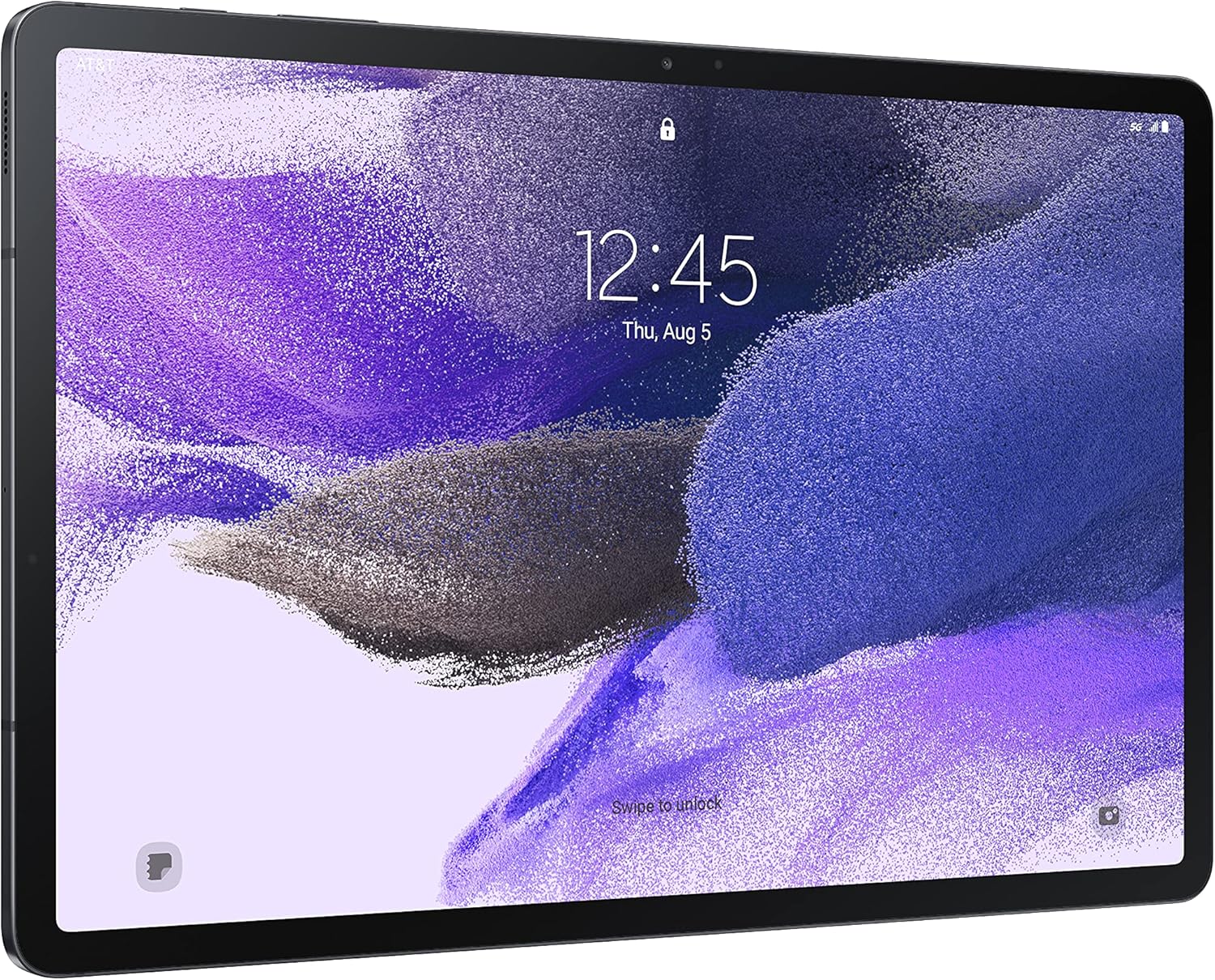
Image: Front view of the SAMSUNG Galaxy Tab S7 FE tablet, showcasing its large 12.4-inch display with the time and date visible. The tablet has a sleek, dark finish.
What's in the Box
Upon unboxing your SAMSUNG Galaxy Tab S7 FE, verify that all the following components are present:
- S Pen
- USB Power Adapter (15W)
- USB cable
- Ejection pin
- Quick Start Guide
Initial Setup
1. Charging the Device
Before first use, fully charge your Galaxy Tab S7 FE. Connect the USB cable to the tablet's USB-C port and the other end to the 15W USB Power Adapter. Plug the adapter into a wall outlet. The charging indicator will appear on the screen.
2. Powering On/Off
- To Power On: Press and hold the Power button (located on the side) until the Samsung logo appears.
- To Power Off: Press and hold the Power button, then tap 'Power off' on the screen. Alternatively, swipe down from the top of the screen to open the Quick Panel, then tap the Power icon and select 'Power off'.

Image: Side profile of the Galaxy Tab S7 FE, highlighting the physical buttons including the power button and volume controls.
3. Initial Configuration
Follow the on-screen prompts to complete the initial setup, which includes selecting your language, connecting to a Wi-Fi network, signing in with your Google account, and setting up security features like a PIN, pattern, or fingerprint.
Operating the Tablet
Display and Navigation
The Galaxy Tab S7 FE features a 12.4-inch display. Navigate the interface using touch gestures: tap, swipe, pinch-to-zoom. The large screen is designed for an immersive viewing experience.

Image: The Galaxy Tab S7 FE screen showing a split view with a video call on one side and handwritten notes on the other, demonstrating its large display capabilities for multitasking.
Using the S Pen
The included S Pen offers enhanced interaction with your tablet. It can be used for writing, drawing, navigating, and performing quick actions.
- Writing and Drawing: Use the S Pen directly on the screen for note-taking in apps like Samsung Notes or for creative tasks in drawing applications.
- Air Command: Hover the S Pen over the screen and press the S Pen button to open the Air Command menu, providing quick access to features like Create note, Smart select, Screen write, and Live message.
- Attachment: The S Pen attaches magnetically to the back of the tablet for convenient storage and charging.

Image: A close-up of a hand using the S Pen to write on the screen of the Galaxy Tab S7 FE, illustrating the pen's precision and responsiveness.
Multi-Device Connectivity and Multitasking
The Galaxy Tab S7 FE supports seamless connectivity with other Samsung Galaxy devices, allowing for an expanded workspace and efficient content transfer. Utilize the multi-window feature to run multiple applications simultaneously, enhancing productivity.

Image: The Galaxy Tab S7 FE alongside a Galaxy smartphone, demonstrating how content can be shared and work can be extended across devices for a more integrated experience.
Camera Usage
The tablet features an 8 MP rear camera and a front camera. For video calls, the landscape camera view automatically centers you in the frame, and a 3-mic solution reduces surrounding noise.

Image: The Galaxy Tab S7 FE screen showing a video conference with several participants, highlighting its suitability for virtual meetings and clear audio capture.
Maintenance
Cleaning the Tablet
To clean your tablet, use a soft, lint-free cloth. For stubborn smudges, slightly dampen the cloth with water or a screen cleaner specifically designed for electronics. Avoid using harsh chemicals, abrasive materials, or excessive moisture, as these can damage the screen and internal components.
Battery Care
The Galaxy Tab S7 FE is equipped with a long-lasting battery. To maximize battery lifespan:
- Avoid extreme temperatures.
- Do not let the battery drain completely before recharging regularly.
- Use only the provided charger or Samsung-approved charging accessories.

Image: The Galaxy Tab S7 FE screen displaying a large battery capacity of 10,090 mAh, indicating its long battery life.
Troubleshooting
This section addresses common issues you might encounter with your Galaxy Tab S7 FE.
Device Not Powering On
- Ensure the battery is charged. Connect the charger and wait a few minutes before attempting to power on.
- Press and hold the Power button for at least 10 seconds to perform a forced restart.
Screen Unresponsive
- Restart the tablet.
- Ensure your hands are clean and dry.
- If using a screen protector, ensure it is properly applied and not interfering with touch sensitivity.
Wi-Fi Connectivity Issues
- Toggle Wi-Fi off and on from the Quick Panel.
- Restart your Wi-Fi router.
- Forget the network and reconnect, entering the password again.
S Pen Not Responding
- Ensure the S Pen is properly attached to the tablet's magnetic area to charge.
- Restart the tablet.
- Check S Pen settings in the tablet's Settings menu.
Specifications
| Feature | Detail |
|---|---|
| Model Number | SM-T733NZKFXAR |
| Display Size | 12.4 Inches |
| Screen Resolution | 2560 x 1600 Pixels |
| RAM | 8 GB |
| Hard Drive / Storage | 256 GB |
| Processor Brand | Qualcomm SM7225 Octa-Core |
| Operating System | Android 11 |
| Wireless Type | 802.11a/b/g/n/ac |
| Average Battery Life | 182 Hours (usage conditions vary) |
| Item Weight | 1.34 pounds |
| Product Dimensions | 11.21 x 7.28 x 0.25 inches |
| Color | Mystic Black |
| Rear Webcam Resolution | 8 MP |
Warranty and Support
For warranty information and technical support, please refer to the official SAMSUNG website or contact SAMSUNG customer service. Keep your proof of purchase for warranty claims.
Official Support Link: Samsung Support
Note: International warranty coverage may vary. Please check with your local Samsung service center for details.
Related Documents - SM-T733NZKFXAR
 |
Používateľská príručka pre tablety Samsung Galaxy Tab S9 Series Komplexná používateľská príručka pre tablety Samsung Galaxy Tab S9 Series (modely SM-X710, SM-X716B, SM-X810, SM-X816B, SM-X910, SM-X916B, SM-X510, SM-X516B, SM-X610, SM-X616B, SM-X700, SM-X706B, SM-X800, SM-X806B, SM-X900, SM-X906B). Poskytuje podrobné pokyny na nastavenie, používanie a správu funkcií vášho zariadenia. |
 |
Guía do Usuario Samsung Galaxy Tab Manual de usuario completo para as tabletas Samsung Galaxy Tab modelos SM-X710, SM-X716B, SM-X810, SM-X816B, SM-X910, SM-X916B, SM-X510, SM-X516B, SM-X610, SM-X616B, SM-X700, SM-X706B, SM-X800, SM-X806B, SM-X900, SM-X906B. Descubra as funcións básicas, configuración, aplicacións e axustes. |
 |
Samsung Galaxy Tab S11 & S11 Ultra Quick Start Guide and Terms & Conditions Concise guide to setting up your Samsung Galaxy Tab S11 and Tab S11 Ultra, including essential terms and conditions, legal information, and device specifications. |
 |
Guía de Usuario Samsung Galaxy Tab: Modelos SM-X710, SM-X810, SM-X510, SM-X700, SM-X800, SM-X900 y más Explore las funciones y aprenda a usar su dispositivo Samsung Galaxy Tab con esta completa guía de usuario. Cubre configuración, aplicaciones, ajustes, S Pen y más. |
 |
Samsung Galaxy Tab S9 FE Seriearen Erabilera-Gida Samsung Galaxy Tab S9 FE serieko tabletetarako erabiltzaile-gida osoa, hasierako konfiguraziotik hasi eta funtzio aurreratuetaraino. Ezagutu zure gailua hobeto erabiltzeko argibideak. |
 |
Samsung Galaxy Tab A9 Brugervejledning: Kom godt i gang og brug af din tablet Udforsk den komplette brugervejledning til Samsung Galaxy Tab A9 tablets (modeller SM-X130, SM-X135F, SM-X110, SM-X115, SM-X210, SM-X210R, SM-X216B, SM-X216R). Lær om opsætning, funktioner, indstillinger og fejlfinding. |
Ask a question about this manual
Ask about setup, troubleshooting, compatibility, parts, safety, or missing instructions. Manuals+ will review the question and use this page’s manual context to help answer it.