
1. Introduction
Thank you for choosing the HP 230 Wireless Keyboard and Mouse Combo. This product is designed to provide a comfortable, efficient, and reliable wireless input solution for your computer. Featuring a 2.4GHz USB dongle for seamless connectivity, a full-size keyboard with a numeric pad and 12 function keys, and a precise 1600 dpi mouse, this combo is built to enhance your productivity across various operating systems.

Image 1.1: The HP 230 Wireless Keyboard and Mouse Combo, showcasing the white keyboard, mouse, and the compact USB receiver.
2. Package Contents
Please verify that all items are present in your package:
- HP 230 Wireless Keyboard
- HP 230 Wireless Mouse
- USB 2.4GHz Wireless Receiver (dongle)
- 2 x AAA Batteries (for keyboard)
- 1 x AA Battery (for mouse)
3. Setup
3.1. Battery Installation
The keyboard requires two AAA batteries, and the mouse requires one AA battery. Batteries are included in the package.
- For the Keyboard: Locate the battery compartment on the underside of the keyboard. Open the cover and insert two AAA batteries, ensuring correct polarity (+/-). Close the cover securely.
- For the Mouse: Locate the battery compartment on the underside of the mouse. Open the cover and insert one AA battery, ensuring correct polarity (+/-). Close the cover securely.
3.2. Connecting the USB Receiver
The HP 230 combo uses a single USB receiver for both the keyboard and mouse.
- Locate the USB wireless receiver, typically stored within the mouse's battery compartment for safekeeping during transport.
- Insert the USB receiver into an available USB port on your computer.
- Your operating system should automatically detect and install the necessary drivers. This process may take a few moments.
- Once installed, the keyboard and mouse should be ready for use.

Image 3.1: Diagram illustrating key features for setup, including battery placement for keyboard (2xAAA) and mouse (1xAA), 2.4 GHz wireless connection, 1600 dpi, and Windows 10/11 compatibility.
3.3. System Requirements
The HP 230 Wireless Keyboard and Mouse Combo is compatible with the following operating systems:
- Windows 10
- Windows 11
- Windows 7
- Windows 2000
- Windows Vista
- ChromeOS
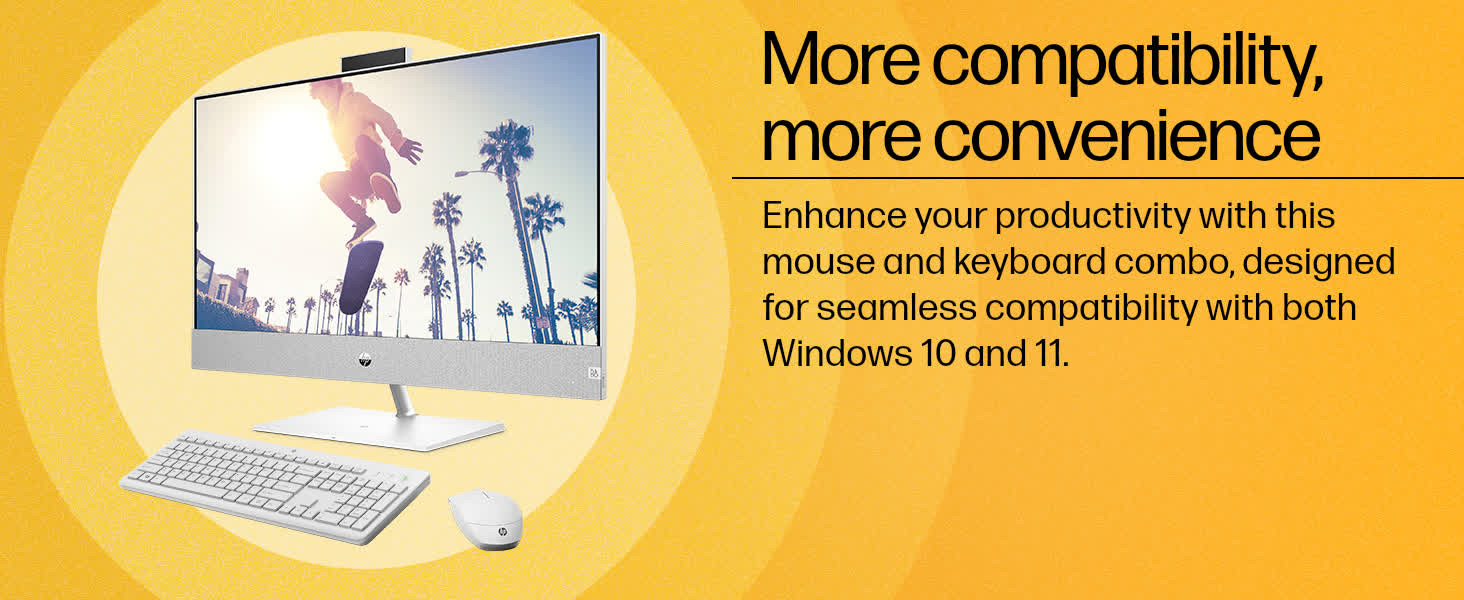
Image 3.2: Visual representation highlighting the compatibility of the HP 230 combo with Windows 10 and 11 for enhanced convenience.
4. Operating
4.1. Keyboard Features
- Full-Size Layout: Includes a dedicated numeric pad for efficient data entry.
- Chiclet-Style Keys: Provides a comfortable and quiet typing experience.
- 12 Fn Shortcut Keys: Access multimedia controls and common functions quickly.
- 3-Zone Layout: Ergonomically designed for comfortable and efficient use.
- Function Lock Button: A dedicated button allows you to toggle between standard F1-F12 functions and multimedia controls without needing to press the Fn key simultaneously.
- Dedicated Lock Button: Quickly lock your computer when stepping away from your desk.

Image 4.1: The HP 230 Wireless Keyboard, emphasizing its stylish, comfortable, quiet chiclet design, full-size layout, and 3-zone arrangement.
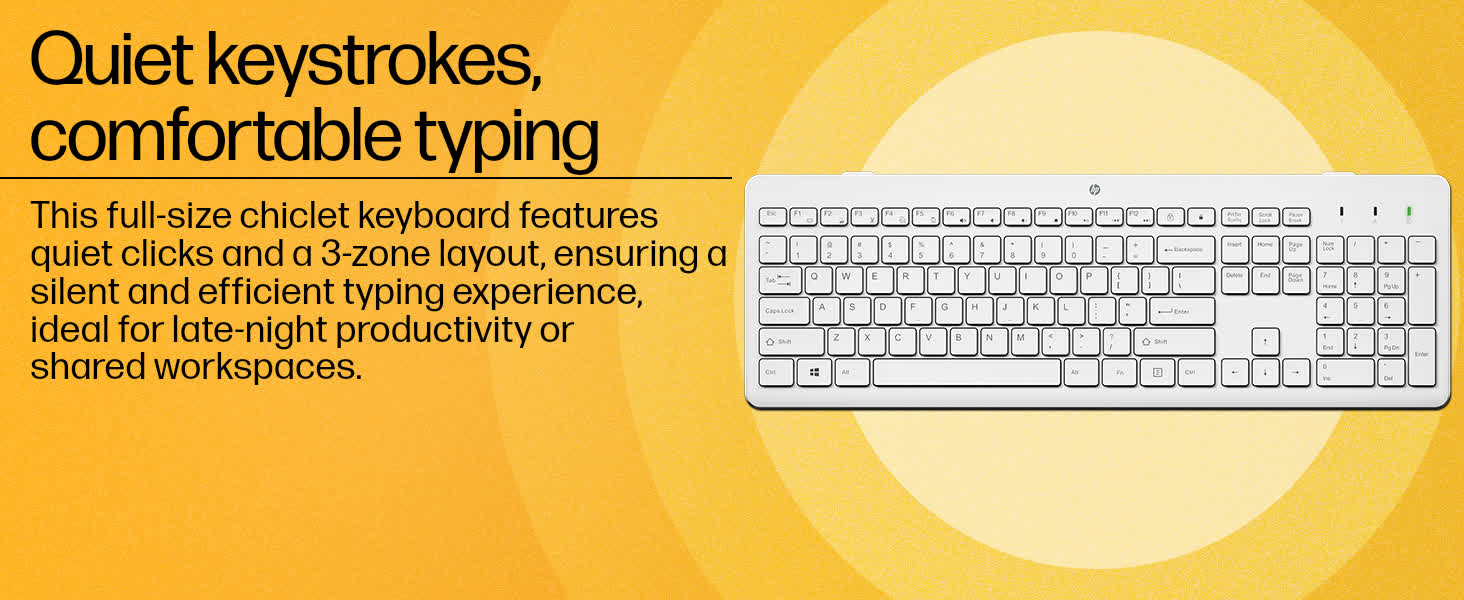
Image 4.2: Illustrates the quiet keystrokes and comfortable typing experience provided by the full-size chiclet keyboard with its 3-zone layout.
4.2. Mouse Features
- High Precision: Up to 1600 dpi for accurate and responsive cursor control.
- Red Optical Tracking: Ensures smooth tracking on a variety of surfaces.
- Ergonomic Design: Comfortable to hold for extended periods of use.

Image 4.3: The HP 230 Wireless Mouse, highlighting its 1600 dpi and red optical tracking for smooth and agile movements.
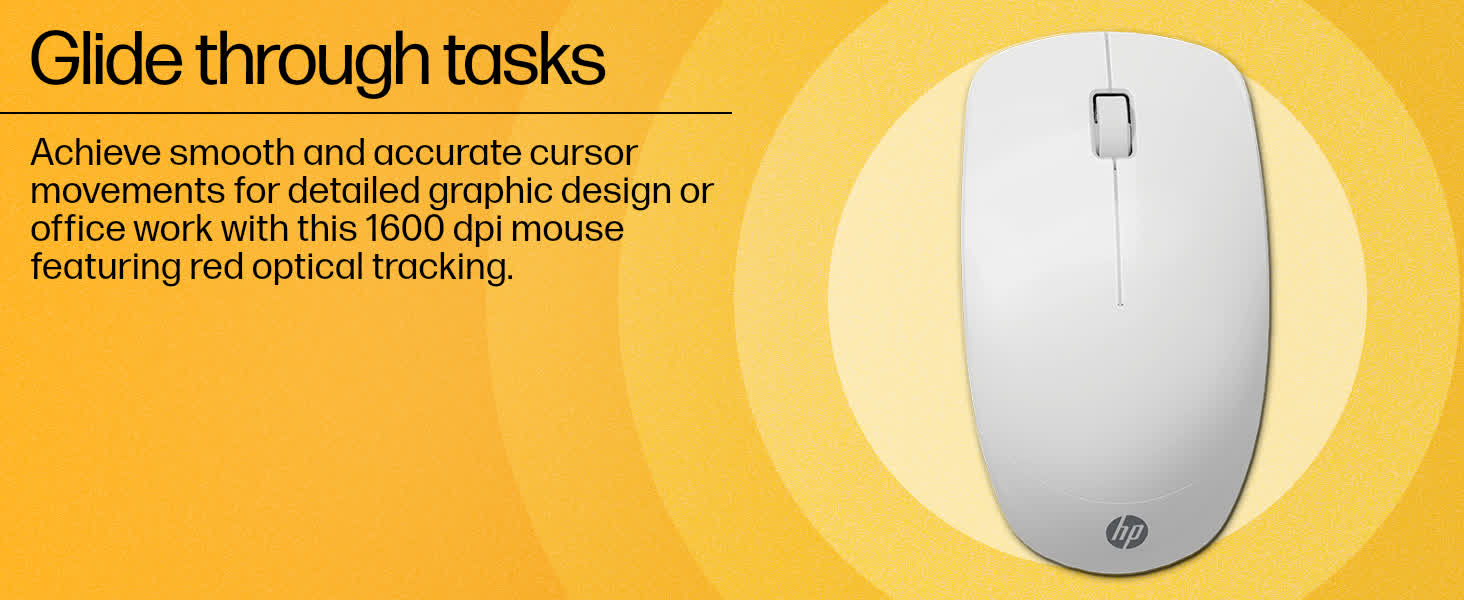
Image 4.4: Demonstrates the smooth and accurate cursor movements achievable with the 1600 dpi mouse and its red optical tracking.
4.3. Wireless Range
The 2.4GHz wireless connection offers a reliable operating range of up to 10 meters (approximately 33 feet) in an open area, providing flexibility for your workspace.
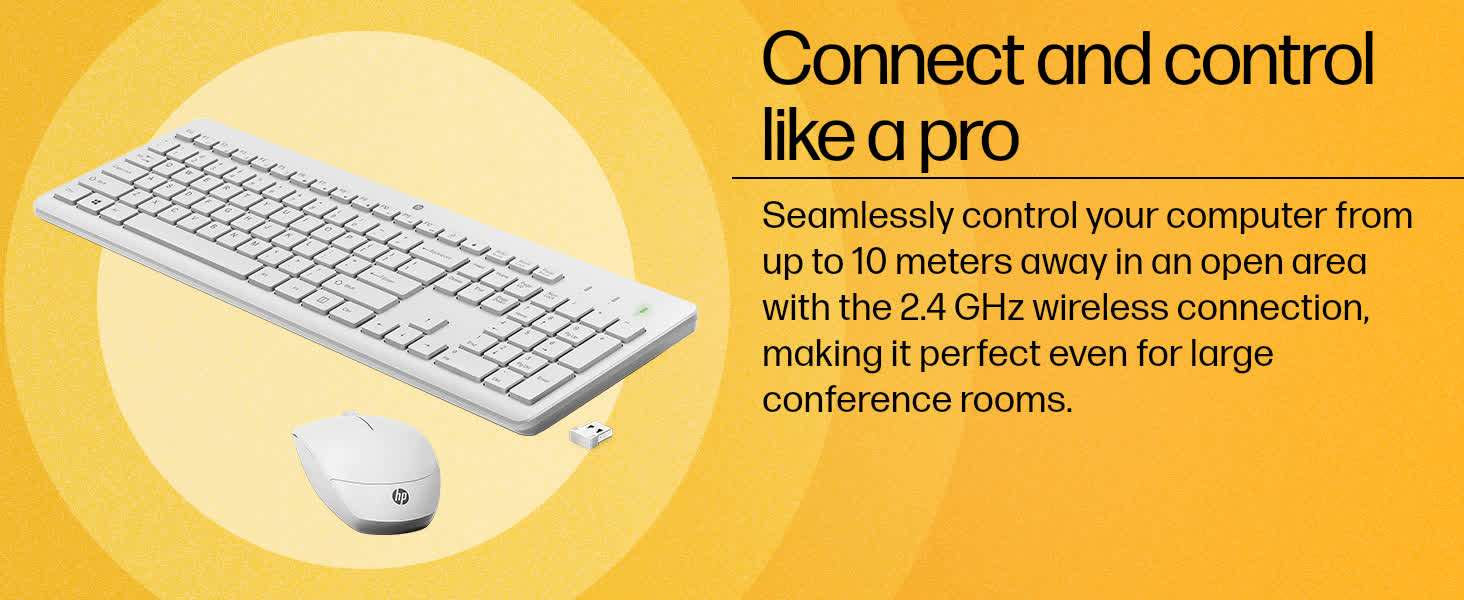
Image 4.5: Illustrates the ability to connect and control your computer from up to 10 meters away using the 2.4 GHz wireless connection.
4.4. Battery Life Management
The combo is designed for extended battery life:
- Keyboard: Up to 16 months of battery life.
- Mouse: Up to 12 months of battery life.
Actual battery life may vary based on usage patterns and environmental conditions.

Image 4.6: Visual representation of the impressive battery life, showing up to 16 months for the keyboard and up to 12 months for the mouse.
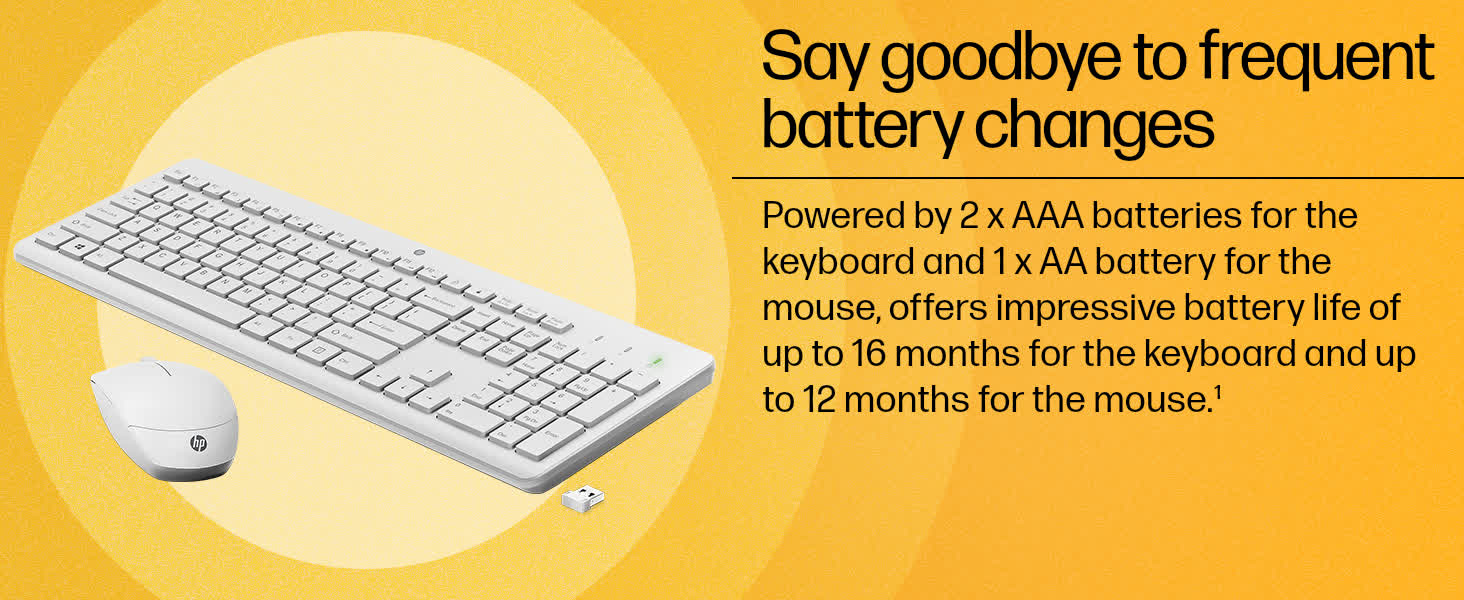
Image 4.7: Highlights the long battery life, powered by 2xAAA batteries for the keyboard and 1xAA for the mouse, reducing the need for frequent battery changes.
5. Maintenance
5.1. Cleaning
To maintain optimal performance and appearance, clean your keyboard and mouse regularly:
- Use a soft, lint-free cloth slightly dampened with water or a mild cleaning solution.
- Avoid using harsh chemicals, abrasive cleaners, or solvents.
- For the keyboard, use compressed air to remove dust and debris from between the keys.
- For the mouse, ensure the optical sensor on the underside is clean and free of obstructions.
5.2. Battery Replacement
When the keyboard or mouse performance degrades (e.g., lag, intermittent connection), it may be time to replace the batteries. Follow the battery installation steps in Section 3.1.
6. Troubleshooting
If you encounter issues with your HP 230 Wireless Keyboard and Mouse Combo, try the following solutions:
| Problem | Possible Solution |
|---|---|
| No response from keyboard/mouse |
|
| Lag or intermittent connection |
|
| Mouse cursor erratic or not moving |
|
| Specific keys not working |
|
7. Specifications
| Feature | Detail |
|---|---|
| Brand | HP |
| Model Number | 3L1F0AA |
| Connectivity Technology | 2.4GHz Wireless (USB Dongle) |
| Wireless Range | Up to 10 meters |
| Mouse DPI | Up to 1600 dpi |
| Keyboard Dimensions (LxWxH) | 44 x 14.6 x 2.8 cm |
| Mouse Dimensions (LxWxH) | 11.5 x 6.32 x 3.63 cm (approximate, derived from image) |
| Item Weight | 560 g |
| Keyboard Battery Type | 2 x AAA (included) |
| Mouse Battery Type | 1 x AA (included) |
| Compatible Operating Systems | Windows 10/11, Windows 7, Windows 2000, Windows Vista, Chrome OS |
| Keyboard Features | Full-size, Chiclet-style, 12 Fn keys, 3-zone layout, Quiet keystrokes |
| Mouse Features | Red optical tracking, Ergonomic design |

Image 7.1: Detailed dimensions of the HP 230 Wireless Keyboard and Mouse, providing precise measurements for both components.
8. Warranty and Support
The HP 230 Wireless Keyboard and Mouse Combo comes with a 1-Year Warranty from the date of purchase. This warranty covers manufacturing defects and ensures peace of mind regarding your investment.
For technical assistance, troubleshooting, or warranty claims, please refer to the official HP Customer Support Center. HP offers 24x7 online support to address any queries or issues you may encounter.
For more details, visit the official HP support website or contact their customer service directly.