
1. Product Overview
The KIWIHOME PX07 Cooling Fan is designed to enhance the thermal performance of your PlayStation 5 console. It features three cooling fans, an automatic speed adjustment function, a USB 3.0 passthrough port, and LED indicators to ensure your console remains cool during extended gaming sessions.
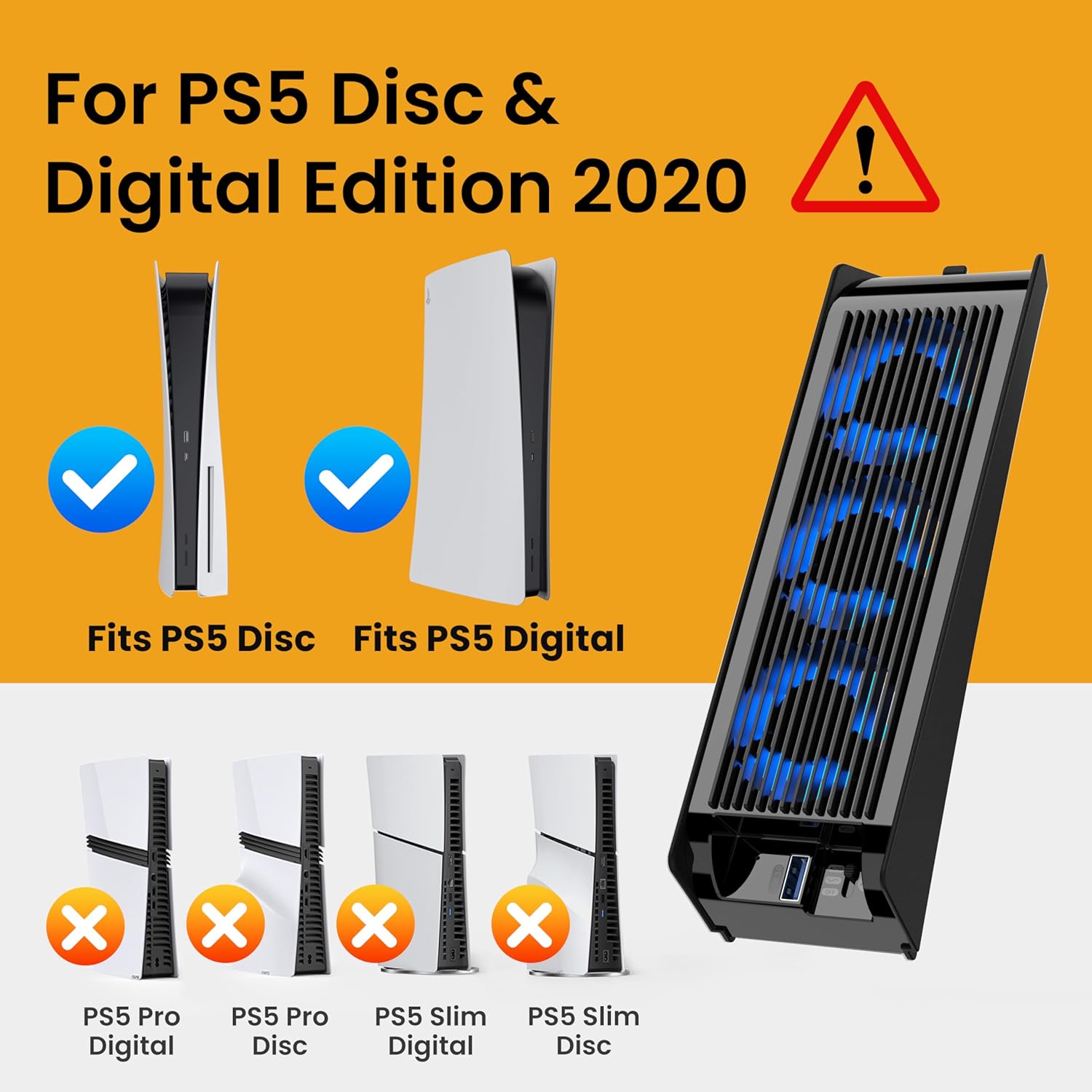
Image 1: KIWIHOME Cooling Fan PX07 attached to a PS5 console.
2. Compatibility Notice
This cooling fan is specifically designed for the 2020 PlayStation 5 Disc and Digital Edition models only. It is not compatible with the 2023 PS5 Slim models or the 2024 PS5 Pro version. Please verify your console model before installation.
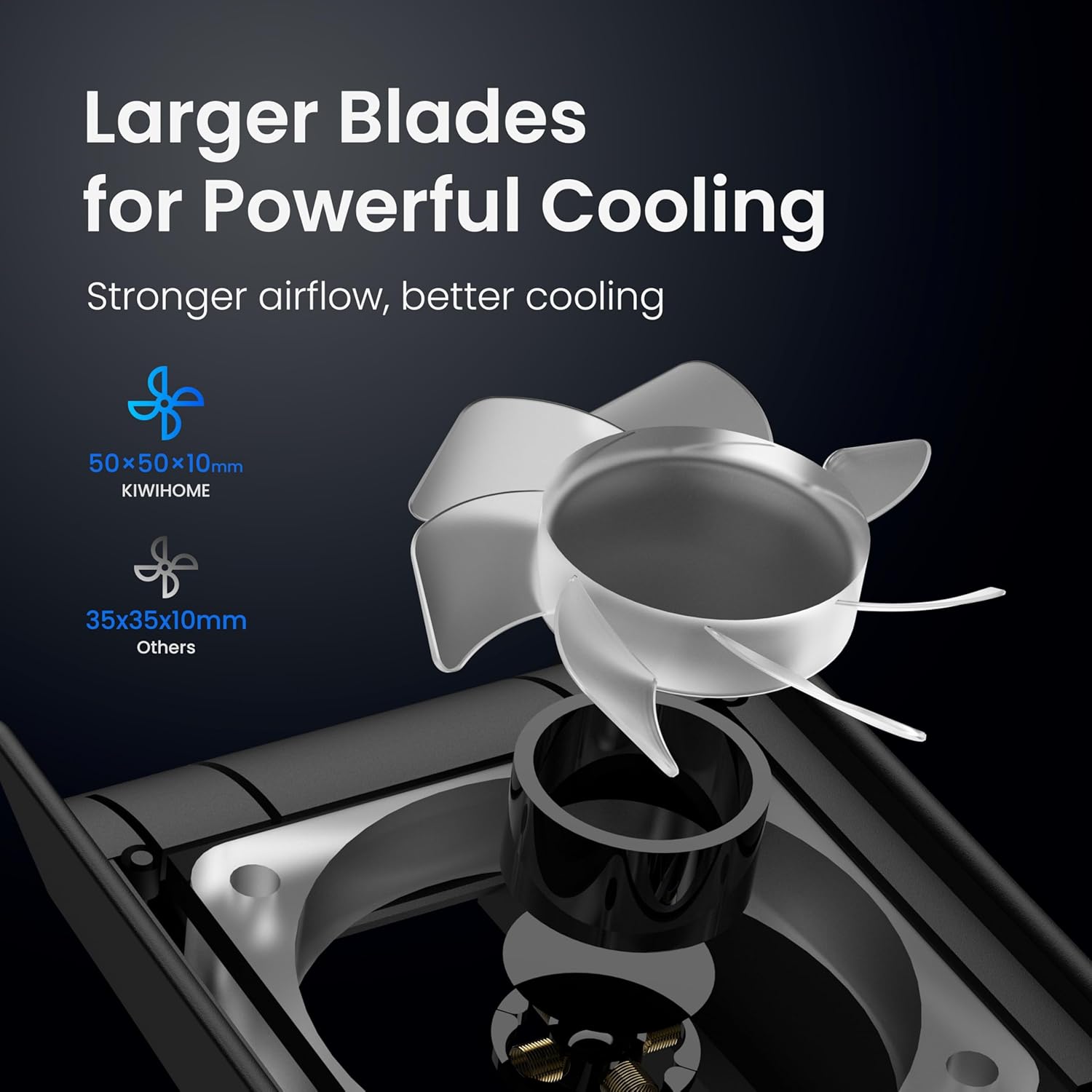
Image 2: Compatibility chart for KIWIHOME Cooling Fan PX07.
3. Package Contents
- 1 x KIWIHOME Cooling Fan PX07
- 1 x Instruction Manual
4. Component Identification

Image 3: Diagram of KIWIHOME Cooling Fan PX07 components.
- 3 Cooling Fans
- USB Plug
- Elastic Lock
- Fan Speed Switch
- USB Port
- LED Indicator
- Temperature Sensor
5. Installation Guide
Follow these steps to properly install the KIWIHOME Cooling Fan on your PS5 console:
Insert the USB Plug: Locate an available USB port on your PS5 console. Insert the cooling fan's USB plug into this port. The fan draws power directly from the console, requiring no additional power supply.

Image 4: Connecting the USB plug to the PS5.
Secure with Elastic Lock: Gently buckle the console's anti-theft hole with the elastic lock on the cooling fan. This ensures a firm and stable attachment, whether your console is in vertical or horizontal orientation.

Image 5: Securing the fan with the elastic lock.
Ensure Air Circulation: Regardless of console orientation, ensure there is sufficient space behind the PS5 to allow for total air circulation and efficient heat dissipation.
Power On: Turn on your PS5 console. The cooling fan will activate automatically if set to Constant or Auto mode.
Video 1: Official product video demonstrating the installation and features of the KIWIHOME Cooling Fan for PS5.
6. Operating Instructions
The KIWIHOME Cooling Fan offers multiple operating modes and features:
Fan Speed Adjustment: Use the fan speed switch to select your desired mode. The fan features three settings: Off, Constant Mode (3500±10% RPM), and Auto Mode (3500±10% RPM ~ 5000±10% RPM).

Image 6: Fan speed settings.
Automatic Temperature Detection (Auto Mode): In Auto mode, the fan intelligently monitors the console's temperature and adjusts its speed in real-time. It operates at low speed around 39°C/102°F and high speed at 43°C/109°F or above, ensuring optimal cooling.

Image 7: Automatic temperature detection in action.
Auto On/Off: When set to Constant or Auto mode, the fan will automatically turn on and off with your PS5 console, providing convenience and energy efficiency.
Lower Noise Operation: Engineered with a 28.8dB(A) noise reduction design, the fan operates quietly to minimize distraction and enhance your immersive gaming experience.

Image 8: Quiet operation for immersive gaming.
USB 3.0 Passthrough Port: The fan includes an additional USB 3.0 port, replacing the one used for power. This allows you to connect other USB 3.0 devices such as controllers, headsets, hard drives, or U disks without losing connectivity.

Image 9: USB 3.0 Passthrough Port for additional peripherals.
Video 2: Official product video highlighting the cooling capabilities and features of the fan for PS5 Digital Edition/Ultra HD Console.
7. Maintenance
To ensure optimal performance and longevity of your KIWIHOME Cooling Fan, consider the following maintenance tips:
- Regularly clean the fan grilles and blades to prevent dust buildup, which can impede airflow and reduce cooling efficiency. Use a soft brush or compressed air.
- Ensure the area around your PS5 console is clear of obstructions to allow for proper air circulation.
- Avoid placing the fan or console in direct sunlight or near heat sources.
8. Troubleshooting
If you encounter issues with your KIWIHOME Cooling Fan, try the following:
- Fan not turning on: Ensure the USB plug is securely inserted into the PS5's USB port. Check the fan speed switch to ensure it's not in the 'OFF' position.
- Fan not cooling effectively: Verify that the fan grilles are not blocked by dust or other objects. Ensure adequate space around the console for proper airflow.
- Excessive noise: While designed for low noise, ensure the fan is securely attached and not vibrating against the console or other surfaces. Clean any dust buildup on the fan blades.
- USB Passthrough not working: Confirm the fan's USB plug is fully inserted. Try connecting the peripheral to a different USB port on the fan or directly to the console to isolate the issue.
9. Specifications
| Product Dimensions | 3.64"L x 1.81"W x 8.35"H |
| Brand | KIWIHOME |
| Power Connector Type | USB 3.0 |
| Voltage | 5 Volts |
| Wattage | 5 watts |
| Cooling Method | Air |
| Compatible Devices | PS5 Disc Version, PS5 Digital Edition (2020 Models) |
| Noise Level | 28.8 Decibels |
| Material | Acrylonitrile Butadiene Styrene |
| Maximum Rotational Speed | 5000 RPM (Auto Mode) |
| Item Model Number | PX07 |
| Item Weight | 9.2 ounces |
10. Warranty and Support
For warranty information, technical support, or any inquiries regarding your KIWIHOME Cooling Fan PX07, please contact KIWIHOME customer service through the retailer where the product was purchased or visit the official KIWIHOME website. Keep your purchase receipt as proof of purchase.
KIWIHOME is dedicated to providing high-quality console game accessories and customer satisfaction.