
WiMiUS Q1
WiMiUS Q1 Mini Android Projector
User Manual
1. Introduction
Thank you for choosing the WiMiUS Q1 Mini Android Projector. This compact and powerful device is designed to provide a versatile entertainment and presentation experience, supporting native 1080P resolution with 4K compatibility, 5G Wi-Fi, Bluetooth, and an integrated Android TV system. This manual will guide you through the setup, operation, and maintenance of your projector to ensure optimal performance and longevity.

Figure 1.1: WiMiUS Q1 Mini Android Projector
The WiMiUS Q1 Mini Android Projector is a portable DLP projector featuring a sleek design and advanced functionalities for home theater and office use.
2. Package Contents
Please check the package carefully to ensure all items are present and in good condition:
- Mini Projector
- Box
- Instruction Manual
- HDMI Cable
- Remote Control
- Power Cable
- Storage Bag

Figure 2.1: All items included in the WiMiUS Q1 Mini Android Projector package.
Ensure all listed accessories are present before proceeding with setup.
3. Product Overview
The WiMiUS Q1 Mini Android Projector is engineered for high performance and user convenience. Key features include:
- Android TV Functionality: Access over 5,000 apps like Netflix, Hulu, and HBO directly without external devices.
- High Resolution & Brightness: Native 1080P Full HD with 4K support and enhanced brightness for vivid images.
- Autofocus & 4D Keystone Correction: Automatic focus adjustment and flexible image correction for various projection angles.
- Low Noise Operation: Advanced cooling system significantly reduces fan noise for an immersive viewing experience.
- Portable Design: Compact and lightweight, making it easy to transport for home, office, or outdoor use.

Figure 3.1: The WiMiUS Q1 projector is suitable for various environments, including small conferences, home theaters, gaming, and outdoor movies.
The projector's versatility allows for a wide range of applications.
4. Setup
4.1 Initial Power On
- Connect the power cable to the projector's DC input port and then to a power outlet.
- Press the power button on the projector or the remote control to turn on the device.
- The projector will automatically perform autofocus upon startup.
4.2 Placement and Projection
Place the projector on a stable, flat surface. For optimal viewing, ensure the projection surface is smooth and light-colored. The projector features a short-throw distance, allowing for large images even in confined spaces.
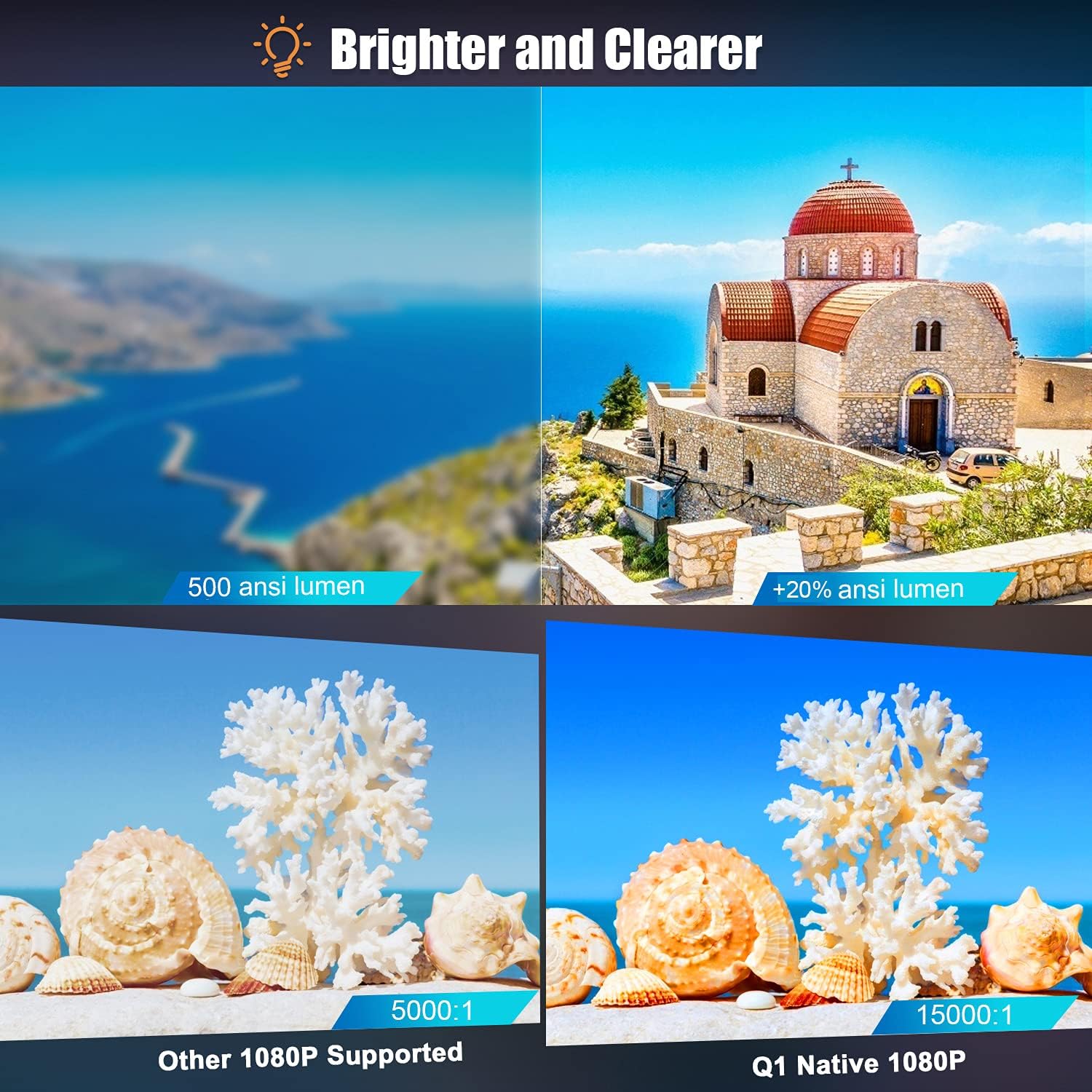
Figure 4.1: The WiMiUS Q1 projector can project a 100-inch image from approximately 2.5 meters, offering flexibility in placement.
The unique off-axis function allows for projection from various heights without significant distortion.
Video 4.1: Official WiMiUS Q1 Mini DLP Projector overview, demonstrating features like short-throw distance, autofocus, and keystone correction.
This video provides a visual guide to the projector's core functionalities and setup.
5. Operating Instructions
5.1 Android TV System
The integrated Android TV system allows direct access to a vast library of applications. Navigate the interface using the remote control.
- App Installation: Download and install your favorite streaming, gaming, and utility apps from the pre-installed app store.
- Content Streaming: Enjoy movies, TV shows, and music directly on the projector without needing external media players.

Figure 5.1: The Android TV system allows direct streaming from multiple applications.
Access a wide range of entertainment options directly from the projector.
5.2 Autofocus and Keystone Correction
The projector is equipped with an autofocus sensor and 4D keystone correction for quick and precise image adjustment.
- Autofocus: The projector automatically measures the distance to the screen and adjusts the focus within seconds.
- 4D Keystone Correction: Corrects image distortion even when the projector is placed at an oblique angle, ensuring a perfectly rectangular image.

Figure 5.2: The projector features 1-second autofocus and advanced 4D keystone correction for optimal image clarity and alignment.
These features simplify setup and ensure a clear, undistorted picture.
5.3 Convenient Touchpad
The top of the projector features a convenient touchpad for intuitive navigation and control of the Android TV interface.
6. Connectivity
6.1 Wi-Fi Connection
Connect the projector to your home or office Wi-Fi network to access online content and apps. The projector supports 5G Wi-Fi for faster and more stable connections.
6.2 Bluetooth Function
Pair the projector with external Bluetooth speakers, headphones, or other audio devices for enhanced sound. This allows for flexible audio setups without the need for cables.
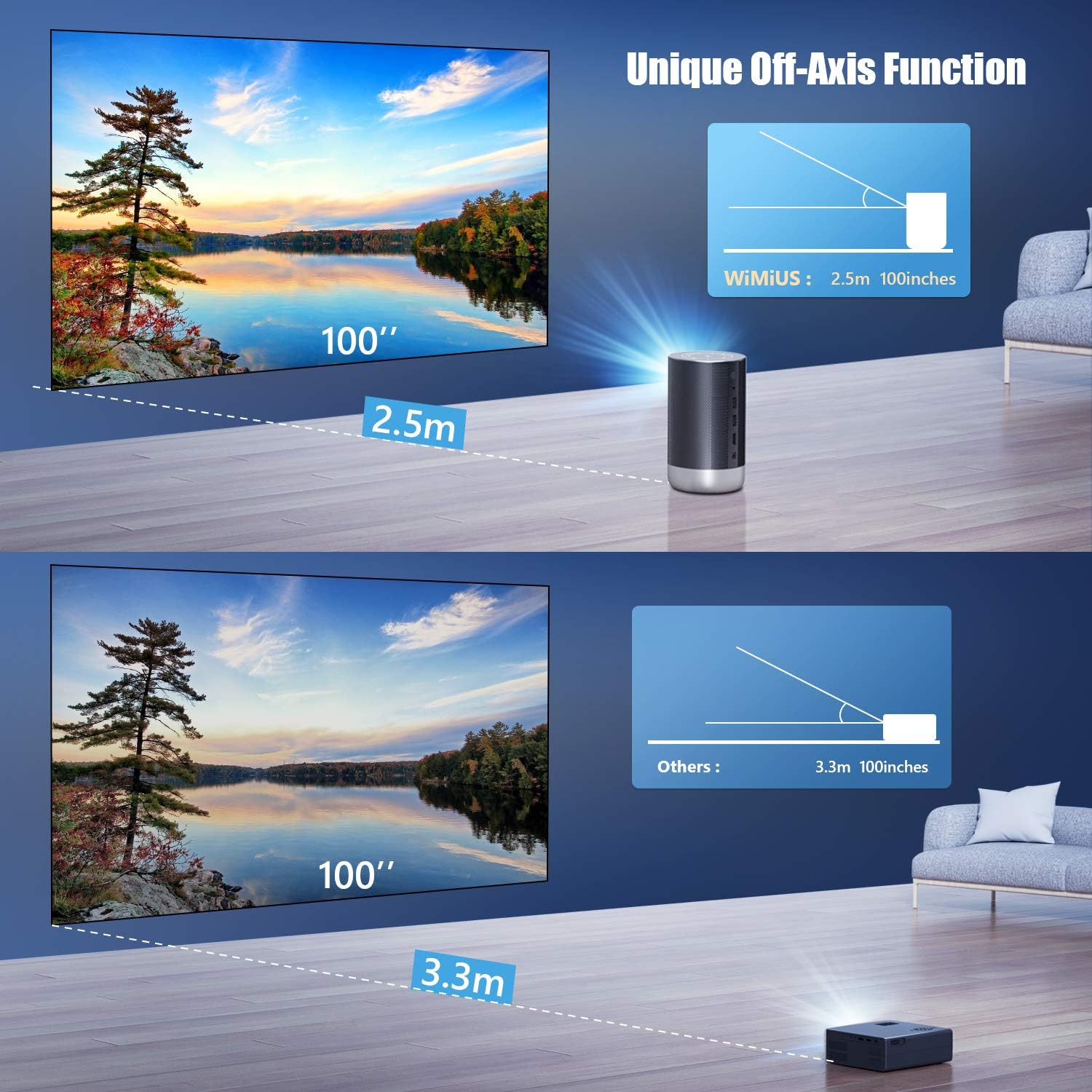
Figure 6.1: The projector offers convenient Bluetooth connectivity for audio and Wi-Fi for streaming and screen mirroring.
Enjoy wireless audio and seamless content sharing from your devices.
6.3 HDMI and USB Ports
The projector includes HDMI and USB ports for connecting external devices such as laptops, gaming consoles, USB drives, and other media sources.
- HDMI: Connect devices for high-definition video and audio input.
- USB: Play media files directly from USB storage devices or connect peripherals.
7. Maintenance
Proper maintenance ensures the longevity and optimal performance of your projector.
- Cleaning the Lens: Use a soft, lint-free cloth specifically designed for optical lenses. Avoid abrasive materials or harsh chemicals.
- Cleaning the Exterior: Wipe the projector's exterior with a soft, dry cloth. Do not use liquid cleaners directly on the device.
- Ventilation: Ensure the projector's ventilation openings are clear and not obstructed to prevent overheating. The projector features a low-noise cooling system designed for efficient heat dissipation.
- Storage: When not in use for extended periods, store the projector in a cool, dry place, ideally in its original packaging or the provided storage bag.
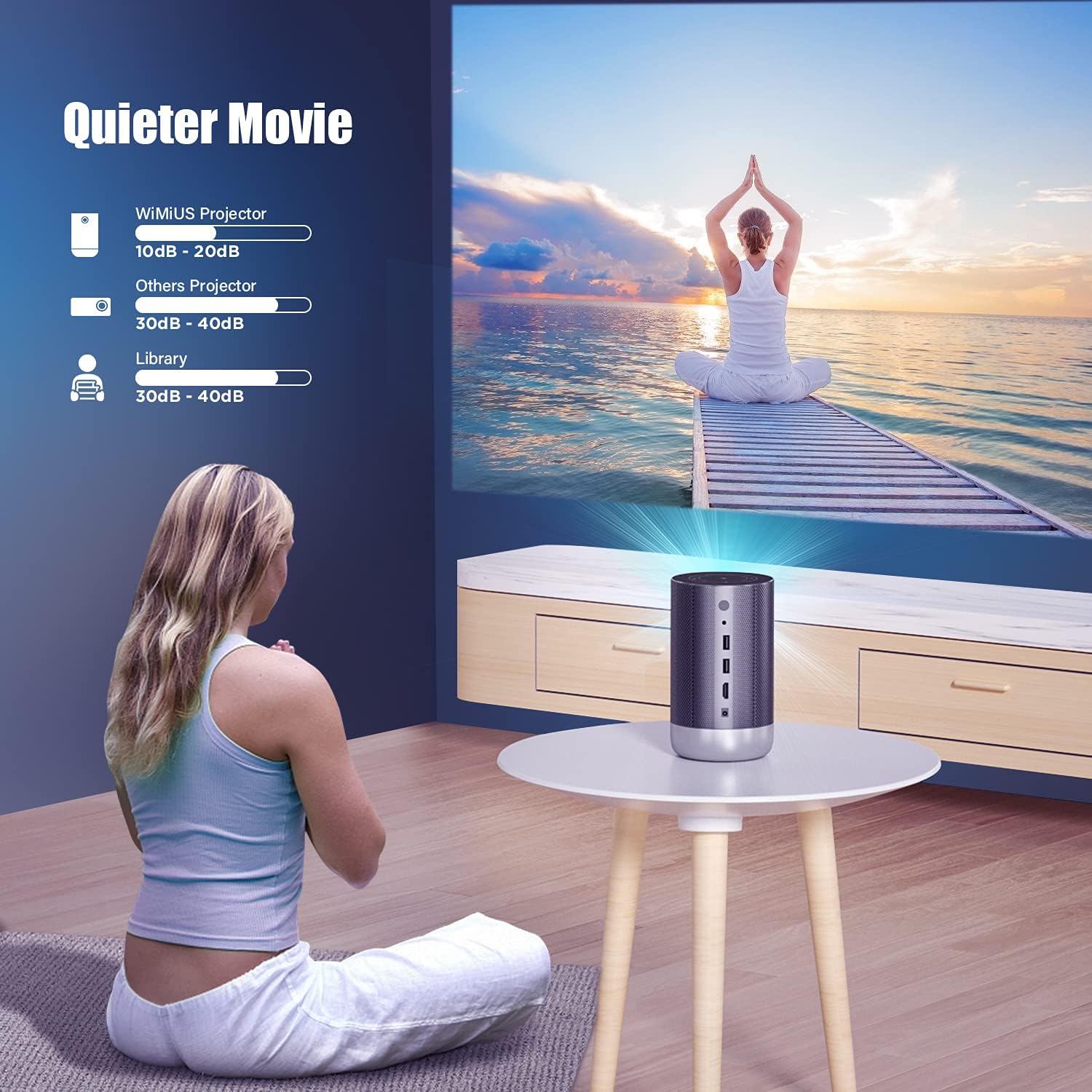
Figure 7.1: The Q1 projector's quiet operation is due to its efficient cooling system, which also aids in maintaining internal component health.
A quiet design ensures an undisturbed viewing environment.
8. Troubleshooting
If you encounter issues with your WiMiUS Q1 projector, refer to the following common problems and solutions:
| Problem | Possible Cause | Solution |
|---|---|---|
| No image or distorted image | Incorrect focus, keystone, or input source. | Ensure autofocus has completed. Adjust 4D keystone correction. Verify the correct input source (HDMI, Android TV) is selected. |
| No sound | Volume too low, incorrect audio output, or un-paired Bluetooth device. | Increase volume. Check audio output settings (internal speaker, Bluetooth, external audio). Re-pair Bluetooth devices if necessary. |
| HDMI signal loss | Loose HDMI cable, incompatible device, or software glitch. | Ensure HDMI cable is securely connected at both ends. Try a different HDMI cable or port. Restart both the projector and the connected device. Update projector firmware if available. |
| Projector not turning on | Power cable issue, low battery (if applicable), or internal fault. | Check power cable connection. Ensure power outlet is functional. If battery-powered, ensure it is charged. Contact support if the issue persists. |
| Brightness seems low | Ambient light, power saving mode, or perceived brightness. | Reduce ambient light in the room. Check projector settings for brightness modes and disable any power-saving features. While the projector offers high brightness, external factors can affect perceived luminosity. |
9. Specifications
Detailed technical specifications for the WiMiUS Q1 Mini Android Projector:
| Feature | Specification |
|---|---|
| Brand Name | WiMiUS |
| Item Weight | 3.76 pounds |
| Package Dimensions | 9.84 x 6.57 x 5.28 inches |
| Batteries | 1 Unknown batteries required. (included) |
| Color Name | Grey |
| Special Features | Portable, Bluetooth |
| ASIN | B098X5V2F6 |
| Customer Reviews | 2.8 out of 5 stars (18 ratings) |
| Date First Available | July 8, 2021 |
| Recommended Uses For Product | Home Cinema, Business |
| Connectivity Technology | Bluetooth |
| Display Resolution | 1920 x 1080 (Native) |
| Visible Screen Diagonal | 100" / 254 cm |
10. Warranty and Support
WiMiUS provides comprehensive after-sales support for your Q1 Mini Android Projector.
- Warranty: Our products come with a safe after-sales service for 3 years from the date of purchase.
- Customer Support: If you encounter any problems or have questions during use, please do not hesitate to contact us. We are committed to responding to your inquiries within 24 hours.
For support, please refer to the contact information provided on the WiMiUS official website or your purchase platform.
Related documentsQ1


Ask a question about this manual
Ask about setup, troubleshooting, compatibility, parts, safety, or missing instructions. Manuals+ will review the question and use this page’s manual context to help answer it.