
Canon TS704a
Canon PIXMA TS704a Printer User Manual
Model: TS704a (3109C027AA)
Introduction
This manual provides essential information for the setup, operation, maintenance, and troubleshooting of your Canon PIXMA TS704a printer. Please read this manual thoroughly before using the printer to ensure correct and safe operation.

The Canon PIXMA TS704a printer, shown here with paper loaded in the rear tray, is designed for versatile printing needs.
Setup Guide
Follow these steps to set up your Canon PIXMA TS704a printer for the first time.
1. Unpacking and Placement
- Carefully remove the printer from its packaging. Ensure all protective tapes and packing materials are removed.
- Place the printer on a stable, flat surface with adequate space around it for ventilation and operation.

The retail packaging for the Canon PIXMA TS704a printer, indicating its wireless print capabilities.
2. Connecting Power
- Connect the supplied power cord to the printer and then to a wall outlet.
- Press the power button to turn on the printer.
3. Installing Ink Tanks
- Open the printer's top cover to access the ink tank compartment.
- Install the 5 individual ink tanks into their corresponding slots. Ensure they click into place.
- Close the top cover. The printer will begin an initial setup process, which may include print head alignment.

A direct front view of the Canon PIXMA TS704a printer, showing the control panel and paper output tray.
4. Loading Paper
- Open the paper support and pull out the paper output tray.
- Load plain paper (A4, A6, etc.) into the rear paper tray or the front cassette, depending on your printing needs. Adjust the paper guides to fit the paper size.
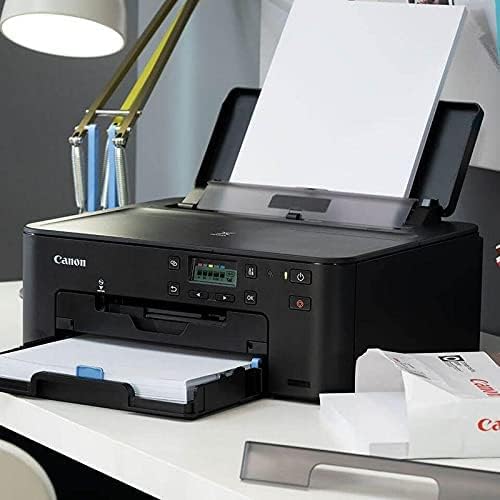
The Canon PIXMA TS704a printer positioned on a desk, ready for use with paper loaded in the front cassette.
5. Connecting to a Computer or Network
- USB Connection: Connect the printer to your computer using a Hi-Speed USB cable. Install the printer drivers from the provided CD-ROM or Canon's official website.
- Wi-Fi Connection: Use the printer's Full dot LCD display to navigate to the Wi-Fi setup menu. Follow the on-screen instructions to connect to your wireless network (IEEE802.11 b/g/n/a).
Operating Instructions
This section covers the basic operations of your Canon PIXMA TS704a printer.
Printing Documents and Photos
- Ensure the printer is powered on and connected to your device.
- Open the document or photo you wish to print on your computer or mobile device.
- Select "Print" from the application's menu.
- Choose the Canon PIXMA TS704a from the list of available printers.
- Adjust print settings such as paper size (A4, A6), print quality, and color/black & white. The printer supports a maximum color print resolution of 4800 x 1200 dpi and a maximum black and white print resolution of 4800 x 1200 dpi.
- For double-sided printing, select the "Auto Duplex Print" option in your printer settings.
- Click "Print" to start the printing process. The print speed is approximately 15.0 ipm for black and 10.0 ipm for color.
Copying Documents
- Place the document face-down on the scanner glass.
- Use the Full dot LCD display on the printer to select the "Copy" function.
- Adjust copy settings such as number of copies and copy quality.
- Press the "Start" button to begin copying. The maximum copy speed for black and white is 15 ppm.
Scanning Documents and Photos
- Place the document or photo face-down on the scanner glass.
- On your computer, open the scanning software (e.g., Canon IJ Scan Utility) or use your operating system's scanning feature.
- Select the Canon PIXMA TS704a as your scanner. The scanner type is Photo.
- Choose scan settings such as resolution, color mode, and destination folder.
- Click "Scan" to start the scanning process.
Maintenance
Regular maintenance ensures optimal performance and longevity of your printer.
Ink Tank Replacement
- The printer's LCD display or your computer's printer status monitor will indicate when an ink tank is low or empty.
- Open the printer cover and gently remove the empty ink tank by pressing its release lever.
- Unpack a new genuine Canon ink tank and insert it firmly into the correct slot until it clicks into place.
- Close the printer cover.
Cleaning the Printer
- Exterior Cleaning: Wipe the exterior of the printer with a soft, damp, lint-free cloth. Avoid using abrasive cleaners or solvents.
- Interior Cleaning (Print Head): If print quality deteriorates (e.g., streaks, faded colors), perform a print head cleaning from the printer's maintenance menu on the LCD display or through your computer's printer driver settings.
Troubleshooting
This section addresses common issues you might encounter with your Canon PIXMA TS704a printer.
Printer Not Responding
- Ensure the printer is powered on and the power cord is securely connected.
- Check the USB cable connection between the printer and computer, or verify the Wi-Fi connection status on the printer's LCD display.
- Restart both the printer and your computer/device.
- Verify that the correct printer driver is installed and selected on your computer.
Poor Print Quality
- Check ink levels. Replace any empty or low ink tanks.
- Perform a print head cleaning and nozzle check from the printer's maintenance menu.
- Ensure you are using genuine Canon ink tanks.
- Verify that the paper type setting in your printer driver matches the paper loaded in the printer.
Paper Jams
- Turn off the printer and unplug the power cord.
- Carefully open the printer covers and remove any jammed paper slowly to avoid tearing.
- Ensure paper is loaded correctly and not overfilled in the paper tray.
- Close all covers, plug in the power cord, and turn the printer back on.
Specifications
Detailed technical specifications for the Canon PIXMA TS704a printer.
| Feature | Detail |
|---|---|
| Model Name | PIXMA TS704a |
| Model Number | 3109C027AA |
| Print Resolution (Color) | Up to 4800 x 1200 dpi |
| Print Resolution (Black & White) | Up to 4800 x 1200 dpi |
| Print Speed (Black) | 15.0 ipm |
| Print Speed (Color) | 10.0 ipm |
| Interface Type | Hi-Speed USB, Wi-Fi (IEEE802.11 b/g/n/a) |
| Ink Tanks | 5 individual ink tanks |
| Display Type | Full dot LCD display |
| Auto Duplex Print | Yes |
| Maximum Copy Speed (B&W) | 15 ppm |
| Scanner Type | Photo |
| Maximum Media Size | A6 |
| Paper Size Support | A4, A6, etc. |
| Item Dimensions (D x W x H) | 40D x 50W x 30H centimeters |
| Item Weight | 10 Kilograms |
| Included Components | Ink Bottles |

Diagram showing the approximate dimensions of the Canon PIXMA TS704a printer: 50cm width, 40cm depth, and 30cm height.
Warranty and Support
Your Canon PIXMA TS704a printer comes with a Limited Warranty. For specific terms and conditions, please refer to the warranty card included with your product or visit the official Canon support website.
For technical assistance, driver downloads, or further support, please visit the official Canon support website or contact Canon customer service.
- Official Canon Website: www.canon.com
- Support Resources: Check the Canon support pages for FAQs, troubleshooting guides, and contact information specific to your region.
Related Documents - TS704a
 |
Canon G6000 Series Online Manual Comprehensive online manual for the Canon G6000 series printers, covering setup, operation, network connectivity, maintenance, and troubleshooting. |
 |
Canon G7000 Series Online Manual: Setup, Operation, and Troubleshooting Guide Comprehensive online manual for the Canon G7000 series multifunction printer. Find detailed instructions on setup, basic operation, network connectivity, paper handling, ink refilling, maintenance, safety, and troubleshooting. |
 |
Canon Quick Menu Онлайн-руководство: функции, настройка и устранение неполадок Подробное руководство пользователя для Canon Quick Menu, охватывающее его функции, настройку ярлыков, запуск приложений и решение распространенных проблем. Информация для пользователей Windows. |
 |
Canon PIXMA MG2500 Series Online User Manual Your official online user manual for the Canon PIXMA MG2500 series. This guide provides detailed instructions on setup, printing, copying, scanning, maintenance, and troubleshooting for your Canon inkjet multifunction printer. Get the most out of your device with easy-to-follow steps and helpful tips. |
 |
Canon MG2900 Series Online Manual: Setup, Operation, and Troubleshooting Comprehensive online manual for the Canon MG2900 series multifunction printer. Covers setup, functions, printing, scanning, copying, maintenance, network connectivity, and troubleshooting. |
 |
Canon U.S.A., Inc. Limited Warranty Information Detailed information about the limited warranty provided by Canon U.S.A., Inc. for their products in the USA, including coverage, exclusions, and service options. |
Ask a question about this manual
Ask about setup, troubleshooting, compatibility, parts, safety, or missing instructions. Manuals+ will review the question and use this page’s manual context to help answer it.