
havit HV-H2232D E
HAVIT HV-H2232D E-Sports Gaming Headphone User Manual
Model: HV-H2232D E | Brand: HAVIT
Introduction
Thank you for choosing the HAVIT HV-H2232D E-Sports Gaming Headphone. This manual provides detailed instructions for setting up, operating, maintaining, and troubleshooting your new gaming headset. Designed for immersive gameplay, the HV-H2232D delivers rich surround sound and features a noise-cancelling microphone for clear communication. Its comfortable, lightweight design with soft ear cushions ensures extended gaming sessions are enjoyable. This headset is compatible with PC, console, and mobile gaming platforms.
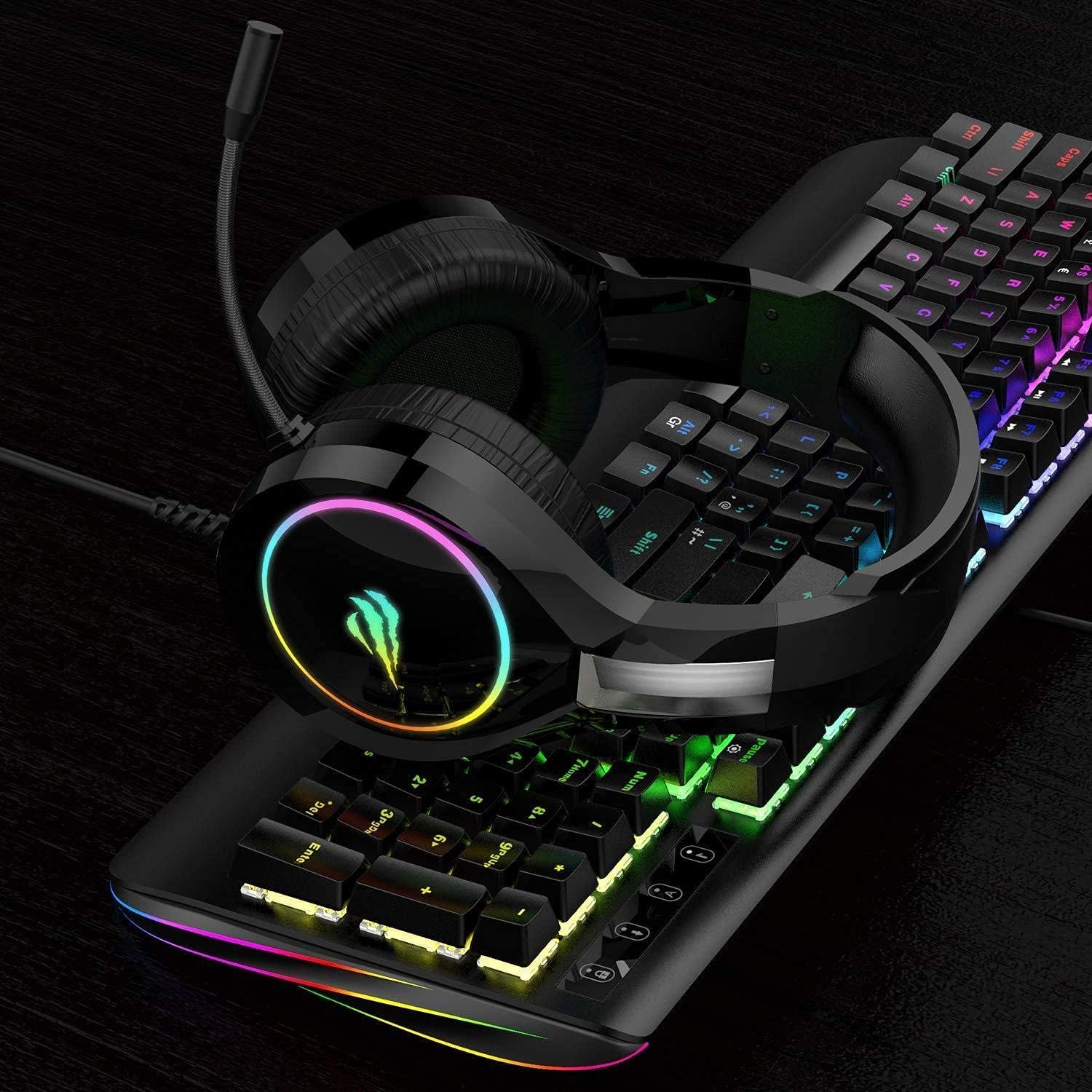
Figure 0.1: The HAVIT HV-H2232D Headphone in a gaming environment.
1. Setup Guide
1.1 Connecting Your Headset
The HAVIT HV-H2232D E-Sports Gaming Headphone connects via a standard 3.5mm audio jack. Ensure your device has a compatible port.
- Locate the 3.5mm audio jack on your gaming device (PC, console controller, mobile phone, etc.).
- Insert the 3.5mm connector from the headset cable firmly into the audio jack.
- If using with a PC that has separate audio and microphone ports, you may need a 3.5mm splitter (not included) to utilize both functions simultaneously.
- Adjust the headset headband to fit comfortably over your head, ensuring the earcups fully cover your ears.

Figure 1.1: The HAVIT HV-H2232D Gaming Headphone, illustrating its design and wired connectivity via a 3.5mm jack.
2. Operating Instructions
2.1 Volume Control
The headset features an integrated volume control wheel located on the left earcup. Rotate the wheel upwards to increase volume and downwards to decrease volume.
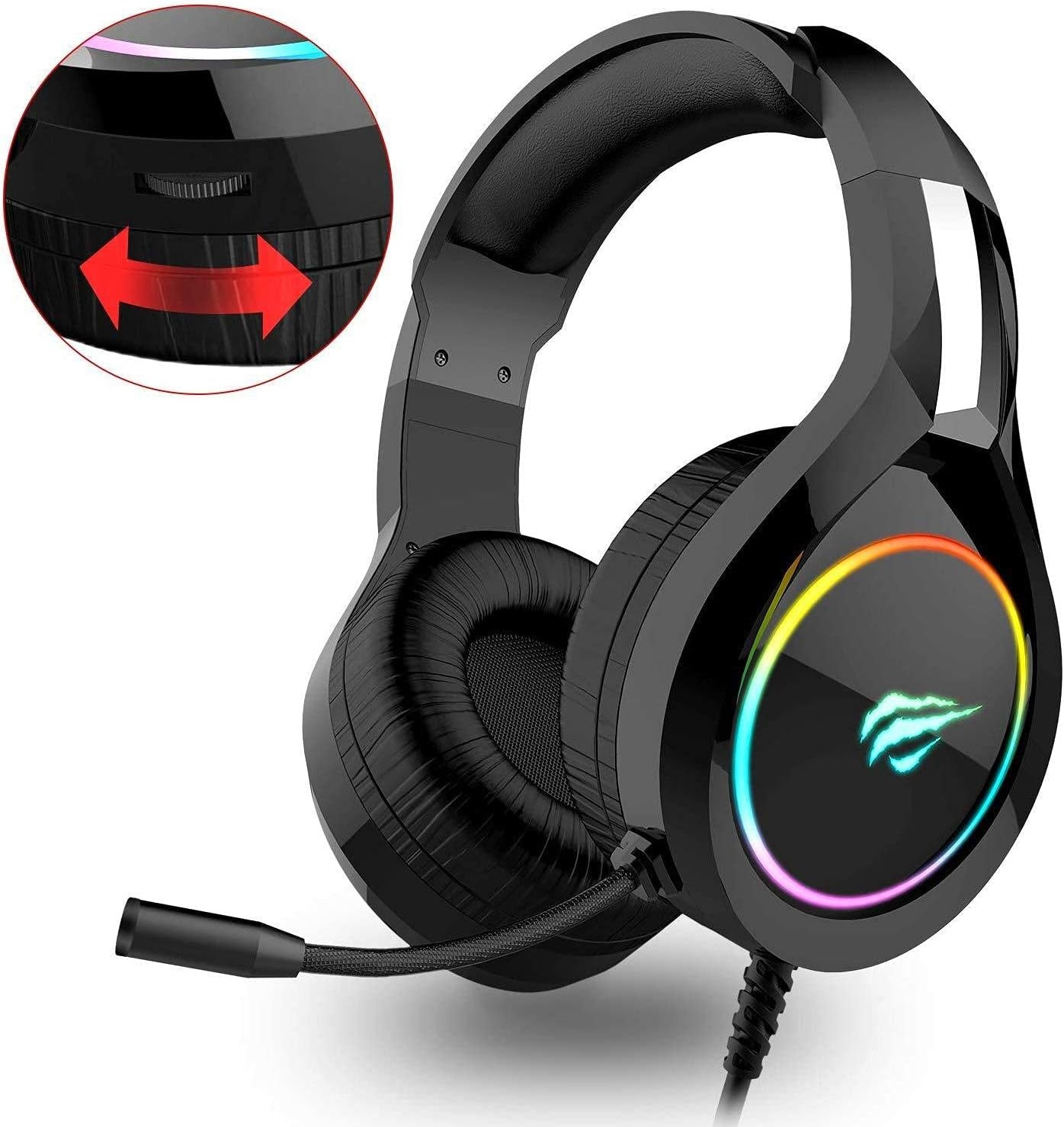
Figure 2.1: Detail of the volume control wheel and microphone on the headset.
2.2 Microphone Usage
The HV-H2232D is equipped with an adjustable, noise-cancelling microphone for clear voice communication during gameplay. Position the microphone approximately 2-3 cm from your mouth for optimal voice pickup.
- To adjust the microphone, gently bend the flexible arm to your desired position.
- Ensure the microphone is enabled in your device's audio settings if you experience issues with voice input.
2.3 RGB Lighting Feature
The earcups of the HAVIT HV-H2232D feature cool RGB lighting, enhancing your gaming aesthetic. This lighting is typically powered directly through the 3.5mm connection or a separate USB connection if available (check your specific model for USB power requirements for RGB).
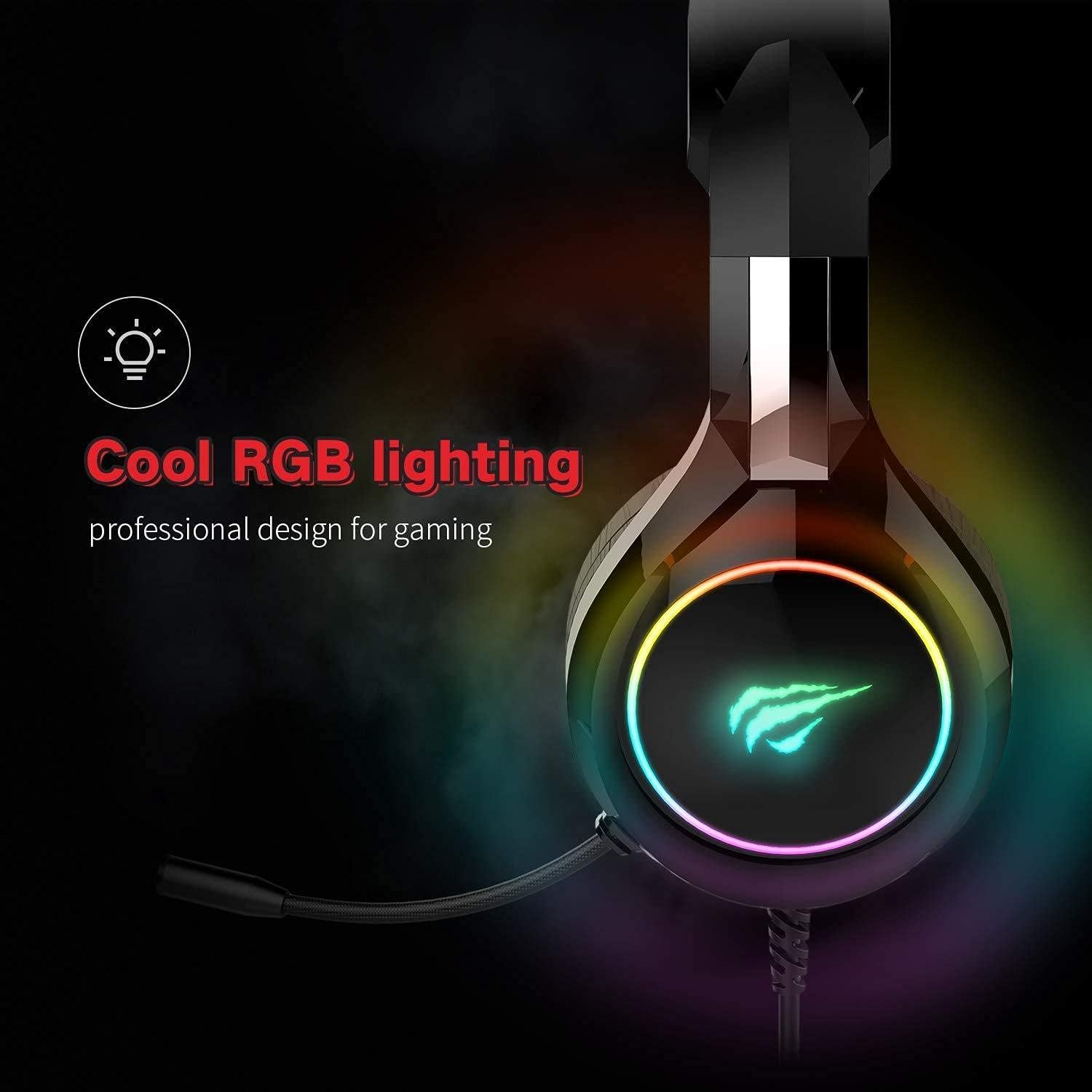
Figure 2.2: The headset's earcup illuminated with RGB lighting.
2.4 Immersive Audio Experience
Experience 360° Stereo Sound with the HV-H2232D, designed to help you capture subtle audio cues like footsteps and distant gunfire, providing a competitive edge in gaming.

Figure 2.3: Visual representation of the 360° Stereo Sound capability.
3. Maintenance
3.1 Cleaning Your Headset
To ensure the longevity and hygiene of your HAVIT HV-H2232D headset, follow these cleaning guidelines:
- Use a soft, dry, lint-free cloth to wipe down the earcups and headband.
- For stubborn dirt, slightly dampen the cloth with water or a mild, non-abrasive cleaner. Avoid excessive moisture.
- Do not use harsh chemicals, solvents, or abrasive materials, as these can damage the headset's finish and components.
- Ensure the headset is completely dry before storing or using it again.
3.2 Storage
Proper storage helps protect your headset from damage:
- Store the headset in a cool, dry place away from direct sunlight and extreme temperatures.
- Avoid tangling the cable. Consider using a cable tie or wrapping it loosely.
- If possible, store it on a headset stand to maintain its shape and prevent pressure on the earcups.
4. Troubleshooting
If you encounter issues with your HAVIT HV-H2232D headset, refer to the following common problems and solutions:
| Problem | Possible Cause | Solution |
|---|---|---|
| No sound from headset |
|
|
| Microphone not working |
|
|
| RGB lighting not working |
|
|
5. Product Specifications
| Feature | Detail |
|---|---|
| Model Number | HV-H2232D E |
| Brand Name | havit |
| Color | Black |
| Headphones Ear Placement | Over Ear |
| Headphones Form Factor | Over Ear |
| Noise Control | Active Noise Cancellation |
| Headphones Jack | 3.5 mm Jack |
| Connectivity Technology | Wired |
| Product Dimensions | 25 x 20 x 15 cm |
| Item Weight | 200 g |
| Included Components | Cable |
| Age Range Description | Adult |
6. Warranty and Support
Specific warranty details for the HAVIT HV-H2232D E-Sports Gaming Headphone are not provided within this manual. For information regarding warranty coverage, terms, and conditions, please refer to the warranty card included with your product packaging or visit the official HAVIT website.
For technical support, troubleshooting assistance beyond what is covered in this manual, or inquiries about replacement parts, please contact HAVIT customer service through their official channels. Contact information can typically be found on the product packaging or the manufacturer's website.
Related documentsHV-H2232D E

Ask a question about this manual
Ask about setup, troubleshooting, compatibility, parts, safety, or missing instructions. Manuals+ will review the question and use this page’s manual context to help answer it.