
1. Introduction
The RK ROYAL KLUDGE RK84 is a versatile 75% mechanical keyboard designed for various computing environments. It features triple-mode connectivity (Bluetooth 5.0, 2.4GHz wireless, and USB-C wired), hot-swappable switches, and customizable RGB backlighting. This manual provides detailed instructions for setup, operation, and maintenance to ensure optimal performance.

Image 1.1: The RK ROYAL KLUDGE RK84 keyboard showcasing its RGB backlighting.

Image 1.2: Overview of the RK84's main features including triple modes, hot-swappable design, and battery capacity.
2. Package Contents
Please verify that all items are present in your package:
- 1 x RK84 Mechanical Keyboard
- 1 x 2.4GHz Receiver
- 4 x Replacement Switches
- 2 x Magnetic Pad Feet
- 1 x Type-C USB Cable
- 1 x 2-in-1 Keycap & Switch Puller

Image 2.1: All components included in the RK84 keyboard package.
3. Setup
3.1. Physical Setup
- Connect the USB-C Cable: For wired mode or charging, connect the provided USB-C cable to the keyboard's Type-C port and the other end to your computer's USB port.
- Insert 2.4GHz Receiver: For 2.4GHz wireless mode, plug the 2.4GHz USB receiver into an available USB port on your computer.
3.2. Adjusting Keyboard Angle
The RK84 keyboard includes two magnetic pad feet. These can be attached to the bottom of the keyboard to adjust the typing angle for improved ergonomics. You can choose between an 8-degree or 12-degree tilt.

Image 3.1: Illustration of the RK84 keyboard with adjustable magnetic feet for 8 and 12-degree typing angles.
3.3. Charging the Battery
The keyboard is equipped with a 3750mAh high-capacity battery. To charge:
- Connect the keyboard to your computer or a USB power adapter using the USB-C cable.
- A full charge typically takes 6-7 hours.
- The keyboard can operate for up to 200 hours with the backlight off on a full charge.

Image 3.2: Details on the 3750mAh battery, charging time, and usage duration.
4. Operating Modes
The RK84 supports three connectivity modes: USB-C Wired, 2.4GHz Wireless, and Bluetooth 5.0.

Image 4.1: Visual representation of the three connectivity modes: Bluetooth, USB-C Wired, and 2.4GHz Wireless.
4.1. Switching Modes
Use the switch located on the back or side of the keyboard to select your desired mode:
- Wired Mode: Connect the USB-C cable directly to your computer.
- 2.4GHz Wireless Mode: Insert the 2.4GHz receiver into your computer's USB port and switch the keyboard to 2.4G mode.
- Bluetooth Mode: Switch the keyboard to BT mode.
4.2. Bluetooth Pairing
The RK84 can store up to three Bluetooth devices.
- Switch the keyboard to Bluetooth mode.
- Press and hold Fn + Q, Fn + W, or Fn + E for 3-5 seconds until the corresponding key (Q, W, or E) flashes rapidly. This indicates the keyboard is in pairing mode.
- On your device (computer, tablet, phone), search for Bluetooth devices and select "RK84" to connect.
- Once successfully paired, the key (Q, W, or E) will stop flashing and remain steadily lit.
- To switch between paired devices, simply press Fn + Q, Fn + W, or Fn + E (short press).

Image 4.2: Instructions for pairing and switching between up to three Bluetooth devices using Fn+Q/W/E.
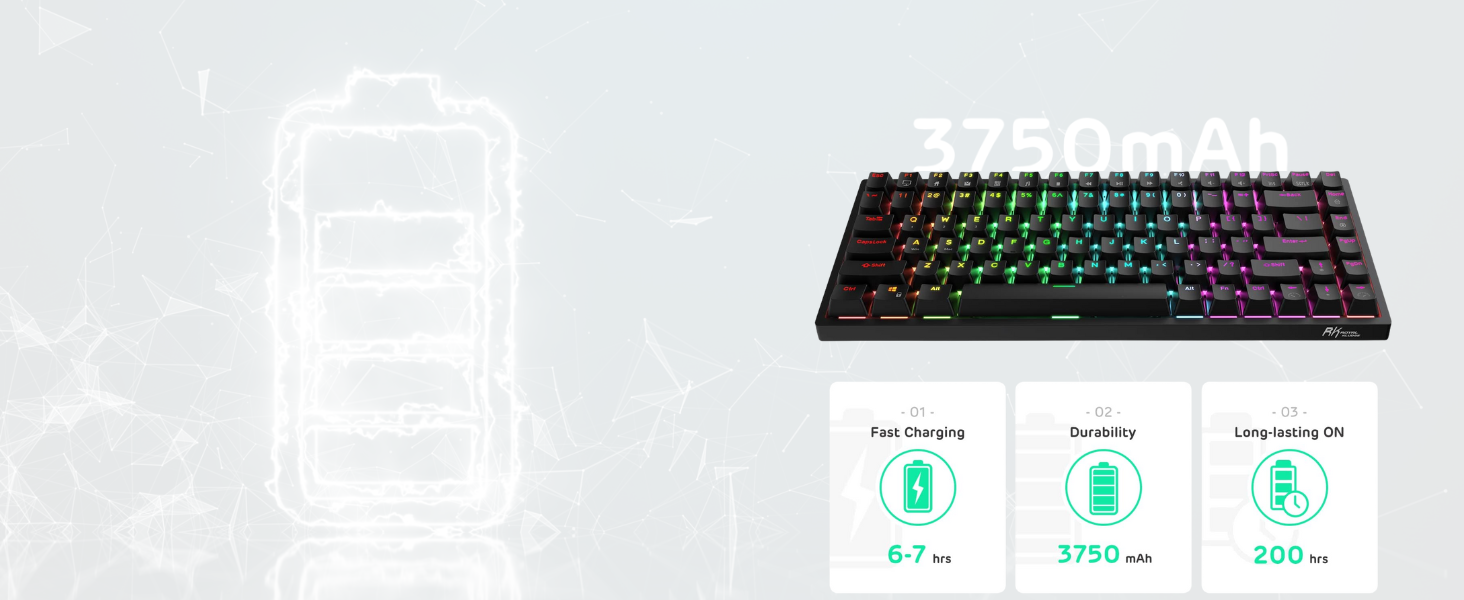
Image 4.3: The RK84 connected to multiple devices (laptop, tablet) via its triple-mode functionality.
5. Keyboard Functions
5.1. Hot-Swappable Switches
The RK84 features a hot-swappable PCB, allowing you to change 3-pin or 5-pin mechanical switches without soldering. This enables customization of typing feel and sound.
- Use the included 2-in-1 keycap and switch puller to carefully remove keycaps and switches.
- Align the pins of the new switch with the holes on the PCB and press firmly until it clicks into place.

Image 5.1: Close-up view of the hot-swappable switch sockets on the RK84 keyboard.
5.2. RGB Backlighting
The keyboard offers dynamic RGB backlighting with multiple effects. Use the following key combinations to control the lighting:
- Fn + \|: Change backlight mode.
- Fn + [{: Decrease backlight brightness.
- Fn + ]}: Increase backlight brightness.
- Fn + ;:: Decrease backlight speed.
- Fn + '"': Increase backlight speed.
Advanced customization of RGB effects, macros, and key assignments can be done using the official RK ROYAL KLUDGE software, available for download from the manufacturer's website.
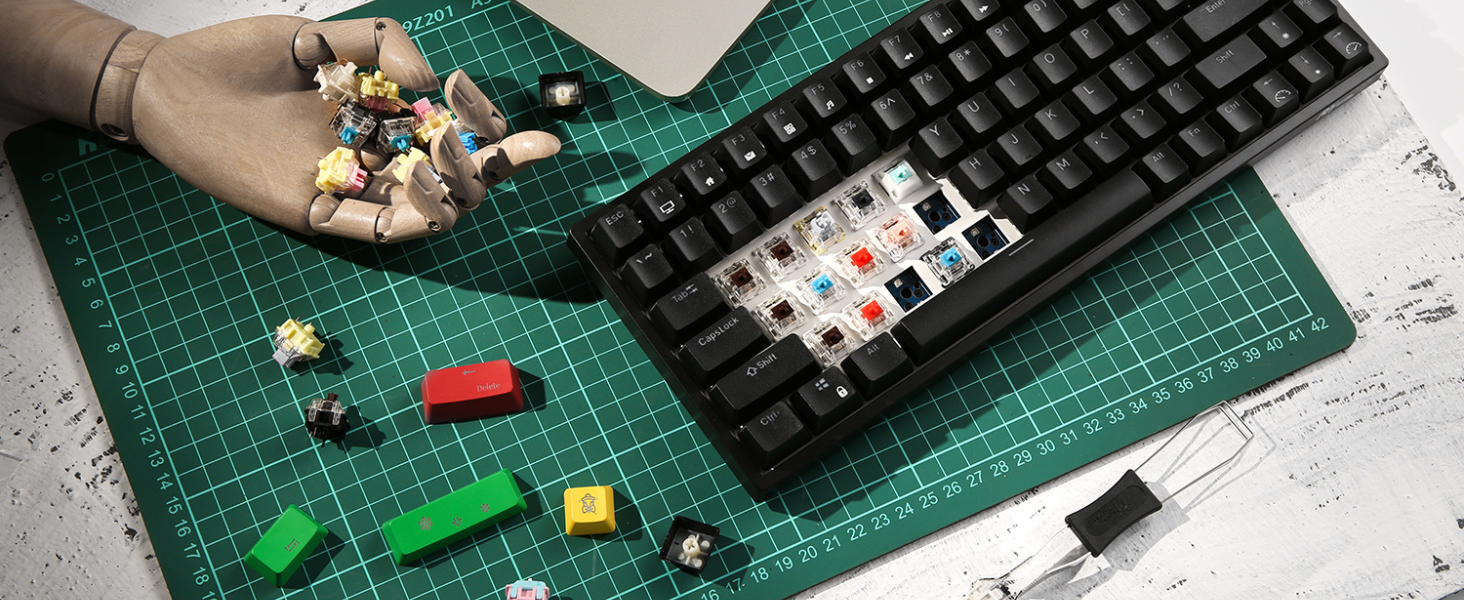
Image 5.2: Screenshot of the RK ROYAL KLUDGE software interface for customizing lighting and key functions.
5.3. Multimedia and Function Keys
The RK84's 75% layout retains essential function keys and multimedia controls, accessible via the Fn key:
- Fn + F1-F12: Standard function keys.
- Fn + A: Play/Pause media.
- Fn + S: Previous track.
- Fn + D: Next track.
- Fn + F: Mute.
- Fn + G: Volume down.
- Fn + H: Volume up.
- Fn + Left Ctrl: Switch between Windows and Mac layout.
5.4. Battery Level Check
To check the remaining battery level, press Fn + Enter. The number row keys (1-0) will light up, with each lit key representing approximately 10% of battery charge.
5.5. USB Hub Functionality
The keyboard features two built-in USB 2.0 pass-through ports and one Type-C port. These ports allow you to connect other peripherals such as a mouse, USB drive, or charge small devices directly through the keyboard when it is connected via USB-C cable.

Image 5.3: Diagram showing the location of the detachable Type-C cable port and the two built-in USB 2.0 pass-through ports.
6. Maintenance
6.1. Switch Replacement
As the RK84 is hot-swappable, you can easily replace switches if they become faulty or if you wish to change the typing experience. Refer to section 5.1 for instructions on using the included switch puller.
6.2. Cleaning
To maintain the keyboard's appearance and functionality:
- Disconnect the keyboard from your computer before cleaning.
- Use a soft, lint-free cloth slightly dampened with water or a mild cleaning solution to wipe the keycaps and chassis.
- For dust and debris between keycaps, use compressed air or a small brush.
- Avoid using harsh chemicals or abrasive materials that could damage the keyboard's finish or keycap legends.
7. Troubleshooting
7.1. Connectivity Issues
- 2.4GHz Wireless: Ensure the 2.4GHz receiver is securely plugged into a USB port. Try a different USB port. Ensure the keyboard is switched to 2.4G mode.
- Bluetooth: Ensure the keyboard is in BT mode and in pairing mode (Fn+Q/W/E flashing). Check your device's Bluetooth settings to ensure it's enabled and searching for devices. If previously paired, try unpairing and re-pairing. Ensure the keyboard is sufficiently charged.
- Wired: Ensure the USB-C cable is securely connected to both the keyboard and the computer. Try a different USB port or cable.
7.2. Charging Problems
- Ensure the USB-C cable is properly connected and the power source is active.
- Try a different USB port or power adapter.
- If the keyboard does not charge, the battery or charging circuit may be faulty. Contact support.
7.3. Keys Not Responding
- Check the connectivity mode.
- If a specific key is not responding, the switch might be faulty. Utilize the hot-swappable feature to replace the switch with one of the included spares or a new one.
- Ensure the keyboard is not in sleep mode (press any key to wake it).
7.4. Software Issues
If you experience issues with the customization software, ensure you have downloaded the correct version for your keyboard model from the official RK ROYAL KLUDGE website. Try reinstalling the software or updating your computer's drivers.
8. Specifications
| Feature | Detail |
|---|---|
| Model | RK84 |
| Connectivity | Bluetooth 5.0, 2.4GHz Wireless, USB-C Wired |
| Layout | 75% (84 Keys) |
| Switches | Hot-swappable (3-pin/5-pin compatible) |
| Backlighting | RGB |
| Battery Capacity | 3750mAh Lithium Polymer |
| Charging Time | 6-7 hours |
| Battery Life (Backlight Off) | Up to 200 hours |
| USB Ports | 2 x USB 2.0 Pass-through, 1 x Type-C |
| Product Dimensions | 13.98 x 6.89 x 2.01 inches (35.5 x 17.5 x 5.1 cm) |
| Item Weight | 2.35 pounds (1.07 kg) |
| Manufacturer | RK ROYAL KLUDGE |
| Compatible Devices | Laptop, PC, Tablet, Smartphone |
9. Warranty & Support
9.1. Warranty Information
For detailed warranty information, please refer to the warranty card included with your product or visit the official RK ROYAL KLUDGE website. Warranty terms and conditions may vary by region and retailer.
9.2. Customer Support
If you encounter any issues or have questions regarding your RK ROYAL KLUDGE RK84 keyboard, please contact customer support through the retailer where you purchased the product or visit the official RK ROYAL KLUDGE website for contact information and FAQs.