
1. Introduction
Thank you for choosing the Somikon Full HD USB Webcam with Automatic Tracking. This manual provides essential information for the proper setup, operation, and maintenance of your device. Please read it thoroughly before use and retain it for future reference.
1.1 Package Contents
- Somikon Full HD USB Webcam
- Compact Tripod
- User Manual (French, for reference)
2. Safety Information
- Do not expose the device to water or excessive moisture.
- Avoid extreme temperatures.
- Do not attempt to disassemble or repair the device yourself. Refer all servicing to qualified personnel.
- Keep out of reach of children.
- Use only with compatible USB ports.
3. Product Overview
The Somikon Full HD USB Webcam is designed for high-quality video communication, featuring automatic tracking, autofocus, and a wide field of view. It includes an integrated dual stereo microphone for clear audio.
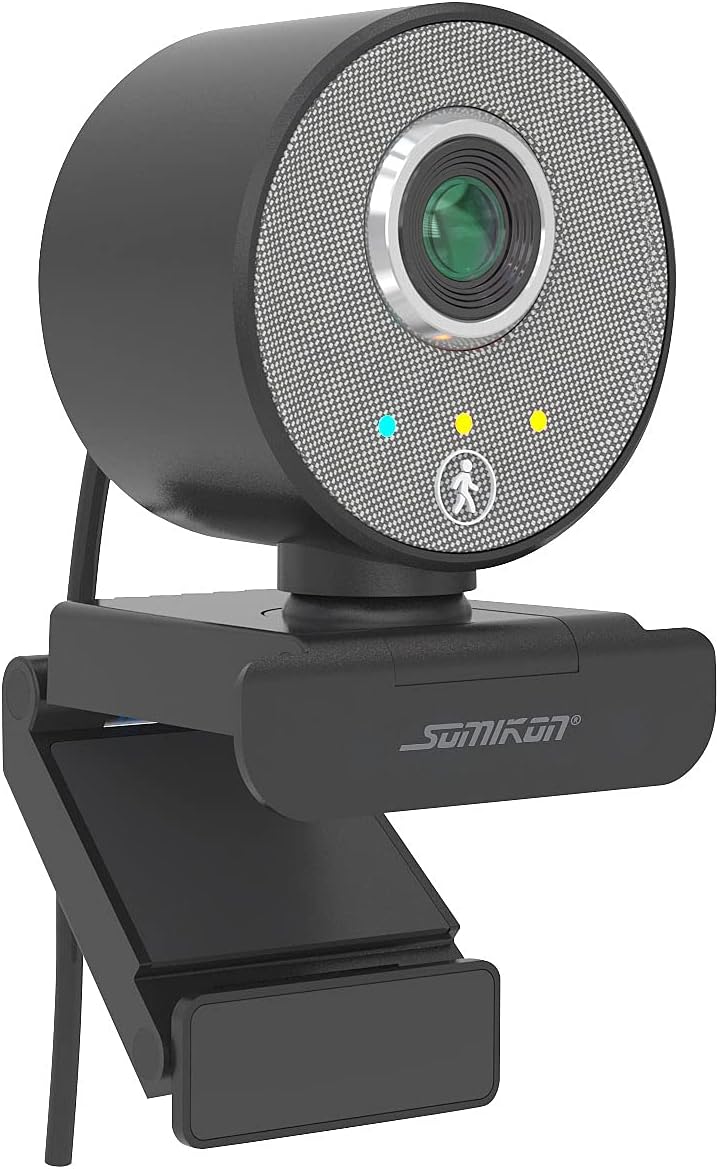
Figure 3.1: Front view of the Somikon Full HD USB Webcam. This image shows the main camera lens, indicator lights, and the Somikon brand logo on the base.

Figure 3.2: Close-up of the webcam's front panel. Visible are the camera lens, two small indicator lights (blue and yellow), and a small icon representing a person, indicating the automatic tracking feature.
4. Setup
The Somikon Webcam features Plug & Play functionality, requiring no driver installation for most operating systems.
4.1 System Requirements
- Operating System: Windows 7/8/8.1/10, OS X / macOS
- Available USB port
4.2 Installation Steps
- Placement: Choose your desired placement for the webcam. It can be:
- On a Monitor/Laptop Screen: Use the integrated clip to securely attach the webcam to the top edge of your screen. Adjust the angle as needed.
- On a Desk/Flat Surface: Attach the included compact tripod to the webcam's base for stable placement on any flat surface.

Figure 4.1: Webcam mounted on a desktop monitor. This image illustrates the webcam positioned on top of a computer screen, with a person visible on the screen during a video call, demonstrating typical usage.

Figure 4.2: Webcam on a tripod next to a laptop. The webcam is shown on its compact tripod, positioned beside an open laptop displaying a video call with a family.
- Connect to Computer: Plug the integrated USB cable from the webcam into an available USB port on your computer.
- Automatic Recognition: Your computer should automatically recognize the webcam as a new device. No additional drivers are typically required.
- Select in Application: Open your preferred video conferencing or recording software (e.g., Zoom, Skype, Microsoft Teams, OBS Studio) and select the Somikon Webcam as your video and audio input device in the application's settings.
5. Operating Instructions
5.1 Key Features
- Full HD Video: Records video at 1920 x 1080 pixels (1080p) at 30 frames per second, ensuring clear and detailed images.
- 120° Field of View: Captures a wide area, suitable for individual use or small group meetings.
- Autofocus: Automatically adjusts the lens to keep your face sharp and in focus.
- Automatic Tracking: The webcam can automatically follow a person up to 3 meters away, keeping them centered in the frame. This feature helps maintain focus on the speaker during presentations or movement.
- Auto Beauty Function: Automatically corrects contrast, sharpness, saturation, white balance, and exposure for optimized image quality.
- Super WDR Technology: Dynamic brightness adjustment ensures optimal recording quality, even in challenging lighting conditions such as strong backlighting. This helps to balance bright and dark areas in the image.
- Dual Stereo Microphone: Integrated microphones provide clear and spatial sound transmission, enhancing audio quality for calls and recordings.

Figure 5.1: Webcam demonstrating 350-degree rotation and autofocus. This image shows the webcam on its tripod, with an arrow indicating a 350-degree rotational capability. An inset shows two people with white boxes around their faces, illustrating the autofocus feature.

Figure 5.2: WDR (Wide Dynamic Range) comparison. This image displays two scenes of a living room with a window. The top image shows a high contrast, underexposed foreground due to bright backlighting. The bottom image, labeled 'WDR', shows a balanced exposure where both the foreground and background are clearly visible, demonstrating the WDR effect.
6. Maintenance
- Cleaning: Use a soft, dry cloth to clean the webcam lens and body. Do not use liquid cleaners or abrasive materials.
- Storage: When not in use, store the webcam in a clean, dry place away from direct sunlight.
- Cable Care: Avoid bending or twisting the USB cable excessively to prevent damage.
7. Troubleshooting
| Problem | Possible Cause | Solution |
|---|---|---|
| Webcam not detected | Loose USB connection, faulty USB port, incompatible OS. | Ensure USB cable is securely connected. Try a different USB port. Restart your computer. Verify OS compatibility. |
| No video output | Webcam not selected in software, privacy settings. | Check your application's settings to ensure the Somikon Webcam is selected. Verify system privacy settings allow camera access. |
| Poor image quality | Insufficient lighting, dirty lens, software settings. | Ensure adequate lighting. Clean the lens with a soft cloth. Check video settings in your application. |
| No audio input | Microphone not selected, system audio settings. | Ensure the Somikon Webcam's microphone is selected in your application and system audio settings. |
| Automatic tracking not working | Subject too far, rapid movement, poor lighting. | Ensure the subject is within 3 meters. Avoid excessively fast movements. Improve lighting conditions. |
8. Specifications
| Feature | Detail |
|---|---|
| Model Number | ZX3095-944 |
| Video Resolution | 1920 x 1080 px (1080p) at 30 fps |
| Field of View | 120° |
| Focus Type | Autofocus |
| Automatic Tracking Range | Up to 3 meters |
| Microphone | Integrated Dual Stereo Microphone |
| Special Features | Auto Beauty Function, Super WDR Technology, Low Light Performance |
| Connectivity | USB (integrated cable) |
| System Compatibility | Windows 7/8/8.1/10, OS X / macOS |
| Dimensions (L x W x H) | 65 x 87 x 59 mm |
| Weight | 300 Grams |
| Included Components | Webcam, Tripod, User Manual |
9. Warranty and Support
For warranty information and technical support, please refer to the documentation provided with your purchase or contact your retailer. Keep your proof of purchase for warranty claims.


