
Introduction
This manual provides detailed instructions for the setup, operation, and maintenance of your Punkston TK87 Mechanical Gaming Keyboard. Please read this manual thoroughly before using the product to ensure proper functionality and longevity.
Package Contents
- Punkston TK87 Mechanical Gaming Keyboard
- Keycap Puller
- User Manual (This document)
Setup
Follow these steps to set up your keyboard:
- Connect the USB cable from the keyboard to an available USB port on your computer.
- The keyboard is designed for plug-and-play functionality and should be automatically recognized by your operating system without additional drivers.
- For advanced customization, including key remapping and macro settings, download the official software from the Punkston website.

Operating Instructions
Basic Keyboard Functions
The TK87 features a Tenkeyless (TKL) 87-key layout. All standard alphanumeric and function keys operate as expected. The compact design saves space while retaining essential keys.
N-Key Rollover / Anti-Ghosting: The keyboard supports N-Key rollover, which means any number of keys can be pressed simultaneously without input loss or 'ghosting'. This feature is crucial for fast-paced gaming and accurate typing.
RGB Lighting Control
The keyboard features vibrant Rainbow Backlit RGB with 23 distinct lighting modes and 5 adjustable brightness levels.
- Changing Lighting Modes: Use the designated function key combinations (typically Fn + a specific key, as indicated by keyboard legends) to cycle through the 23 available lighting modes.
- Adjusting Brightness: Use the designated function key combinations to increase or decrease the brightness across 5 levels.
- Adjusting Lighting Speed: For dynamic lighting effects, use the designated function key combinations to adjust the speed of the animation.
- Turning Lights On/Off: A specific function key combination allows you to toggle the backlighting on or off.


Customization (Software Required)
For advanced customization options, download and install the official Punkston software from the manufacturer's website. This software enables:
- Key Remapping: Reassign functions to individual keys to suit your workflow or gaming preferences.
- Macro Recording: Create and assign complex sequences of keystrokes to a single key for efficient execution of commands.
- Custom Lighting Profiles: Design and save personalized RGB lighting effects and patterns.


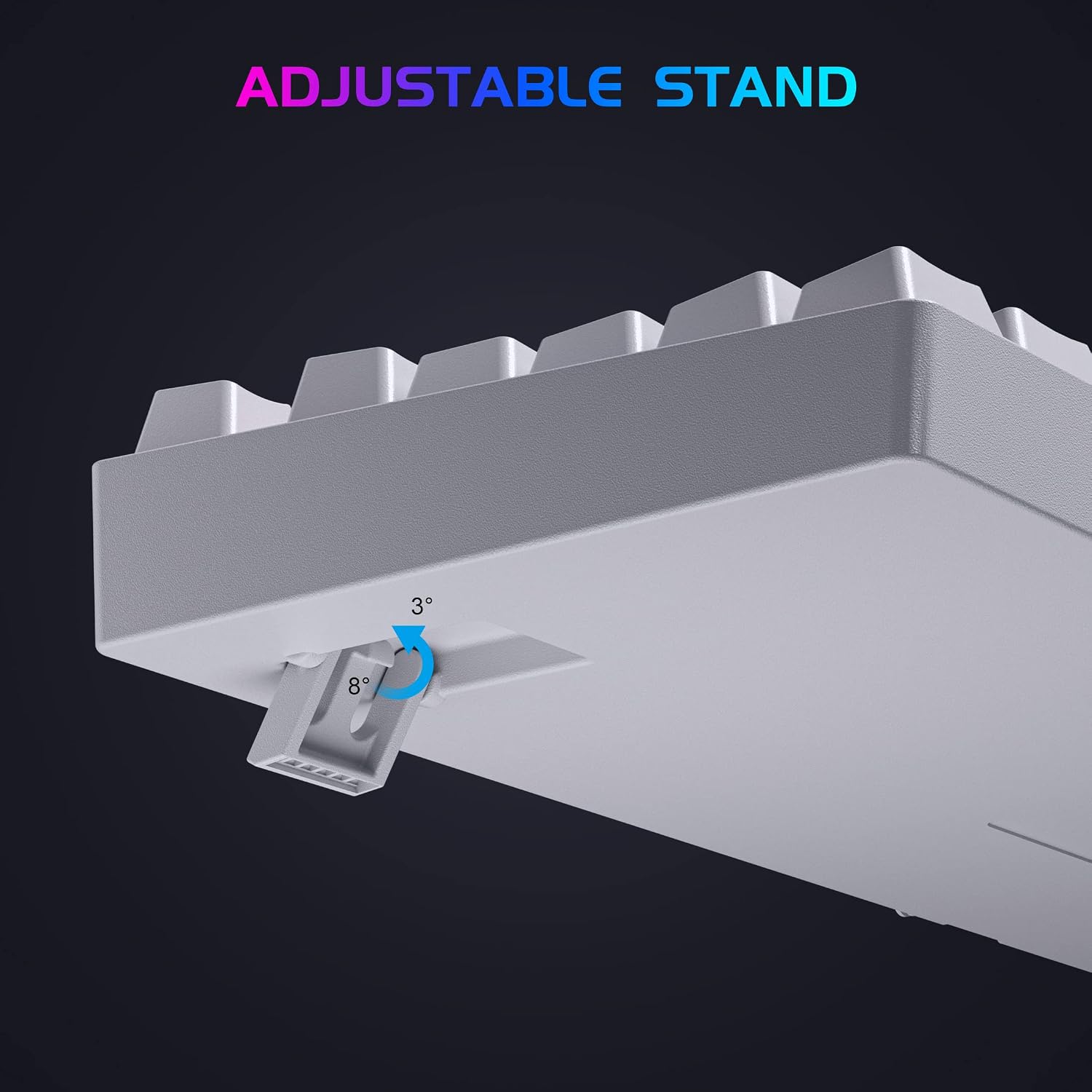
Adjustable Stand
The keyboard is equipped with an adjustable stand on its underside. This allows users to modify the typing angle to either 3 degrees or 8 degrees, enhancing ergonomic comfort during extended use.

Maintenance
Cleaning
To maintain your keyboard's performance and appearance:
- Always disconnect the keyboard from your computer before cleaning.
- Use a soft, dry, lint-free cloth to gently wipe down the keycaps and the keyboard chassis.
- For thorough cleaning, use the included keycap puller to carefully remove keycaps. Clean underneath with compressed air to remove dust and debris, or use a small, soft brush.
- Avoid using harsh chemical cleaners, solvents, or abrasive materials, as these can damage the keyboard's finish or keycap legends.

Keycap Replacement
The TK87 utilizes Cherry MX style keycaps, allowing for easy customization and replacement. Use the provided keycap puller to carefully remove existing keycaps by gripping them firmly and pulling straight up. When replacing, align the keycap with the switch stem and press down gently until it clicks into place.
Troubleshooting
Keyboard Not Responding
- Ensure the USB cable is securely connected to both the keyboard and an active USB port on your computer.
- Try connecting the keyboard to a different USB port on your computer.
- Test the keyboard on another computer to determine if the issue is with the keyboard or your system.
Lighting Not Working
- Verify that the backlighting has not been turned off using the designated function key combination.
- Check the brightness settings using the function key combinations to ensure it is not set to the lowest level.
- If using customization software, ensure no conflicting lighting profiles are active or that the software is not overriding manual settings.
Keys Not Registering
- Carefully clean around the affected key to ensure no debris or foreign objects are obstructing the mechanical switch.
- If the issue persists after cleaning, contact customer support for further assistance.
Specifications
| Feature | Detail |
|---|---|
| Model | TK87 |
| Layout | Tenkeyless (TKL), 87 Keys |
| Switch Type | Mechanical (Red Switch) |
| Keycap Material | ABS |
| Backlighting | RGB Rainbow LED (23 modes, 5 brightness levels) |
| Anti-Ghosting | N-Key Rollover |
| Connectivity | Wired USB |
| Compatible Devices | Windows 7/8/10/XP/VISTA, Mac OS, Linux |
| Weight | 2 Pounds |


Compatibility
The Punkston TK87 Mechanical Gaming Keyboard is compatible with a wide range of operating systems, ensuring broad usability:
- Windows 7
- Windows 8
- Windows 10
- Windows XP
- Windows VISTA
- Mac OS
- Linux
Warranty and Support
For detailed warranty information, technical support, or to download the latest software and drivers, please refer to the official Punkston website or contact their customer service department.
Official Store Link: Visit the Punkston Store on Amazon
Product Video
Video: An official product video showcasing the Punkston TK87 Mechanical Gaming Keyboard, demonstrating its RGB lighting effects, compact design, and overall aesthetic in a gaming environment.


