
1. Introduction
The ZHIYUN MasterEye Visual Controller VC100 is a sophisticated accessory designed to enhance the control and monitoring capabilities of compatible camera stabilizers, specifically the Weebill 2. It integrates a visual display with advanced control functions, allowing users to remotely manage camera parameters, monitor footage, and control gimbal movements with precision. This manual provides comprehensive instructions for the setup, operation, and maintenance of your MasterEye VC100.
2. Safety Information
- Read this manual thoroughly before using the device to ensure proper operation and avoid damage.
- Do not expose the device to water or other liquids.
- Avoid dropping or subjecting the device to strong impacts.
- Use only ZHIYUN-approved charging cables and power adapters.
- Keep the device away from extreme temperatures and direct sunlight.
- Do not attempt to disassemble or repair the device yourself. Contact authorized service personnel for assistance.
3. Package Contents
Please check the package contents upon unboxing. If any items are missing, contact your retailer or ZHIYUN support.
- ZHIYUN MasterEye Visual Controller VC100
- USB Charging Cable
- User Manual (this document)
- (Other accessories may vary based on package version)
4. Product Overview
Familiarize yourself with the components of the MasterEye VC100.

Figure 4.1: Front view of the MasterEye VC100, showing the main display screen, control joystick, function buttons (F1, F2), and the focus/zoom control wheel on the left side.
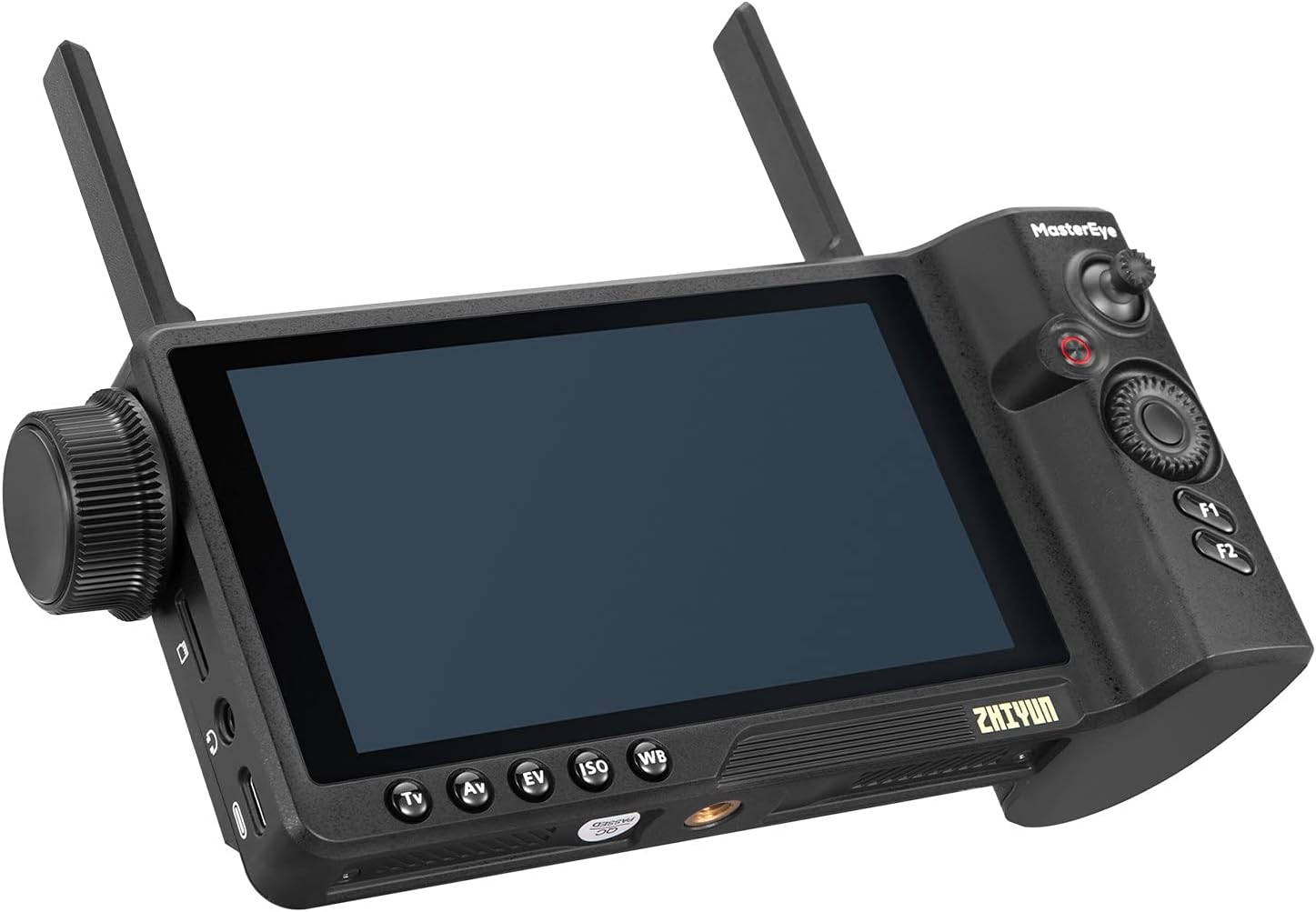
Figure 4.2: Angled view of the MasterEye VC100, highlighting the ergonomic design and the placement of the control wheel and buttons for easy access.

Figure 4.3: Rear view of the MasterEye VC100, showing the battery compartment and the mechanism for attaching to compatible TransMount accessories.

Figure 4.4: A user holding the MasterEye VC100, demonstrating its use as a live monitoring and control device for a camera setup.
5. Setup
5.1 Charging the Device
The MasterEye VC100 has a built-in battery with a runtime of up to 8 hours. It also supports external NP-F batteries for extended use.
- Connect the provided USB charging cable to the charging port on the MasterEye VC100.
- Connect the other end of the cable to a USB power adapter (not included) or a computer USB port.
- The charging indicator will show the charging status. Ensure the device is fully charged before first use.
5.2 Connecting to TransMount Image Transmission Transmitter
The MasterEye VC100 requires a TransMount Image Transmission Transmitter (sold separately) for full functionality, including motion sensor control and remote camera parameter adjustment.
- Ensure your TransMount Image Transmission Transmitter is properly installed and connected to your camera and gimbal (e.g., Weebill 2).
- Power on both the MasterEye VC100 and the TransMount Image Transmission Transmitter.
- Follow the on-screen prompts on the MasterEye VC100 to pair with the transmitter. Refer to the transmitter's manual for specific pairing instructions if needed.
6. Operating Instructions
6.1 Basic Navigation and Controls
- Touch Screen: Navigate menus, select options, and adjust settings directly on the display.
- Joystick: Control gimbal movements (pan, tilt) and navigate menu options.
- Control Wheel: Primarily used for focus/zoom control when paired with a compatible motor.
- Function Buttons (F1, F2): Customizable buttons for quick access to frequently used functions.
6.2 Motion Sensor Control
Utilize the built-in motion sensor for intuitive gimbal control.
- Enable motion sensor control in the settings menu.
- Tilt and pan the MasterEye VC100 to control the corresponding movements of your connected gimbal.
- The touch screen can be used to switch stabilizer modes and reposition the gimbal.

Figure 6.1: Illustrates the motion sensor control feature, where the movement of the MasterEye VC100 directly translates to gimbal movement.
6.3 Screen Recording & Audio Monitoring
The MasterEye VC100 supports recording of the transmitted video feed and real-time audio monitoring.
- TF Storage: Insert a TF (microSD) card (up to 128GB supported) into the designated slot for recording 1080P high-quality backups and local album playback.
- Audio Monitoring: Connect headphones to the 3.5mm earphone port for real-time audio monitoring, especially useful in scenes with conversations.
6.4 Accurate Focus/Zoom Control
When paired with a TransMount Focus/Zoom Control Motor and TransMount Video Transmission Transmitter (AI), the MasterEye VC100 allows precise focus and focal length adjustments.
- Use the control wheel on the left side of the device to adjust focus or zoom.
- Customize focus control sensitivity (Low/Medium/High) in the settings menu to suit your needs.
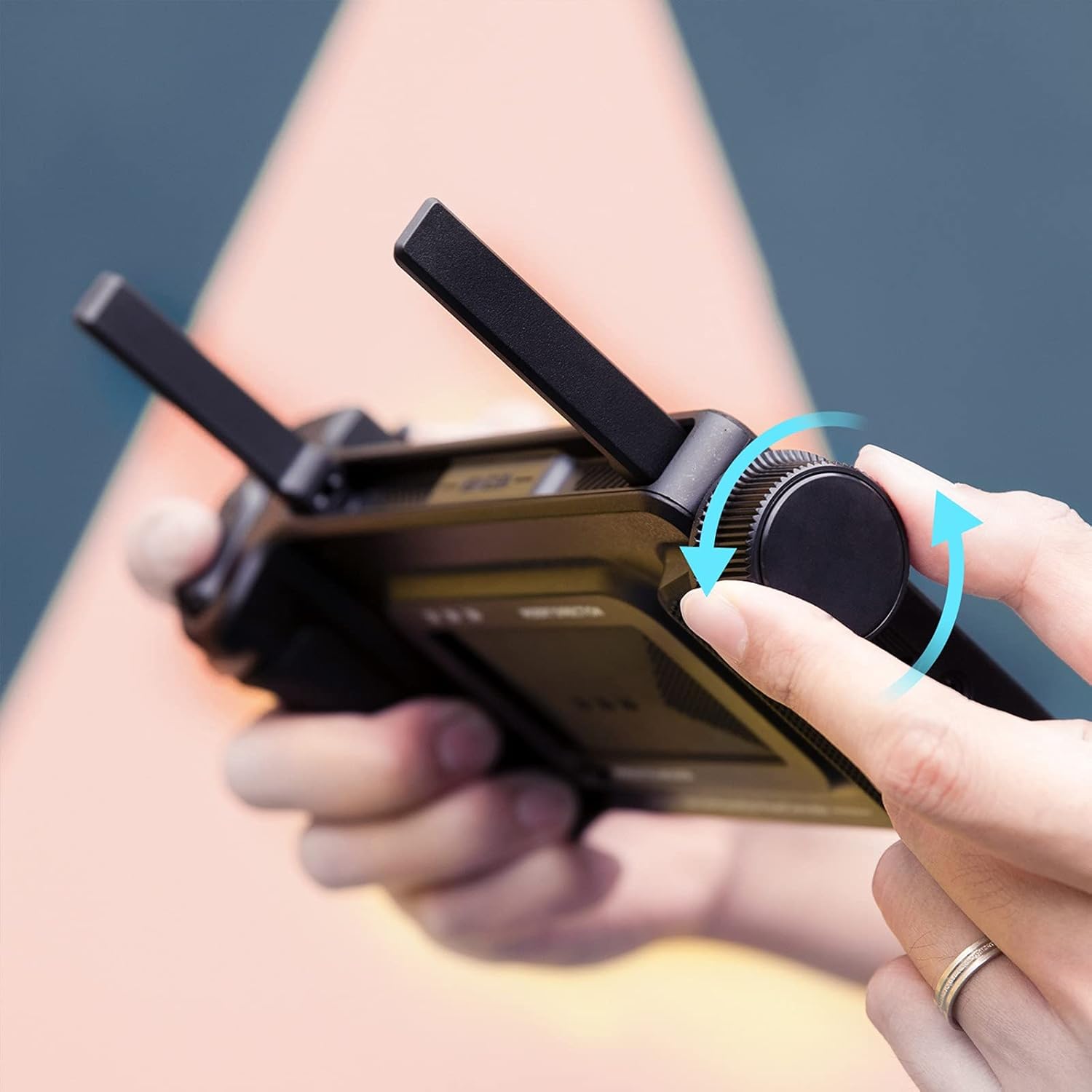
Figure 6.2: Close-up of a hand adjusting the focus/zoom control wheel on the MasterEye VC100.
6.5 Quick Adjustment for Camera Parameters
Remotely control various camera settings directly from the MasterEye VC100 (requires TransMount Image Transmission Transmitter).
- Adjust aperture (Av), shutter speed (Tv), ISO, exposure (EV), and white balance (WB).
- Refer to the camera compatibility list provided by ZHIYUN for supported camera models and functions.
7. Maintenance
- Cleaning: Use a soft, dry cloth to clean the device. For the screen, use a microfiber cloth specifically designed for electronics. Do not use liquid cleaners or solvents.
- Storage: Store the MasterEye VC100 in a cool, dry place away from direct sunlight and extreme temperatures. If storing for extended periods, ensure the battery is charged to approximately 50% to prolong its lifespan.
- Firmware Updates: Regularly check the ZHIYUN official website for firmware updates. Keeping your device updated ensures optimal performance and access to new features.
8. Troubleshooting
This section addresses common issues you might encounter.
| Problem | Possible Cause | Solution |
|---|---|---|
| Device does not power on. | Low or depleted battery. | Charge the device fully using the provided USB cable. |
| Cannot connect to TransMount Image Transmission Transmitter. | Transmitter not powered on or not in pairing mode; interference. | Ensure both devices are powered on and within range. Re-initiate pairing process. Check for firmware updates on both devices. |
| Audio transmission not working. | Compatibility issue with specific transmitter versions (e.g., AI 3.0 vs. Video Transmitter 2.0). | Verify compatibility with your specific TransMount Image Transmission Transmitter model. Check ZHIYUN's official website for updated compatibility lists and firmware. |
| 128GB microSD card not recognized or screen recording fails. | Card formatting issue; firmware limitation. | Ensure the microSD card is formatted correctly (e.g., FAT32 or exFAT, depending on device requirements). Check for the latest firmware updates, as this may be a known issue addressed in newer versions. Try a smaller capacity card (e.g., 64GB) to rule out card size as the issue. |
| Gimbal control is unresponsive or delayed. | Weak signal; interference; outdated firmware. | Ensure clear line of sight between devices. Minimize wireless interference. Update firmware on both MasterEye VC100 and gimbal. |
9. Specifications
| Feature | Detail |
|---|---|
| Product Dimensions | 7.87 x 2.76 x 3.54 inches |
| Item Weight | 14.1 ounces |
| Model Number | VC100 |
| Brand | ZHIYUN |
| Special Feature | Ergonomic |
| Color | White |
| Max Number of Supported Devices | 1 |
| Compatible Devices | Camera (via TransMount Image Transmission Transmitter) |
| Battery Runtime | Up to 8 hours (built-in battery) |
| External Battery Support | NP-F type batteries |
| TF Storage Support | Up to 128GB |
| Video Recording Resolution | 1080P |
10. Warranty and Support
For warranty information, please refer to the warranty card included with your product or visit the official ZHIYUN website.
If you encounter any issues not covered in this manual or require further assistance, please contact ZHIYUN customer support through their official website or the contact information provided with your purchase.
ZHIYUN Official Website: www.zhiyun-tech.com