1. Introduction
This manual provides essential information for the proper use and care of your SAMSUNG Galaxy Book, Model NP750XDA-KD1US. This device is a 15.6-inch laptop featuring an Intel Core i5-1135G7 processor, 8GB RAM, and a 256GB SSD, designed for productivity and everyday computing tasks. Please read this manual thoroughly before operating your device.
2. Setup
2.1 Unboxing and Initial Inspection
Carefully remove all components from the packaging. Ensure the following items are present:
- SAMSUNG Galaxy Book Laptop
- Power Adapter
- Data Link Cable
- Installation Guide (paper)
Inspect the laptop and accessories for any signs of damage. If any items are missing or damaged, contact your retailer or SAMSUNG support immediately.
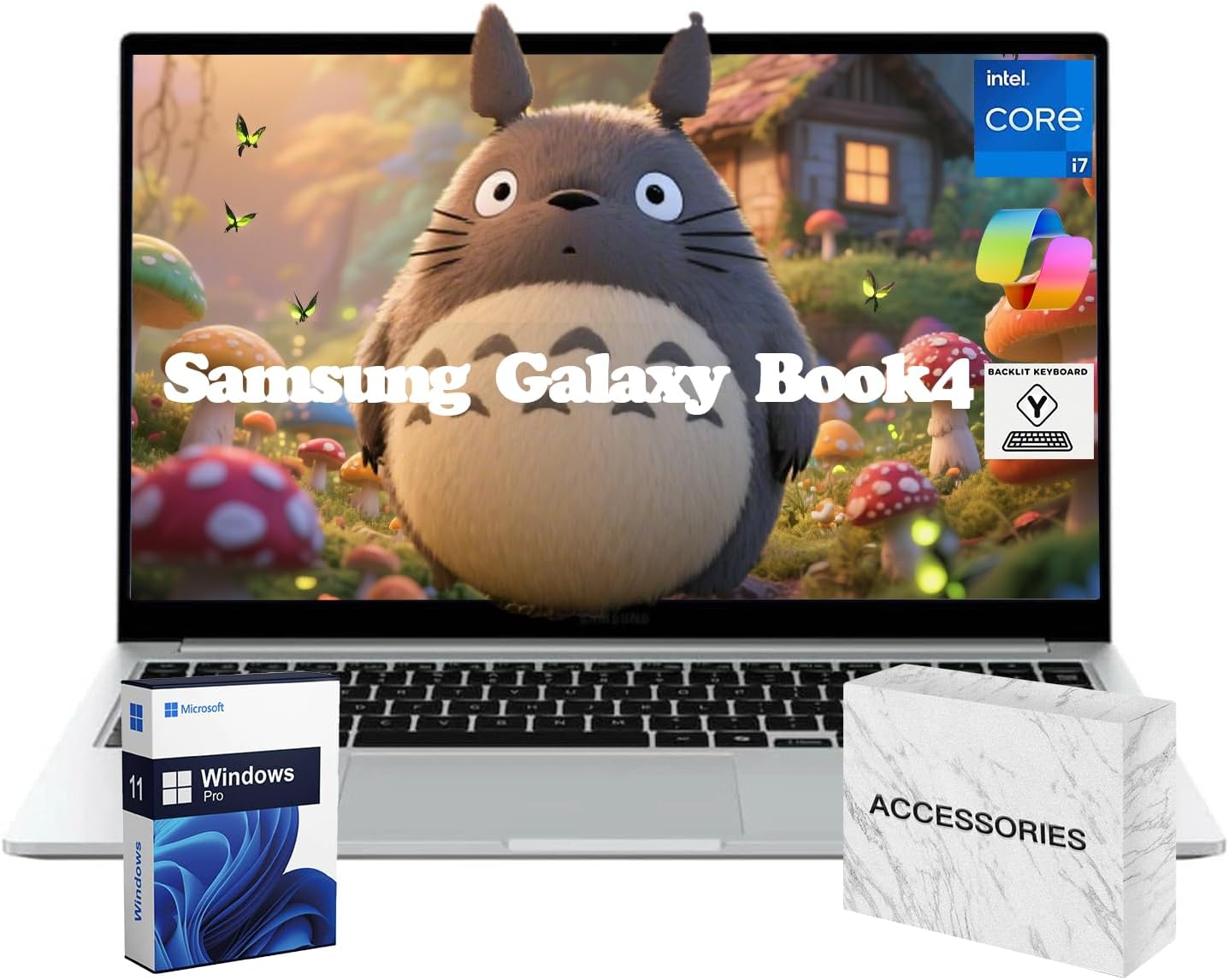
Figure 2.1: SAMSUNG Galaxy Book laptop with included accessories (power adapter and data cable not shown). The image displays the laptop, a Windows 11 Pro box, and an accessories box.
2.2 Connecting Power
Connect the power adapter to the charging port on your Galaxy Book and then plug the adapter into a wall outlet. The battery will begin charging automatically. It is recommended to fully charge the battery before initial use.
2.3 Initial Power On and Windows Setup
- Press the power button, typically located on the top right side of the keyboard deck.
- Follow the on-screen instructions to complete the Windows 10 Pro setup process. This includes selecting your region, language, connecting to a Wi-Fi network, and creating a user account.
- Ensure your device is connected to the internet during setup to download necessary updates.
3. Operating Your Galaxy Book
3.1 Keyboard and Touchpad
The Galaxy Book features a full-sized keyboard and a precision touchpad for navigation. The touchpad supports multi-touch gestures for enhanced control.

Figure 3.1: Top-down view of the SAMSUNG Galaxy Book, illustrating the keyboard layout and touchpad. The screen displays a blue and purple abstract image.
3.2 Connecting Peripherals and Ports
Your Galaxy Book is equipped with various ports for connecting external devices:
- USB 2.0 Ports: For connecting older USB devices.
- USB 3.0 Ports: For faster data transfer with compatible USB devices.
- HDMI Port: For connecting to external displays or projectors.
- Headphone/Microphone Combo Jack: For audio input/output.
- USB-C Port: For charging, data transfer, and display output (depending on model configuration).

Figure 3.2: Side profile of the SAMSUNG Galaxy Book, highlighting the various connectivity ports available on the device.
3.3 Wireless Connectivity
To connect to a Wi-Fi network:
- Click the Wi-Fi icon in the system tray (bottom right of the screen).
- Select your desired network from the list and click "Connect".
- Enter the network password if prompted.
To connect Bluetooth devices:
- Go to Windows Settings > Devices > Bluetooth & other devices.
- Ensure Bluetooth is turned on.
- Select "Add Bluetooth or other device" and follow the pairing instructions for your device.
4. Maintenance
4.1 Cleaning Your Device
Use a soft, lint-free cloth slightly dampened with water or a screen cleaner specifically designed for electronics to clean the display and exterior. Avoid harsh chemicals, abrasive materials, or excessive moisture. Do not spray cleaners directly onto the screen.
4.2 Software Updates
Regularly check for and install Windows updates to ensure optimal performance, security, and compatibility. Go to Windows Settings > Update & Security > Windows Update.
4.3 Battery Care
To maximize battery lifespan:
- Avoid extreme temperatures.
- Do not frequently discharge the battery completely.
- If storing the laptop for an extended period, charge it to around 50-70% before turning it off.
5. Troubleshooting
This section addresses common issues you might encounter with your Galaxy Book.
5.1 Power Issues
- Device not turning on: Ensure the power adapter is securely connected and the battery has sufficient charge. Try a different power outlet.
- Battery not charging: Verify the power adapter is functioning correctly. Check the charging port for debris.
5.2 Display Problems
- No display: Connect an external monitor to check if the issue is with the laptop's screen. Restart the device.
- Flickering screen: Update your graphics drivers. Adjust display refresh rate in Windows settings.
5.3 Connectivity Problems
- Wi-Fi not connecting: Restart your router and the laptop. Ensure Wi-Fi is enabled in Windows settings. Check for driver updates.
- Bluetooth device not pairing: Ensure the Bluetooth device is in pairing mode and within range. Restart Bluetooth on your laptop.
For more complex issues, refer to the SAMSUNG support website or contact customer service.
6. Specifications
Key technical specifications for the SAMSUNG Galaxy Book (Model NP750XDA-KD1US):
| Feature | Specification |
|---|---|
| Model Number | NP750XDA-KD1US |
| Display Size | 15.6 Inches |
| Screen Resolution | 1920 x 1080 pixels (FHD) |
| Processor | Intel Core i5-1135G7 (2.8 GHz) |
| RAM | 8 GB DDR3 SDRAM |
| Storage | 256 GB SSD |
| Graphics | Intel Iris Xe Max Graphics (Integrated) |
| Operating System | Windows 10 Pro |
| Wireless Connectivity | 802.11ax, Bluetooth |
| Ports | 2x USB 2.0, 2x USB 3.0, HDMI, USB-C (configuration may vary) |
| Battery Life (Average) | Up to 10.9 Hours |
| Dimensions (LxWxH) | 11.91 x 0.45 x 7.95 inches |
| Weight | 3.4 pounds |
7. Warranty and Support
7.1 Product Warranty
Your SAMSUNG Galaxy Book is covered by a limited manufacturer's warranty. The terms and conditions of this warranty are provided with your product documentation. Please retain your proof of purchase for warranty claims.
7.2 Customer Support
For technical assistance, warranty service, or additional product information, please visit the official SAMSUNG support website or contact SAMSUNG customer service directly. Contact details can typically be found on the SAMSUNG website or in your product's included documentation.
Online Support: www.samsung.com/us/support/


