
1. Introduction
The Teday WiFi 6 AX200NGW is an advanced wireless module designed to upgrade your laptop or desktop's connectivity to the latest Wi-Fi 6 (802.11ax) standard and Bluetooth 5.1. This module offers high-speed wireless performance, improved efficiency, and enhanced range for a superior internet and device connection experience.
2. Safety Information
- Always handle electronic components with care.
- Ensure your system is powered off and unplugged from all power sources before installation.
- Avoid static discharge by grounding yourself before touching internal components.
- If you are unsure about any installation steps, consult a qualified professional or your computer's manufacturer manual.
3. Package Contents
Verify that all items are present in your package:
- 1x Intel AX200NGW NGFF Wireless Card
- 1x Anti-loose plastic shell
- Some screws
4. Setup and Installation
4.1. Compatibility Check
This module is designed for motherboards with an Intel CPU that have an M.2 network slot running Windows 10 64-bit or Linux operating systems. The form factor required is NGFF M.2 2230 A/E key.
Important: This module does not support IBM, ThinkPad, Lenovo, or HP laptops.
4.2. Physical Installation
- Power Off: Completely power down your computer and disconnect it from the power outlet.
- Open Case: Open your computer case or laptop back panel to access the motherboard.
- Locate M.2 Slot: Identify an available M.2 slot that supports Key A or Key E. Refer to your motherboard or laptop manual for the exact location and type of M.2 slot.
- Insert Module: Carefully align the notches on the AX200NGW module with the M.2 slot and insert it at a slight angle (approximately 30 degrees).
- Secure Module: Gently press down the module until it is parallel with the motherboard, then secure it with the provided screw.
- Close Case: Close your computer case or reattach the laptop back panel.
- Power On: Reconnect power and turn on your computer.
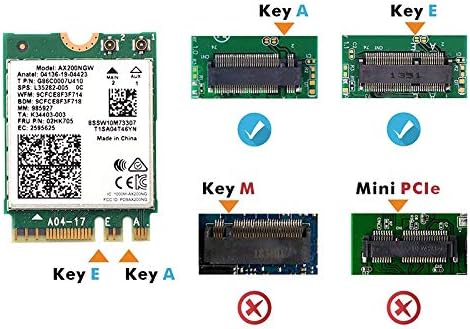
This diagram illustrates the physical form factor of the AX200NGW module, confirming its compatibility with M.2 Key A and Key E slots, while explicitly showing it is not compatible with Key M or Mini PCIe slots.
4.3. Driver Installation
After physical installation, you must install the necessary drivers for the module to function correctly.
- Windows 10 64-bit: Download and install the latest network (Wi-Fi) and Bluetooth drivers for the Intel AX200 from the official Intel website. Search for "Intel AX200 drivers" to find the appropriate downloads. Note: A driver CD is not included with this product.
- Linux: For Linux operating systems, please refer to Intel's official support documentation and guidance for driver installation specific to your distribution.
5. Operating Instructions
5.1. Connecting to Wi-Fi
- Ensure your Wi-Fi drivers are installed.
- Click on the Wi-Fi icon in your system tray (Windows) or network manager (Linux).
- Select your desired Wi-Fi network from the list of available networks.
- Enter the network password if prompted and click "Connect."

An example of the AX200NGW module in use, demonstrating a Wi-Fi speed test result of up to 2.4Gbps when connected to a 160MHz router.
5.2. Connecting Bluetooth Devices
- Ensure your Bluetooth drivers are installed and Bluetooth is enabled in your operating system settings.
- Put your Bluetooth device into pairing mode.
- On Windows, go to Settings > Devices > Bluetooth & other devices and click "Add Bluetooth or other device."
- Select your device from the list and follow the on-screen prompts to complete pairing.
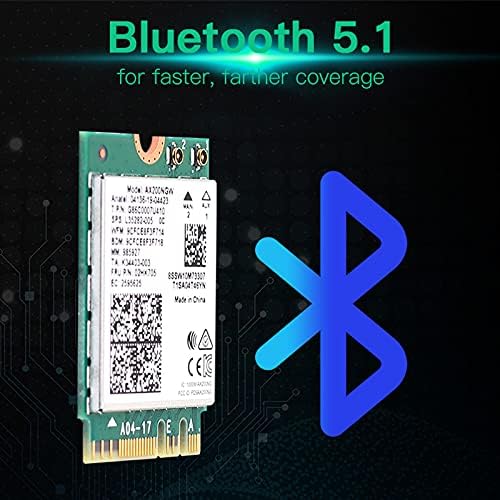
The AX200NGW module supports Bluetooth 5.1 for faster and more reliable connections with compatible devices.
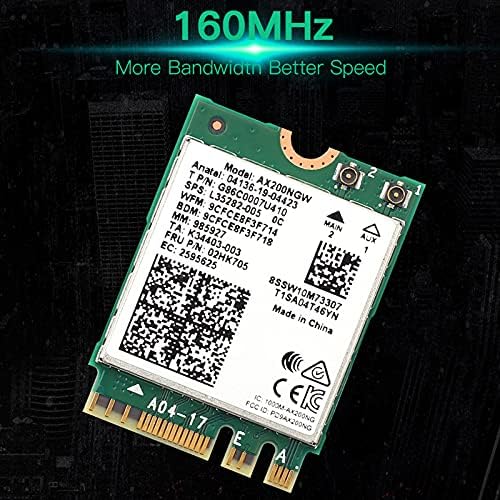
This image shows the AX200NGW module, indicating its support for 160MHz bandwidth, which contributes to higher data transfer speeds.
6. Maintenance
- Driver Updates: Regularly check the Intel website for the latest Wi-Fi and Bluetooth drivers to ensure optimal performance, security, and compatibility.
- System Cooling: Ensure your computer maintains proper airflow to prevent overheating, which can affect the performance and lifespan of internal components, including the wireless module.
7. Troubleshooting
- No Wi-Fi or Bluetooth after installation:
- Verify the module is correctly seated in the M.2 slot.
- Ensure all necessary drivers (Wi-Fi and Bluetooth) are installed from the Intel website.
- Check Device Manager (Windows) for any unrecognized devices or devices with error symbols.
- Slow Wi-Fi speeds:
- Confirm your Wi-Fi router supports Wi-Fi 6 (802.11ax) and is configured for optimal performance.
- Ensure your router is set to use 160MHz channel width if supported, for maximum throughput.
- Check for environmental interference from other wireless devices.
- Update your router's firmware and the AX200 drivers to the latest versions.
- Bluetooth device connection issues:
- Ensure the Bluetooth device is in pairing mode and within range.
- Remove and re-pair the Bluetooth device.
- Verify Bluetooth drivers are correctly installed and enabled.
- Module not recognized in IBM/ThinkPad/Lenovo/HP laptops:
- As stated in the compatibility section, this module is not compatible with these specific laptop brands due to potential BIOS whitelisting or hardware restrictions.
8. Specifications
| Feature | Specification |
|---|---|
| Model | Intel AX200NGW |
| Wireless Standard | IEEE 802.11 a/b/g/n/ac/ax (Wi-Fi 6) |
| Frequency Bands | 2.4GHz, 5GHz |
| Max Data Throughput (802.11ax) | 2.4GHz: 574Mbps (40MHz) 5GHz: 2.4Gbps (160MHz) |
| Max Data Throughput (802.11ac) | 2.4GHz: 300Mbps (40MHz) 5GHz: 1733Mbps (160MHz) |
| Bluetooth Version | Bluetooth 5.1 (also compatible with 5.0, 4.2, 4.0, 3.0, 2.1) |
| Form Factor | NGFF M.2 2230 A/E Key |
| Product Dimension | 22 x 30 x 2.4 mm |
| Item Weight | 2.3g (Module only) |
| Wireless Security | 64-bit and 128-bit WEP, AES-CCMP, TKIP |
| Compatible Operating Systems | Windows 10 64-bit, Chrome OS, Linux |
| Hardware Interface | Bluetooth 5, USB |
| Compatible Devices | Desktop, Laptop (with compatible M.2 slot) |
9. Warranty and Support
Warranty: For specific warranty terms and conditions, please refer to the retailer's return policy or contact the seller directly through your purchase platform.
Technical Support: For driver downloads, detailed technical documentation, and further troubleshooting guides related to the Intel AX200 module, please visit the official Intel support website. For product-specific inquiries, you may also contact your product reseller.