
1. Introduction
This manual provides detailed instructions for the installation, operation, and maintenance of your LUOWAN Android 10 Touch Screen Infotainment System. This system is designed to upgrade the in-car experience for Mercedes Benz GLE (2016-2019) and GLS (2017-2019) models equipped with NTG 5.0. It integrates advanced features while retaining the functionality of your original car system.
2. Safety Information
- Always ensure the vehicle is parked safely before operating the touch screen or making any adjustments.
- Do not attempt to install or repair the unit if you are not qualified. Improper installation can lead to damage or injury.
- Keep the screen clean and free from obstructions to ensure clear visibility.
- Avoid prolonged exposure to direct sunlight or extreme temperatures.
- Refer to your vehicle's owner's manual for additional safety guidelines.
3. Package Contents
Verify that all items listed below are included in your package:

Figure 3.1: Package Contents Overview
- 1x LUOWAN 12.5-inch Android 10 Touch Screen Unit
- 1x Main Power Cable Harness
- 1x GPS Antenna
- 1x USB Cable
- 1x Camera CVBS Cable
- 1x LVDS Cable
- Other necessary accessories and mounting hardware (as shown in Figure 3.1)
4. Installation Guide
Professional installation is highly recommended. Ensure the vehicle's power is disconnected before beginning installation.
4.1. Pre-Installation Overview

Figure 4.1: Before and After Installation
Figure 4.1 illustrates the visual transformation of your dashboard after installing the LUOWAN infotainment system. The new 12.5-inch screen replaces the original display, integrating seamlessly into the vehicle's interior.
4.2. Wiring Diagram

Figure 4.2: Wiring Connections
Refer to Figure 4.2 for the correct wiring connections. Ensure each cable is securely connected to its corresponding port. Key connections include:
- USB Cable
- CAMERA-CVBS
- USB Port
- USB Port
- CCD 12V
- LVDS
- Connect to factory LVDS port
- Connect ACC OUT
- Power Cable
- Audio Output
- B Cable
- A/B Cable
- A Cable
- A interface
- DVR-V
- DVD-V
- DVD-R
- DVD-L
- IR
- ACC-IN
- Camera power supply
- REVERSE
- ACC OUT
After connecting all wires, carefully mount the screen unit into the dashboard. Ensure no wires are pinched or exposed.
5. Setup and Initial Configuration
5.1. First Power On
Once installed, turn on your vehicle's ignition. The system will boot up to the Android interface. Follow any on-screen prompts for initial setup, such as language selection and time zone.
5.2. Network Connectivity (WiFi & 4G LTE)


Figure 5.1: 4G Connectivity and Split Screen View
The system supports both WiFi and 4G LTE connectivity. To connect to WiFi, navigate to Settings > Network & Internet > Wi-Fi and select your desired network. For 4G LTE, insert a compatible SIM card into the designated slot (refer to Figure 5.2 for SIM card slot location). This enables internet access for streaming, navigation, and app downloads.

Figure 5.2: SD Card and 4G SIM Card Slots
5.3. Bluetooth Pairing
To pair your smartphone via Bluetooth, go to Settings > Connected devices > Pair new device. Ensure your phone's Bluetooth is enabled and visible. Select your phone from the list on the screen and confirm the pairing code.
6. Operating Instructions
6.1. Main Interface and Navigation

Figure 6.1: Android Main Interface
The main interface (Figure 6.1) provides quick access to key functions. Swipe left or right to navigate through different app screens. Tap on icons to launch applications.
6.2. Wireless CarPlay and Android Auto
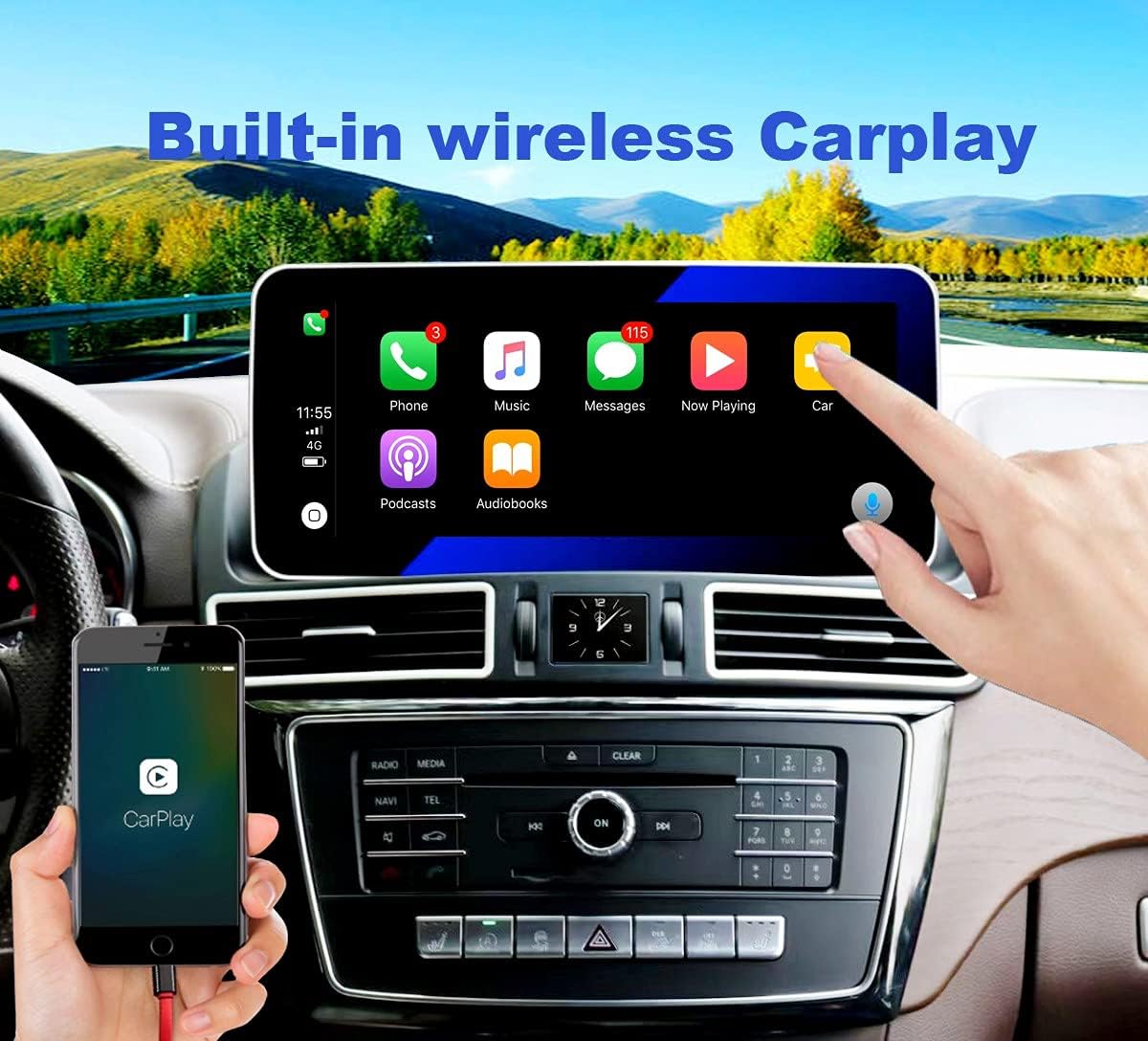
Figure 6.2: Wireless CarPlay Interface
The system features built-in wireless CarPlay and Android Auto. Once your phone is paired via Bluetooth, launch the "AutoLink" or "CarPlay" app from the main menu. The system will automatically connect to your phone, displaying the CarPlay or Android Auto interface (Figure 6.2). This allows access to phone functions, navigation, music, and messaging directly from the touch screen.
Video 6.1: Demonstration of Wireless CarPlay Functionality
Video 6.1 demonstrates how to access and use the wireless CarPlay feature, highlighting the seamless integration with your smartphone for navigation, music, and communication.
6.3. Retaining Original Car Features (NTG Mode)
This unit is designed to retain all original Mercedes Benz car features. To switch back to your original car's infotainment system (NTG mode), simply tap the "NTG Mode" icon on the main Android interface. This allows you to access your original radio, CD player, and iDrive system.
Video 6.2: Switching to NTG Mode and Original Features
Video 6.2 illustrates how to switch between the Android system and the original NTG mode, ensuring full functionality of your Mercedes Benz's native features.
6.4. App Installation and Usage
The Android 10 system supports third-party applications. You can download and install apps like YouTube, Spotify, Google Maps, and more from the Google Play Store. Navigate to the "Apps" section on the main interface to access installed applications or the Play Store.
Video 6.3: Accessing Apps and YouTube
Video 6.3 demonstrates navigating through the app menu and launching YouTube, showcasing the system's capability to run various Android applications.
6.5. Dashboard Display
Figure 6.3: Dashboard Icon on Main Interface
The "Dashboard" feature (Figure 6.3) provides real-time vehicle information, such as speed and mileage, directly on the screen. Tap the "Dashboard" icon to access this display.
Video 6.4: Real-time Dashboard Display
Video 6.4 demonstrates the dashboard display, showing how it reflects real-time speed and other vehicle information.
6.6. Special Display Features
The unit features a unique clock display integrated into the air vent panel. This display can be customized to show a clock, car logo, or compass. This is a display, not a physical clock.
Video 6.5: Customizable Clock Display
Video 6.5 highlights the customizable clock display feature, demonstrating how to change its appearance.
6.7. Additional Features

Figure 6.4: System Feature Overview
As shown in Figure 6.4, the system supports:
- Steering wheel control
- Drive control
- Retention of original CD player functionality
- Retention of original car system
- Original and additional rear view camera support
- Original car audio sound

Figure 6.5: IPS Screen and Built-in DSP
The unit features an IPS screen for better color, clarity, and contrast compared to normal screens. It also includes a built-in Digital Sound Processor (DSP) for enhanced audio quality, allowing for precise sound adjustments (Figure 6.5).
Figure 6.6: Dual USB Interface
The system provides a dual USB interface (Figure 6.6) for connecting external devices, such as USB drives for media playback or charging smartphones.
7. Maintenance
- Screen Cleaning: Use a soft, lint-free cloth slightly dampened with water or a screen cleaner. Do not use abrasive cleaners or solvents.
- Software Updates: Periodically check for software updates through the system's settings to ensure optimal performance and access to new features.
- General Care: Avoid placing heavy objects on the screen or exposing it to sharp objects that could cause scratches.
8. Troubleshooting
| Problem | Possible Cause | Solution |
|---|---|---|
| No power to the unit. | Loose power connection; blown fuse. | Check all power cable connections. Inspect and replace any blown fuses. |
| No sound. | Volume too low; incorrect audio source; loose audio cables. | Increase volume. Verify correct audio input is selected. Check audio cable connections. |
| CarPlay/Android Auto not connecting. | Bluetooth not paired; "AutoLink" app not launched; phone compatibility issue. | Ensure phone is paired via Bluetooth. Launch the "AutoLink" app. Check phone compatibility with CarPlay/Android Auto. |
| Original car system (NTG mode) not accessible. | Incorrect mode selection. | Ensure "NTG Mode" is selected from the Android interface. |
| Touch screen unresponsive. | System freeze; temporary software glitch. | Restart the unit by turning off and on the vehicle ignition. If problem persists, perform a factory reset (consult advanced settings). |
9. Specifications
| Feature | Detail |
|---|---|
| Operating System | Android 10 |
| Display Size | 12.5 Inches (IPS Screen) |
| Processor | Octa-Core |
| Memory (RAM) | 6GB |
| Storage (ROM) | 128GB |
| Connectivity | Bluetooth, Cellular (4G LTE), Wi-Fi |
| Special Features | Wireless CarPlay, Android Auto, Built-in DSP, Dashboard Mount |
| Compatible Vehicles | Mercedes Benz GLE (2016-2019), GLS (2017-2019) NTG 5.0 |
| Control Method | Touch |
| Audio Output Mode | Stereo |
| Item Weight | 6.52 pounds |
| Package Dimensions | 22.01 x 13.15 x 7.13 inches |
10. Warranty and Support
Specific warranty information for this product is not provided in the available data. Please refer to the product packaging or contact the seller directly for warranty details and technical support.