
Xiuganpo Portable Bluetooth Barcode Scanner
Xiuganpo Portable Bluetooth Barcode Scanner User Manual
Model: Portable Bluetooth Barcode Scanner
1. Introduction
Thank you for choosing the Xiuganpo Portable Bluetooth Barcode Scanner. This device is designed for efficient and accurate barcode scanning in various environments. It offers both wireless Bluetooth and wired USB connectivity, making it versatile for use with a wide range of devices, including smartphones, tablets, and computers.
This manual provides detailed instructions on how to set up, operate, and maintain your barcode scanner, ensuring optimal performance and longevity.

Image 1: The Xiuganpo Portable Bluetooth Barcode Scanner highlighting its key features: Bluetooth connectivity, Li-ion battery, and compact, lightweight design.
2. Product Overview
The Xiuganpo Barcode Scanner is a compact and ergonomic device built for daily use. Its dual-mode design allows for flexible operation, adapting to your specific needs.
2.1. Components and Indicators

Image 2: A detailed diagram illustrating the various components of the barcode scanner, including the scanning button, Bluetooth status indicator, reading indicator, charging indicator, USB charging port, and ABS plastic shell.
- Scanning Button: Press to initiate a barcode scan.
- Bluetooth Status Indicator: Shows the current Bluetooth connection status.
- Reading Indicator: Illuminates when a barcode is successfully read.
- Charging Indicator: Indicates the charging status of the battery.
- USB Charging Port: Used for charging the device and for wired USB connection.
- ABS Plastic Shell: Durable casing for protection.

Image 3: The compact size of the scanner, easily held in one hand, emphasizing its portability and ease of use.
3. Setup
3.1. Charging the Scanner
Before initial use, fully charge the scanner. Connect the included USB charging cable to the scanner's USB charging port and plug the other end into a USB power adapter or a computer's USB port. The charging indicator light will show the charging status.
- Built-in 1200mAh rechargeable lithium-ion battery provides long-lasting operation.
3.2. Connecting via Bluetooth
The scanner supports wireless connection via Bluetooth to various devices.
- Ensure the scanner is powered on.
- Activate Bluetooth on your host device (smartphone, tablet, or computer).
- Search for available Bluetooth devices. The scanner should appear as an identifiable device.
- Select the scanner from the list to pair. The Bluetooth status indicator on the scanner will confirm a successful connection.
- For computer connections, if your computer does not have built-in Bluetooth, you may need to connect a USB 2.0 Bluetooth dongle (not included) to your computer first.
3.3. Connecting via USB (Wired Mode)
For a direct and stable connection, use the included USB cable.
- Connect one end of the USB cable to the scanner's USB charging port.
- Connect the other end of the USB cable to an available USB port on your computer.
- The scanner will be recognized as a HID keyboard device, and no additional drivers are typically required.

Image 4: The barcode scanner connected to a laptop via its USB cable, demonstrating the wired connectivity option.
4. Operating Instructions
4.1. Scanning Barcodes
To scan a barcode:
- Ensure the scanner is connected to your host device (via Bluetooth or USB).
- Point the scanner's reading window at the barcode you wish to scan.
- Press and hold the scanning button. A red scanning light will emit from the scanner.
- Position the scanner so the red light covers the entire barcode.
- Upon a successful scan, the reading indicator will flash, and you may hear an audible beep (if enabled). The barcode data will be transmitted to your connected device.
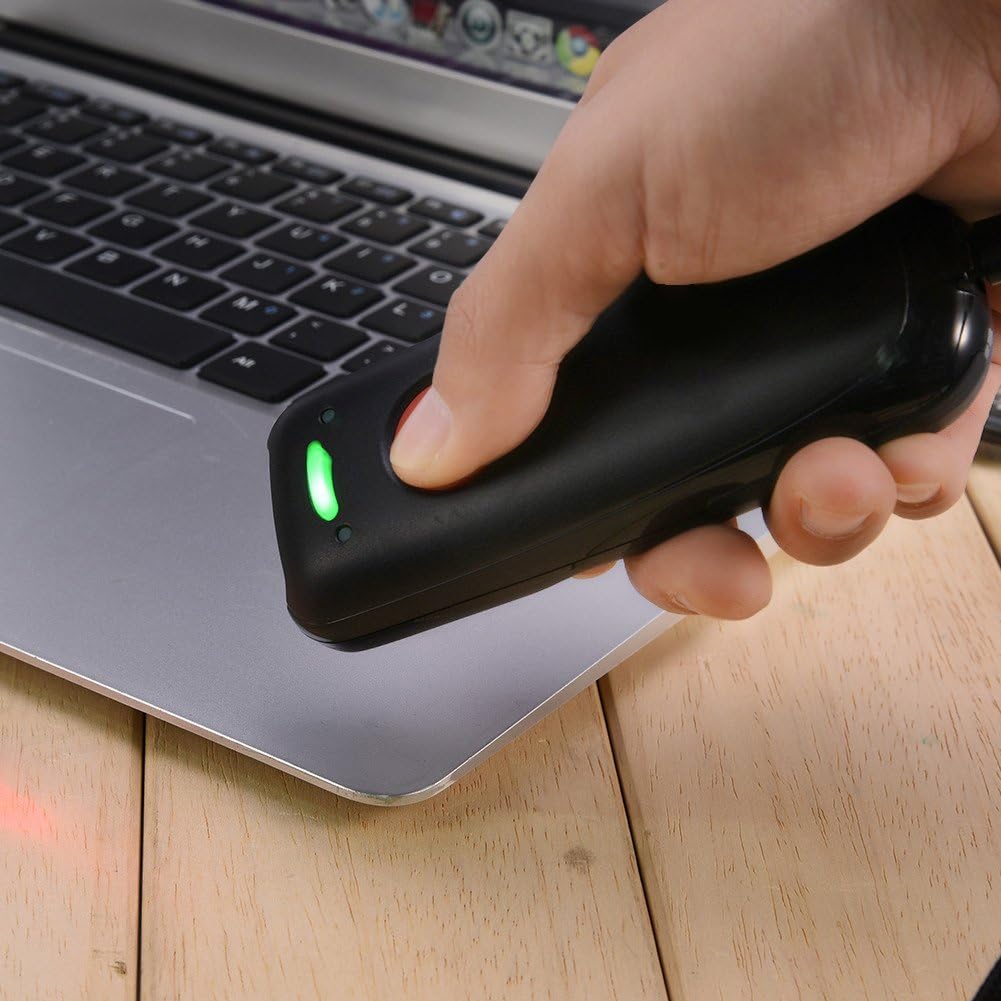
Image 5: A user demonstrating the scanning process, holding the scanner over a barcode to capture data.
4.2. Data Storage
The scanner has an internal memory capacity to store up to 5,000 barcodes when operating in offline mode or out of Bluetooth range. Once reconnected, the stored data can be uploaded to your host device.
5. Compatibility
The Xiuganpo Barcode Scanner offers wide compatibility with various operating systems and barcode types.
5.1. Device Compatibility
- Operating Systems: Compatible with iOS, Android, and Windows systems.
- Devices: Suitable for iOS/Android phones, tablets, and Windows 7/8/10/XP computers.
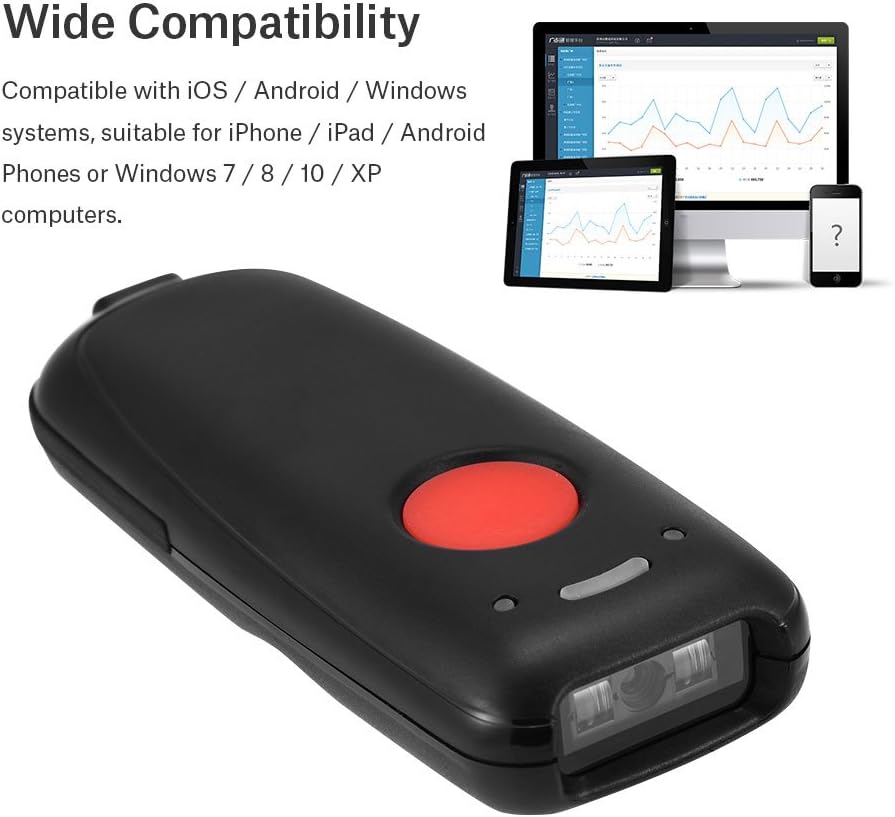
Image 6: The barcode scanner shown alongside a smartphone, tablet, and computer, illustrating its broad compatibility across different platforms.
5.2. Barcode Type Compatibility
The scanner supports a wide range of 1D barcode symbologies, including:
- EAN8, EAN13
- Codabar
- CODE11, CODE39, CODE93, CODE128
- China Post
- GS1-128, GS1-Limited, GS1-Omnidirectional
- UPC-A, UPC-E
- Interleaved 2 of 5, Industrial 2 of 5
- ISBN/ISSN
6. Maintenance
Proper care and maintenance will extend the life of your barcode scanner.
- Cleaning: Use a soft, dry cloth to clean the scanner's exterior. For the scanning window, use a lint-free cloth lightly dampened with a mild cleaning solution (e.g., lens cleaner). Do not use abrasive cleaners or solvents.
- Storage: Store the scanner in a cool, dry place away from direct sunlight and extreme temperatures.
- Battery Care: Avoid fully discharging the battery frequently. If storing for a long period, charge the battery to about 50% and recharge every few months.
7. Troubleshooting
If you encounter issues with your scanner, refer to the following common problems and solutions:
- Scanner not powering on: Ensure the battery is charged. Connect the scanner to a power source using the USB cable.
- Cannot connect via Bluetooth:
- Ensure Bluetooth is enabled on both the scanner and the host device.
- Make sure the scanner is within the 10-meter (33 feet) Bluetooth range.
- Unpair and re-pair the device.
- If connecting to a computer, ensure a functional Bluetooth dongle is installed.
- Scanner not reading barcodes:
- Ensure the barcode is not damaged or smudged.
- Check that the scanning window is clean.
- Verify the scanner is properly connected (Bluetooth or USB).
- Ensure the barcode type is supported by the scanner.
- Data not transmitting to device:
- Confirm successful connection (Bluetooth or USB).
- Check if the host device's input field is active (e.g., a text editor or application).
8. Specifications
| Feature | Detail |
|---|---|
| Brand | Xiuganpo |
| Model | Portable Bluetooth Barcode Scanner |
| Part Number | Xiuganpo2p9f46qir37932 |
| Connectivity Technology | Bluetooth, USB Cable |
| Power Source | Battery Powered (1200mAh Lithium-ion) |
| Color | Black |
| Dimensions | 120 x 48 x 23 mm (4.7 x 1.9 x 0.9 in) |
| Product Weight | 170 g |
| Resolution | 3.3MIL or Red 4.0MIL |
| Wireless Distance | 10 meters / 33 feet (Bluetooth) |
| Storage Capacity | Up to 5,000 barcodes |
| Operating Systems | iOS, Android, Windows 7/8/10/XP |

Image 7: The rear view of the scanner, displaying regulatory marks and basic product information such as BARCODE SCANNER, BATTERY: DC 3.7V 1200mA, and compatibility for IOS Android/Windows MAC.
9. Safety Information
- Do not stare directly into the scanning beam when the light is open, as it may cause eye discomfort.
- Keep the device away from water or other liquids to prevent electric shock or damage.
- Do not attempt to disassemble or repair the scanner yourself. Refer to qualified service personnel.
- Dispose of the battery according to local regulations. Do not incinerate.
10. Warranty and Support
For warranty information or technical support, please refer to the documentation provided with your purchase or contact the manufacturer directly. Keep your purchase receipt as proof of purchase.
Ask a question about this manual
Ask about setup, troubleshooting, compatibility, parts, safety, or missing instructions. Manuals+ will review the question and use this page’s manual context to help answer it.