
Introduction
This manual provides detailed instructions for the operation and maintenance of your eoqo Digital Voice Recorder, model eoqo-vr960. This device is designed for high-quality audio recording, featuring 1536kbps recording, 8GB internal memory expandable with a 32GB TF card, voice activation, and password protection. Please read this manual thoroughly to ensure proper use and to maximize the device's capabilities.
Setup
1. Charging the Device
Before initial use, fully charge the voice recorder. Connect the device to a computer or a USB power adapter using the supplied USB Type-C cable. The battery indicator on the screen will show charging status.
2. Powering On/Off
To power on the device, locate the power switch (often labeled 'ON/OFF' or 'VIEW') and slide it to the 'ON' position. To power off, slide it to the 'OFF' position.
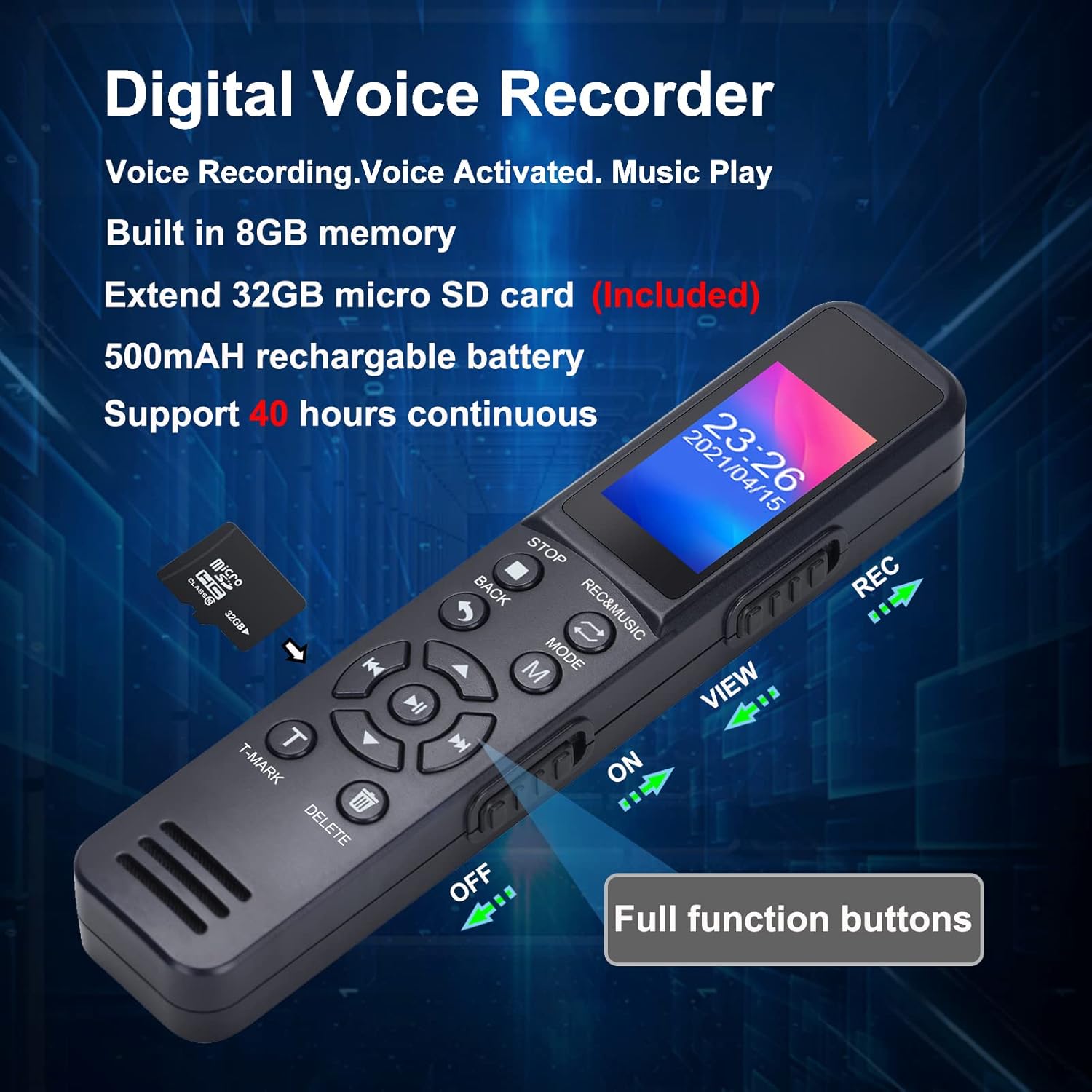
Image: The eoqo Digital Voice Recorder showing its full function buttons and the 'ON/OFF' switch on the side.
3. Memory Expansion
The recorder comes with 8GB of built-in memory. For additional storage, insert a Micro SD card (up to 32GB) into the designated slot. This allows for significantly longer recording times.
4. Setting a Password
To protect your recordings, you can set a password. Navigate to the 'Settings' menu on the device, select 'Password Protection', and follow the on-screen prompts to set your desired password. You will be required to enter this password when powering on the device or connecting it to a computer.

Image: The recorder's screen displaying the 'New password' input interface, highlighting the password protection feature.
Operating Instructions
1. Basic Recording
To start recording, slide the 'REC' switch to the top position. The device will begin recording, saving files automatically every 60 minutes until the battery is low or recording is manually stopped. To stop recording, slide the 'REC' switch back to the down position.
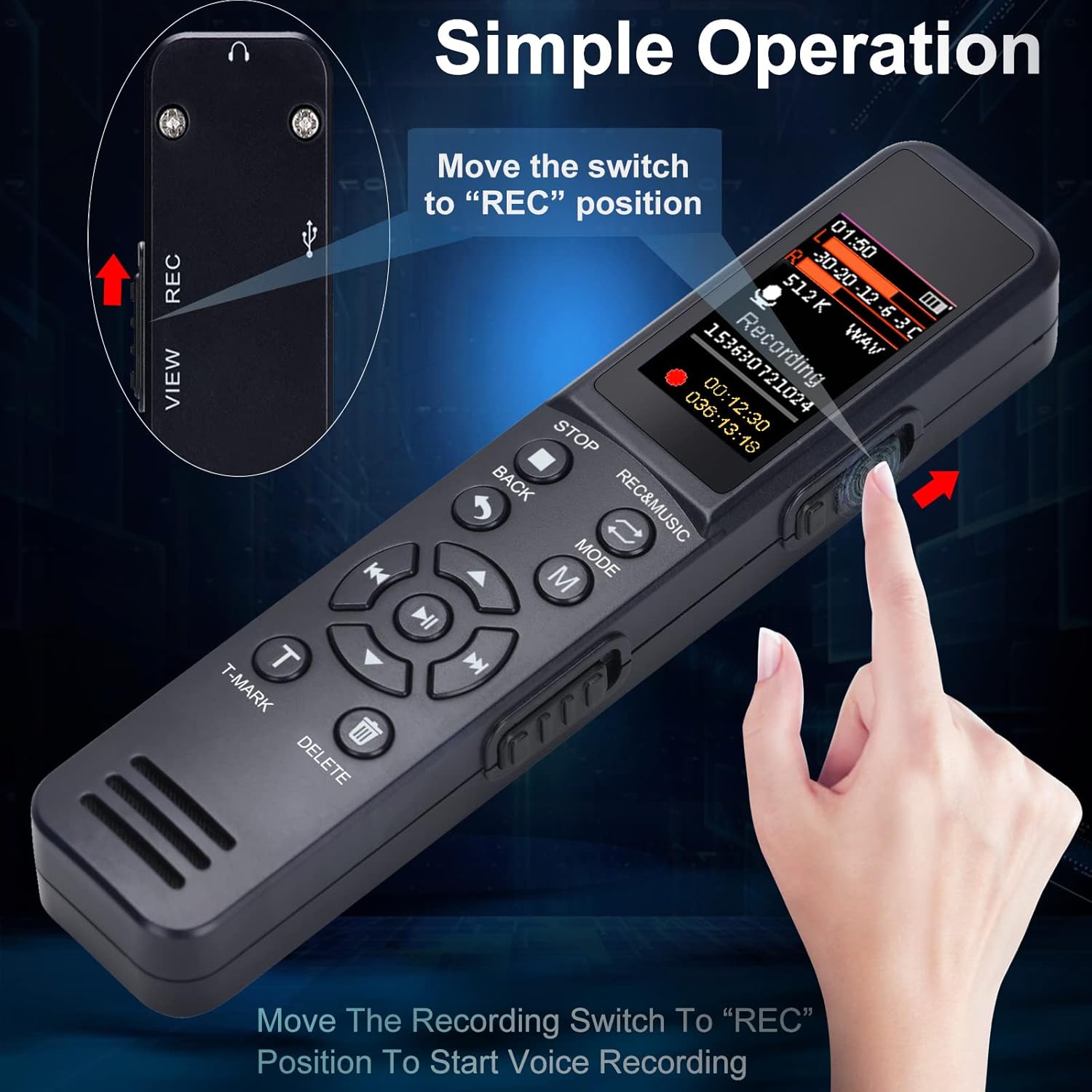
Image: A hand sliding the 'REC' switch upwards on the side of the voice recorder, indicating the start of recording.
2. Playback
After stopping a recording, you can enter playback mode by sliding the 'REC' switch to the down position. Use the navigation buttons (play/pause, fast forward, rewind) to manage your recordings. The device supports A-B repeat functionality for specific sections.
3. Voice Activated Recording (VOR)
To enable VOR, navigate to the 'Settings' menu and activate the 'VOR' function. When VOR is active, the recorder will automatically pause recording when sound levels fall below a set decibel standard and resume when sound is detected again. This feature helps conserve storage space and battery life. The VOR sensitivity can be adjusted with 7 levels.

Image: The recorder's display showing a sound wave graphic and indicating 'Recording' and 'Pause Recording' states, illustrating the Voice Activated Recording feature.
4. Noise Cancelling
The eoqo-vr960 features built-in omnidirectional microphones and a professional DAC noise-canceling chip to enhance human speech recording and filter out background noise, providing clear stereo recordings up to 8 meters away.
5. File Transfer
Connect the recorder to your computer (Windows or Mac) using the USB Type-C cable. The device will be recognized as a removable disk, allowing you to easily transfer recorded files (MP3/WAV format) to your computer. You will need to enter your password if password protection is enabled.
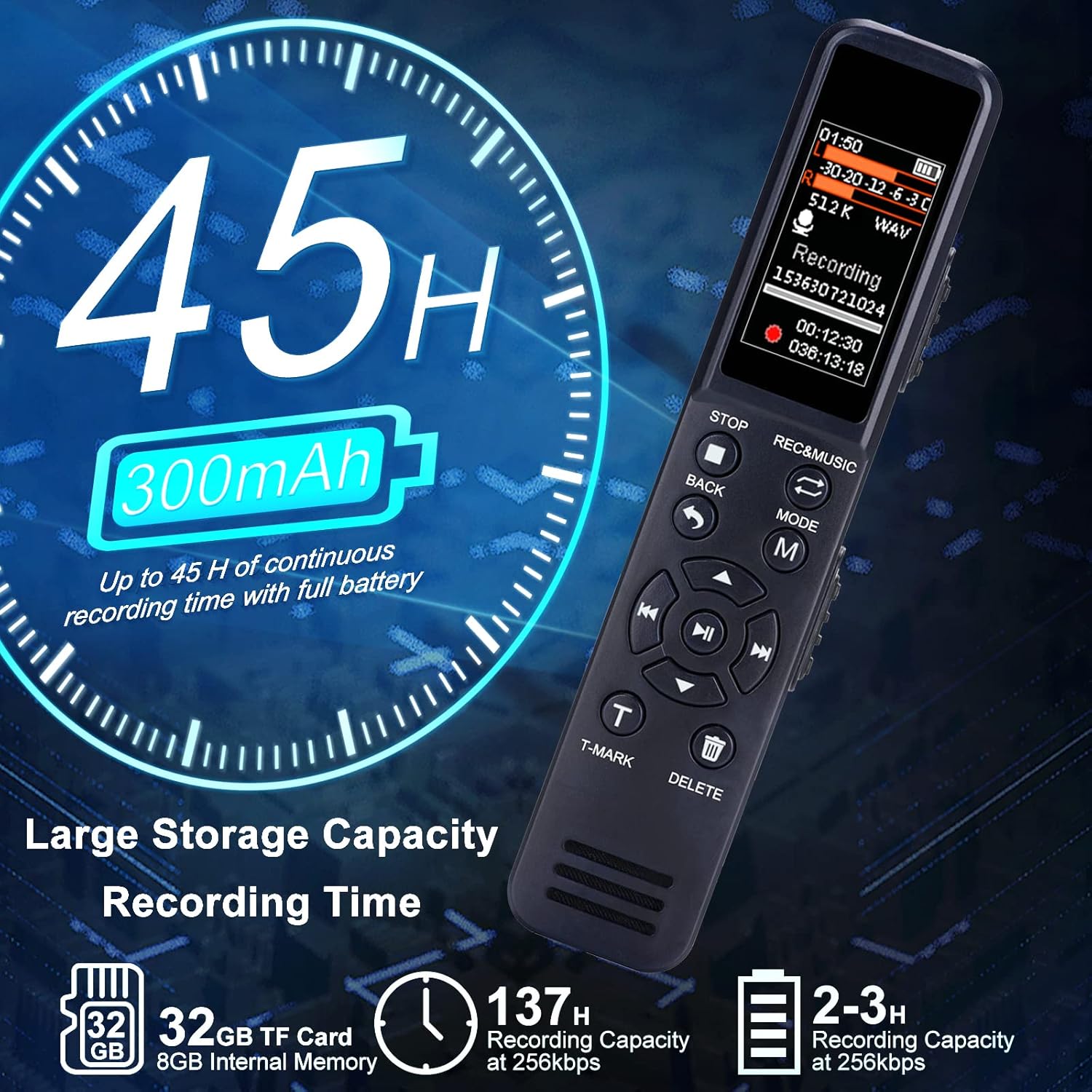
Image: The voice recorder connected to a laptop via a USB-C cable, illustrating easy file transfer between the device and both Windows and Mac operating systems.
6. MP3 Player Functionality
You can copy your favorite songs to the device's memory. The recorder can then function as an MP3 player, allowing playback through its internal speaker or via connected earphones (3.5mm jack).

Image: A person relaxing on a sofa, listening to music with headphones, demonstrating the device's capability as an MP3 player with earphone support and a built-in speaker.
Maintenance
1. Cleaning
Wipe the device with a soft, dry cloth. Avoid using liquid cleaners or solvents, as these can damage the device.
2. Battery Care
The device has a Lithium Polymer battery providing up to 45 hours of continuous recording. For optimal battery life, avoid extreme temperatures and fully charge the device regularly. The device features an auto-save protection system that saves recordings before the battery runs out completely.

Image: A visual representation of the recorder's auto-save protection system, indicating that recordings are automatically saved when the battery is low.
3. Storage
Store the recorder in a cool, dry place away from direct sunlight and extreme temperatures.
Troubleshooting
- Device not powering on: Ensure the battery is charged. Connect to a power source and try again. Check the power switch position.
- Cannot record: Check if the 'REC' switch is in the correct position. Ensure there is sufficient memory available (internal or TF card).
- Poor recording quality: Ensure the microphone is not obstructed. Reduce distance from the sound source. Disable VOR if recording in a quiet environment where subtle sounds might be missed.
- Cannot transfer files to computer: Ensure the USB cable is securely connected. If password protection is enabled, enter the correct password when prompted. Try a different USB port or cable.
- Clicking sound in recordings: This can sometimes be caused by electromagnetic interference. Try recording in a different location away from other electronic devices. Ensure the device is fully charged.
- Device unresponsive: If the device freezes, try pressing and holding the power button for an extended period (e.g., 10-15 seconds) to force a restart.
Specifications
| Feature | Specification |
|---|---|
| Model Number | eoqo-vr960 |
| Brand | eoqo |
| Memory Storage Capacity | 8 GB (internal) + 32 GB (TF Card support) |
| Recording Quality | 1536kbps |
| Recording Format | MP3 / WAV |
| Microphone Form Factor | Built-In, Omnidirectional |
| Microphone Operation Mode | Stereo |
| Hardware Interface | USB 2.0 (Type-C connector) |
| Headphones Jack | 3.5 millimeters |
| Battery Type | 1 Lithium Polymer battery (included) |
| Battery Average Life | Up to 25 hours (Digital Recording Time) / Up to 45 hours (Continuous Recording) |
| Screen Size | 0.96 Inches |
| Product Dimensions | 0.51"D x 0.82"W x 4"H |
| Item Weight | 3.5 Ounces |
| Compatible Devices | Laptop |
Warranty and Support
For warranty information and technical support, please refer to the documentation included with your purchase or contact the seller directly. You can also visit the official eoqo store on Amazon for further assistance and product information.
Seller: EOQO TECH
Online Store: Visit the eoqo Store