
1. Introduction
This manual provides detailed instructions for the installation, operation, and maintenance of your Cestovet Android 10.0 Car Radio Stereo. This unit is specifically designed for Hyundai Tucson IX35 models from 2015 to 2018, offering a 9-inch touch screen with advanced features like Bluetooth, WiFi, GPS navigation, and steering wheel control compatibility. Please read this manual thoroughly before using the product to ensure proper function and safety.
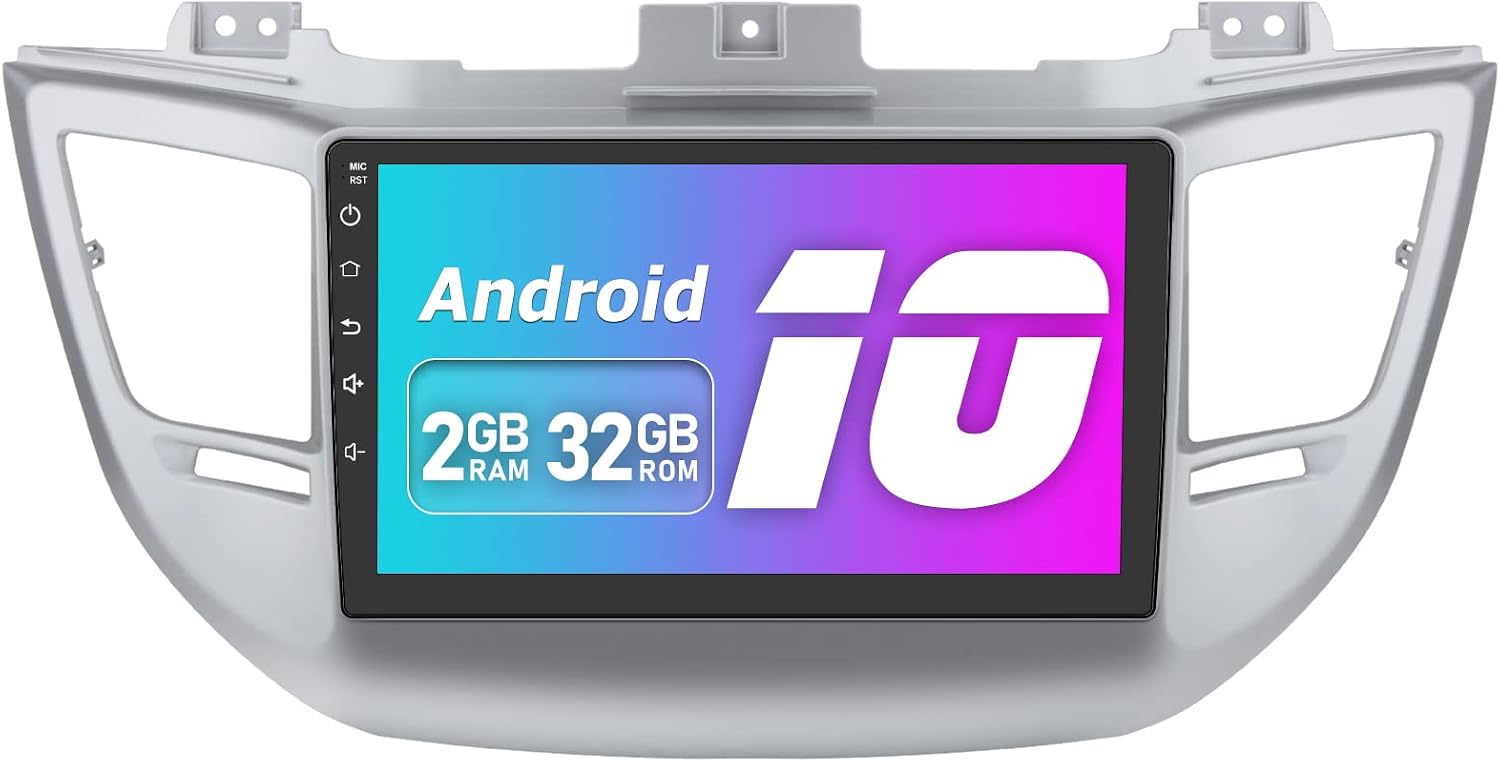
Figure 1.1: The Cestovet Android 10.0 Car Radio Stereo unit, featuring a 9-inch display and integrated frame for Hyundai Tucson IX35.

Figure 1.2: Visual representation of the compatible car model, Hyundai Tucson IX35, manufactured between 2015 and 2018, for which this car radio is designed.
2. Safety Information
Always observe the following safety precautions to prevent accidents and damage to the unit:
- Professional Installation Recommended: Due to the complexity of car electrical systems, professional installation is highly recommended to avoid damage to the vehicle or the unit.
- Power Source: Connect the unit only to a 12V DC car battery with a negative ground.
- Wiring: Ensure all wiring is correctly connected according to the wiring diagram. Incorrect wiring can cause malfunction or damage.
- Driving Safety: Do not operate the unit in a way that distracts you from driving. Always prioritize road safety.
- Temperature: Avoid exposing the unit to extreme temperatures or direct sunlight for prolonged periods.
- Moisture: Keep the unit away from water and excessive moisture.
3. Package Contents
Before installation, verify that all items listed below are present in your package:

Figure 3.1: An overview of the components included in the package, showing the main unit, frame, and various cables and accessories.
- Main Head Unit (Machine)
- Installation Frame (for Hyundai Tucson IX35)
- Power Cable(s)
- USB Cable(s)
- GPS Module/Antenna
- RCA Cable
- Microphone
- Can Bus Decoder (if applicable for vehicle model)
- Antenna Adapter Cable
- Screwdriver
- Crowbar (Pry Tool)
- Reversing Line (for backup camera connection)
4. Installation Guide
This section outlines the general steps for installing the car radio. Specific vehicle disassembly instructions are not included and may require consulting a vehicle-specific service manual or professional assistance.
- Disconnect Battery: Before starting, disconnect the negative terminal of your car's battery to prevent electrical shorts.
- Remove Old Unit: Carefully remove the existing car radio and trim panels using the provided crowbar and screwdriver.
- Connect Wiring:
- Connect the main power harness to the vehicle's wiring.
- Connect the GPS antenna and position it in a location with a clear view of the sky (e.g., dashboard).
- Connect the USB cables and route them to a convenient location (e.g., glove compartment).
- Connect the microphone for hands-free calling.
- If installing a reversing camera (not included), connect the reversing line and camera input.
- Connect the Can Bus decoder if your vehicle requires it for steering wheel controls or other vehicle data integration.
- Connect the radio antenna adapter.
- Mount New Unit: Secure the Cestovet head unit into the provided installation frame.
- Test Functionality: Before fully reassembling the dashboard, reconnect the car battery and power on the unit. Test basic functions like power, audio, touch screen, and steering wheel controls.
- Reassemble Dashboard: Once all functions are verified, carefully reassemble the dashboard trim panels.
5. Operating Instructions
5.1. Basic Operation
- Power On/Off: Press and hold the power button on the unit or use the vehicle's ignition.
- Volume Control: Adjust volume using the on-screen controls or steering wheel buttons.
- Touch Screen: Navigate the Android interface by tapping, swiping, and pinching on the 9-inch touch screen.
5.2. GPS Navigation
The unit supports both offline and online navigation. It features GPS satellite positioning for accurate location tracking.

Figure 5.1: The GPS navigation interface displayed on the unit, showing a map and search functionality.
- Offline Maps: The unit may come with pre-installed offline maps. Access them via the Navigation app.
- Online Navigation: Connect to WiFi or a mobile hotspot to use online navigation apps (e.g., Google Maps) for real-time traffic and map updates.
- Route Planning: Enter your destination to receive turn-by-turn directions.
5.3. WiFi Connectivity
The built-in WiFi module allows internet access for browsing, app downloads, and online services.

Figure 5.2: The unit's display showing various applications and the Bluetooth music playback interface, illustrating WiFi and Bluetooth capabilities.
- Connecting to WiFi: Go to Settings > Network & Internet > Wi-Fi. Select your desired network and enter the password.
- Mobile Hotspot: You can also connect to your smartphone's mobile hotspot for internet access.
- App Downloads: Access the Application Store to download and install Android apps.
5.4. Bluetooth Functionality
Bluetooth enables hands-free calling and wireless music streaming.
- Pairing a Device:
- Go to the Bluetooth application on the head unit.
- Ensure Bluetooth is enabled on your mobile device and set to discoverable.
- Search for available devices on the head unit and select your phone.
- Confirm the pairing code on both devices.
- Hands-Free Calling: Once paired, you can answer/make calls directly from the unit. The built-in microphone captures your voice.
- Music Playback: Stream audio from your paired device to the car stereo speakers.
5.5. Steering Wheel Control (SWC)
The unit supports integration with your vehicle's steering wheel controls for convenient operation.

Figure 5.3: The on-screen interface for configuring steering wheel controls, showing various button functions like answer, hang up, track control, and volume adjustment.
- Configuration: After correct ISO connector and CanBus connection, navigate to the SWC settings menu on the unit.
- Mapping Buttons: Follow the on-screen instructions to map your steering wheel buttons to specific functions (e.g., volume up/down, next/previous track, answer/hang up call). The icon color typically changes from green to blue upon successful configuration.
5.6. Mirror Link
Mirror Link allows you to display your Android phone's screen on the head unit via a USB connection.
- Connecting: Connect your Android phone to the unit using a USB cable.
- Activation: Open the Mirror Link application on the head unit and follow the prompts to establish the connection.
- Functionality: The phone's screen content, including video and audio, will be mirrored on the unit's display.
5.7. Other Features
- FM RDS Radio: Access the radio application to tune into FM stations. RDS (Radio Data System) provides station information.
- USB Playback: Connect USB drives to play audio and video files.
- AUX-IN: Use the AUX input for external audio sources.
- Reversing Camera: If a compatible reversing camera (not included) is installed, the display will automatically switch to the camera view when the vehicle is in reverse.
6. Maintenance
- Cleaning the Screen: Use a soft, lint-free cloth to gently wipe the touch screen. For stubborn smudges, slightly dampen the cloth with water or a screen cleaner designed for electronics. Avoid harsh chemicals.
- General Cleaning: Keep the unit and surrounding areas free from dust and debris.
- Software Updates: Periodically check for available software updates to ensure optimal performance and access to new features. Updates can typically be found in the system settings or on the manufacturer's website.
- Avoid Liquids: Do not spill liquids on the unit.
7. Troubleshooting
| Problem | Possible Cause | Solution |
|---|---|---|
| Unit does not power on. | Incorrect wiring, blown fuse, vehicle battery issue. | Check power connections, inspect vehicle fuses, ensure battery is charged. Consult a professional if necessary. |
| No sound. | Volume too low, incorrect speaker wiring, mute activated. | Increase volume, check speaker connections, ensure unit is not muted. |
| GPS signal is weak or inaccurate. | GPS antenna improperly placed or obstructed. | Ensure GPS antenna has a clear view of the sky, away from metal obstructions. |
| Bluetooth device fails to pair. | Device not in pairing mode, incorrect password, interference. | Ensure both devices are in pairing mode, re-enter password, try pairing in a different location. |
| Steering wheel controls not working. | CanBus not connected or configured, incorrect wiring. | Verify CanBus connection and configuration in settings. Check wiring harness. |
| Touch screen unresponsive. | System freeze, temporary software glitch. | Perform a soft reset (refer to unit's specific reset procedure, often a small reset button or holding power button). If issue persists, consult support. |
8. Specifications
| Feature | Detail |
|---|---|
| Model Number | B097ZL9TJ5 |
| Operating System | Android 10.0 |
| RAM | 2GB |
| ROM (Internal Storage) | 32GB |
| Screen Size | 9 inch |
| Connectivity | Bluetooth, Wi-Fi, USB |
| Special Features | Touchscreen, GPS Navigation, Steering Wheel Control, Mirror Link, FM RDS Radio |
| Compatible Car Models | Hyundai Tucson IX35 (2015-2018) |
| Power Output Mode | Stereo |
| Number of Channels | 4 |
| Manufacturer | Cestovet |
9. Warranty and Support
This product is covered by a standard manufacturer's warranty. Please refer to the warranty card included in your package or contact the seller for specific warranty terms and conditions. For technical support, installation assistance, or any other inquiries, please contact Cestovet customer service through the platform where the product was purchased.
Keep your purchase receipt as proof of purchase for warranty claims.