
Introduction
The JWCOM Smart 3-Button Wi-Fi Switch (Model RF268C) is a modern, capacitive touch-sensitive switch designed for smart home integration. It allows you to control your lighting and other connected appliances both manually via its touch panel and remotely through a dedicated mobile application. This smart switch is compatible with standard Brazilian 4x2 electrical boxes and offers seamless integration with popular voice assistants like Amazon Alexa and Google Assistant.
This manual provides detailed instructions for the safe installation, configuration, and operation of your JWCOM Smart Switch, ensuring optimal performance and user experience.
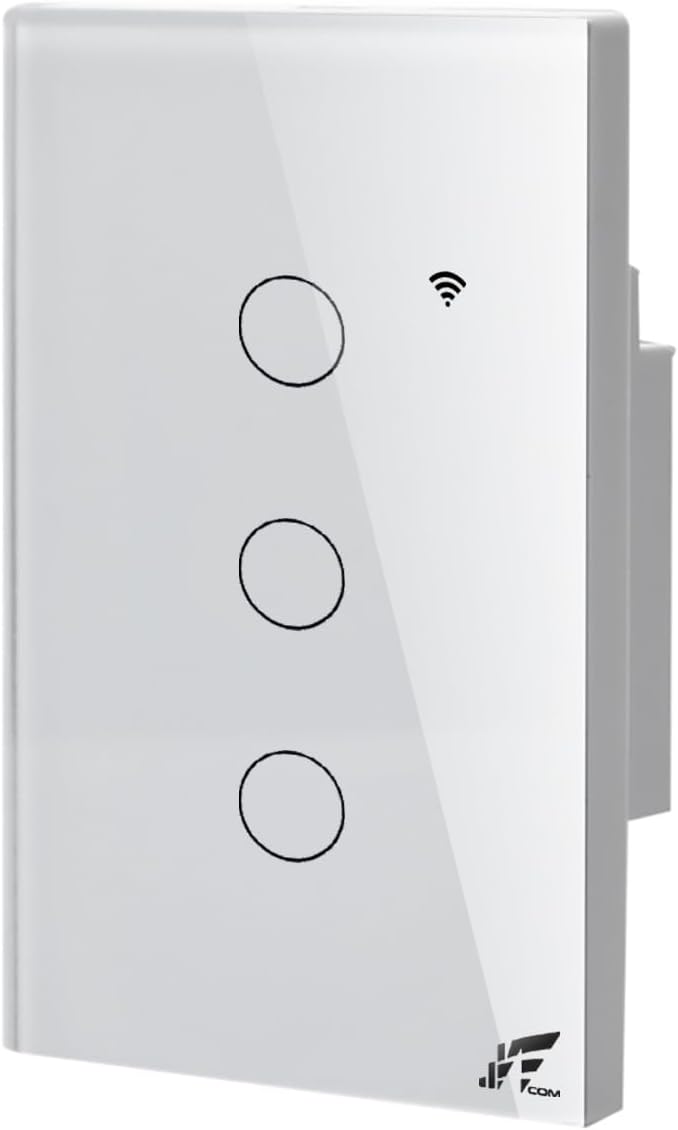
Image: Front view of the JWCOM Smart 3-Button Wi-Fi Switch, showcasing its sleek design and touch-sensitive buttons.
Safety Information
- Professional Installation: Electrical installation must be performed by a qualified professional to ensure safety and proper functionality.
- Power Disconnection: Always disconnect power at the circuit breaker before performing any installation or maintenance.
- Voltage Compatibility: Ensure the switch's voltage rating (110-220V) matches your electrical system.
- Maximum Load: Do not exceed the maximum current of 2A or maximum power of 400W.
- Indoor Use Only: This device is intended for indoor use in dry locations.
Setup and Installation
1. Pre-Installation Checks
- Verify that your electrical box is a standard 4x2 Brazilian type.
- Ensure a stable 2.4GHz Wi-Fi network with good signal strength is available at the installation location.
- Confirm the presence of a neutral wire in your electrical box. If a neutral wire is not present, a neutral-free version of the switch or a voltage stabilizer may be required (consult a professional).
2. Wiring Instructions
- Turn off power: Locate your circuit breaker and turn off the power to the switch you are replacing or the circuit where you are installing the new smart switch.
- Remove old switch: Carefully remove the existing switch from the wall box.
- Identify wires: Identify the Live (L), Neutral (N), and Load (L1, L2, L3) wires.
- Connect wires: Connect the wires to the JWCOM Smart Switch according to the wiring diagram below.
- Connect the Live wire to the 'L' terminal.
- Connect the Neutral wire to the 'N' terminal.
- Connect the Load wires for each light/appliance to the 'L1', 'L2', and 'L3' terminals respectively.
- Mount the switch: Secure the switch into the wall box using the provided screws. Ensure the screws are tightened sufficiently for stability but avoid over-tightening, which can affect touch sensitivity (see Troubleshooting).
- Restore power: Turn the power back on at the circuit breaker.
Image: Detailed wiring diagram showing connections for Live (L), Neutral (N), and three Load (L1, L2, L3) outputs.
3. App Installation and Pairing
- Download the App: Search for "JWCOM SMART" in your mobile device's app store (available on iOS and Android).
- Register/Login: Open the app and follow the on-screen instructions to create an account or log in.
- Add Device: In the app, select "Add Device" or the '+' icon.
- Enter Wi-Fi details: Follow the app's prompts to connect the switch to your 2.4GHz Wi-Fi network. This typically involves putting the switch into pairing mode (often by pressing and holding one of the buttons until an indicator light flashes).
- Complete Pairing: Once the switch is detected and connected, you can name it and assign it to a room within the app.

Image: The JWCOM Smart Switch displayed alongside logos for Amazon Alexa, Google Assistant, Apple App Store, and Google Play, indicating broad compatibility.
Operating Instructions
1. Manual Touch Control
The JWCOM Smart Switch features a sensitive capacitive touch panel. Simply tap the desired button on the switch to toggle the connected light or appliance on and off. The two-color indicator light design is ideal for nighttime use, providing clear status indication.
2. Mobile App Control
After successful pairing, you can control your switch from anywhere using the JWCOM SMART app on your smartphone. The app allows you to:
- Turn connected devices on/off individually.
- Monitor the real-time status of each connected device.
- Set schedules, timers, countdowns, and cycle functions for automated control.
- Create scenes to control multiple devices with a single tap.

Image: A smartphone displaying the JWCOM SMART application interface, demonstrating remote control and monitoring of smart home devices.
3. Voice Control
The JWCOM Smart Switch is compatible with Amazon Alexa and Google Assistant. To enable voice control:
- Link your JWCOM SMART account to your Alexa or Google Home app.
- Discover devices within the Alexa or Google Home app.
- Use voice commands such as:
- "Alexa, turn on the living room light."
- "Hey Google, turn off the kitchen fan."
Maintenance
The surface of the JWCOM Smart Switch is made of tempered glass, which is water-resistant and easy to clean. To maintain its appearance and functionality:
- Cleaning: Use a soft, damp cloth to wipe the glass surface. Avoid abrasive cleaners or harsh chemicals that could damage the finish.
- Dusting: Regularly dust the switch to prevent accumulation that might affect touch sensitivity.
- Inspection: Periodically check for any loose connections or signs of wear. If any issues are found, consult a qualified electrician.
Troubleshooting
- Touch Sensitivity Issues: If the touch panel is unresponsive or requires excessive force, it might be due to over-tightening the mounting screws. Slightly loosen the screws holding the switch to the wall box to improve sensitivity. Ensure the switch is still securely mounted.
- Light Remains Slightly On (LED Bulbs): For some LED bulbs connected to the switch, a faint glow might be observed even when the switch is off. This is typically due to residual current. The product includes a small capacitor to resolve this. Install this capacitor at the socket of the affected LED bulb. This will prevent the bulb from glowing when off.
- Wi-Fi Connectivity Problems:
- Ensure your Wi-Fi network is 2.4GHz. The switch does not support 5GHz networks.
- Verify that the Wi-Fi signal strength at the switch's location is strong and stable.
- Restart your Wi-Fi router and the smart switch.
- Attempt to re-pair the device through the JWCOM SMART app.
- Voice Control Not Working:
- Ensure your JWCOM SMART account is correctly linked to your Alexa or Google Home app.
- Check that the device name in the JWCOM SMART app matches the name used in your voice assistant app.
- Try rediscovering devices in your Alexa or Google Home app.
Specifications
| Feature | Detail |
|---|---|
| Model Number | RF268C |
| Brand | JWCOM |
| Number of Buttons | 3 |
| Max Current | 2A |
| Max Power | 400W |
| Wi-Fi Standard | IEEE 802.11 B/G/N – 2.4GHz |
| Voltage | 110-220 Volts (AC) |
| Material | Plastic, Tempered Glass Surface |
| Color | White |
| Dimensions (L x W x H) | 8.5 x 12.5 x 4 cm (approx. 3.35 x 4.92 x 1.57 inches) |
| Weight | 400 Grams (approx. 0.88 lbs) |
| Installation Type | In-wall mount (compatible with 4x2 Brazilian standard boxes) |
| Operating Mode | On-Off |
| Switch Type | Touch, 2-way |
Warranty and Support
For warranty information or technical support, please refer to the documentation included with your purchase or contact JWCOM customer service directly. Ensure you have your product model number (RF268C) and purchase details available when seeking support.
You can also visit the official JWCOM store on Amazon for additional product information and support resources: JWCOM Store