
1. Product Overview
The FOPETT Wireless Keyboard and Mouse Set provides a comfortable and efficient input solution for your computing needs. This combo features a full-size keyboard with a numeric keypad and a silent mouse, both connecting wirelessly via a single 2.4 GHz USB Nano receiver.

Image: FOPETT Wireless Keyboard and Mouse Set (White Colorful) with USB receiver.
The keyboard features round, typewriter-style keycaps designed for comfortable typing, while the mouse offers adjustable DPI settings for precise cursor control. Both devices are equipped with power-saving features, including an auto-sleep mode to extend battery life.
2. Setup Guide
2.1. Installing Batteries
The keyboard requires one AA alkaline battery, and the mouse requires one AA alkaline battery. Batteries are not included.
- For the Mouse:
- Open the battery compartment located on the bottom of the mouse.
- Insert one AA battery, ensuring correct polarity.
- Replace the battery compartment cover.
- For the Keyboard:
- Remove the battery compartment cover on the bottom of the keyboard by squeezing the cover in from the tab to release it.
- Insert one AA battery, ensuring correct polarity.
- Replace the battery compartment cover.


Image: Steps for installing batteries in the mouse and keyboard.
2.2. Connecting the USB Receiver
The Nano USB receiver is conveniently stored in the battery compartment of the mouse. This single receiver connects both the keyboard and the mouse to your device.
- Take out the USB receiver from the mouse's battery compartment.
- Plug the USB receiver into an available USB port on your computer, laptop, Smart TV, or other compatible device.
- Turn on the power switch located on the bottom of both the keyboard and the mouse. The devices should connect automatically.
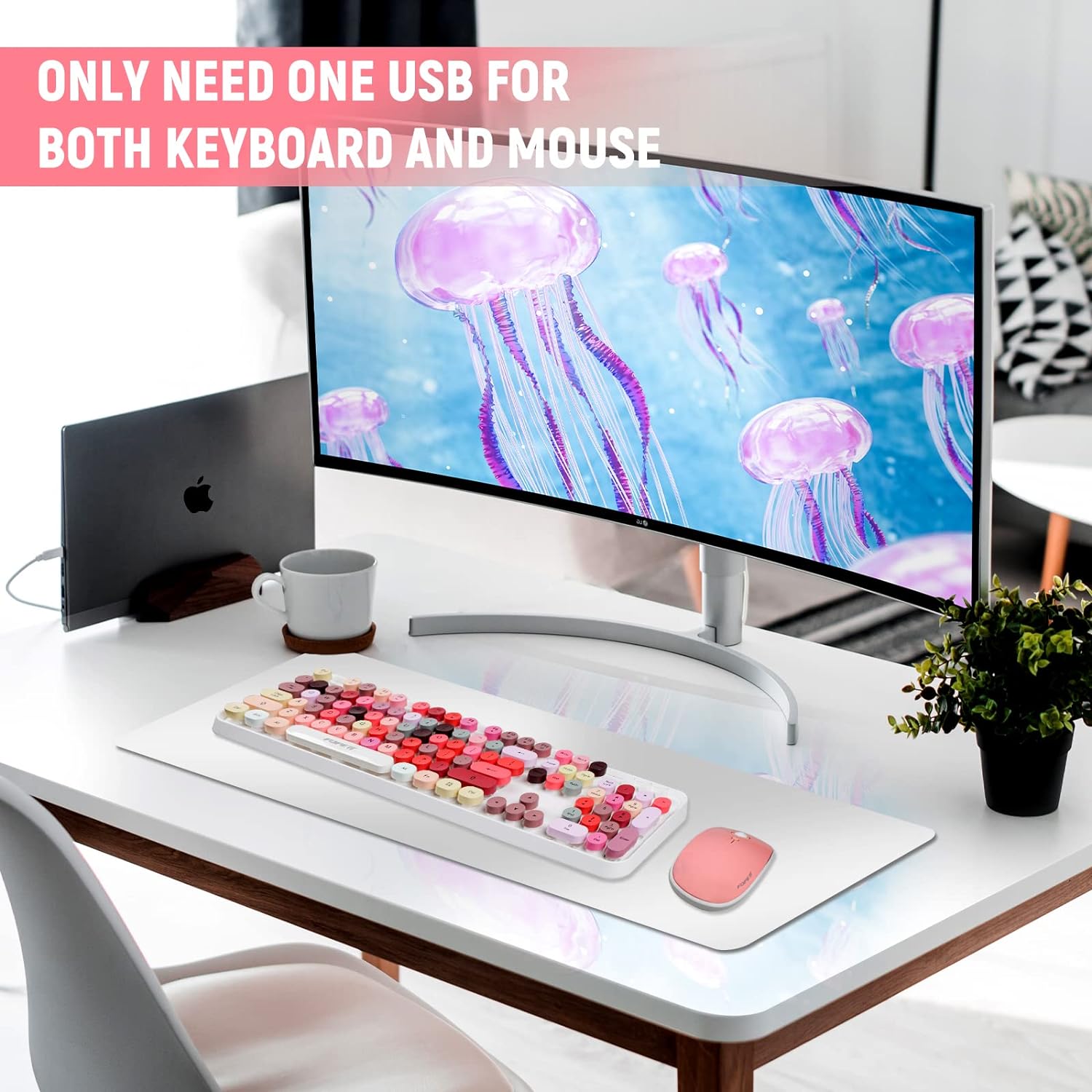
Image: Illustration showing that only one USB receiver is needed for both the keyboard and mouse.


Image: Steps for connecting the USB receiver and storing it in the mouse.
3. Operating Instructions
3.1. Power-Saving Features
Both the keyboard and mouse are designed with intelligent power-saving modes to extend battery life:
- If there is no operation with the keyboard and mouse for more than 5 minutes, they will automatically enter sleep mode.
- To activate them, simply press any key on the keyboard or click any button on the mouse.
- The mouse's optical LED will turn off in economize state, and mouse movement will not be responsive until reactivated.
- When traveling, if the receiver is disconnected from your device, the mouse's LED will automatically switch off for power-save.

Image: Diagram illustrating the auto-sleep and energy-saving functions of the keyboard and mouse.
3.2. Keyboard Features
The keyboard features 12 function keys for quick access to various commands. Please note that hotkeys may not be fully compatible with Mac systems.
| Function Key | Description |
|---|---|
| FN + F1 | Music Player |
| FN + F2 | Play/Pause |
| FN + F3 | Previous One |
| FN + F4 | Volume+ |
| FN + F5 | Volume- |
| FN + F6 | Mute |
| FN + F7 | Web |
| FN + F8 | Search |
| FN + F9 | Favorites |
| FN + F10 | |
| FN + F11 | Lock |
| FN + F12 | Windows |

Image: Overview of keyboard indicators and function key shortcuts.
3.3. Mouse DPI Settings
The mouse features multiple DPI levels (800, 1200, 1600) for fast and precise cursor control. The default DPI is 1600. To adjust DPI, press the DPI button located on the top of the mouse.

Image: Illustration of mouse DPI settings and automatic power saving states (working, stand-by, auto-sleep, press to activate).
3.4. Compatibility
This keyboard and mouse combo is compatible with various operating systems and devices that have a USB slot:
- Operating Systems: Windows XP/ME/Vista/7/8/10/11
- Compatible Devices: PCs, Laptops, MacBooks, Desktops, Chromebooks, Smart TVs, Projectors, Tablets.

Image: Visual representation of compatible devices including Smart TV, PC, Laptop, Mac, Workstation, and Projector.
4. Maintenance
4.1. Cleaning
The keyboard features detachable round keycaps, making it easier to clean the bottom of your keyboard and remove dust or debris.
- Gently pull up on the keycaps to remove them.
- Use a soft brush or compressed air to clean dust and debris from the keyboard base.
- Wipe the keycaps with a damp cloth and mild soap if necessary, then dry thoroughly before reattaching.

Image: Close-up of detachable round keycaps, highlighting ease of cleaning.
5. Troubleshooting
5.1. Connection Exception Solutions
If you experience connection issues, try the following steps:
- For Keyboard:
- Take out the battery and USB receiver.
- Reload the battery and plug the receiver back into the computer.
- Turn on the keyboard switch, ensuring it is within 20cm (approximately 8 inches) of the receiver.
- Press and hold the ESC + K keys together on the keyboard to re-pair.
- For Mouse:
- Take out the battery and USB receiver.
- Reload the battery and plug the receiver back into the computer.
- Turn on the mouse switch, ensuring it is within 20cm (approximately 8 inches) of the receiver.
- Press and hold the Right button and Scroll button together on the mouse to re-pair.
Note: If the above solutions do not resolve the issue, please repeat the procedures to pair again.
5.2. Restoring Factory Default Settings
If the set is not working, you can try restoring the devices to factory default settings:
- Ensure the battery volume is normal. Replace batteries if they are used up.
- For Mouse: Press the right button and middle button (under the scroll wheel) simultaneously, then wait five seconds.
- Insert the Nano receiver into the USB port of your PC or notebook.
- For Keyboard: Press the Esc and K keys simultaneously, then wait five seconds.
- Insert the Nano receiver into the USB port of your PC or notebook.
5.3. Lost USB Receiver
If your USB receiver is lost, please contact the seller immediately for assistance.
6. Specifications
| Feature | Detail |
|---|---|
| Brand | FOPETT |
| Model Number | V2020 |
| Color | White Colorful |
| Connectivity Technology | 2.4 GHz Radio Frequency (Wireless) |
| Keyboard Dimensions (L x W x H) | 13.53 x 4.2 x 1.17 inches (45.1 x 14 x 3.9 cm) |
| Mouse Dimensions (L x W x H) | 3.42 x 1.86 x 0.96 inches (11.4 x 6.2 x 3.2 cm) |
| Mouse DPI Levels | 800, 1200, 1600 |
| Keyboard Battery | 1 x AA (not included) |
| Mouse Battery | 1 x AA (not included) |
| Item Weight | 2.31 pounds (combined) |
| Special Features | Round Keycaps, Silent Click Mouse, Auto-Sleep Function, Ergonomic Design |
6.1. Package Contents
- 1 x Wireless Keyboard
- 1 x Wireless Mouse
- 1 x USB Receiver (located in the mouse battery compartment)
- 1 x User Manual
7. Warranty and Support
FOPETT offers a three-year worry-free warranty and a 60-day money-back guarantee for this product. We are committed to providing you with satisfactory solutions.
If you have any inquiries or concerns regarding your wireless keyboard and mouse set, or if you encounter any issues (e.g., defective item, lost USB receiver), please do not hesitate to contact us via Amazon email. Your satisfaction is our top priority.