
1. Introduction
This manual provides comprehensive instructions for the setup, operation, and maintenance of your Mitzu MRC-UNI13 Universal Remote Control. Please read this manual carefully before using the device to ensure proper functionality and to maximize its lifespan.
2. Product Overview
The Mitzu MRC-UNI13 is a universal remote control designed for Smart TVs and Slim Screens. It features a lightweight and ergonomic design, providing a practical solution for controlling multiple television brands.
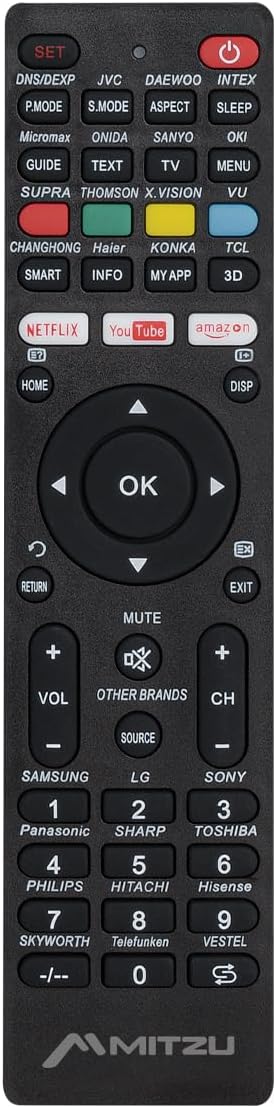
Image 2.1: Front view of the Mitzu MRC-UNI13 Universal Remote Control, showing all buttons and layout.

Image 2.2: Angled view of the Mitzu MRC-UNI13 Universal Remote Control, highlighting its slim profile.

Image 2.3: Mitzu MRC-UNI13 Universal Remote Control with approximate dimensions: 17.7 cm length, 4.5 cm width, and 2 cm thickness.
3. Setup
3.1. Battery Installation
The Mitzu MRC-UNI13 remote control requires two AAA batteries (not included) for operation. Follow these steps to install the batteries:
- Locate the battery compartment cover on the back of the remote control.
- Slide the cover downwards or press the latch to open it.
- Insert two AAA batteries, ensuring the positive (+) and negative (-) terminals align correctly with the markings inside the compartment.
- Replace the battery compartment cover by sliding it back into place until it clicks securely.
Note: Always use new batteries and replace both batteries at the same time. Do not mix old and new batteries or different types of batteries.
3.2. Programming the Remote Control
The MRC-UNI13 is a universal remote control that needs to be programmed to operate your specific television. The programming method typically involves entering a code or using an auto-search function. Refer to the included code list (if provided with the physical product) for your TV brand. If no code list is available, or if the codes do not work, use the auto-search method.
3.2.1. Code Entry Method (Example)
- Turn on the TV you wish to control manually.
- Press and hold the SET button on the remote until the indicator light (usually red) illuminates.
- Enter the 3-digit code for your TV brand using the numeric keypad. (e.g., for Samsung, LG, Sony, Panasonic, Sharp, Toshiba, Philips, Hitachi, Hisense, Skyworth, Telefunken, Vestel, etc., as indicated on the remote).
- If the code is correct, the indicator light will turn off. Test the remote by pressing the POWER button. If the TV turns off, the remote is programmed.
- If the TV does not respond, repeat the process with the next code listed for your brand.
3.2.2. Auto-Search Method (Example)
- Turn on the TV you wish to control manually.
- Point the remote control towards the TV.
- Press and hold the SET button and the POWER button simultaneously until the indicator light illuminates.
- Release both buttons. The indicator light will flash.
- Continuously press the VOL+ button (or CH+) repeatedly until the TV volume changes or the channel changes. This indicates the remote has found a compatible code.
- Once the TV responds, immediately press the SET button to save the code. The indicator light will turn off.
- Test all functions of the remote. If some functions do not work, you may need to repeat the auto-search process to find a more compatible code.
Note: The exact programming steps may vary slightly. If these methods do not work, consult the specific instructions that came with your physical remote or visit the Mitzu support website for detailed programming guides.
4. Operating Instructions
Once programmed, the Mitzu MRC-UNI13 remote control functions similarly to your original TV remote. Below is a general guide to its main functions:
- POWER (Red Button): Turns the TV on or off.
- SET: Used for programming the remote.
- DNS/DEXP, JVC, DAEWOO, INTEX, etc. (Brand Buttons): Specific buttons for direct brand code entry or selection.
- P.MODE, S.MODE, ASPECT, SLEEP: Picture mode, Sound mode, Aspect ratio, Sleep timer functions.
- GUIDE, TEXT, TV, MENU, VU: Electronic Program Guide, Teletext, TV/AV input, Menu, Volume Up/Down (likely a typo on the remote, VU usually means Volume Up).
- SMART, INFO, MY APP, 3D: Smart TV functions, Information display, Custom app access, 3D mode.
- NETFLIX, YouTube, Amazon: Direct access buttons for streaming services.
- HOME, DISP: Home menu, Display information.
- Navigation Pad (Up, Down, Left, Right, OK): Navigates menus and confirms selections.
- RETURN, EXIT: Go back to the previous screen or exit a menu.
- MUTE: Mutes or unmutes the TV sound.
- VOL+ / VOL-: Adjusts the volume up or down.
- CH+ / CH-: Changes the channel up or down.
- SOURCE: Selects input sources (HDMI, AV, etc.).
- Numeric Keypad (0-9): Direct channel entry.
- -/--: For two-digit channel entry.
Note: The functionality of some buttons may depend on the specific TV model and brand you are controlling. Not all buttons may be supported by all TVs.
5. Maintenance
To ensure the longevity and optimal performance of your Mitzu MRC-UNI13 Universal Remote Control, follow these maintenance guidelines:
- Cleaning: Use a soft, dry cloth to clean the remote control. For stubborn dirt, slightly dampen the cloth with water or a mild cleaning solution. Do not use abrasive cleaners, alcohol, or solvents.
- Battery Care:
- Remove batteries if the remote will not be used for an extended period to prevent leakage.
- If battery leakage occurs, clean the compartment thoroughly before inserting new batteries.
- Dispose of used batteries according to local regulations.
- Storage: Store the remote control in a cool, dry place, away from direct sunlight, extreme temperatures, and high humidity.
- Handling: Avoid dropping the remote control or subjecting it to strong impacts, as this can damage internal components.
6. Troubleshooting
If you encounter issues with your Mitzu MRC-UNI13 Universal Remote Control, refer to the following troubleshooting tips:
- Remote is not working at all:
- Check if the batteries are inserted correctly with the correct polarity (+/-).
- Replace old batteries with new ones.
- Ensure there is a clear line of sight between the remote and the TV's infrared sensor.
- Remote controls some functions but not others:
- The current code may not be fully compatible with your TV model. Try reprogramming the remote using a different code for your TV brand or using the auto-search method again.
- Some advanced functions (e.g., specific Smart TV features) may not be supported by universal remotes.
- Indicator light does not illuminate during programming:
- Ensure you are pressing and holding the SET button for the required duration.
- Check or replace batteries.
- TV does not respond during auto-search:
- Ensure the TV is turned on manually before starting the auto-search.
- Make sure you are pointing the remote directly at the TV.
- Press the VOL+ or CH+ button repeatedly and quickly enough to cycle through codes.
If the problem persists after trying these steps, contact Mitzu customer support for further assistance.
7. Specifications
| Feature | Detail |
|---|---|
| Brand | Mitzu |
| Model | MRC-UNI13 |
| Compatible Devices | Televisions (Smart TVs, Slim Screens) |
| Special Features | Lightweight, Universal Compatibility (up to 10 devices, though typically programmed for one TV at a time) |
| Connectivity Technology | Infrared (IR) |
| Power Source | 2 x AAA Batteries (not included) |
| Dimensions (Approx.) | 22.2 x 8.8 x 2.8 cm (Package); Remote: ~17.7 x 4.5 x 2 cm |
| Weight (Approx.) | 70 g (Package) |
8. Warranty and Support
8.1. Warranty Information
Mitzu products are designed for quality and reliability. For specific warranty terms and conditions, please refer to the warranty card included with your purchase or visit the official Mitzu website. Keep your proof of purchase for warranty claims.
8.2. Customer Support
For technical assistance, programming codes, or any other inquiries regarding your Mitzu MRC-UNI13 Universal Remote Control, please contact Mitzu customer support. Contact details can typically be found on the Mitzu official website or on the product packaging.
You can also visit the Mitzu Brand Store on Amazon for more product information.

