
Introduction
Thank you for choosing the T-Dagger T-TGK317 Mechanical Gaming Keyboard. This compact 60% keyboard offers a versatile experience with its dual-mode connectivity (Bluetooth and wired USB-C) and vibrant RGB backlighting. This manual provides detailed instructions for setup, operation, maintenance, and troubleshooting to ensure optimal performance and longevity of your device.
Product Overview
The T-Dagger T-TGK317 is a high-performance mechanical keyboard designed for gaming and everyday use. It features a 60% compact layout, saving desk space while retaining essential functionality through FN key combinations. The keyboard is equipped with durable mechanical switches and customizable RGB lighting.

Image: Top-down view of the T-Dagger T-TGK317 Mechanical Gaming Keyboard, highlighting its compact 60% layout and illuminated keys.
Key features include:
- 60% Compact Design: Maximizes desk space.
- Dual-Mode Connectivity: Seamlessly switch between wired USB-C and wireless Bluetooth.
- RGB Backlighting: Customizable lighting effects for an immersive experience.
- Mechanical Switches: Provides tactile feedback and durability.
- Ergonomic Design: Comfortable for extended use.
Setup
1. Wired Connection
- Locate the USB-C port on the left side of the keyboard.
- Connect the provided USB-C cable to the keyboard.
- Connect the other end of the USB-A cable to an available USB port on your computer.
- The keyboard will be automatically detected and ready for use.
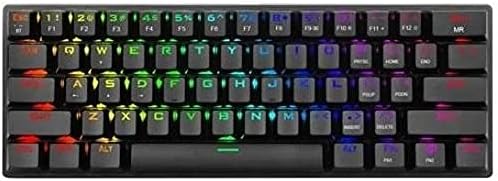
Image: Close-up view of the T-Dagger T-TGK317 keyboard's USB-C port and the detachable cable, illustrating wired connection.
2. Bluetooth Wireless Connection
- Ensure the keyboard is charged.
- Locate the power switch on the side of the keyboard and slide it to the 'ON' position.
- Press and hold the FN + BT keys to enter Bluetooth pairing mode. The indicator light will flash rapidly.
- On your device (computer, tablet, smartphone), enable Bluetooth and search for new devices.
- Select "T-TGK317" from the list of available devices.
- If prompted, enter the pairing code displayed on your screen.
- Once paired, the indicator light will stop flashing and remain solid.

Image: Side view of the T-Dagger T-TGK317 keyboard, showing the 'ON/OFF' switch and dedicated Bluetooth pairing buttons (B1, B2, B3, BT).
3. Charging the Keyboard
When the battery is low, the indicator light will flash slowly. Connect the keyboard to your computer or a USB power adapter using the provided USB-C cable. The indicator light will turn solid while charging and turn off when fully charged.
Operating Instructions
1. Function Key Combinations (FN Key)
Due to its compact 60% layout, many functions are accessed by pressing the FN key in combination with other keys. Refer to the keycaps for secondary functions, typically indicated by a different color or symbol.
- FN + [1-0]: Access F1-F10 functions (e.g., F1, F2, etc.).
- FN + [Q, W, E, R, T, Y, U, I, O, P]: Multimedia controls (e.g., Play/Pause, Volume Up/Down, Mute).
- FN + [A, S, D, F, G, H, J, K, L]: Navigation keys (e.g., Home, End, Page Up, Page Down).
- FN + [Z, X, C, V, B, N, M]: Special functions (e.g., Calculator, My Computer).
- FN + [WIN]: Locks/unlocks the Windows key.

Image: Angled view of the T-Dagger T-TGK317 keyboard, illustrating the keycap legends for both primary and FN-accessed secondary functions.
2. RGB Lighting Control
The T-TGK317 offers various RGB lighting modes and customization options:
- FN + [\|]: Cycle through different lighting effects.
- FN + [UP/DOWN Arrow]: Adjust brightness levels.
- FN + [LEFT/RIGHT Arrow]: Adjust lighting effect speed.
- FN + [Spacebar]: Change backlight color in certain modes.
3. Switching Connection Modes
To switch between wired and Bluetooth modes:
- Wired Mode: Connect the USB-C cable. The keyboard will automatically switch to wired mode.
- Bluetooth Mode: Disconnect the USB-C cable and ensure the power switch is 'ON'. The keyboard will automatically connect to the last paired Bluetooth device. If not, press FN + BT to reconnect or pair.
Maintenance
Proper maintenance ensures the longevity and performance of your keyboard:
- Cleaning: Use a soft, dry cloth to wipe the keyboard surface. For deeper cleaning, use compressed air to remove dust and debris from between the keycaps. You may carefully remove keycaps with a keycap puller (if included) to clean underneath.
- Storage: Store the keyboard in a cool, dry place away from direct sunlight and extreme temperatures.
- Avoid Liquids: Do not expose the keyboard to liquids. In case of spills, immediately disconnect the keyboard and allow it to dry completely before reconnecting.
Troubleshooting
If you encounter issues with your T-Dagger T-TGK317 keyboard, try the following solutions:
- Keyboard not responding (Wired):
- Ensure the USB-C cable is securely connected to both the keyboard and the computer.
- Try a different USB port on your computer.
- Test the keyboard on another computer to rule out system-specific issues.
- Keyboard not responding (Bluetooth):
- Ensure the keyboard is charged and the power switch is 'ON'.
- Verify Bluetooth is enabled on your device.
- Re-pair the keyboard with your device (see Bluetooth Wireless Connection section).
- Ensure the keyboard is within the effective range of your Bluetooth device.
- Keys not working or double-typing:
- Clean the affected key switch area with compressed air.
- Ensure no debris is lodged under the keycap.
- RGB lighting not working:
- Ensure the keyboard is powered on.
- Try cycling through lighting modes using FN + [\|].
- Adjust brightness using FN + [UP/DOWN Arrow].
Specifications
| Feature | Specification |
|---|---|
| Brand | T-Dagger |
| Model Number | T-TGK317 |
| Keyboard Type | Mechanical Gaming Keyboard |
| Layout | 60% Compact |
| Number of Keys | 61 |
| Connectivity | Dual-mode (Bluetooth & Wired USB-C) |
| Backlighting | RGB |
| Switches | Mechanical (Blue Switches) |
| Color | Black |
| Special Features | Backlit, Ergonomic Design |
| Compatible Devices | All (PC, Mac, Mobile Devices with Bluetooth) |
Warranty and Support
T-Dagger products are designed for reliability and performance. For warranty information and technical support, please refer to the warranty card included with your product or visit the official T-Dagger website. If you experience any issues not covered in this manual, please contact T-Dagger customer service for assistance.


