
1. Introduction
This manual provides detailed instructions for the VBESTLIFE 2.4G Wireless Mouse Pen. This device combines the functionality of a wireless mouse with a capacitive stylus, offering versatile input for various devices. Please read this manual thoroughly before using the product to ensure proper operation and to maximize its lifespan.
2. Package Contents
Verify that all items listed below are included in your package:
- 1 x VBESTLIFE 2.4G Wireless Mouse Pen (Purple)
- 1 x 2.4G USB Receiver
- 1 x Charging Base
- 1 x User Manual
- 1 x USB Charging Cable
- 1 x Type-C Adapter
- 1 x Micro USB Adapter
- 1 x Storage Bag

Image: All components included in the VBESTLIFE 2.4G Wireless Mouse Pen package.
3. Product Features
- 2.4G Wireless Connection: Ensures stable and reliable connectivity.
- Wide Compatibility: Supports Windows XP, 7, 8, and 10 operating systems.
- Multi-Device Use: Equipped with adapters for use with PCs, laptops, tablets, and mobile phones.
- Full Mouse Functionality: Includes left-click, right-click, scroll wheel, and middle mouse button.
- Ambidextrous Design: Features two right-click buttons on both sides for comfortable use by both left and right-handed users.
- Capacitive Stylus: Integrated writing head for precise handwriting and touch input on capacitive screens.
- Plug and Play: No driver installation required for most operating systems.
4. Setup Guide
4.1. Initial Charging
Before first use, ensure the mouse pen is fully charged. Connect the provided USB charging cable to the mouse pen and a power source (e.g., computer USB port, USB wall adapter). The indicator light will show charging status.
4.2. Connecting to Your Device
- Insert the 2.4G USB Receiver: Plug the small 2.4G USB receiver into an available USB port on your PC, laptop, or compatible device. If using with a tablet or mobile phone, use the appropriate Type-C or Micro USB adapter to connect the receiver.
- Power On the Mouse Pen: Locate the On/Off switch on the mouse pen and slide it to the 'On' position.
- Automatic Connection: The mouse pen should automatically connect to the receiver. No additional drivers are typically required for Windows XP/7/8/10.
- Test Functionality: Move the pen to check cursor movement and test the mouse buttons.

Image: The wireless mouse pen connected to different devices using its adapters.
5. Operating Instructions
5.1. Mouse Functionality
The mouse pen operates like a standard wireless mouse. Hold the pen comfortably and move it across a surface or in the air to control the cursor.
- Left Click: Press the primary button on the top side of the pen.
- Right Click: Press one of the two right-click buttons located on either side of the pen. This design accommodates both left and right-handed users.
- Scroll Wheel: Use the scroll wheel for vertical scrolling in documents and web pages.
- Middle Click: Press down on the scroll wheel for middle-click functionality.

Image: The mouse pen showing its control buttons.
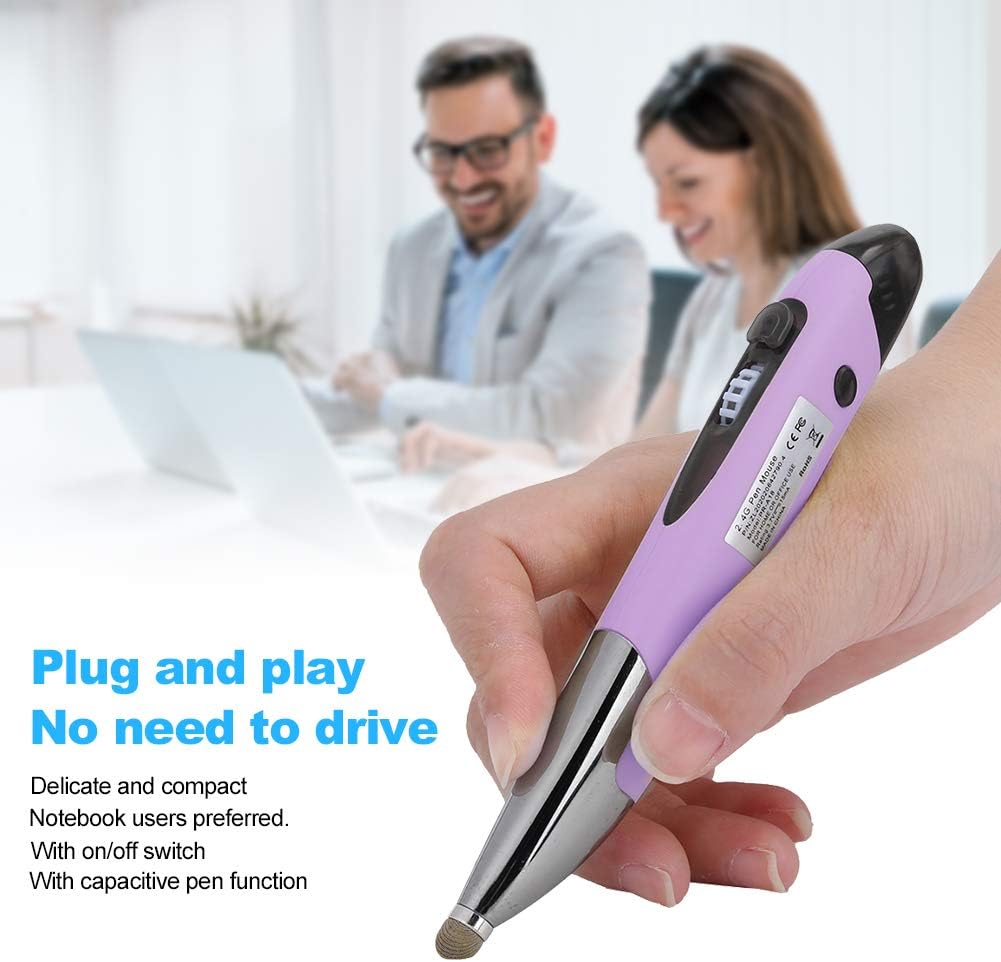
Image: User holding the mouse pen for operation.
5.2. Capacitive Stylus Function
The tip of the mouse pen features a capacitive writing head. This allows you to use the pen directly on touchscreens for handwriting, drawing, or precise navigation, similar to a standard stylus.
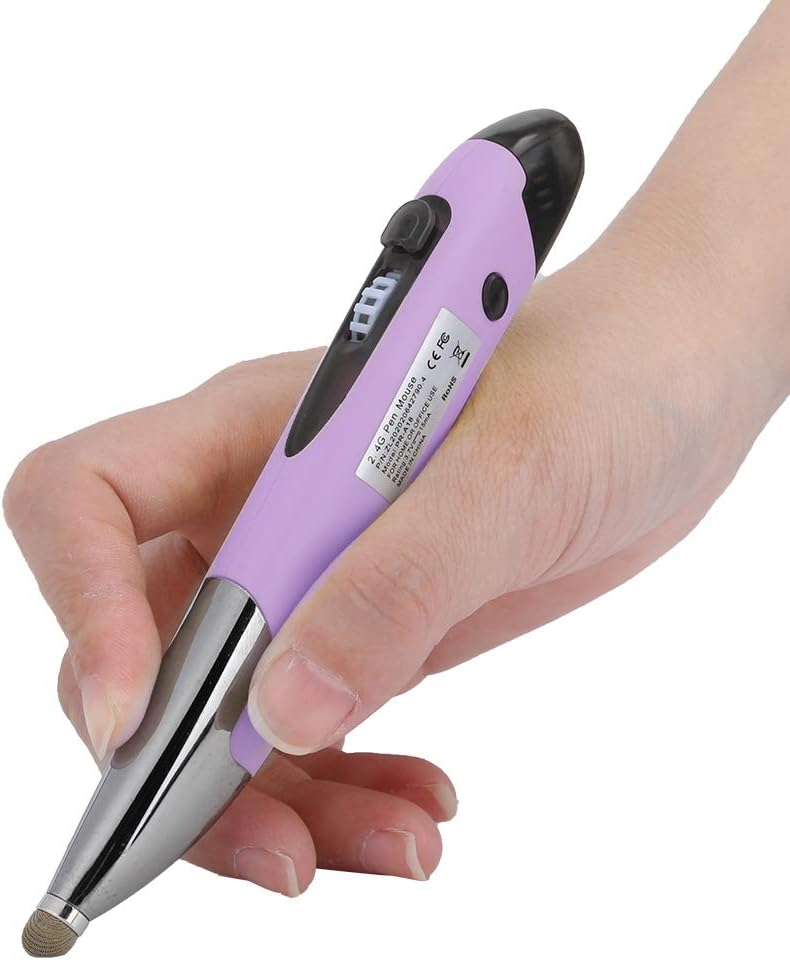
Image: Close-up of the mouse pen's capacitive tip.
6. Maintenance
6.1. Cleaning
To clean the mouse pen, gently wipe it with a soft, dry cloth. Do not use harsh chemicals, abrasive cleaners, or allow moisture to enter the device.
6.2. Charging
When the battery is low, connect the mouse pen to the charging cable and a power source. The charging base can be used to conveniently hold the pen while charging or for storage.

Image: The mouse pen in its charging base.
6.3. Storage
When not in use, store the mouse pen in the provided storage bag to protect it from dust and damage. Ensure the pen is switched off to conserve battery life.
7. Troubleshooting
If you encounter issues with your VBESTLIFE 2.4G Wireless Mouse Pen, refer to the following common problems and solutions:
| Problem | Possible Cause | Solution |
|---|---|---|
| Mouse pen not responding | Low battery; Pen is off; Receiver not properly connected; Driver issue. | Charge the pen; Ensure the pen is switched 'On'; Re-insert the USB receiver; Try a different USB port; Restart your device. |
| Cursor movement is erratic or jumpy | Interference; Dirty sensor; Unsuitable surface. | Move away from other wireless devices; Clean the optical sensor at the bottom of the pen; Use on a smooth, non-reflective surface. |
| Cannot connect to device | Receiver not recognized; Pen out of range. | Ensure the receiver is fully inserted; Try connecting the receiver to another USB port; Ensure the pen is within 10 meters of the receiver. |
| Capacitive stylus not working | Screen protector interference; Dirty stylus tip. | Ensure your screen protector is compatible with styluses; Clean the stylus tip with a soft cloth. |
8. Specifications
| Feature | Detail |
|---|---|
| Manufacturer | VBESTLIFE |
| Model Number | VBESTLIFE58xy7bw9m2156-12 |
| Item Type | Mouse Pen |
| Material | ABS |
| Frequency | 2.4G Wireless |
| Battery Capacity | 250 mAh |
| Color | Purple |
| Item Weight | 93 Grams |
| Item Dimensions (L x W x H) | 10 x 10 x 10 millimeters |
| Compatible Devices | Desktop, Laptop, Tablet, Mobile Phone |
| Operating System Compatibility | Windows XP/7/8/10 |
| Batteries Included | Yes |
| Batteries Required | No (rechargeable internal battery) |
| Country of Origin | China |
9. Warranty & Support
Specific warranty information for the VBESTLIFE 2.4G Wireless Mouse Pen is not provided in the product data. For details regarding warranty coverage, returns, or technical support, please refer to the documentation included with your purchase or contact the retailer/manufacturer directly.
You may also visit the official VBESTLIFE website for general support information or to find contact details.