
Introduction
The HP 125 Wired Mouse is designed for reliable and efficient computer navigation. Featuring optical tracking and a USB connection, it provides smooth and precise cursor control for various computing tasks. This manual provides instructions for setup, operation, maintenance, and troubleshooting.
Key features include:
- Dependable and responsive feedback for maximum reliability.
- USB host interface for efficient data transfer.
- Easy connectivity via USB interface.
- Optical movement detection for smooth, precise, and dependable cursor control.
Package Contents
Verify that the following items are included in your package:
- HP 125 Wired Mouse
- User Documentation (this manual)
Setup
The HP 125 Wired Mouse is a plug-and-play device, requiring no additional software installation for basic functionality.
- Connect the USB Cable: Locate an available USB port on your computer. Insert the USB connector of the HP 125 Wired Mouse into the USB port.
- System Recognition: Your operating system (e.g., Windows, macOS, Linux) will automatically detect and install the necessary drivers for the mouse. This process typically takes a few seconds.
- Begin Use: Once the system recognizes the mouse, the cursor will become active, and you can begin using the mouse immediately.

Image 1: Top-down view of the HP 125 Wired Mouse, showing the scroll wheel and HP logo. This image illustrates the general design of the mouse.
Operating the Mouse
The HP 125 Wired Mouse features standard controls for intuitive navigation.
- Left Button: Used for selecting items, opening files, and executing commands.
- Right Button: Used for accessing context-sensitive menus and additional options.
- Scroll Wheel: Used for scrolling through documents and web pages vertically. The scroll wheel can also function as a middle button when pressed.
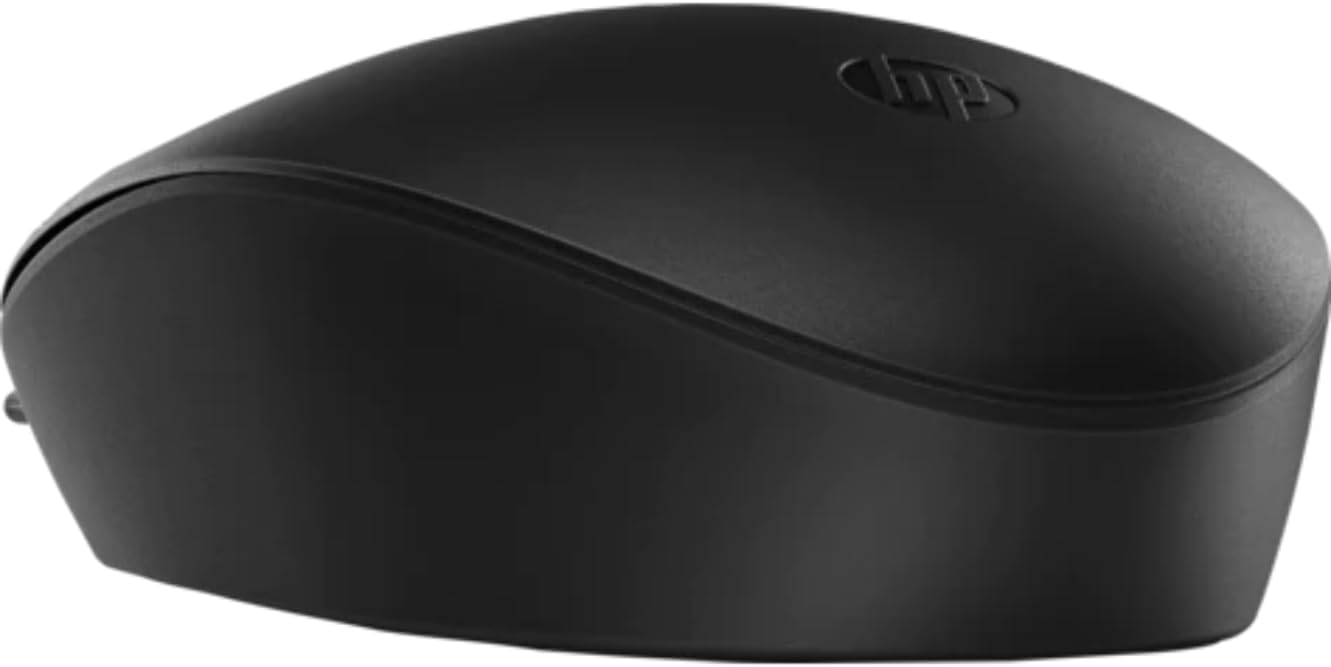
Image 2: Side view of the HP 125 Wired Mouse, highlighting its ergonomic contour. This image provides a perspective of the mouse's shape.
Maintenance
Proper maintenance ensures the longevity and optimal performance of your HP 125 Wired Mouse.
- Cleaning: Use a soft, lint-free cloth slightly dampened with water or a mild cleaning solution to wipe the surface of the mouse. Avoid harsh chemicals or abrasive materials.
- Optical Sensor: Periodically check the optical sensor on the underside of the mouse for dust or debris. Clean gently with a cotton swab if necessary.
- Cable Care: Avoid sharply bending or twisting the USB cable to prevent internal damage.
Troubleshooting
If you encounter issues with your HP 125 Wired Mouse, refer to the following common solutions:
| Problem | Possible Cause | Solution |
|---|---|---|
| Mouse not responding | Loose USB connection, faulty USB port, driver issue. |
|
| Cursor movement is erratic or jumpy | Dirty optical sensor, unsuitable surface, software interference. |
|
| Buttons or scroll wheel not working | Software issue, physical damage. |
|
Specifications
The following are the technical specifications for the HP 125 Wired Mouse:
- Brand: HP
- Model: 125
- Connectivity Technology: USB (Wired)
- Movement Detection Technology: Optical
- DPI (Dots Per Inch): 1200 dpi
- Color: Black
- Item Weight: 0.45 ounces (approximately 12.76 grams)
- Product Dimensions (LxWxH): 2.5 x 1.4 x 0.1 inches (approximately 6.35 x 3.56 x 0.25 cm)
- Operating System Compatibility: Windows 10 (32-bit), Windows 10 x64 (and generally compatible with other modern operating systems supporting USB mice)
- Manufacturer: HP Inc.
- Date First Available: May 28, 2021
Warranty and Support
For warranty information, technical support, or to access additional resources, please visit the official HP support website or refer to the warranty card included with your product packaging.
You can find more information and support at the HP Store on Amazon.
Official Product Videos
No official product videos from the seller were provided for this model.