
Introduction
This manual provides instructions for the proper setup, operation, and maintenance of your Frontech FT-1602 Wireless Keyboard and Optical Wired Mouse Combo. This combo offers a convenient and efficient input solution for your computer.
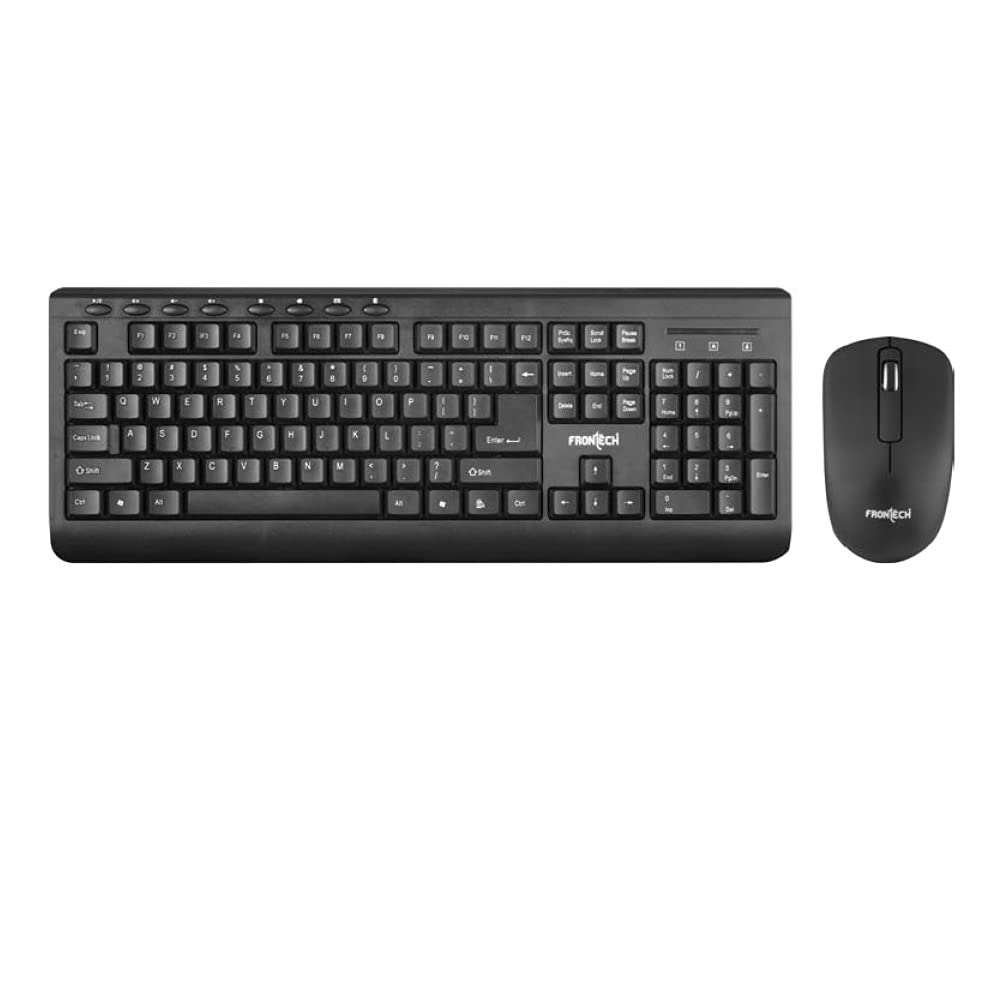
Image 1: Frontech FT-1602 Wireless Keyboard and Optical Wired Mouse Combo. The image displays the black wireless keyboard on the left and the black optical wired mouse on the right. Below them, text indicates "Wireless Comb. FT-1602 (USB)" and "Dedicated Hot-Keys".
Setup Instructions
Follow these steps to set up your Frontech FT-1602 combo:
- Install Batteries:
- For the wireless keyboard, open the battery compartment (usually on the underside) and insert the required batteries (e.g., AAA, not included) according to the polarity indicators.
- For the wireless mouse, open the battery compartment (usually on the underside) and insert the required batteries (e.g., AA, not included) according to the polarity indicators.
- Locate USB Receiver: The small USB receiver is typically stored within the mouse's battery compartment or packaged separately. Remove it carefully.
- Connect USB Receiver: Plug the USB receiver into an available USB port on your computer.
- Automatic Installation: Your computer should automatically detect and install the necessary drivers. This is a plug-and-play process and usually takes a few moments.
- Test Functionality: Once installation is complete, test the keyboard by typing and the mouse by moving the cursor and clicking.
Operating Instructions
Keyboard Usage
- Typing: The keyboard features a full layout with chiclet-style keys for comfortable and efficient typing.
- LED Indicators: Observe the LED indicators for Num Lock, Caps Lock, and Scroll Lock keys. These lights illuminate when the respective function is active.
- Hot-Keys: Utilize any dedicated hot-keys for quick access to multimedia functions or other shortcuts, if present. Refer to the key labels for specific functions.
Mouse Usage
- Movement: The optical sensor provides smooth and accurate cursor control. Move the mouse on a flat surface to navigate your screen.
- Buttons: The mouse is equipped with three buttons: left-click, right-click, and a scroll wheel (which also functions as a middle-click button).
- DPI: The 1000 DPI sensor ensures precise tracking for various tasks.
Maintenance
Proper maintenance ensures the longevity and optimal performance of your combo.
- Cleaning:
- Gently wipe the surfaces of the keyboard and mouse with a soft, damp cloth.
- Avoid using harsh chemicals, abrasive cleaners, or excessive moisture.
- For the keyboard, use compressed air to remove dust and debris from between the keys.
- Battery Replacement: Replace batteries in the keyboard and mouse when performance degrades or they stop responding. Ensure correct polarity when inserting new batteries.
- Storage: When not in use for extended periods, store the combo in a dry, cool place. Remove batteries if storing for a very long time to prevent leakage.
Troubleshooting
If you encounter issues, refer to the following common troubleshooting steps:
| Problem | Possible Cause | Solution |
|---|---|---|
| Keyboard/Mouse not responding |
|
|
| Erratic cursor movement |
|
|
| Keys not registering |
|
|
Specifications
| Feature | Detail |
|---|---|
| Brand | Frontech |
| Model | FT-1602 |
| Color | Black |
| Connectivity Technology | Wireless (USB Receiver) |
| Special Features | Ergonomic, Wireless |
| Compatible Devices | Laptop, Personal Computer |
| Mouse Movement Detection | Optical |
| Mouse DPI | 1000 dpi |
| Operating System Compatibility | All Windows Server Versions 2000, Android, Linux |
| Power Source | Battery Powered (Batteries not included) |
| Keyboard Description | Full-size, Chiclet-style keys, LED indicators for Num/Caps/Scroll Lock |
Warranty and Support
For warranty information or technical support, please refer to the documentation provided with your purchase or contact the retailer/manufacturer directly. Keep your proof of purchase for warranty claims.