1. Product Overview
The MOJO Silent Dual Mode Wireless Rechargeable Gaming Mouse is designed for versatile use, offering both wired and wireless connectivity. It features silent buttons, customizable controls, and adjustable DPI settings for various applications, including gaming and general computer use.
1.1 Package Contents
- 1 x MOJO Silent Dual Mode Wireless Rechargeable Gaming Mouse
- 1 x USB Receiver
- 1 x USB-C Cable
- 1 x User Manual (this document)

Image 1.1: The MOJO Silent Dual Mode Wireless Rechargeable Gaming Mouse, showcasing its ergonomic design and blue LED accents.
2. Setup Instructions
2.1 Wireless Mode Setup
- Locate the USB receiver included in the package.
- Plug the USB receiver into an available USB port on your computer.
- Turn on the mouse using the ON/OFF switch located on the bottom of the mouse.
- The mouse should automatically connect to your computer. If not, ensure the receiver is properly inserted and the mouse is powered on.
2.2 Wired Mode Setup
- Connect the USB-C end of the provided cable to the USB-C port on the front of the mouse.
- Connect the USB-A end of the cable to an available USB port on your computer.
- The mouse will function as a wired mouse and will also charge its internal battery.

Image 2.1: Front view of the mouse, highlighting the USB-C port for wired connection and charging.
2.3 Driver Installation
For basic functionality, the mouse is plug-and-play and does not require additional drivers. For advanced customization, including button remapping, macros, and DPI settings, please download the custom gaming software from the official MOJO-HOME website.
3. Operating Instructions
3.1 Button Functions
The MOJO Gaming Mouse features 9 customizable buttons. Default functions are as follows:
- Left Click: Standard primary click.
- Right Click: Standard secondary click.
- Scroll Wheel: Scroll up/down.
- Middle Click (Scroll Wheel Press): Default function varies by application.
- Forward Button: Navigates forward in web browsers or file explorers.
- Back Button: Navigates backward in web browsers or file explorers.
- DPI + Button: Increases DPI sensitivity.
- DPI - Button: Decreases DPI sensitivity.
- Light On/Off Button: Toggles the mouse's LED lighting.

Image 3.1: Side view of the mouse, illustrating the placement of the forward, back, and light control buttons.
3.2 DPI Adjustment
The mouse supports adjustable DPI settings from 1000 to 4800 DPI. Use the DPI + and DPI - buttons to cycle through preset DPI levels (1000, 1600, 2400, 3200, 4800). The current DPI level may be indicated by LED lights on the mouse.
3.3 Custom Software and Macros
For advanced customization, install the MOJO custom gaming software. This software allows you to:
- Remap all 9 buttons to different functions.
- Create and assign macros for complex command sequences.
- Adjust DPI levels with finer increments and save multiple profiles.
- Customize LED lighting effects and colors.
- Adjust polling rate (125Hz, 250Hz, 500Hz, 1000Hz).
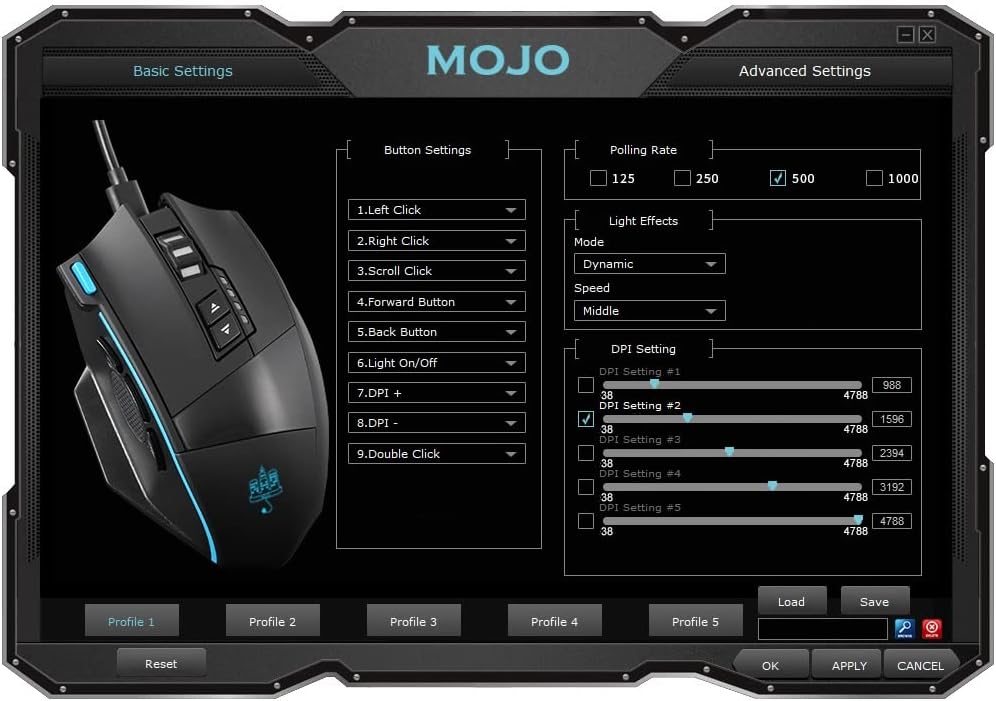
Image 3.2: Screenshot of the MOJO custom gaming software interface, showing options for button settings, polling rate, light effects, and DPI settings.
3.4 Charging the Mouse
When the mouse battery is low, connect the USB-C cable to the mouse and a USB port on your computer or a USB wall adapter. The mouse can be used in wired mode while charging.
4. Maintenance
- Cleaning: Use a soft, dry cloth to clean the mouse surface. For stubborn dirt, a slightly damp cloth can be used, ensuring no moisture enters the mouse.
- Sensor: Keep the optical sensor on the bottom of the mouse clean and free from dust or debris to ensure accurate tracking.
- Storage: Store the mouse in a cool, dry place when not in use. Avoid extreme temperatures.

Image 4.1: Bottom view of the mouse, showing the optical sensor, power switch, and product label.
5. Troubleshooting
- Mouse not responding:
- Ensure the mouse is powered on (check the switch on the bottom).
- For wireless mode, ensure the USB receiver is securely plugged into a working USB port. Try a different USB port.
- For wireless mode, ensure the mouse battery is charged. Connect the USB-C cable to use it in wired mode and charge.
- For wired mode, ensure the USB-C cable is securely connected to both the mouse and the computer. Try a different USB port or cable.
- Cursor erratic or not tracking:
- Clean the optical sensor on the bottom of the mouse.
- Ensure you are using the mouse on a suitable surface (e.g., a mouse pad). Avoid highly reflective or transparent surfaces.
- Check DPI settings; a very high DPI might make the cursor appear erratic. Adjust DPI using the dedicated buttons.
- Custom software not detecting mouse:
- Ensure the mouse is connected to the computer (either wired or wireless).
- Restart the custom software and/or your computer.
- Reinstall the custom software from the official MOJO-HOME website.
- Buttons not responding or performing unexpected actions:
- If using custom software, check your button assignments and macros. Reset to default if necessary.
- Ensure no other mouse software is interfering.
6. Specifications
| Feature | Detail |
|---|---|
| Brand | MOJO-HOME |
| Model Number | AUB09781F9RM |
| Connectivity | Wireless (USB Receiver), Wired (USB-C) |
| Sensor | PMW3212 |
| DPI Resolution | 1000 - 1600 - 2400 - 3200 - 4800 (Adjustable) |
| Refresh Rate (Polling Rate) | 125 - 1000 Hz |
| Number of Buttons | 9 (Customizable) |
| Operating System | Windows |
| Hardware Platform | PC |
| Item Weight | 3.88 ounces (approx. 110g) |
| Product Dimensions (LxWxH) | 4.8 x 2.99 x 1.57 inches (122 x 76 x 40mm) |
| Batteries | 1 Lithium Ion battery (included) |
| Special Features | Programmable Buttons, Silent Clicks |
7. Warranty and Support
Specific warranty information is not provided in this manual. For details regarding warranty coverage, technical support, or to download the latest custom software, please visit the official MOJO-HOME website or contact their customer service directly.
Official Website: www.mojo-llc.com


