
1. Introduction
Thank you for choosing the ONIKUMA K15 PRO Gaming Headset. This manual provides detailed instructions on how to set up, operate, and maintain your headset to ensure optimal performance and longevity. Please read this manual carefully before using the product.
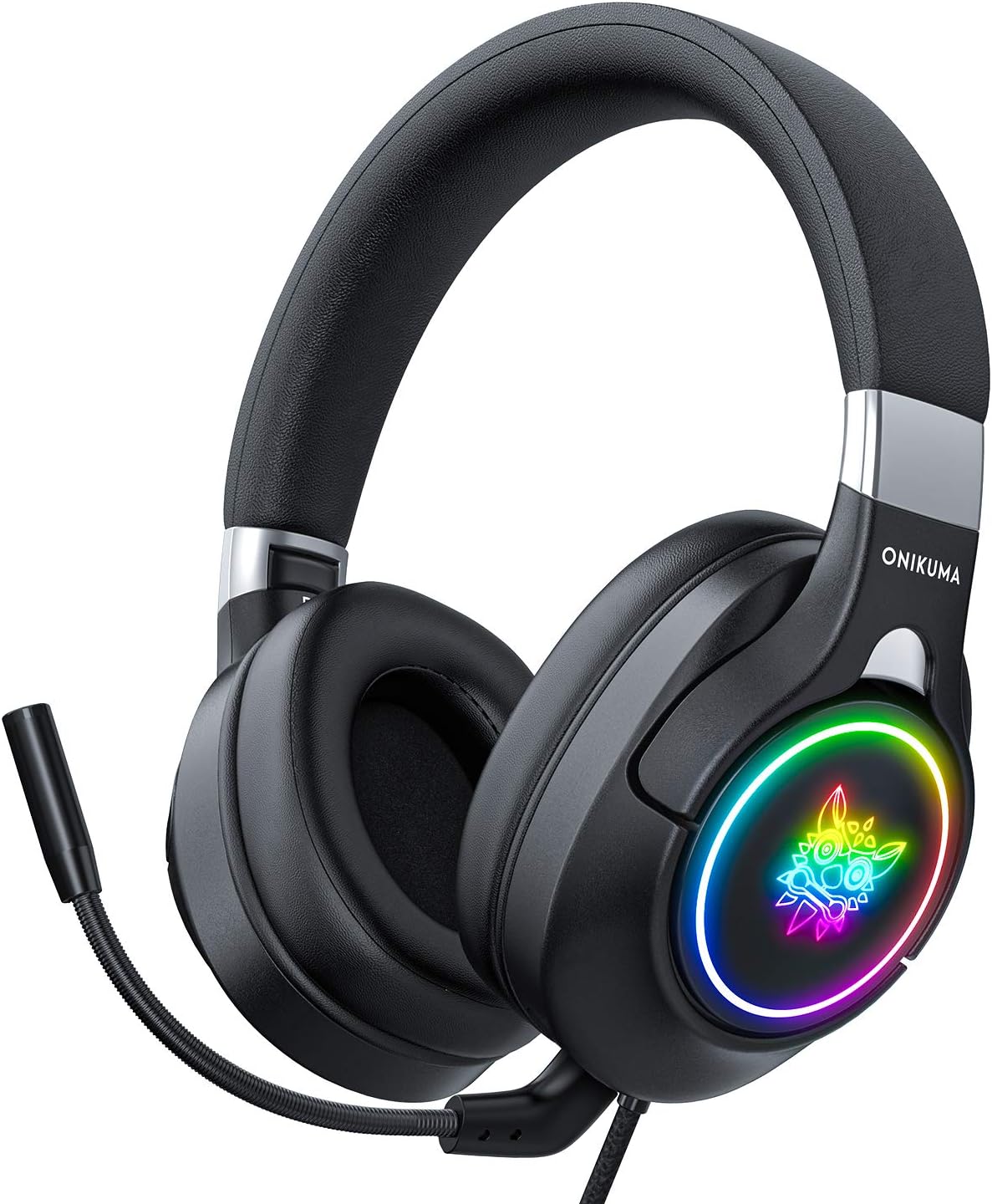
Image 1.1: The ONIKUMA K15 PRO Gaming Headset, featuring RGB lighting on the earcups and a flexible microphone.
2. Product Features
- Multi-Platform Compatibility: Supports PlayStation 4, PlayStation 4 Pro/Slim, Xbox One X/S controller, Nintendo Switch/3DS, PSP, PC, laptops, tablets, and iPads.
- Immersive Surround Sound: Equipped with excellent 50mm audio drivers and advanced audio technology for high-quality simulated surround sound, enhancing your gaming experience by allowing precise sound direction perception.
- Noise-Cancelling Microphone: Features a sensitive and adjustable microphone with noise-cancelling technology to filter ambient noise, ensuring crystal clear real-time communication. Anti-static technology prevents static interference.
- Ergonomic & Comfortable Fit: Designed with a padded headband, soft and resistant ear cushions, and an individually adjustable microphone for maximum comfort during extended use.
- Integrated Controls: Built-in audio control box with a volume wheel and one-key mute switch for quick adjustments.

Image 2.1: Diagram highlighting key features such as 50mm audio drivers, swivel earcups, comfortable leatherette earpods, 6mm swivel-to-mute microphone, and LED light (USB powered).
3. Setup Guide
3.1 Connecting to PC/Laptop
For PC and laptop connections, use the included 3.5mm splitter cable. Connect the green plug to your audio output jack and the pink plug to your microphone input jack. The USB cable is for powering the RGB LED lights only.
3.2 Connecting to Consoles (PS4, PS4 Pro/Slim, Nintendo Switch/3DS, PSP)
Simply plug the 3.5mm jack directly into your controller or console's audio port. The headset is plug-and-play for these systems.
3.3 Connecting to Xbox One
For newer Xbox One controllers with a 3.5mm jack, plug the headset directly into the controller. For older Xbox One controllers without a 3.5mm jack, an additional Microsoft adapter (not included) is required.

Image 3.1: Close-up view of the headset's controls, including the microphone switch key, volume control key, gold-plated 3.5mm plug, and USB connector for LED lighting.
4. Operating Instructions
4.1 Volume Control
Adjust the volume using the volume wheel located on the left earcup. Rotate the wheel up to increase volume and down to decrease volume.
4.2 Microphone Mute
To mute or unmute the microphone, use the microphone switch key located next to the volume wheel on the left earcup. Flip the switch to the desired position.
4.3 RGB Lighting
The RGB lighting on the earcups is powered via the USB connector. Plug the USB cable into any available USB port on your device (PC, console, power adapter) to activate the lighting. The lighting is purely aesthetic and does not affect audio functionality.
5. Maintenance
- Cleaning: Use a soft, dry cloth to clean the headset. For earpads, a slightly damp cloth can be used, but ensure they are completely dry before next use. Do not use harsh chemicals or abrasive cleaners.
- Storage: Store the headset in a cool, dry place away from direct sunlight and extreme temperatures. Avoid placing heavy objects on top of the headset.
- Cable Care: Avoid sharp bends or kinks in the cable. Do not pull the cable to disconnect the headset; always grasp the plug.

Image 5.1: Close-up of the comfortable and sound-insulating earpads, made with skin-friendly material.
6. Troubleshooting
| Problem | Solution |
|---|---|
| No sound from headset |
|
| Microphone not working |
|
| RGB lights not working |
|
7. Specifications
| Brand Name | ONIKUMA |
| Model Name | K15 Pro |
| Item Model Number | K15 PRO |
| Connectivity Technology | Wired |
| Headphone Form Factor | Over-Ear |
| Headphone Jack | 3.5mm Jack |
| Noise Control | Active Noise Cancellation |
| Color | Black |
| Material | Rubber, Polycarbonate, Metal, Leather, Memory Foam |
| Age Range Description | Adult and Child |
| Package Dimensions | 21.8 x 19.8 x 7 cm |
| Item Weight | 480 grams |
| Date First Available | September 5, 2021 |
8. Warranty and Support
Every ONIKUMA gaming headset undergoes strict quality testing before shipment. If you encounter any issues or have questions regarding your ONIKUMA K15 PRO headset, please contact our customer service team.
You can reach us via email through your order page. We are committed to assisting you quickly and efficiently within 24 hours.