
1. Product Overview
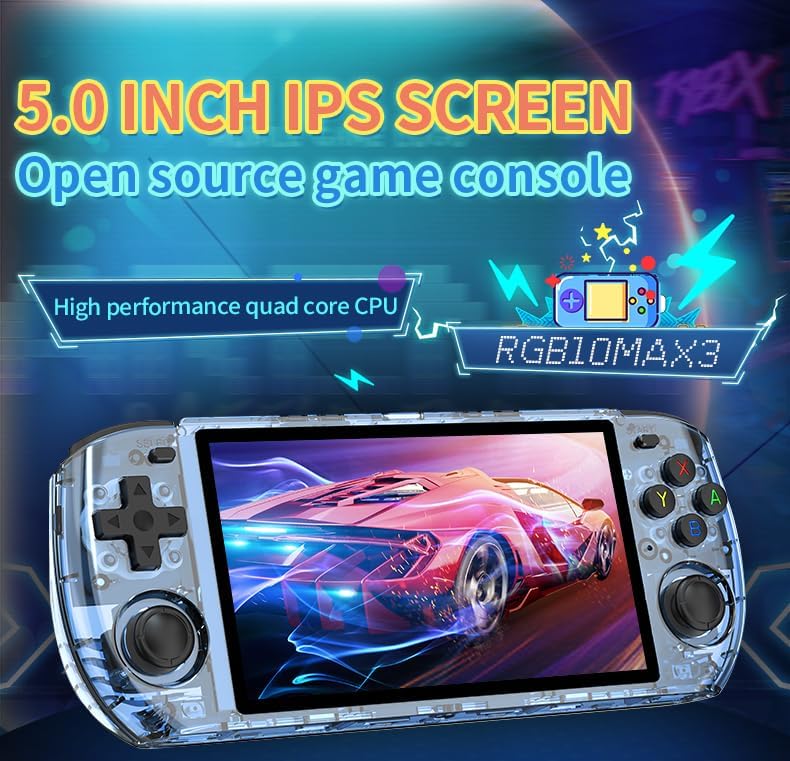
The Powkiddy RGB10 max3 is a handheld game console designed for portable gaming. It features a 5.0-inch IPS screen, an RK3566 processor, and a 4000mAh battery. The console supports multiple gaming platforms and a library of retro games, offering extensive storage with 16+128GB memory.
Package Contents
- RGB10 MAX3 Game Console Black x1
- 16+128GB TF-card x1
- Charge cable x1
- Packing box x1
- Screen protector x1
- Instructions x1

2. Initial Setup
2.1 Charging the Console
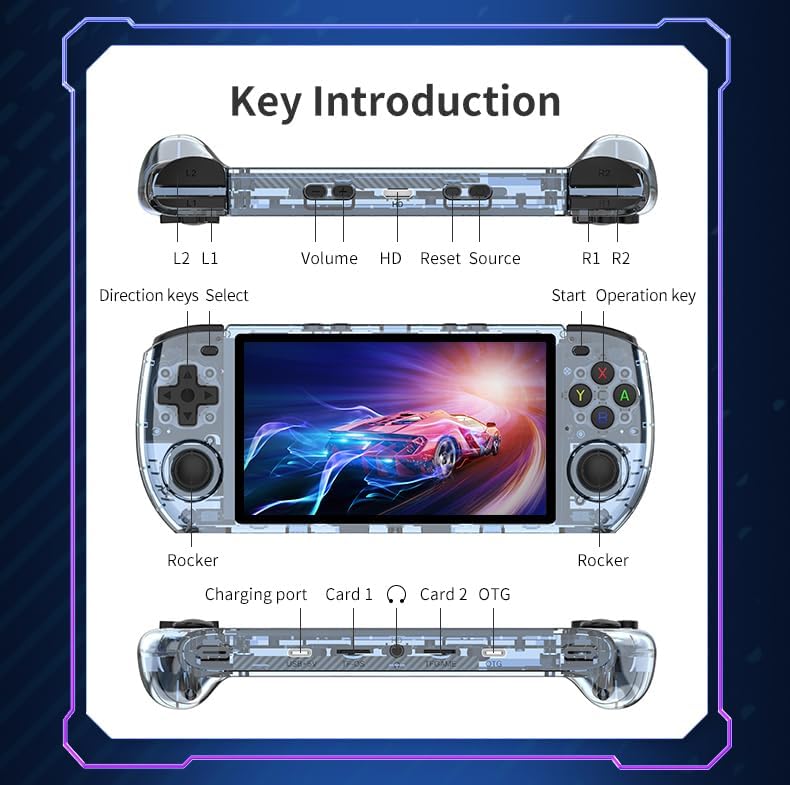
Before first use, fully charge the console using the provided charge cable and a compatible USB power adapter (not included). The charging port is located on the bottom edge of the device.
2.2 Inserting the TF Card
The console comes with a 16+128GB TF-card pre-installed. If you need to access or replace it, locate the card slots on the bottom edge of the console. Ensure the console is powered off before inserting or removing TF cards.
2.3 Applying the Screen Protector
Carefully clean the screen surface with a soft cloth. Align the screen protector with the console's screen and gently apply it, smoothing out any air bubbles.

3. Operating Instructions
3.1 Power On/Off
- To Power On: Press and hold the Power button (usually located on the top edge) until the screen illuminates.
- To Power Off: Press and hold the Power button until a power-off menu appears, then select 'Shutdown' or 'Power Off'. A short press typically puts the device to sleep.
3.2 Console Layout and Controls
Familiarize yourself with the console's buttons, joysticks, and ports for optimal gameplay.
3.3 Navigating the User Interface
Use the directional pad or left joystick to navigate through menus. The 'A' button typically confirms selections, and the 'B' button usually cancels or goes back.
3.4 Loading and Playing Games
Games are typically organized by emulator or system. Select a system from the main menu, then browse the list of available games. Select a game to launch it.
3.5 Supported Emulators
The console supports a wide range of emulators for various gaming platforms. Due to chip limitations, some games may not be fully compatible.

3.6 Connecting to a TV (HD Output)
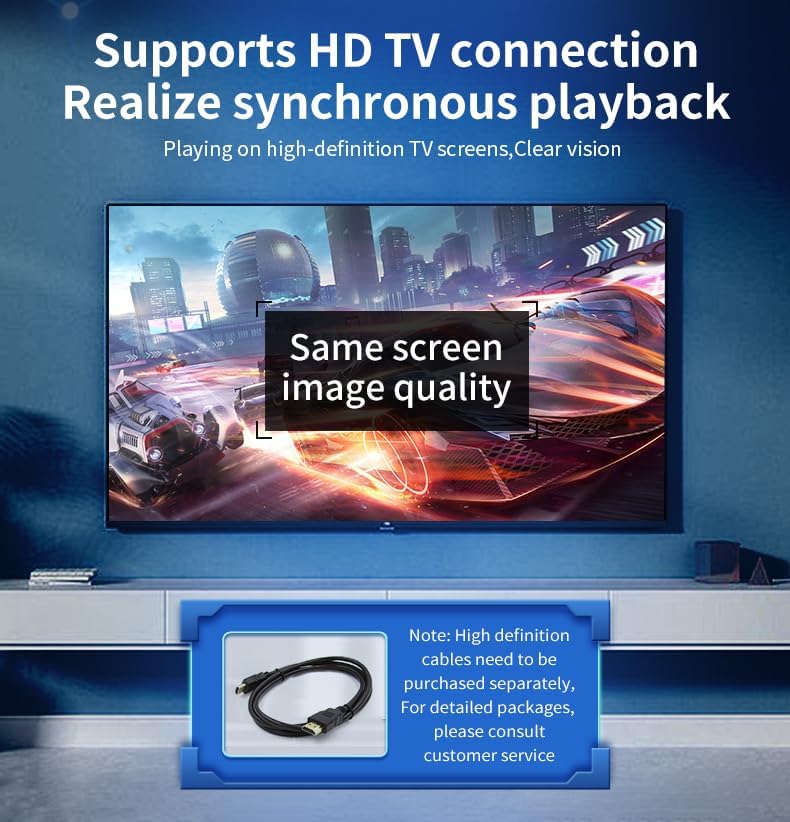
The console supports HD TV connection for synchronous playback. Connect an HD cable (purchased separately) from the console's HD port to your television's HDMI input. Switch your TV's input source to the corresponding HDMI port.
3.7 Connecting Bluetooth Controllers
The console features a built-in Bluetooth module, allowing connection of external Bluetooth controllers for alternative gameplay options. Refer to your controller's instructions for pairing mode, then access the console's Bluetooth settings to connect.

3.8 Multiplayer Functionality (Wi-Fi)
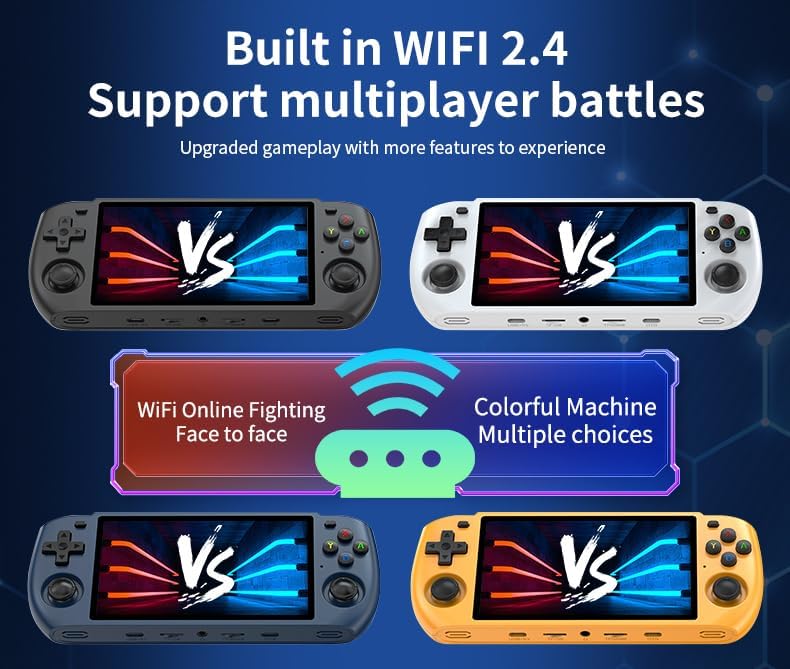
The console supports 2.4GHz Wi-Fi for multiplayer battles. Ensure both consoles are connected to the same Wi-Fi network and follow the in-game or system-level instructions for initiating multiplayer sessions.
4. Care and Maintenance
- Cleaning: Use a soft, dry cloth to clean the console's exterior. For the screen, use a microfiber cloth specifically designed for electronics. Avoid abrasive cleaners or solvents.
- Storage: Store the console in a cool, dry place away from direct sunlight and extreme temperatures. Use the included carrying case for protection during transport.
- Battery Care: To prolong battery life, avoid fully discharging the battery frequently. If storing for an extended period, charge the battery to approximately 50% and recharge every few months.
- Water Exposure: This device is not waterproof. Avoid exposure to liquids.
5. Troubleshooting
- Console does not power on: Ensure the battery is charged. Connect the console to a power source and try again. If unresponsive, press the reset button (refer to Image 3.1 for location).
- Games not loading or crashing: Some games may have compatibility issues due to chip limitations. Ensure your TF card is properly inserted. Try restarting the console.
- Screen issues (no display, flickering): Check if the console is powered on. If connected to a TV, ensure the TV input is correct and the HD cable is securely connected.
- Controls unresponsive: Ensure the console is not in sleep mode. If using external Bluetooth controllers, verify they are paired and charged.
- Sound issues: Check the volume settings on the console. Ensure headphones (if used) are properly connected.
6. Technical Specifications
| Feature | Specification |
|---|---|
| Product Dimensions | 7.4"L x 3"W x 0.7"H |
| Screen Size | 5.0 Inches IPS (1280*720 HD display) |
| Processor | RK3566 |
| Memory Storage Capacity | 128 GB (with 16GB system memory) |
| Battery | 4000mAh Lithium Polymer (included) |
| Controller Type | Joystick |
| Hardware Interface | USB |
| Connectivity | Built-in Wi-Fi 2.4, Bluetooth module |
| Display Type | LCD |
| Material | Plastic |
| Item Weight | 12.8 ounces |
| Model Number | RGB10 MAX 2 (also referred to as RGB10 max3) |
7. Warranty and Support
7.1 Warranty Information
Please refer to the warranty card included in your product packaging for specific warranty terms and conditions. Typically, products are covered against manufacturing defects for a limited period from the date of purchase.
7.2 Customer Support
For technical assistance, troubleshooting not covered in this manual, or warranty claims, please contact CICYSTORE customer support. Contact information can usually be found on the product packaging, the official CICYSTORE website, or through your retailer.