
1. Introduction
This manual provides essential information for the proper use and maintenance of your HP USB 2.0 V212W 64GB Flash Drive. Please read these instructions carefully before using the device to ensure optimal performance and longevity.
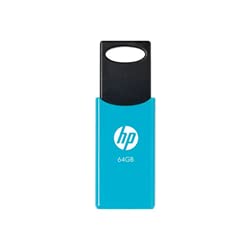
Image of the HP USB 2.0 V212W 64GB flash drive, showcasing its compact and lightweight design.
2. Product Features
- Storage Capacity: 64 Gigabytes for ample data storage.
- Interface: USB 2.0 for reliable data transfer. Compatible with USB 3.0 ports.
- Read Speed: Up to 20 MB/s, enabling quick access to your files.
- Design: Lightweight and compact for easy portability.
- Durability: Engineered for high performance and reliability.
3. Setup
- Connect to Computer: Insert the HP USB 2.0 V212W flash drive into an available USB port on your computer. The device is plug-and-play, requiring no additional drivers for most modern operating systems.
- Device Recognition: Your operating system (Windows, macOS, Linux) will automatically detect the new hardware. A notification may appear, indicating that the device is ready for use. The flash drive will typically appear as a removable disk in 'My Computer' (Windows) or 'Finder' (macOS).
4. Operating Instructions
4.1. Transferring Files
- Copying Files To: Open the flash drive's folder. Drag and drop files or folders from your computer into the flash drive's window, or copy and paste them.
- Copying Files From: Drag and drop files or folders from the flash drive's window to a location on your computer, or copy and paste them.
4.2. Safely Removing the Device
To prevent data corruption, always safely remove the flash drive before physically disconnecting it.
- Windows: Click the 'Safely Remove Hardware and Eject Media' icon in the system tray (bottom-right corner of the taskbar), then select the HP USB device. Wait for the 'Safe to Remove Hardware' message before unplugging.
- macOS: Drag the flash drive icon from the desktop or Finder sidebar to the Trash icon, or right-click (Control-click) the icon and select 'Eject'. Wait for the icon to disappear before unplugging.
- Linux: Right-click the device icon on your desktop or file manager and select 'Eject' or 'Unmount'.
5. Maintenance
- Physical Care: Keep the flash drive clean and free from dust and moisture. Avoid exposing it to extreme temperatures or direct sunlight.
- Data Protection: Regularly back up important data stored on the flash drive to another storage medium.
- Connector Protection: When not in use, ensure the USB connector is protected from damage.
6. Troubleshooting
- Device Not Recognized:
- Try plugging the flash drive into a different USB port on your computer.
- Restart your computer.
- Ensure your operating system is up to date.
- Slow Transfer Speeds:
- Ensure you are using a direct USB port on your computer, not a USB hub.
- Close other applications that might be using system resources.
- Large numbers of small files can transfer slower than a single large file of the same total size.
- Data Corruption:
- Always use the 'Safely Remove Hardware' function before unplugging the drive.
- Avoid disconnecting the drive during a file transfer.
- If data appears corrupted, try running a disk check utility on your computer.
7. Specifications
| Feature | Detail |
|---|---|
| Brand | HP |
| Model Number | V212W (HPFD212LB-64) |
| Storage Capacity | 64 GB |
| Interface | USB 2.0 (compatible with USB 3.0) |
| Read Speed | Up to 20 MB/s |
| Color | Sky Blue |
| Weight | 0.02 kg |
| Country of Origin | Germany |
| ASIN | B096YSHFCZ |
8. Warranty and Support
For warranty information and technical support, please refer to the official HP website or contact HP customer service directly. Keep your purchase receipt as proof of purchase for warranty claims.
You can find more information and support resources on the official HP website: www.hp.com


