
1. Introduction
This manual provides essential instructions for the safe and efficient operation of your iLive Electronics IHB340B Bluetooth Home Music System. Please read this manual thoroughly before using the device and retain it for future reference.
2. Safety Information
- Power Source: Use only the specified AC/DC power adapter. Ensure the voltage matches the requirements of your region.
- Ventilation: Do not block any ventilation openings. Maintain adequate space around the unit for proper airflow.
- Water and Moisture: Do not expose the unit to rain, moisture, or dripping/splashing liquids. Keep objects filled with liquids, such as vases, away from the unit.
- Heat: Do not place the unit near heat sources such as radiators, heat registers, stoves, or other apparatus (including amplifiers) that produce heat.
- Cleaning: Unplug the unit from the power outlet before cleaning. Use a soft, dry cloth only.
- Servicing: Do not attempt to service this product yourself. Refer all servicing to qualified service personnel.
3. Package Contents
Verify that all items listed below are included in your package:
- iLive Electronics IHB340B Home Music System
- Remote Control
- AC/DC Power Adapter
- User's Guide (this document)
4. Product Overview
The iLive IHB340B is a versatile home music system offering multiple audio playback options. Familiarize yourself with the unit's components and controls.
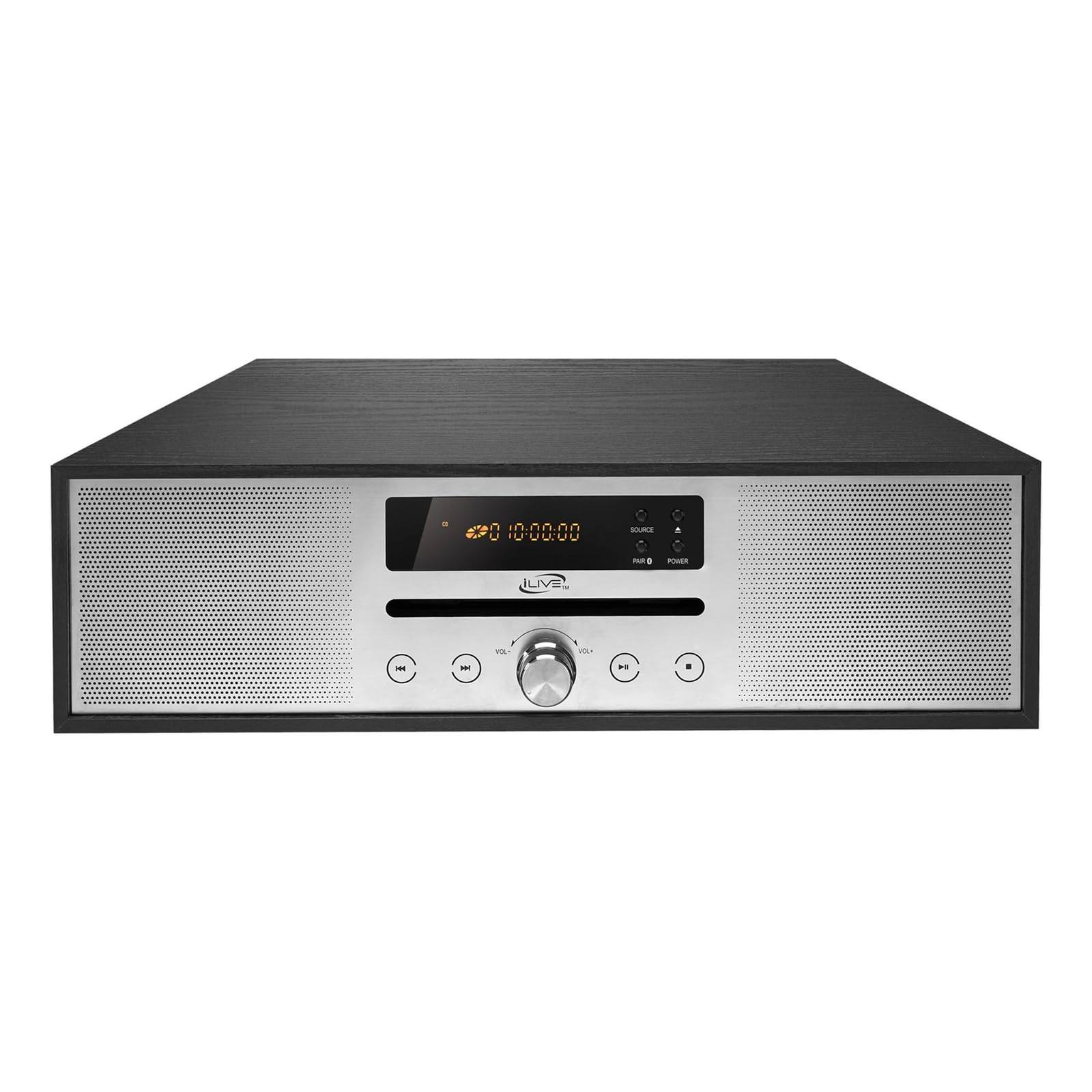
Figure 4.1: Front view of the iLive IHB340B Home Music System. This image displays the main unit with its central display, various control buttons, and a prominent volume knob, flanked by speaker grilles on both sides.
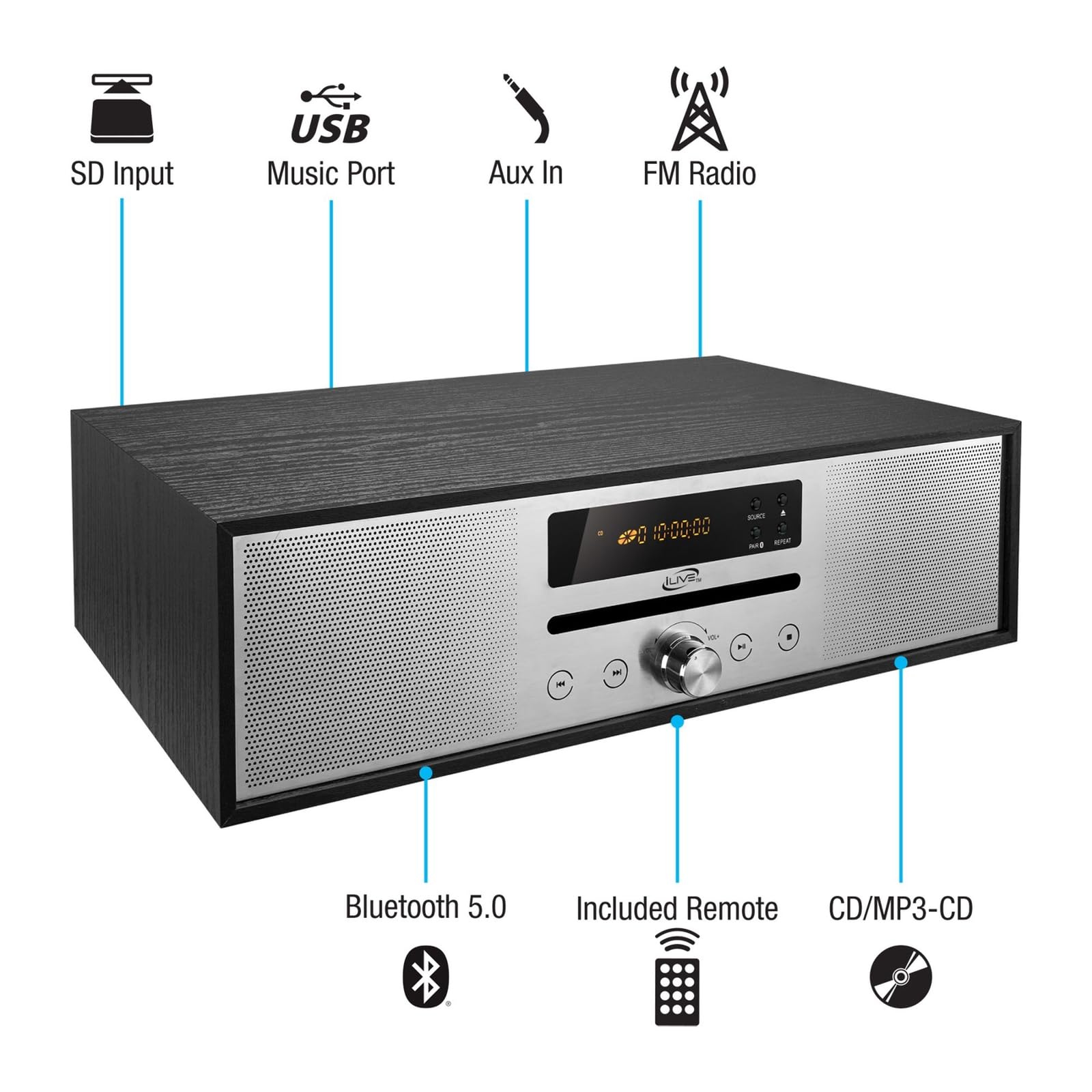
Figure 4.2: Key features and ports of the iLive IHB340B. This diagram highlights the locations of the SD card input, USB port, Aux In jack, FM radio antenna, Bluetooth 5.0 capability, the included remote control, and the CD/MP3-CD player functionality.
Front Panel Controls and Features:
- Display: Amber LED display shows current mode, track information, and time.
- SOURCE Button: Press to cycle through input modes (Bluetooth, CD, FM, Aux, USB/SD).
- POWER Button: Turns the unit on or off.
- PAIR Button: Initiates Bluetooth pairing mode.
- REPEAT Button: Controls CD/USB/SD repeat playback modes.
- Volume Knob: Rotates to adjust volume level.
- Play/Pause Button (►/❚❚): Plays or pauses media playback.
- Skip/Tune Buttons (◀◀, ►►): Skips tracks in CD/USB/SD mode, tunes radio stations in FM mode.
- Stop Button (■): Stops media playback.
- Open/Close Button (▲): Opens and closes the CD tray.
- CD Tray: For inserting audio CDs.
Rear Panel Ports:
- Aux In (3.5mm): Connect external audio devices.
- USB Port: For USB flash drives with audio files.
- Micro SD Slot: For Micro SD cards with audio files.
- FM Antenna: For improved FM radio reception.
- DC Power Input: Connect the AC/DC power adapter here.
5. Setup
5.1 Power Connection
- Insert the small end of the AC/DC power adapter into the DC Power Input jack on the rear of the IHB340B unit.
- Plug the other end of the power adapter into a standard wall outlet.
5.2 FM Antenna
For optimal FM radio reception, extend the FM antenna wire fully. You may need to adjust its position to find the best signal.
6. Operating Instructions
6.1 Power On/Off
Press the POWER button on the front panel or the remote control to turn the unit on or off.
6.2 Source Selection
Press the SOURCE button repeatedly on the front panel or remote control to cycle through the available input modes: Bluetooth, CD, FM Radio, Aux In, USB, and Micro SD.
6.3 Bluetooth Operation
- Select Bluetooth mode using the SOURCE button. The display will show "BT" and flash, indicating pairing mode.
- On your Bluetooth-enabled device (e.g., smartphone, tablet), enable Bluetooth and search for new devices.
- Select "IHB340B" from the list of available devices.
- Once paired, the unit will emit a confirmation tone, and the "BT" indicator will stop flashing.
- You can now play audio from your device through the IHB340B. Use the unit's controls or your device's controls for playback.
6.4 CD Player Operation

Figure 6.1: CD tray open on the iLive IHB340B. This image shows the side profile of the music system with its CD tray extended, ready for disc insertion.
- Select CD mode using the SOURCE button.
- Press the Open/Close (▲) button to open the CD tray.
- Place an audio CD (CD, CD-R/RW, MP3 CD) into the tray with the label side facing up.
- Press the Open/Close (▲) button again to close the tray. The unit will begin reading the disc.
- Use the Play/Pause (►/❚❚), Stop (■), and Skip (◀◀, ►►) buttons to control playback.
- Press the REPEAT button to cycle through repeat modes (e.g., repeat one track, repeat all tracks).
6.5 FM Radio Operation
- Select FM Radio mode using the SOURCE button.
- Automatic Scan: Press and hold the Play/Pause (►/❚❚) button to automatically scan and save available FM stations to presets.
- Manual Tuning: Press the Skip (◀◀, ►►) buttons briefly to fine-tune the frequency.
- Preset Selection: After an automatic scan, use the Skip (◀◀, ►►) buttons to navigate through saved presets.
6.6 Aux In Operation
- Select Aux In mode using the SOURCE button.
- Connect one end of a 3.5mm audio cable (not included) to the Aux In jack on the rear of the IHB340B.
- Connect the other end of the audio cable to the headphone jack or audio output of your external device.
- Play audio from your external device. Control playback and volume primarily from the external device.
6.7 USB/Micro SD Operation
- Insert a USB flash drive into the USB port or a Micro SD card into the Micro SD slot on the rear of the unit.
- Select USB or Micro SD mode using the SOURCE button. The unit will automatically begin playing compatible audio files.
- Use the Play/Pause (►/❚❚), Stop (■), and Skip (◀◀, ►►) buttons to control playback.
- Press the REPEAT button to cycle through repeat modes.
6.8 Remote Control
The included remote control provides convenient access to all major functions from a distance. Ensure the remote has working batteries (1 Lithium Metal battery included) and is pointed towards the front of the main unit.
7. Maintenance
7.1 Cleaning
To clean the unit, first unplug it from the power source. Use a soft, dry, lint-free cloth to wipe the exterior surfaces. Do not use liquid cleaners, abrasive cleaners, or solvents, as these may damage the finish.
7.2 CD Player Care
Handle CDs by their edges to avoid fingerprints and scratches. If a CD is dirty, wipe it gently with a soft, dry cloth from the center outwards. Do not use abrasive materials or chemical sprays.
8. Troubleshooting
If you encounter issues with your IHB340B, refer to the following common problems and solutions:
| Problem | Possible Solution |
|---|---|
| No power | Ensure the AC/DC power adapter is securely connected to both the unit and a working wall outlet. |
| No sound | Check the volume level on the unit and any connected external devices. Ensure the correct source is selected. |
| CD not playing/skipping | Ensure the CD is clean and free of scratches. Try a different CD. Ensure the CD is inserted correctly with the label side up. |
| Bluetooth pairing fails | Ensure the unit is in Bluetooth pairing mode (BT flashing). Make sure your device's Bluetooth is enabled and within range. Try unpairing and re-pairing. |
| Poor FM reception | Extend and reposition the FM antenna. Try moving the unit to a different location. |
| USB/SD not recognized | Ensure the USB drive or SD card is formatted correctly (FAT32) and contains compatible audio files (e.g., MP3). Try a different USB drive or SD card. |
9. Specifications
- Model: IHB340B
- Connectivity: Bluetooth v5.0, Aux In (3.5mm), USB, Micro SD
- CD Player: Supports CD, CD-R/RW, MP3 CD
- Radio: Digital FM Radio with 10 station memory presets
- Display: Amber LED
- Speakers: Built-in Stereo Speakers
- Power: AC/DC Power Adapter (included)
- Dimensions (L x W x H): 15.7 x 9.8 x 4.9 inches
- Weight: 2.7 pounds
- Included Accessories: Remote Control, AC/DC Power Adapter, User's Guide
10. Warranty Information
iLive Electronics products are designed and manufactured to the highest quality standards. For specific warranty details, including coverage period and terms, please refer to the warranty card included with your product or visit the official iLive Electronics website. Keep your purchase receipt as proof of purchase.
11. Support
For technical assistance, product registration, or to access additional resources, please visit the iLive Electronics support section on their official website. You may also find contact information for customer service there.


