
1. Introduction
The ELE GATE USB 2.0 Hub is designed to expand the connectivity of your computer, laptop, or other compatible devices. This compact, high-speed USB 2.0 hub features 7 individual ports, each with its own on/off switch and LED indicator. It offers a convenient plug-and-play solution for connecting multiple USB peripherals simultaneously.
This hub is compatible with a wide range of operating systems, including Windows, Mac OS X 10.2 and later, and Linux 9 and later. It supports various USB devices such as mice, keyboards, cameras, external hard drives, and more.
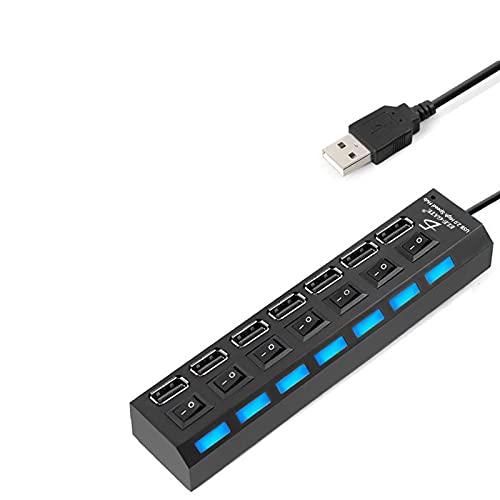
Image 1.1: The ELE GATE USB 2.0 Hub in use, connected to a laptop with a USB mouse and flash drive. The hub features 7 ports with blue LED indicators.
2. Product Features
- 7 USB 2.0 Ports: Provides ample connectivity for multiple devices.
- Individual On/Off Switches: Each port has a dedicated switch for power control, allowing you to manage connected devices efficiently.
- LED Indicators: Blue LED lights indicate which ports are active.
- High-Speed Data Transfer: Supports speeds up to 480 Mbps.
- Plug and Play: No additional software or drivers required for installation.
- Wide Compatibility: Works with Windows, Mac OS X, and Linux operating systems.
- Integrated USB Cable: Features a 50cm (approximately 19.7 inches) built-in USB cable for connection to your host device.
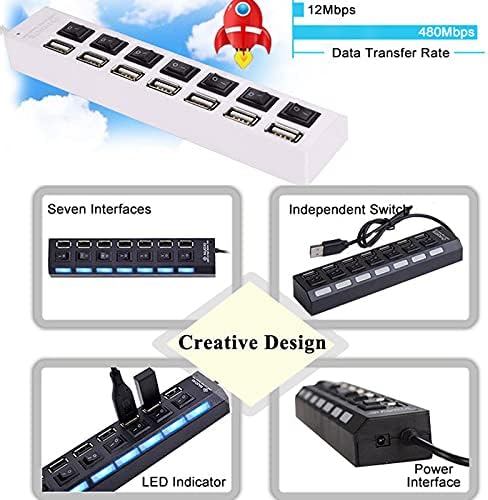
Image 2.1: Detailed view of the ELE GATE USB 2.0 Hub highlighting its seven interfaces, independent switches, LED indicators, and power interface.
3. Setup and Installation
- Connect to Host Device: Plug the integrated USB cable of the ELE GATE Hub into an available USB 2.0 port on your computer or laptop.
- Power On (Optional): For optimal performance and when connecting multiple high-power devices (e.g., external hard drives), an external 5V-1A power adapter (not included) is recommended. Connect the adapter to the hub's power input port. Without an external adapter, the hub's current limit is 500 mA.
- Connect Peripherals: Plug your USB devices (mouse, keyboard, flash drives, etc.) into the available ports on the hub.
- Activate Ports: Use the individual on/off switches above each port to activate or deactivate the connected devices. The blue LED indicator will light up when a port is active.

Image 3.1: Illustration of the ELE GATE USB 2.0 Hub's high compatibility with various peripherals, including PC cameras, keyboards, mice, card readers, USB disks, mobile HDDs, radiators, phones, and cameras.
4. Operating Instructions
- Individual Port Control: Each USB port can be independently turned on or off using its dedicated switch. This allows you to conserve power or disconnect devices without physically unplugging them.
- LED Indicators: The blue LED above each port illuminates when the port is active and receiving power, providing a visual confirmation of device status.
- Data Transfer: Connect your USB 2.0 compatible devices for data transfer at speeds up to 480 Mbps.
- Device Compatibility: The hub supports a wide array of USB devices. Ensure your device is compatible with USB 2.0 specifications for optimal performance.
5. Maintenance and Care
- Cleaning: Use a soft, dry cloth to clean the surface of the hub. Avoid using liquid cleaners or abrasive materials.
- Storage: Store the hub in a cool, dry place away from direct sunlight and extreme temperatures.
- Handling: Avoid dropping the device or subjecting it to strong impacts, as this may damage internal components.
- Cable Care: Do not bend or pull the integrated USB cable excessively to prevent damage.
6. Troubleshooting
- Device Not Recognized:
- Ensure the individual port switch for the connected device is turned on (LED should be lit).
- Try connecting the device directly to your computer's USB port to verify the device itself is functioning.
- Restart your computer.
- Ensure the hub is securely connected to your computer.
- Intermittent Disconnections or Slow Performance:
- If connecting multiple high-power devices (e.g., external hard drives, charging devices), an external 5V-1A power adapter (not included) is required to provide sufficient power. Without it, the hub's total current output is limited to 500 mA, which may be insufficient for all 7 ports simultaneously.
- Ensure the USB cable is not damaged and is securely connected.
- Try connecting the hub to a different USB port on your computer.
- LED Indicators Not Lighting Up:
- Check if the hub is properly connected to your computer.
- Ensure the individual port switch is in the "on" position.
- If using an external power adapter, ensure it is correctly connected and functional.
7. Specifications
| Brand | ELE GATE |
| Model | B096WF3HFC |
| Hardware Interface | USB, USB 2.0 |
| Special Feature | Indicator Light, Individual Switches |
| Compatible Devices | Laptops, Mice, Keyboards, Cameras, External Hard Drives, etc. |
| Total USB Ports | 7 |
| Data Transfer Speed | Up to 480 Megabits Per Second (USB 2.0) |
| Operating System Compatibility | Windows, Mac OS X 10.2+, Linux 9+ |
| External Material | Plastic |
| Dimensions (L x W x H) | 16.3 cm x 3.5 cm x 2.2 cm (6.42 in x 1.38 in x 0.87 in) |
| Integrated Cable Length | 50 cm (19.7 inches) |
| Power Input (Optional) | 5V-1A DC (Adapter not included) |
| UPC | 791280914155 |
| ASIN | B096WF3HFC |
8. Warranty and Support
For warranty information and technical support, please refer to the documentation included with your purchase or contact ELE GATE customer service directly. Details are typically available on the manufacturer's official website or through your retailer.
Please retain your proof of purchase for any warranty claims.