
Revotech I706-P-FHW
Revotech 3MP Mini POE IP Camera User Manual
Model: I706-P-FHW
Product Overview
The Revotech 3MP Mini POE IP Camera (Model I706-P-FHW) is a compact surveillance solution designed for indoor use. It features a high-resolution 3.0 Megapixel 1/3 inch CMOS sensor, providing clear images at 2304 x 1296P resolution and 20 frames per second. This camera supports Power over Ethernet (PoE) for simplified installation, reducing the need for separate power cables. It also includes an auxiliary port for traditional 12V DC power supply, allowing use without PoE.
Key features include H.265/H.264 compression for efficient storage and bandwidth usage, P2P cloud functionality for remote viewing, motion detection with email alarm capabilities, and a durable metal casing. The 3.6mm lens offers a 75-degree viewing angle, making it suitable for monitoring various indoor spaces.

Figure 1: Revotech 3MP Mini POE IP Camera. This image shows the compact size of the camera, highlighting its small form factor suitable for discreet placement.
Important Notes
- NVR Compatibility: This camera operates at 3MP resolution and uses H.265 compression. If your Network Video Recorder (NVR) does not support 3MP or H.265, you may need to adjust the camera's settings to 1080P (2MP) and H.264 for compatibility.
- PoE Power Requirement: For Power over Ethernet (PoE) functionality, the camera must be connected to an 802.3af standard 48V PoE switch.
- Normal Operating Temperature: The IP camera generates heat during operation. Due to its compact size and metal casing, it is normal for the camera to feel warm after a period of use. This is a standard characteristic and does not indicate a malfunction.
Package Contents
Before beginning installation, please verify that all components are present in the package:
- 1 x Revotech 3MP Mini POE IP Camera
- 1 x User Manual (English)
- 1 x Download Card (for software/drivers)
- 1 x Screws Set (for mounting)

Figure 2: Package Contents. This image illustrates the items included in the product package, ensuring users can confirm they have all necessary components for setup.
Setup and Installation
This section outlines the steps for physically installing and connecting your Revotech IP Camera.
1. Physical Mounting
The camera is designed for wall or ceiling mounting. Use the included screws to secure the camera's adjustable mounting brackets to a desired surface. Ensure the camera is positioned to capture the intended surveillance area effectively.

Figure 3: Camera with Mounting Bracket. This image displays the camera's small form factor and its adjustable mounting bracket, which facilitates easy installation on various surfaces.
2. Power and Network Connection
The camera supports two power options: Power over Ethernet (PoE) or a 12V DC power adapter (not included).
- PoE Connection: Connect an Ethernet cable from an 802.3af standard 48V PoE switch directly to the camera's RJ45 port. This single cable provides both power and data connectivity.
- 12V DC Connection: If PoE is not used, connect a 12V 2A DC power adapter (sold separately) to the auxiliary power port. Then, connect an Ethernet cable from your network router or switch to the camera's RJ45 port for data.
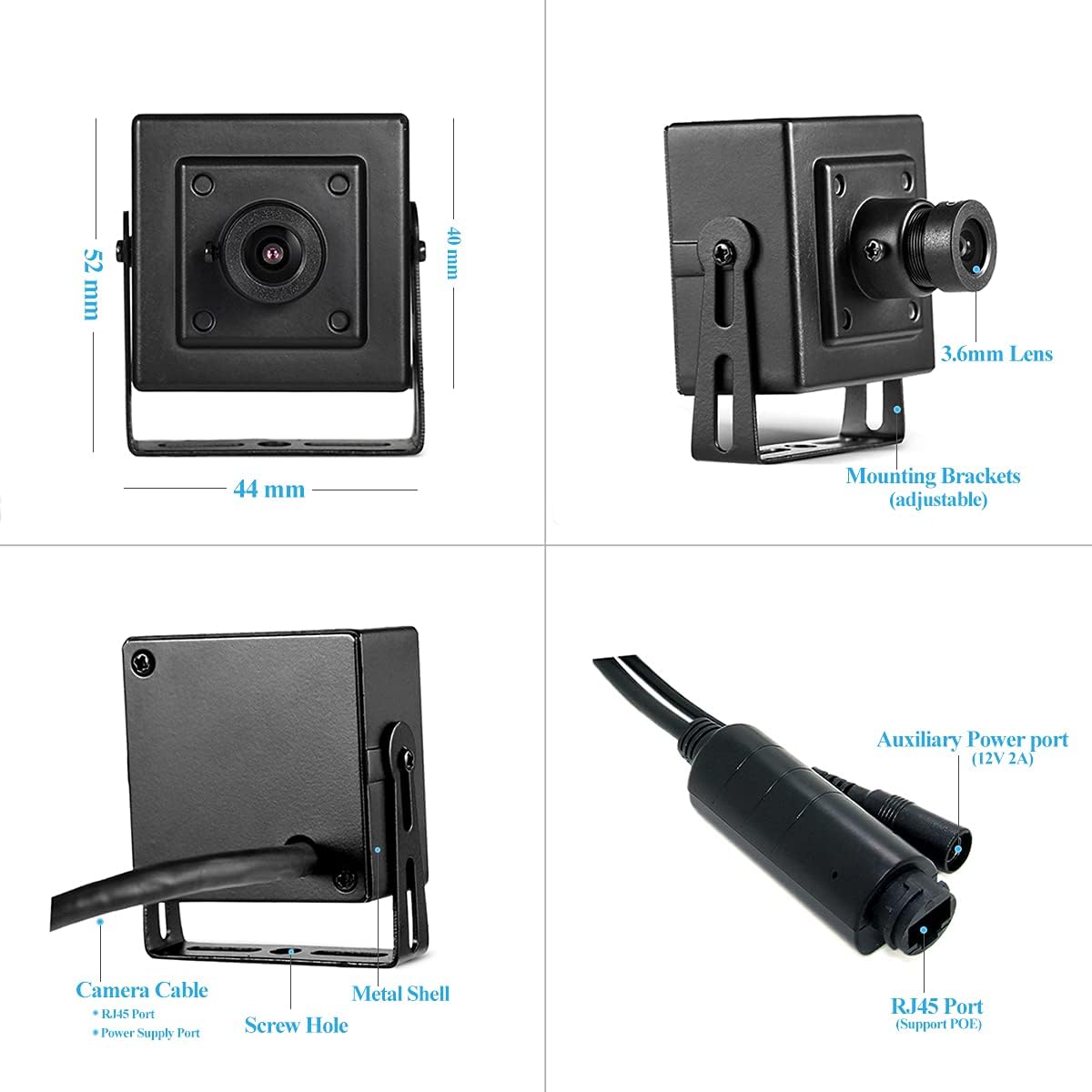
Figure 4: Camera Dimensions and Ports. This diagram illustrates the physical dimensions of the camera and highlights its RJ45 port (supporting PoE) and auxiliary power port for 12V DC input.
3. Initial Network Configuration
Upon first connection, the camera's IP address is typically set to dynamic (DHCP). For advanced configurations or if your network does not use DHCP, you may need to assign a static IP address. Refer to the detailed instructions provided on the download card for accessing the camera's web interface or using the CMS software for initial setup.
Operating the Camera
Once installed and connected, you can access and manage your Revotech IP Camera using various methods.
1. Remote Viewing via P2P Cloud Function
The camera supports P2P (Peer-to-Peer) cloud functionality, allowing you to view live video feeds from anywhere using your smartphone. Download the free "NVSEE Int'l" application for iOS or Android devices.

Figure 5: P2P Remote View. This image illustrates the camera's P2P cloud function, enabling remote monitoring via smartphone or computer, ensuring constant control over your surveillance.

Figure 6: NVSEE APP View. A screenshot of the "NVSEE Int'l" mobile application, demonstrating its interface for live viewing and control of the camera.
2. CMS Software for Windows
For Windows computers, you can use the provided CMS (Central Management Software) to manage multiple cameras, view live feeds, and access recordings. The CMS software is available for download as indicated on the download card. Please note that this software is not compatible with MAC OS or Linux operating systems.

Figure 7: CMS Software View. A screenshot of the CMS software interface, showing its capabilities for managing and viewing multiple camera feeds on a Windows computer.
3. Video Compression and Quality
The camera supports H.265 and H.264 video compression formats. H.265 offers improved efficiency, requiring approximately half the bandwidth and storage space compared to H.264 for the same image quality. This optimizes network performance and storage capacity.

Figure 8: Real Picture Quality (Daytime and Nighttime). This image demonstrates the camera's video quality during both day and night conditions, showcasing its performance in varying light environments.
4. Smart Alarm Functions
The camera is equipped with intelligent alarm features, including motion detection. When motion is detected, the camera can trigger an email alarm, notifying you of activity in the monitored area.
Maintenance
To ensure optimal performance and longevity of your Revotech IP Camera, follow these maintenance guidelines:
- Cleaning: Gently wipe the camera lens and body with a soft, dry cloth. Avoid using harsh chemicals or abrasive materials that could damage the lens or finish.
- Firmware Updates: Periodically check for available firmware updates to enhance camera performance, add new features, or address security vulnerabilities. Information regarding updates can typically be found on the manufacturer's support resources or through the CMS software.
- Environmental Conditions: While the camera has a metal casing, it is primarily designed for indoor use. Avoid exposing it to extreme temperatures, direct water, or high humidity, which could affect its internal components.
Troubleshooting
This section addresses common issues you might encounter with your Revotech IP Camera.
| Problem | Possible Cause / Solution |
|---|---|
| No Image / Camera Offline |
|
| Poor Image Quality / Lagging Video |
|
| Motion Detection Not Working |
|
| Camera Feels Warm | This is normal operating behavior due to the camera's compact size and metal casing. It does not indicate a fault unless accompanied by other performance issues. |
Specifications
| Feature | Detail |
|---|---|
| Model | I706-P-FHW |
| Resolution | 3.0 Megapixel (2304 x 1296P) |
| Sensor | 1/3 inch CMOS (FH8852 + GC2053) |
| Minimum Illumination | 0.1 Lux @ (F1.2, AGC ON) |
| Frame Rate | 20 fps |
| Lens | 3.6 mm |
| Viewing Angle | 75 Degrees |
| Shutter Speed | 1/25 seconds - 1/100,000 seconds |
| Compression Format | H.265/H.264 |
| Storage | NVR or Computer |
| IP Address | Dynamic (Default)/Static |
| Smart Alarm | Motion Detection, Email Alarm |
| Supported Protocols | HTTP, TCP/IP, ICMP, RTSP, RTP, RTCP, SMTP, DHCP, DNS, PPPoE, NTP |
| Operating Temperature | -25 °C to 60 °C (-13 °F to 140 °F) |
| Power Supply | POE (802.3af Standard) or 12V DC |
| Power Consumption | 6 Watts |
| Dimensions (L x W x H) | 5.3 x 4.5 x 4 cm (2.09 x 1.77 x 1.57 inches) |
| Weight | 0.2 kg (0.44 lbs) |
| Material | Metal Casing |
| Connectivity | Wired Ethernet (LAN) |
| Compatible Devices | NVR, PC, Smartphone (iPhone, Android) |
Warranty and Support
For warranty information, please refer to the purchase documentation or contact your retailer. Revotech provides support primarily through its dedicated applications and software. For technical assistance, refer to the user manual provided on the download card or utilize the support features within the "NVSEE Int'l" app or CMS software.
While the product is designed for ease of use, some advanced configurations may require familiarity with network settings. Community forums or online resources related to IP camera setup may also provide helpful insights.
Related documentsI706-P-FHW


Ask a question about this manual
Ask about setup, troubleshooting, compatibility, parts, safety, or missing instructions. Manuals+ will review the question and use this page’s manual context to help answer it.