
SVPRO SV-USB4K03-SFV(5-50)
SVPRO 4K Ultra HD Webcam with 5-50mm Varifocal Lens - Instruction Manual
Model: SV-USB4K03-SFV(5-50)
1. Introduction
This manual provides detailed instructions for the proper setup, operation, and maintenance of your SVPRO 4K Ultra HD Webcam with a 5-50mm Varifocal Lens. This camera features a Sony IMX415 sensor, delivering 3840x2160 resolution at 30 frames per second, and offers manual control over focus, zoom, and aperture. Please read this manual thoroughly before using the product to ensure optimal performance and longevity.

Image 1.1: SVPRO 4K Ultra HD Webcam with 5-50mm Varifocal Lens and attached USB cable.
2. Package Contents
Verify that all items listed below are present in your package:
- SVPRO 4K Ultra HD Webcam Unit (with 5-50mm Varifocal Lens)
- USB Cable (3 meters)
3. Product Overview
Familiarize yourself with the components of your SVPRO webcam:
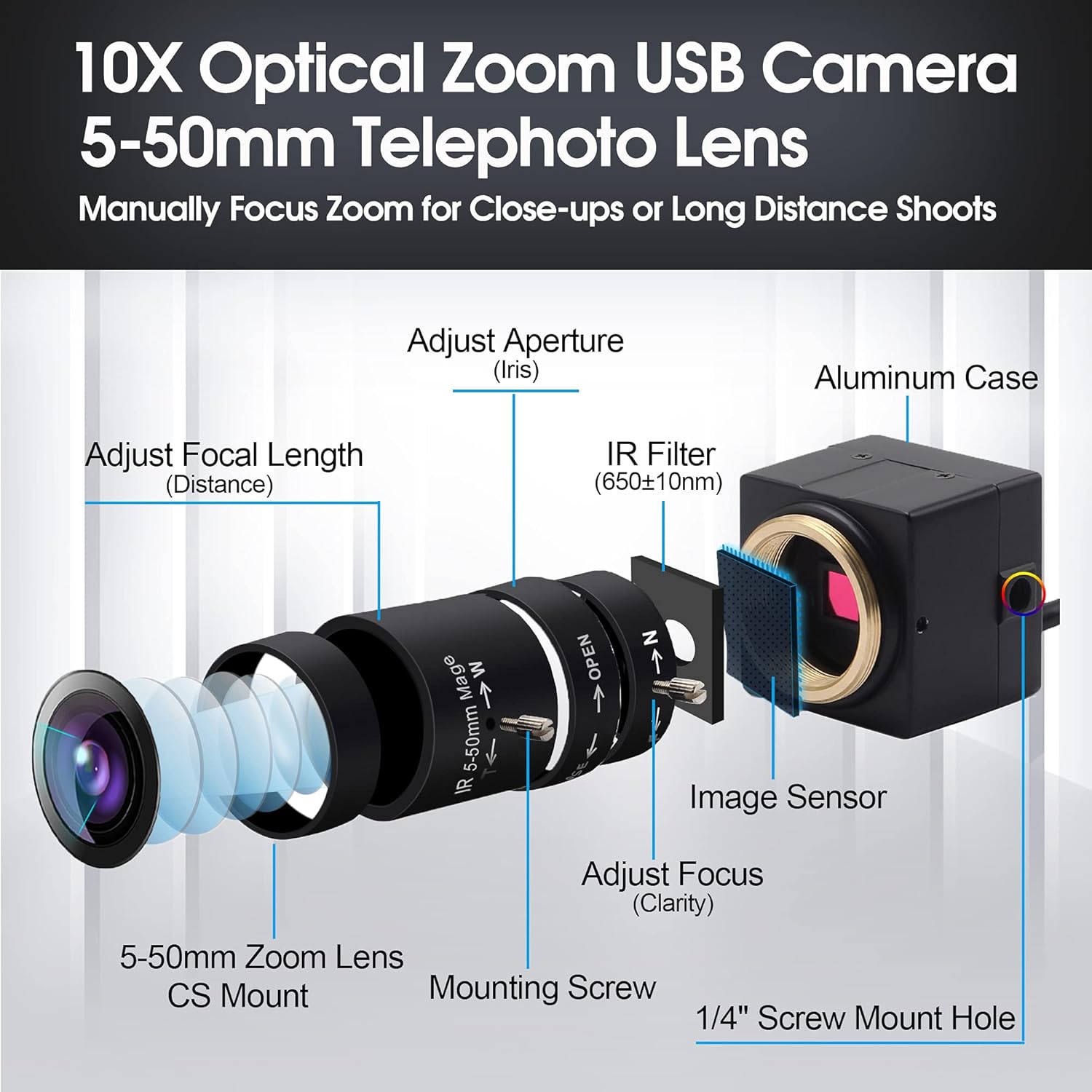
Image 3.1: Exploded view of the webcam components, highlighting the 5-50mm zoom lens, IR filter, image sensor, aluminum case, and adjustment rings for focus, aperture, and focal length.
- 5-50mm Zoom Lens (CS Mount): The primary optical component for image capture, offering variable focal length.
- Mounting Screw: Secures the lens to the camera body.
- 1/4" Screw Mount Hole: Standard threading for tripod or other mounting accessories.
- Adjust Focal Length (Distance): Ring to manually adjust the zoom level (5mm to 50mm).
- Adjust Aperture (Iris): Ring to control the amount of light entering the lens, affecting brightness and depth of field.
- IR Filter (650±10nm): Filters infrared light for accurate color reproduction.
- Image Sensor: SONY IMX415 sensor, responsible for capturing the image data.
- Adjust Focus (Clarity): Ring to manually achieve sharp image focus.
- Aluminum Case: Durable housing for the camera's internal components.
4. Setup
4.1 Physical Connection
Connect the webcam to your computer using the provided USB cable:
- Plug the USB cable into the USB port on the back of the camera unit.
- Connect the other end of the USB cable to an available USB 2.0 port on your computer (PC, laptop, or desktop).

Image 4.1: The SVPRO webcam connected to a laptop via its USB cable, illustrating the plug-and-play functionality.
4.2 Driver Installation
The SVPRO 4K Webcam is a UVC (USB Video Class) compliant device, meaning it is plug-and-play. No additional drivers are required for compatible operating systems. Your computer should automatically detect and install the necessary drivers upon connection.
4.3 Mounting
The camera features a standard 1/4-inch screw mount hole on its base, allowing for versatile mounting options:
- Attach the camera to a tripod for stable positioning.
- Utilize a compatible webcam stand or holder for desktop or monitor mounting.
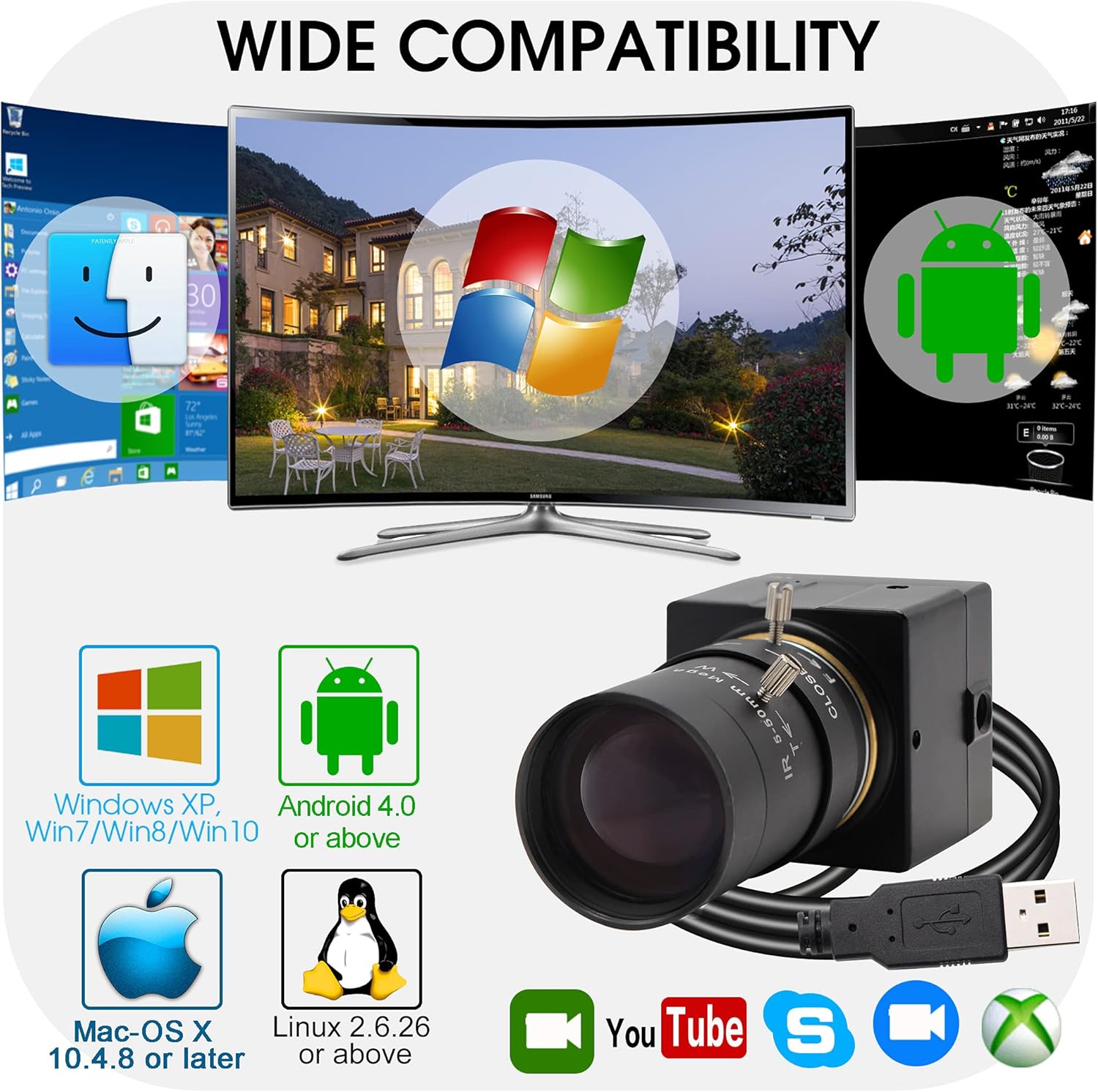
Image 4.2: Diagram illustrating the physical dimensions of the camera and the location of the 1/4-inch tripod screw hole for mounting.
5. Operating Instructions
5.1 Software Compatibility
The SVPRO 4K Webcam is compatible with a wide range of operating systems and applications:
- Operating Systems: Windows XP/Vista/Win7/Win8/Win10, Linux (UVC above 2.6.26), MAC-OSX 10.4.8 or later, Android 4.0 or above (with UVC support).
- Applications: Skype, QuickTime, Zoom, Facetime, OBS, GoToMeeting, Facebook LIVE, YouTube, Amcap, OpenCV, VLC, Motion Eye, Yawcam, ContaCam, ISPY.
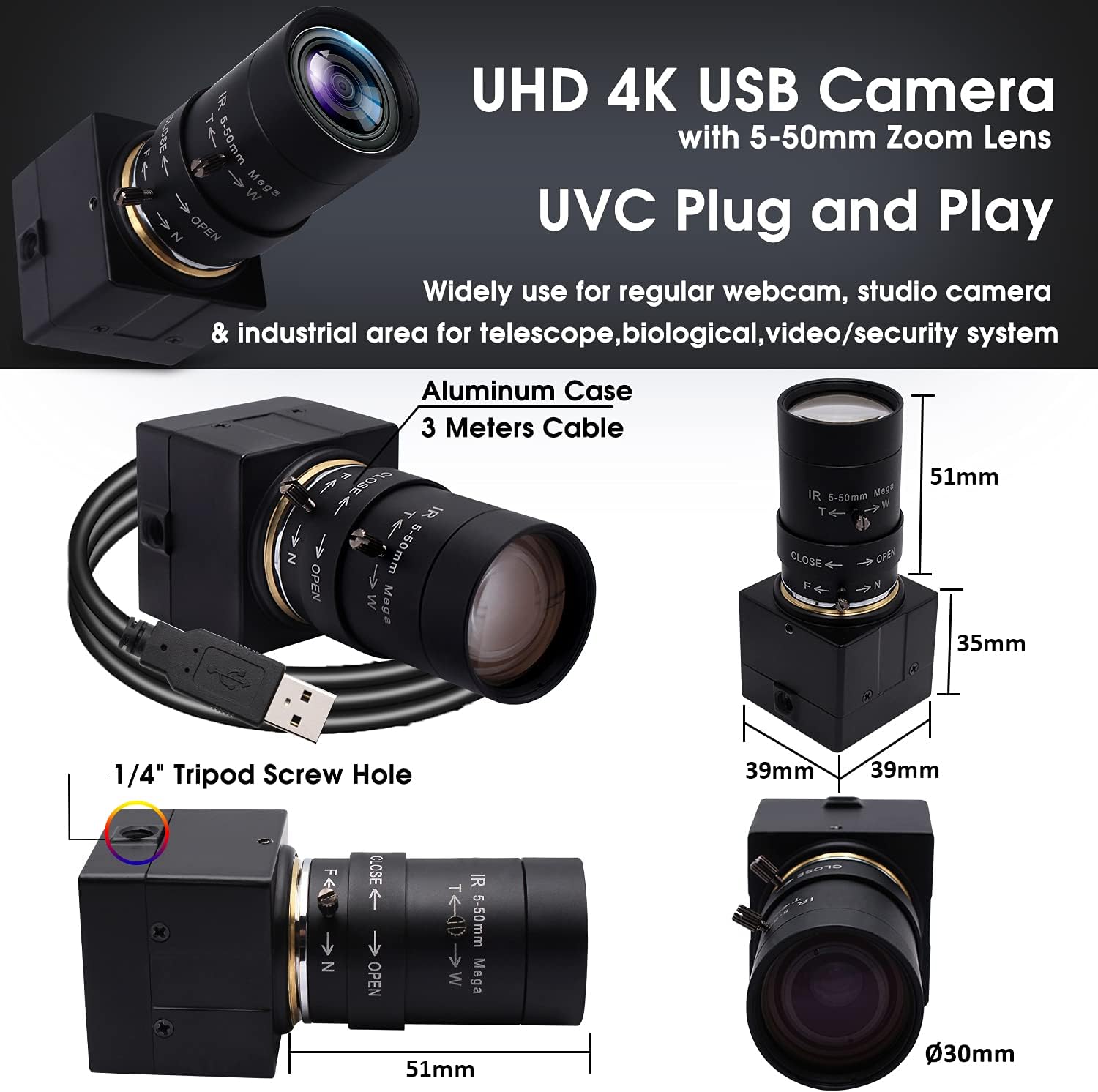
Image 5.1: Visual representation of the webcam's broad compatibility with different operating systems and video conferencing/streaming platforms.
5.2 Manual Lens Adjustments
The 5-50mm varifocal lens allows for precise manual control over image characteristics. Adjustments should be made carefully to achieve the desired visual output.
- Focus: Rotate the focus ring on the lens until the image appears sharp and clear. This adjustment is crucial for image clarity at different distances.
- Zoom (Focal Length): Rotate the zoom ring to adjust the magnification from 5mm (wide angle) to 50mm (telephoto). This changes the field of view and how close objects appear.
- Aperture (Iris): Adjust the aperture ring to control the amount of light entering the lens. A wider aperture (smaller f-number) allows more light, resulting in a brighter image and shallower depth of field. A narrower aperture (larger f-number) allows less light, resulting in a darker image and greater depth of field.
Note: Manual adjustments are sensitive. Make small, gradual changes and observe the image output in your software to fine-tune settings.
6. Maintenance
6.1 Cleaning
- Lens: Use a soft, lint-free microfiber cloth specifically designed for optics. For stubborn smudges, a small amount of lens cleaning solution can be applied to the cloth (not directly to the lens). Avoid abrasive materials or harsh chemicals.
- Camera Body: Wipe the aluminum case with a soft, dry cloth. Do not use liquid cleaners directly on the camera body.
6.2 Storage
When not in use, store the camera in a cool, dry place, away from direct sunlight and extreme temperatures. Protect the lens from dust and scratches by using a lens cap if available, or by placing it in a protective pouch.
7. Troubleshooting
| Problem | Possible Cause | Solution |
|---|---|---|
| No image / Camera not detected | Loose USB connection; Faulty USB port; Software conflict. | Ensure USB cable is securely connected. Try a different USB port. Restart your computer. Check device manager for camera recognition. |
| Image blurry / Out of focus | Focus ring not adjusted correctly. | Manually rotate the focus ring on the lens until the image is sharp. |
| Image too dark or too bright | Aperture (iris) not adjusted correctly; Insufficient/excessive lighting. | Manually adjust the aperture ring to control brightness. Ensure adequate and balanced lighting in your environment. |
| Color appears incorrect (e.g., too yellow) | Environmental lighting conditions; Software white balance settings. | Adjust lighting in your environment. Check for white balance settings within your video conferencing or recording software. |
| 4K resolution not achieved | Software or display does not support 4K resolution. | Verify that your operating system, video software, and display monitor all support 4K (3840x2160) resolution. Some applications may default to lower resolutions. |
8. Specifications
| Feature | Detail |
|---|---|
| Brand | SVPRO |
| Model Number | SV-USB4K03-SFV(5-50) |
| Image Sensor | SONY IMX415 (1/2.5") CMOS Sensor |
| Max Resolution | 3840(H) x 2160(V) |
| Frame Rate (MJPEG) | 3840x2160@30fps, 2592x1944@30fps, 1920x1080@30fps, etc. |
| Frame Rate (YUY2) | 3840x2160@1fps, 1920x1080@3fps, 640x480@30fps, etc. |
| Lens Type | 5-50mm Varifocal Lens (10X Optical Zoom, CS Mount) |
| Maximum Focal Length | 50 Millimeters |
| Maximum Aperture | f/2 |
| Connectivity | USB 2.0 (UVC Plug & Play) |
| Cable Length | 3 meters |
| Power Supply | USB powered DC 5V/Current 200mA |
| Operating Temperature | 0°C to +60°C |
| Product Dimensions | 3.39 x 1.54 x 1.54 inches |
| Item Weight | 11.5 ounces |
9. Warranty and Support
9.1 Warranty Information
For specific warranty details regarding your SVPRO 4K Ultra HD Webcam, please refer to the warranty card included with your purchase or consult the retailer where the product was acquired. Warranty terms typically cover manufacturing defects for a specified period from the date of purchase.
9.2 Customer Support
If you encounter any issues or have questions not addressed in this manual, please contact SVPRO customer support. You can find contact information on the official SVPRO website or through the retailer's support channels. For additional resources, visit the SVPRO Store on Amazon.
Ask a question about this manual
Ask about setup, troubleshooting, compatibility, parts, safety, or missing instructions. Manuals+ will review the question and use this page’s manual context to help answer it.