
1. Product Overview
The Musician Draco R2R DAC is a high-fidelity digital-to-analog converter designed for home audio systems. It features an R2R resistor network for precise decoding, multiple input interfaces, and balanced/unbalanced output options. The unit is built with an ALTERA master control and ARM high-performance chip, powered by a linear power supply with an O-core transformer.
Key Features:
- R2R Array True Balanced Decoding: Utilizes an R-2R resistor network to minimize linear decoding errors and digital noise, ensuring low-distortion audio signal transmission and a clean background.
- High-Resolution Audio Support: Compatible with DSD1024 and PCM1536kHz (via I2S input). All inputs support DSD64-DoP and various PCM formats.
- Versatile Digital Input Interfaces: Equipped with USB, I2S, AES, optical, and coaxial inputs.
- Analog Output Options: Features XLR balanced and RCA unbalanced outputs for broad compatibility with audio systems.
- High-Performance Core: Integrates an ALTERA high-efficiency master control chip and a self-developed digital technology for enhanced dynamic contrast and sound detail.
2. Interface and Controls
This section details the front and rear panel interfaces and controls of the Musician Draco R2R DAC.

Figure 2.1: Front and Rear Panel Layout of the Musician Draco R2R DAC. The front panel includes input selection, standby, and NOS buttons. The rear panel features XLR balanced outputs, RCA outputs, I2S input, COAX input, OPT input, AES input, USB input, and the power switch with power input.
Front Panel Controls:
- Standby Button: Toggles the unit between standby and operational modes.
- Input Button: Selects the desired signal input source (Optical, Coaxial, AES, I2S, USB).
- NOS Button: Toggles oversampling on or off. When the indicator light is off, oversampling is active. When the indicator light is on, the original sampling rate is used (NOS mode).
Rear Panel Interfaces:
- XLR Balanced Output: One set of XLR outputs for balanced audio connections.
- RCA Output: One set of RCA outputs for unbalanced audio connections.
- I2S Input: Digital input for I2S audio signals.
- COAX Input: Digital coaxial input.
- OPT Input: Digital optical input.
- AES Input: Digital AES/EBU balanced input.
- USB Input: USB digital input for connecting to computers or other USB audio sources.
- Power Switch: Main power on/off switch.
- Power Input: AC power connection (115V/60Hz or 230V/50Hz).
3. Setup and Connection
3.1 General Connection Methods:
The Musician Draco DAC can be integrated into various audio setups. Ensure all connections are secure before powering on the device.
- DAC → Headphone Amplifier → Headphones:
- Connect the DAC to your source device (computer, phone, etc.) using a USB, optical, coaxial, AES, or I2S cable.
- Use RCA or XLR cables to connect the DAC's analog outputs to the headphone amplifier's inputs.
- Connect your headphones to the headphone amplifier.
- DAC → Power Amplifier → Passive Speakers:
- Connect the DAC to your source device using a digital audio cable (USB, optical, coaxial, AES, or I2S).
- Use RCA or XLR cables to connect the DAC's analog outputs to the power amplifier's inputs.
- Connect your passive speakers to the power amplifier.
- DAC → Active Speakers:
- Connect the DAC to your source device using a digital audio cable (USB, optical, coaxial, AES, or I2S).
- Connect the DAC's analog outputs (RCA or XLR) directly to your active speakers.
3.2 I2S Pin Configuration:
The I2S connection does not have an industry-standard pin order, so different brands may have varying configurations. The Musician Draco attempts to be compatible with most devices. If you are using a standard HDMI cable for I2S, follow these steps:

Figure 3.1: I2S Pin Configuration for the Musician Draco DAC. This diagram illustrates the pin layout for I2S connections, which may vary between devices. The right side shows the HDMI pin configuration.
- Select the sound source input to I2S-A1 or I2S-A2 as per your requirements.
- Press and hold the NOS button for 3 seconds until the I2S light flashes.
- During the flashing process, press the INPUT button to cycle through the phase modes. There are 8 modes (indicated by 1X, 2X, 4X lights in binary mode).
- Stop the operation when you have selected the desired mode. The device will automatically exit the mode setting function after 5 seconds.
If you experience issues like "hiss sound" after the above settings, it may indicate a matching failure rather than a defective product. A customized HDMI cable with the correct pin layout (as shown in the diagram) might be required.
3.3 Configuring Your Source Device:
To ensure optimal performance, configure your source device (computer, streamer, etc.) to output audio correctly to the DAC.
- Go to the sound settings on your source device.
- Select your DAC as the output device.
- If available, set the audio format to the highest quality supported by your DAC.
On Windows:
- Install the DAC USB driver in advance (if required by the manufacturer).
- Right-click the speaker icon in the taskbar and select 'Sounds'.
- Go to the 'Playback' tab, find your DAC in the list, and click 'Properties'.
- In the new window, go to the 'Advanced' tab. Here you can select the highest sample rate and bit depth.
On macOS:
- Go to 'Applications' > 'Utilities' > 'Audio MIDI Setup'.
- Select your DAC from the list on the left, and then select the highest sample rate on the right.
For high-resolution audio formats like PCM 32Bit 768kHz or DSD512, ensure your computer or audio source supports these formats. You may need to download additional software (e.g., JRiver Media Center, Roon) or drivers from the manufacturer's website.
4. Operating Instructions
This section provides basic operating instructions for the Musician Draco R2R DAC.
- Power On/Off: Use the power switch on the rear panel to turn the unit on or off. The front panel Standby button can also be used for quick standby/wake.
- Input Selection: Press the "Input" button on the front panel to cycle through the available digital input sources (COAX, OPT, AES, USB, I2S). The active input will be indicated by an LED.
- NOS Mode: Press the "NOS" button to toggle between oversampling and Non-Oversampling (NOS) modes. The indicator light will show the current status. Experiment with both modes to determine your preference.
- Volume Control: If your DAC has a volume control, adjust it to a comfortable listening level. If not, control volume from your pre-amplifier or source device.
- Filter Settings: If your DAC offers different digital filter settings, experiment with them to find the sound profile you prefer. Changes can be subtle and may require careful listening.
- Gain Switch: If your DAC has a gain switch, use low gain for sensitive headphones and high gain for headphones that are harder to drive.
5. Technical Specifications
Below are the technical specifications and test parameters for the Musician Draco R2R DAC.
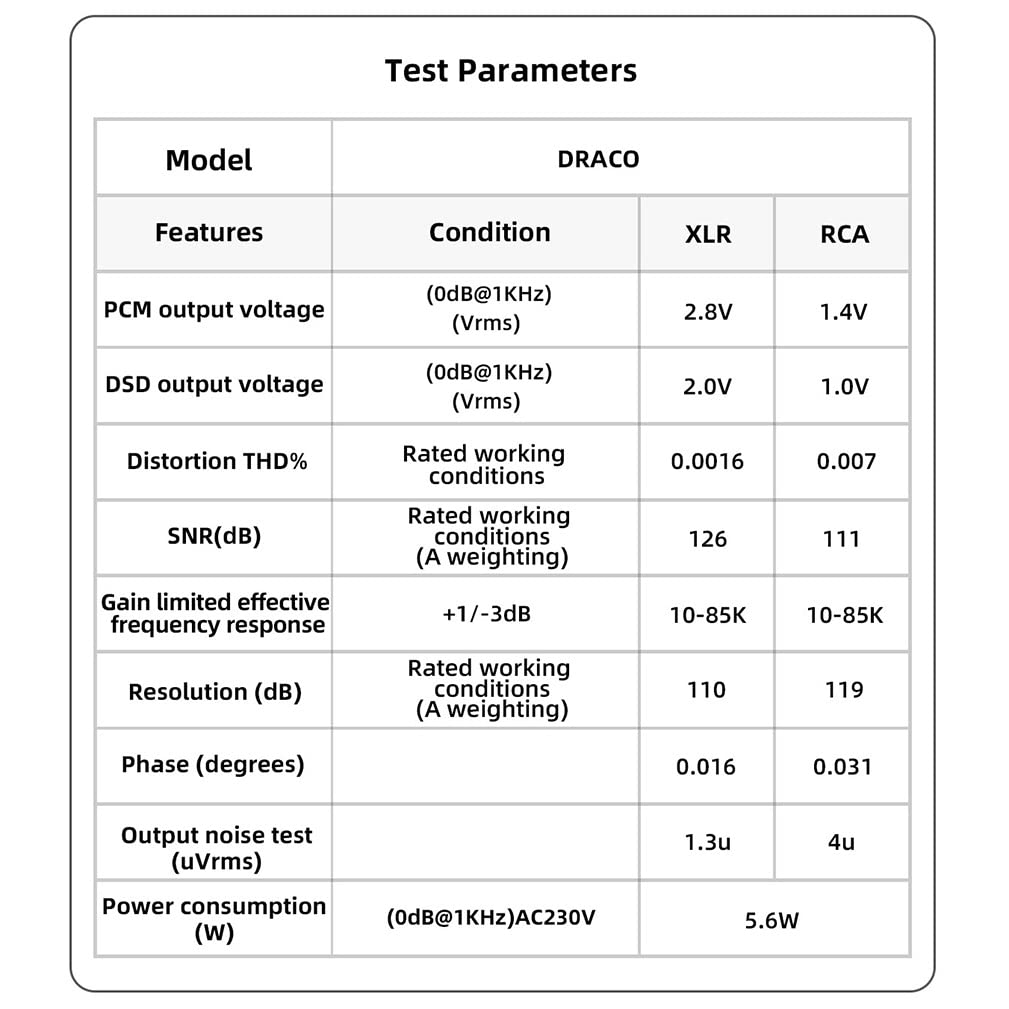
Figure 5.1: Test Parameters for Musician Draco R2R DAC, showing PCM and DSD output voltages, distortion, SNR, frequency response, resolution, phase, output noise, and power consumption for both XLR and RCA outputs.
| Feature | Specification |
|---|---|
| Brand | AOSHIDA (Musician) |
| Model | DRACO |
| Mounting Type | Coaxial, Plug Mount, Tabletop |
| Number of Pins (I2S) | 20 |
| Input Interface Types | AES, I2S, Optical, USB, Coaxial |
| Output Interface Types | XLR Balanced, RCA Unbalanced |
| Number of Channels | 2 |
| Material | Aluminum |
| Item Weight | 10.12 pounds |
| Package Dimensions | 16.57 x 12.76 x 4.69 inches |
| Power Consumption | 5.6W (at 0dB@1KHz, AC230V) |
6. Internal Design and Components
The Musician Draco R2R DAC incorporates advanced components and design principles to achieve its audio performance.

Figure 6.1: Internal view highlighting the ALTERA Main control chip and ARM High-Performance chip, which are central to the DAC's audio processing capabilities.
The audio signal transmission is managed by a main control ALTERA high-efficiency chip, ensuring signal integrity and high-fidelity sound quality. An ARM High-Performance chip further contributes to the DAC's processing power.

Figure 6.2: Packaged Linear Power Supply with an O-Type transformer. This design helps isolate digital and analog sections, providing low noise and stable power for the DAC's operation.
The power supply features a thick metal package and an O-Type transformer. A linear regulator effectively isolates the digital and analog parts of the multi-level power supply, ensuring low noise and stable voltage for the DAC's operation.
7. Troubleshooting
This section addresses common issues and provides solutions to ensure proper functioning of your Musician Draco R2R DAC.
7.1 DAC Not Working or Sounding as Expected:
- Ensure your DAC is properly connected to both the source device and the amplifier/speakers.
- Verify that your device's sound settings are correctly configured to output to the DAC.
- Confirm that the audio files you are playing are of high quality.
7.2 Sound Not Loud Enough:
- Check the volume level on your source device and ensure it is set to maximum.
- If your DAC has a volume control, check its setting.
- If the sound is still not loud enough, you may need to use an external amplifier with your DAC.
7.3 No Audible Difference When Adjusting DAC's Filter:
- Changes made by adjusting a DAC's filter can be subtle and may not be easily noticeable, especially if you are not using high-quality audio equipment or listening to high-resolution audio files.
- Different filter settings can affect the sound in various ways; careful listening and comparison are recommended.
7.4 Maximizing Sound Quality:
- Use high-quality audio files: The better the quality of your original audio file, the better the sound you'll get from your DAC.
- Set your source device to the highest audio format: In your source device's sound settings, set the audio format to the highest possible quality.
- Use high-quality cables and connectors: The quality of your cables and connectors can also affect sound quality.
8. Product Videos
Watch the official product videos for more information on the Musician Draco R2R DAC.
Musician Draco R2R DAC Overview
This video provides a detailed overview of the Musician Draco R2R DAC, showcasing its design, features, and various input/output options. It highlights the R2R array, internal components, and connectivity.
HiFi DAC Beginner's Guide (FAQ)
This video serves as a beginner's guide to HiFi DACs, addressing common questions such as what a DAC is, how to connect it, configure source devices, and troubleshoot issues. It covers topics like PCM settings and maximizing sound quality.
9. Warranty and Support
The Musician Draco R2R DAC comes with a warranty. Please refer to the included warranty card for details.

Figure 9.1: Example of a warranty card. Please fill in the required information for any return or exchange requests.
Customer Support:
For any questions, concerns, or technical assistance, please contact Aoshida service:
- Email: service@aoshida-audio.com
- Website: http://www.musician-audio.com
Aoshida provides 24-hour consulting and after-sales service.