
1. Introduction
The ThinkScan SR6 is a professional OBD2 diagnostic scanner designed for comprehensive vehicle system analysis and maintenance. It supports diagnostics for six major vehicle systems: Anti-lock Braking System (ABS), Supplemental Restraint System (SRS), Body Control Module (BCM), Tire Pressure Monitoring System (TPMS), Engine Control Module (ECM), and Transmission Control Module (TCM). Additionally, it offers five essential reset functions: Electronic Parking Brake (EPB) Reset, Tire Pressure Monitoring System (TPMS) Reset, Oil Light Reset, Steering Angle Sensor (SAS) Reset, and Throttle Body Adjustment (TBA).
This manual provides detailed instructions on how to set up, operate, and maintain your ThinkScan SR6 device to ensure accurate and efficient vehicle diagnostics.
What's in the Box
- ThinkScan SR6 Diagnostic Tool (with integrated OBD2 cable)
- USB Charging/Data Cable
- User Manual
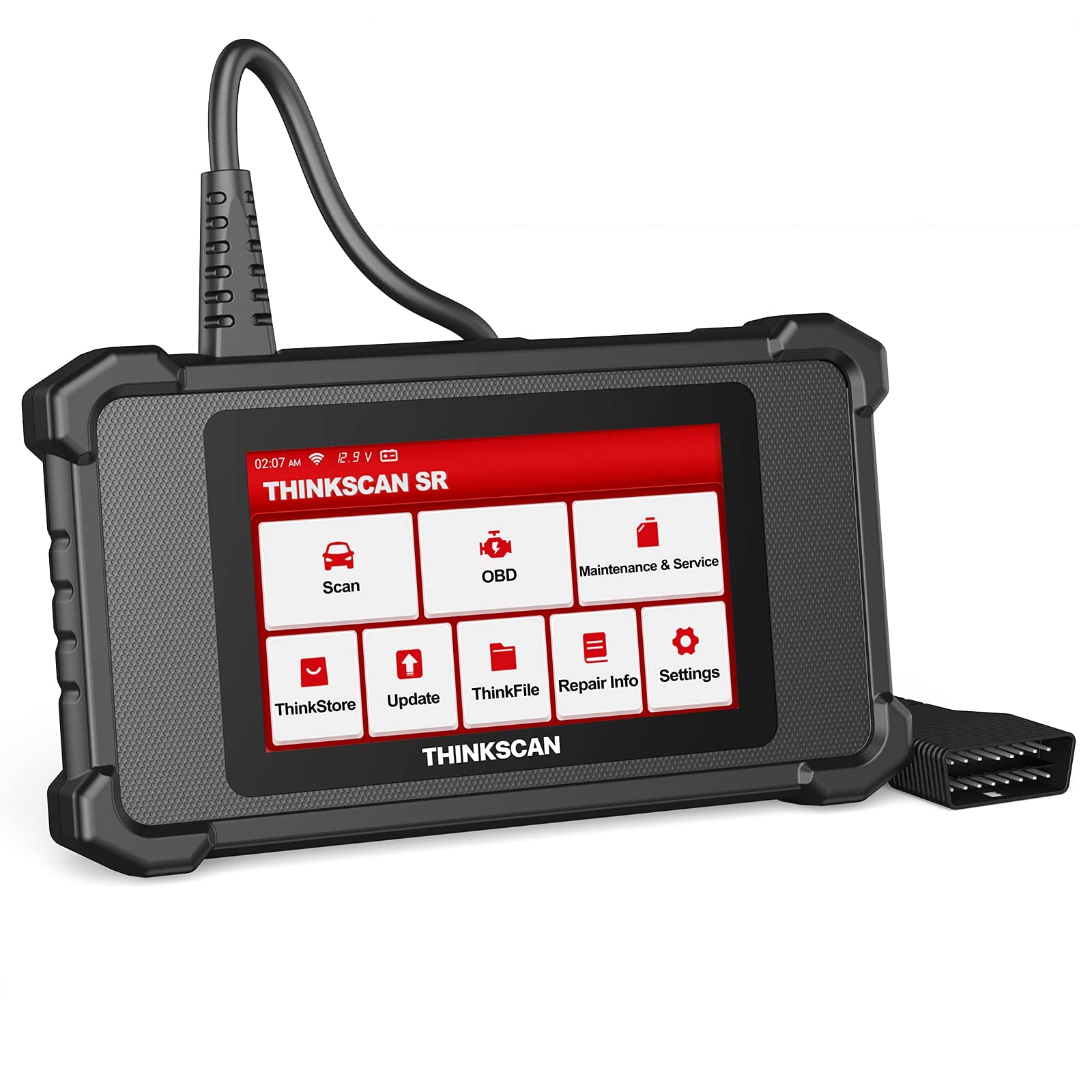
Image: ThinkScan SR6 OBD2 Scanner device and its packaging.
Video: An overview of the ThinkScan SR6 Scan Tool, demonstrating its unboxing and initial features. This video highlights the device's physical components and basic interface.
2. Setup
2.1 Connecting to Your Vehicle
- Locate the vehicle's 16-pin Data Link Connector (DLC). This is typically found under the dashboard on the driver's side.
- Ensure the vehicle's ignition is in the OFF position.
- Plug the ThinkScan SR6's integrated OBD2 cable into the vehicle's DLC. Ensure a secure connection.
- Turn the vehicle's ignition to the ON position (engine can be off or running, depending on the diagnostic task). The device will power on automatically.
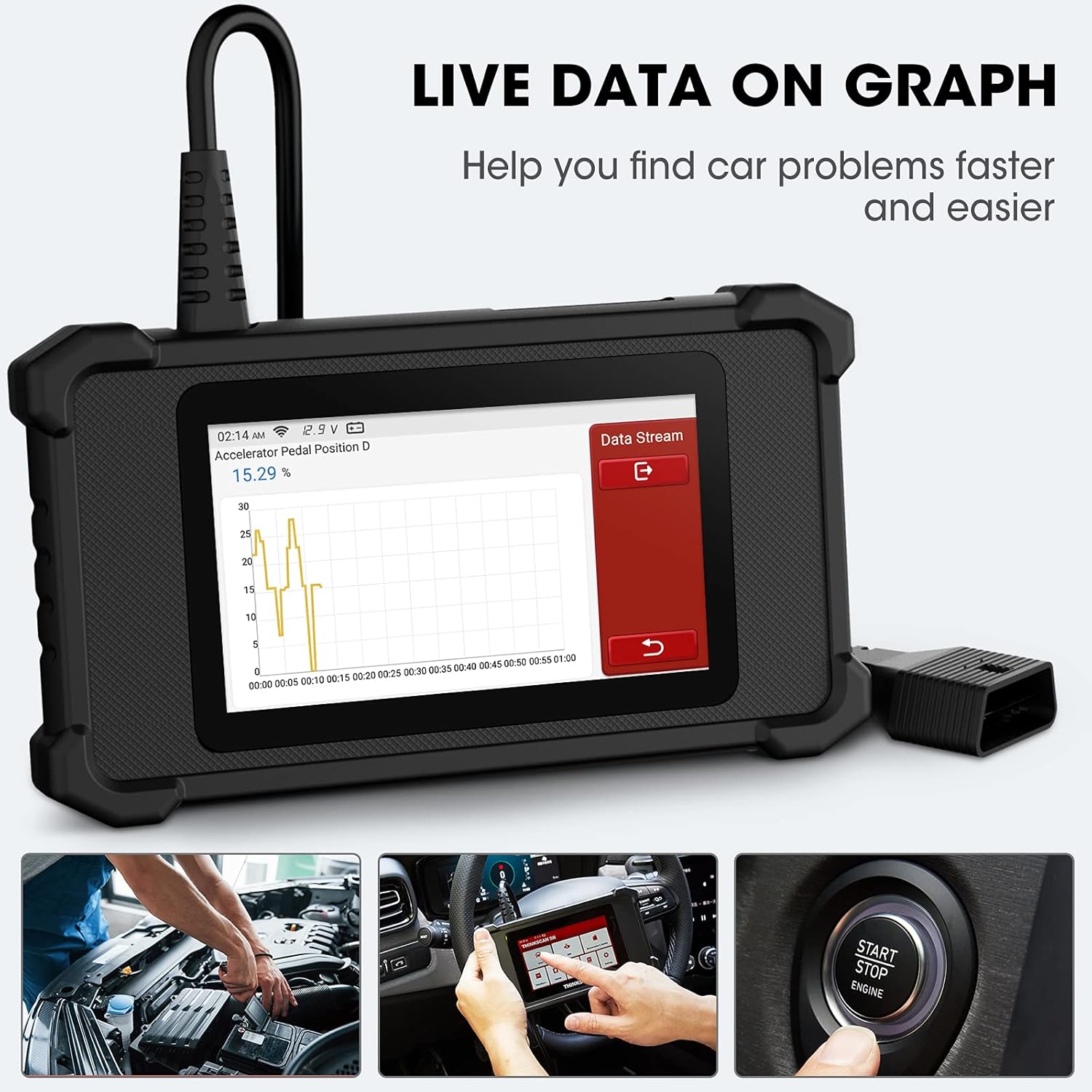
Image: The ThinkScan SR6 device connected to a vehicle's OBD2 port, ready for operation.
2.2 Initial Device Configuration
- Upon first use, the device may prompt you to select a language. Follow the on-screen instructions.
- Connect the device to a Wi-Fi network for software updates. Navigate to Settings > Wi-Fi and select your network.
- Perform a software update to ensure you have the latest vehicle coverage and diagnostic functions. Go to Update on the main menu.
3. Operation
3.1 System Diagnostics
The ThinkScan SR6 supports comprehensive diagnostics for six key vehicle systems. From the main menu, select Scan to begin.
- ABS System: Diagnoses issues related to the anti-lock braking system.
- SRS System: Checks the supplemental restraint system (airbags).
- BCM System: Analyzes the body control module for electrical and body-related faults.
- TPMS System: Monitors tire pressure and related sensor issues.
- ECM System: Diagnoses engine control module faults.
- TCM System: Checks the transmission control module for transmission-related problems.

Image: Visual representation of the six major vehicle systems supported for diagnostics by the ThinkScan SR6.
3.2 Full OBD2 Functions
Access standard OBD2 functions by selecting OBD from the main menu. These functions are crucial for emissions-related diagnostics and general engine health checks.
- Read Codes: Retrieves Diagnostic Trouble Codes (DTCs) from the vehicle's computer.
- Clear Codes: Erases DTCs and turns off the Check Engine Light (MIL).
- Freeze Frame: Displays a snapshot of vehicle operating conditions at the time an emission-related fault occurred.
- Live Data: Shows real-time data streams from various sensors and components.
- I/M Readiness: Checks the readiness of the emission monitoring systems.
- O2 Sensor Test: Retrieves O2 sensor monitoring test results.
- Vehicle Info: Displays vehicle identification information (VIN, CID, CVN).
- EVAP System Test: Initiates a test of the Evaporative Emission Control System.
- On-Board Monitor Test: Retrieves results for on-board diagnostic monitoring tests.
- Component Test: Allows testing of specific vehicle components.
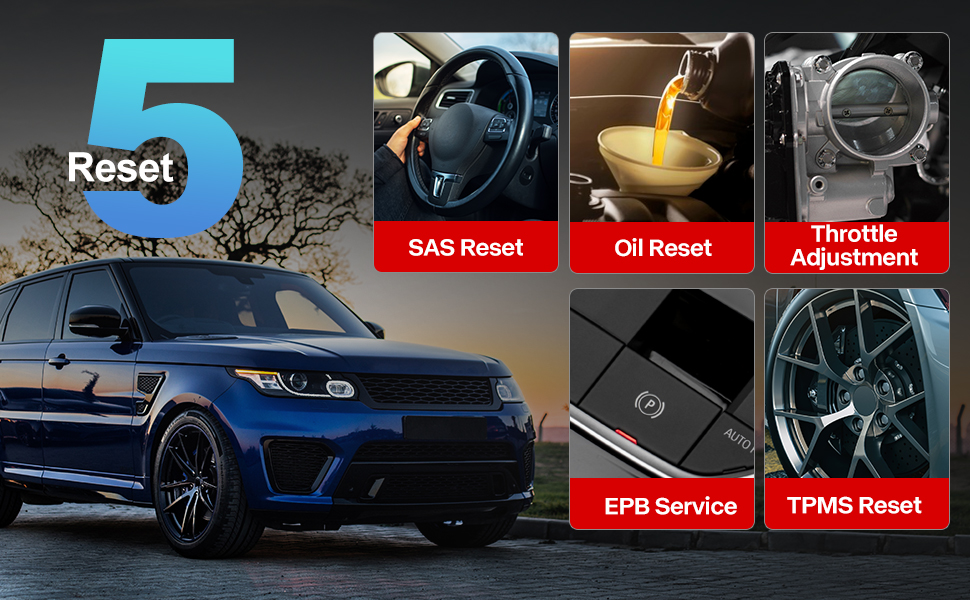
Image: A visual guide to the comprehensive OBD2 functions available on the ThinkScan SR6, including code reading, live data, and vehicle information retrieval.
3.3 DTC Lookup Function
When a Diagnostic Trouble Code (DTC) is retrieved, the ThinkScan SR6 can help you understand its meaning. Navigate to Repair Info > OBD Fault Code Library to input the code and receive a detailed description.
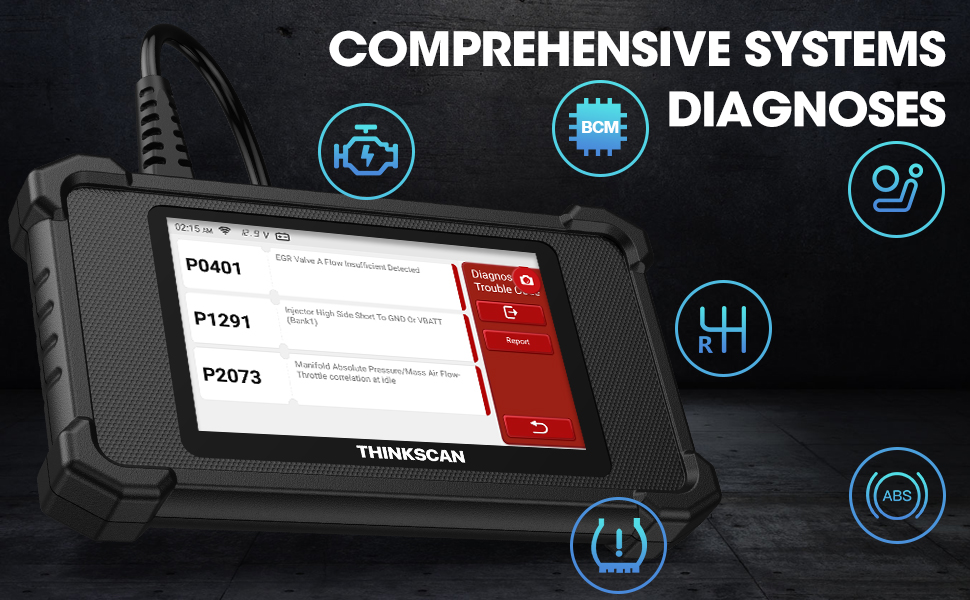
Image: The DTC Lookup function displaying fault codes and their corresponding meanings, aiding in quick diagnosis.
3.4 Live Data Graph
The Live Data function allows you to view real-time sensor data in a graphical format, making it easier to identify anomalies and diagnose intermittent problems. Select OBD > Live Data to access this feature.
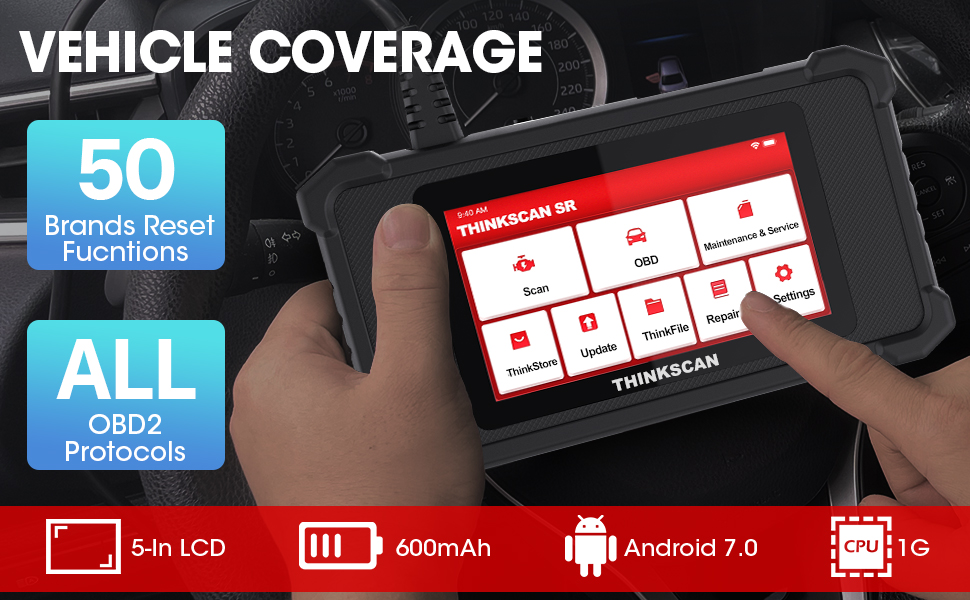
Image: The ThinkScan SR6 displaying live vehicle data in a graphical format, illustrating real-time sensor readings for diagnostic purposes.
4. Maintenance & Service Functions
The ThinkScan SR6 provides five commonly used reset functions to assist with vehicle maintenance. Access these by selecting Maintenance & Service from the main menu.
- Oil Light Reset: Resets the oil service light after an oil change.
- EPB Service: Resets the electronic parking brake system after brake pad replacement.
- SAS Reset: Calibrates the steering angle sensor after steering system repairs.
- TPMS Reset: Resets the tire pressure monitoring system after tire rotation or sensor replacement.
- TBA (Throttle Body Adjustment): Relearns the throttle body position.

Image: An illustration of the five free reset functions offered by the ThinkScan SR6, including throttle adjustment and various system resets.
4.1 Software Updates
Regular software updates are essential to ensure your ThinkScan SR6 has the latest vehicle models, diagnostic functions, and bug fixes. The device supports Wi-Fi updates for convenience.
- Ensure the device is connected to a stable Wi-Fi network.
- From the main menu, select Update.
- Follow the on-screen prompts to download and install available updates.

Image: A comparison highlighting the ThinkScan SR6's features, including its 5-inch touch screen, Android 7.0 OS, and one-click Wi-Fi update capability.
5. Troubleshooting
If you encounter issues with your ThinkScan SR6, consider the following common solutions:
- Device not powering on: Ensure the OBD2 cable is securely connected to the vehicle's DLC and the vehicle's ignition is ON. Check the vehicle's battery voltage.
- Connection errors: Verify the OBD2 cable connection. Try connecting to a different vehicle (if available) to rule out vehicle-specific issues. Ensure Wi-Fi is stable for updates.
- Diagnostic function not working: Ensure the vehicle model and year are supported for the specific function. Perform a software update.
- Understanding fault codes: Use the OBD Fault Code Library under Repair Info to look up DTC meanings.
For more detailed troubleshooting or specific repair information, the device includes a Repair Info section with a fault code library, coverage list, and video tutorials. You can also connect the device to Wi-Fi and use the Video option to search for relevant repair guides.
6. Specifications
| Feature | Detail |
|---|---|
| Brand | thinkcar |
| Model Number | TKSR6 |
| Screen Size | 5 Inches |
| Operating System | Android 7.0 |
| Power Source | Battery Powered |
| Item Weight | 1 pounds |
| Product Dimensions | 4.13 x 8.07 x 1.18 inches |
| Batteries | 1 Lithium Polymer batteries required (included) |
| Vehicle Coverage | US-based vehicles after 1996, EU-based vehicles after 2000, Asia-based vehicles after 2008 |
7. Warranty and Support
For technical assistance, warranty information, or any inquiries regarding your ThinkScan SR6 device, please contact thinkcar customer support. The manufacturer provides 7*24 hours support.
Email: jushi@thinkcar.com
Please refer to the official thinkcar website or the included warranty card for detailed warranty terms and conditions.


