1. Introduction
The Hagibis MC25PRO DP is a versatile USB-C Hub and Dual Hard Drive Enclosure designed to expand the connectivity and storage capabilities of your Mac Mini M2, Mac Studio M1 Max, or Mac Studio M1 Ultra. This docking station integrates multiple ports and supports both 2.5-inch SATA and M.2 NVMe/NGFF solid-state drives or hard disk drives, providing a comprehensive solution for data management and peripheral connectivity.

Figure 1: Hagibis MC25PRO DP USB-C Hub, separated view.
This image displays the Hagibis MC25PRO DP USB-C Hub, with its top and bottom sections separated. The top section features various ports on its front edge, while the bottom section reveals the internal compartments for drive installation. This design allows for easy access to install or replace storage drives.
2. Package Contents
Please verify that all items listed below are included in your package:
- Hagibis MC25PRO DP USB-C Hub with Dual Hard Drive Enclosure
- User Manual
- USB-C to USB-C Data Cable (30cm) x 2
- Rubber stoppers for NVMe M.2 SSD (1 spare)
- Spacer pads for 2.5-inch SATA HDD/SSD
- Screws for access door (2 spares)
- Screwdriver
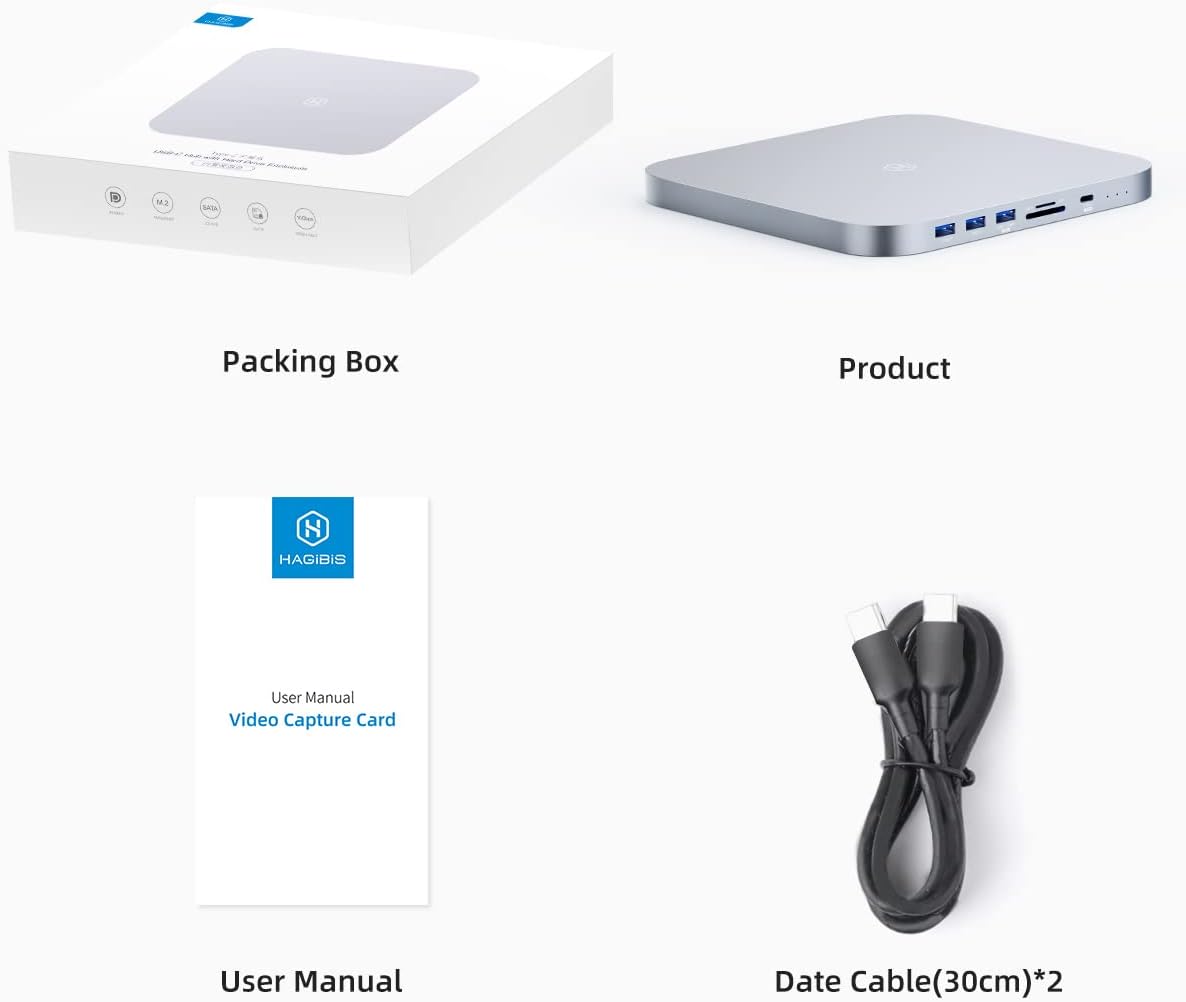
Figure 2: Package Contents.
This image shows the items typically included in the Hagibis MC25PRO DP package: the main product unit, its packaging box, the user manual, and two USB-C data cables.
3. Product Features and Ports
The Hagibis MC25PRO DP offers a variety of ports and internal expansion options:
- Front Ports:
- 3 x USB 3.0 (5Gbps) ports
- 1 x USB-C (10Gbps) port
- 1 x SD Card Reader
- 1 x Micro SD Card Reader
- LED Indicators (Power, NVMe activity, SATA activity)
- Rear Ports:
- 1 x USB-C (A) port for device connection
- 1 x USB-C (B) port for power supply (recommended when using two drives)
- 1 x DisplayPort 1.4 (4K/60Hz)
- Internal Drive Bays:
- 1 x M.2 (NVMe/NGFF) slot
- 1 x 2.5-inch SATA (Hard disk within 10mm thickness) slot

Figure 3: Port and Component Diagram.
This diagram illustrates the layout of all external ports and internal drive bays on the Hagibis MC25PRO DP. It labels the USB 3.0, SD/Micro SD, USB 3.1 Gen2 (USB-C), M.2, 2.5" SATA, DP1.4, and both USB-C (A) and USB-C (B) ports, along with LED indicators.
4. Installation and Setup
4.1 Installing Storage Drives
The Hagibis MC25PRO DP supports simultaneous installation of one M.2 (NVMe/NGFF) SSD and one 2.5-inch SATA SSD/HDD.
- Gently separate the top and bottom sections of the enclosure.
- For M.2 NVMe/NGFF SSD: Insert the M.2 drive into the designated slot and secure it with the provided rubber stopper.
- For 2.5-inch SATA SSD/HDD: Place the 2.5-inch drive into its bay. Use the provided spacer pads if necessary to ensure a snug fit.
- Carefully align and reattach the top section to the bottom section.
- Secure the access door on the underside using the provided screws and screwdriver.

Figure 4: Drive Installation Diagram.
This image illustrates the internal layout of the Hagibis MC25PRO DP, highlighting the dedicated slots for M.2 NVMe/NGFF and 2.5-inch SATA drives. It shows examples of compatible SSDs and HDDs.
4.2 Connecting to Mac Mini
To connect the Hagibis MC25PRO DP to your Mac Mini:
- Place your Mac Mini directly on top of the Hagibis MC25PRO DP for a seamless integration.
- Connect one of the provided USB-C to USB-C cables from the USB-C (A) port on the rear of the Hagibis hub to a USB-C/Thunderbolt port on your Mac Mini. This connection enables all interfaces on the hub.
- Important: If you are using two hard drives simultaneously, it is highly recommended to connect an external USB-C power source (not included) to the USB-C (B) port on the rear of the hub. This ensures stable power delivery and prevents potential issues due to insufficient power.
- For external display output, connect a DisplayPort cable from the DP1.4 port on the rear of the hub to your monitor.

Figure 5: Setup with Mac Mini and Dual Display.
This image demonstrates the Hagibis MC25PRO DP positioned beneath a Mac Mini, connected to two external monitors via DisplayPort, showcasing its dual-screen expansion capability.
5. Operation
5.1 Data Transfer
The Hagibis MC25PRO DP supports high-speed data transfer up to 10Gbps via its USB 3.1 Gen2 USB-C port and 5Gbps via its USB 3.0 ports. Internal drives also benefit from high transfer rates.
- Connect your USB devices (flash drives, external SSDs, etc.) to the front USB-A or USB-C ports.
- Access your installed M.2 NVMe/NGFF and 2.5-inch SATA drives directly through your Mac's file system. Ensure drives are properly initialized and formatted in macOS Disk Utility if they are new.

Figure 6: High-Speed Transmission Capabilities.
This image displays benchmark results indicating high read and write speeds (around 900 MB/s) for the device. It also includes a table detailing compatibility and performance for various video formats like ProRes 422 HQ, Cinema DNG RAW, and 10 Bit YUV 4:2:2 at different resolutions and frame rates.
5.2 Display Output
The DisplayPort 1.4 on the rear of the hub supports 4K resolution at 60Hz, allowing for dual screen expansion or mirroring with your Mac Mini.
- Connect your monitor to the DP1.4 port using a DisplayPort cable.
- Configure display settings in macOS System Settings (or System Preferences) under "Displays" to extend or mirror your desktop.
- Note: Compatibility with external displays via docking stations can vary with specific Mac Mini models (e.g., base M1 models may have limitations). Refer to Apple's documentation for your specific Mac Mini model regarding external display support.
5.3 Card Reader Usage
The integrated SD and Micro SD card readers allow for convenient access to media cards.
- Insert your SD or Micro SD card into the corresponding slot on the front of the hub.
- The card will appear as a removable volume on your Mac.
- Always eject the card safely through macOS before physical removal to prevent data corruption.
5.4 Power Management
The Hagibis MC25PRO DP draws power from the connected Mac Mini. For optimal performance, especially with multiple drives, consider the following:
- As mentioned in Section 4.2, use the USB-C (B) port with an external power adapter if two internal drives are installed.
- To prevent unexpected disconnections of internal drives, it is recommended to disable the "Put hard disks to sleep when possible" option in macOS System Settings (or System Preferences) under "Energy Saver" for SSDs.
6. Maintenance
To ensure the longevity and optimal performance of your Hagibis MC25PRO DP:
- Keep the device clean and free from dust. Use a soft, dry cloth for cleaning.
- Avoid exposing the device to extreme temperatures, humidity, or direct sunlight.
- Do not block the ventilation slots on the bottom of the enclosure.
- Handle the device with care to prevent physical damage.
7. Troubleshooting
| Problem | Possible Cause | Solution |
|---|---|---|
| Hub not recognized by Mac Mini. | Loose USB-C connection; Mac Mini port issue. | Ensure the USB-C (A) cable is securely connected to both the hub and the Mac Mini. Try a different USB-C port on your Mac Mini. Restart your Mac Mini. |
| Internal drives not appearing or disconnecting. | Insufficient power; improper installation; drive not initialized/formatted. | Connect an external USB-C power adapter to the USB-C (B) port. Recheck drive installation. For new drives, initialize and format them using Disk Utility in macOS. Disable "Put hard disks to sleep" in Energy Saver settings. |
| DisplayPort not working. | Incorrect cable; Mac Mini model limitation; driver issue. | Ensure you are using a functional DisplayPort cable. Verify your Mac Mini model supports external displays via a hub (some base M1 models have limitations). Check macOS display settings. |
| Slow data transfer speeds. | Cable quality; drive performance; system load. | Ensure you are using the provided high-quality USB-C cables. Check the specifications of your internal drives. Reduce simultaneous data transfers or background processes on your Mac. |
| Wi-Fi/Bluetooth interference. | Proximity to Mac Mini antennas. | While rare, if interference occurs, try placing the hub slightly away from the Mac Mini, or adjust the orientation of the Mac Mini. |
8. Specifications
| Feature | Detail |
|---|---|
| Model Number | MC25PRO DP |
| Brand | Hagibis |
| Compatible Devices | Mac Computers (Mac Mini M1, M2, Mac Studio M1 Max, M1 Ultra) |
| Internal Drive Support | 1 x M.2 NVMe/NGFF, 1 x 2.5-inch SATA (HDD/SSD) |
| Max Data Transfer Rate | 10 Gbps (USB 3.1 Gen2) |
| Display Output | DisplayPort 1.4 (4K@60Hz) |
| Front Ports | 3 x USB 3.0 (5Gbps), 1 x USB-C (10Gbps), 1 x SD Card, 1 x Micro SD Card |
| Rear Ports | 2 x USB-C (1 for data/power, 1 for auxiliary power), 1 x DisplayPort 1.4 |
| Product Dimensions | 7.68 x 7.68 x 0.59 inches (197 x 197 x 15 mm) |
| Item Weight | 1.37 pounds |
| Material | Aluminum Alloy + ABS |

Figure 7: Product Dimensions.
This image provides the precise dimensions of the Hagibis MC25PRO DP hub, indicating its length, width, and height in millimeters.
9. Warranty and Support
Hagibis products are designed for reliability and performance. For warranty information and technical support, please refer to the official Hagibis website or contact their customer service directly. Keep your purchase receipt as proof of purchase for warranty claims.
For further assistance, you may visit the Hagibis store on Amazon or their official support channels.
Hagibis Official Store: https://www.amazon.com/stores/Hagibis/page/AC3D0178-999A-46CD-BA6C-9B107EC614F4