
Caixun EC43S1UA
Caixun EC43S1UA 43-inch 4K UHD HDR Smart Android TV User Manual
Model: EC43S1UA
1. Introduction
Thank you for purchasing the Caixun EC43S1UA 43-inch 4K UHD HDR Smart Android TV. This manual provides essential information for the safe and efficient use of your television. Please read it thoroughly before operating the device and retain it for future reference.
Important Safety Instructions
- Do not expose the TV to rain or moisture to prevent fire or electric shock.
- Ensure proper ventilation. Do not block ventilation openings.
- Place the TV on a stable, flat surface to prevent it from falling.
- Keep the TV away from direct sunlight, heat sources, and extreme temperatures.
- Unplug the power cord during lightning storms or when unused for long periods.
- Refer all servicing to qualified service personnel.
2. What's in the Box
Carefully unpack your new Caixun TV and ensure all items listed below are present and undamaged:
- Caixun EC43S1UA 43-inch 4K UHD HDR Smart Android TV
- Remote Control
- Remote Batteries (2x AAA, typically)
- HDMI Cable
- User Manual (this document)
- 1-Year Warranty Card
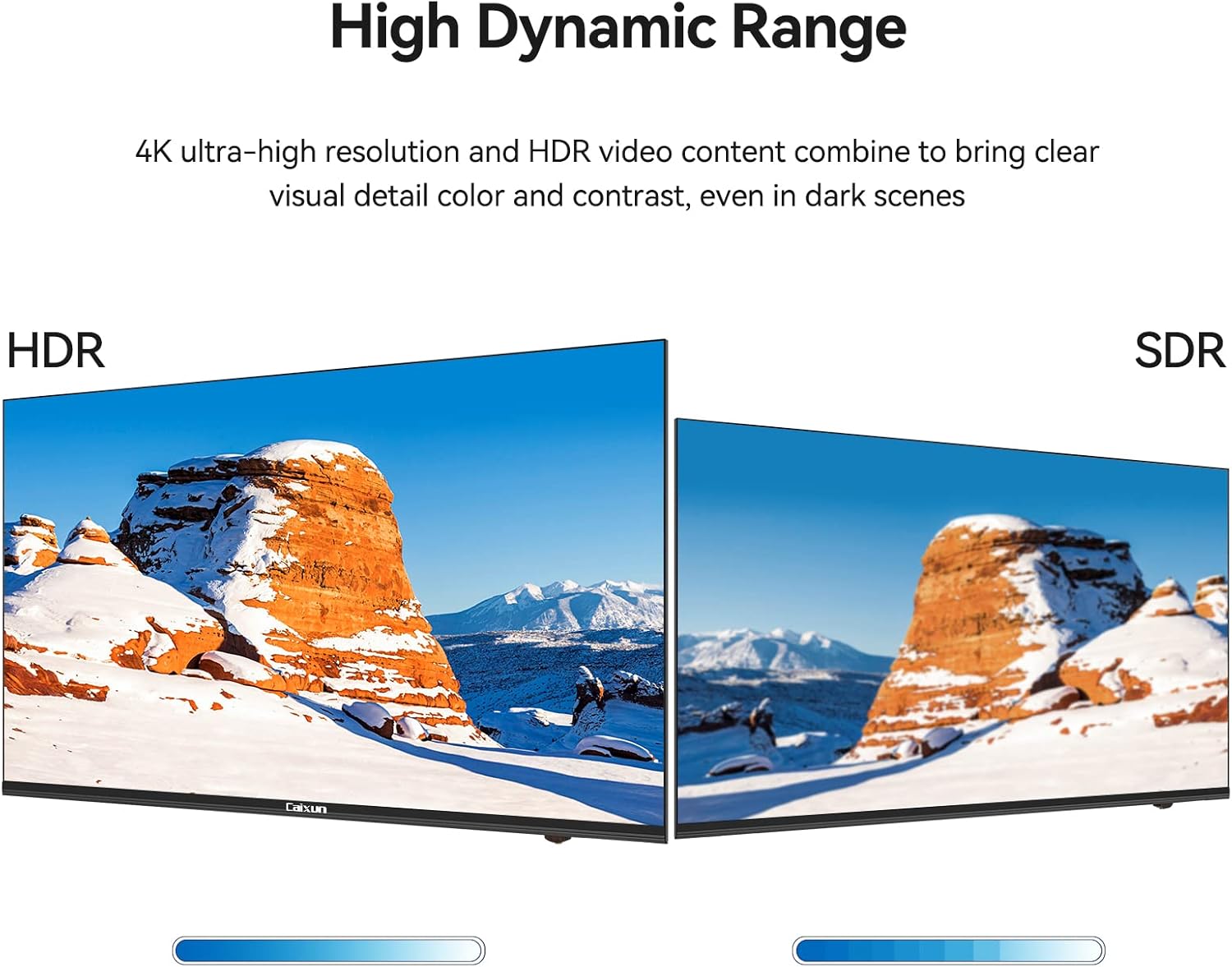
Image: Caixun EC43S1UA 43-inch TV with its included stands.
3. Setup
3.1 Attaching the TV Stands
- Place the TV screen-down on a soft, clean surface to prevent scratches.
- Align each stand with the corresponding screw holes on the bottom of the TV.
- Secure the stands using the provided screws. Ensure they are firmly attached.
3.2 Wall Mounting
If you plan to wall mount your TV, ensure you use a VESA-compatible wall mount (not included). The VESA mounting standard for this model is 200 x 200 mm.
- Remove the stands if they are already attached.
- Follow the instructions provided with your wall mount bracket.
- Use appropriate screws for the VESA mounting holes on the back of the TV.

Image: Rear view of the Caixun TV, highlighting the VESA mount points (200x200mm).
3.3 Connecting Devices
Your TV offers various input and output ports for connecting external devices:
- HDMI (3 ports): Connect Blu-ray players, game consoles, cable/satellite boxes, or other HDMI-enabled devices.
- USB (2 ports): Connect USB drives for media playback.
- Optical: For digital audio output to a soundbar or home theater system.
- AV IN: For connecting older devices using composite video and stereo audio cables.
- RJ45 (Ethernet): For a wired internet connection.
- ATV&DTV: For connecting an antenna for over-the-air broadcasts.
- Earphone: For connecting headphones.

Image: Detailed view of the Caixun TV's input and output ports, including HDMI, USB, Optical, AV IN, RJ45, and ATV&DTV.
3.4 Initial Power On and Network Connection
- Connect the power cord to the TV and a power outlet.
- Press the power button on the TV or remote control to turn it on.
- Follow the on-screen instructions for the initial setup, including language selection, time zone, and network connection.
- For internet access, select your Wi-Fi network and enter the password, or connect an Ethernet cable to the RJ45 port.
4. Operating Your TV
4.1 Remote Control Functions
The included remote control allows you to navigate the TV's features. It includes dedicated buttons for popular streaming services and a Google Assistant button for voice commands.

Image: The Caixun TV remote control, featuring a dedicated Google Assistant button and quick access buttons for streaming services.
4.2 Google Assistant (Voice Control)
Your Caixun TV integrates Google Assistant for convenient voice control. Press the Google Assistant button on your remote to activate it.
- Search: Ask to search for movies, TV shows, or information.
- Control: Adjust volume, change channels, or control smart home devices.
- Recommendations: Get personalized content suggestions.
Video: Demonstration of Google Assistant features on an Android TV, including voice commands for searching content, checking weather, and playing music.
4.3 Smart Android TV Features
Running on Android 9.0, your TV provides access to a wide range of streaming and entertainment options:
- Streaming Apps: Access pre-installed apps like Netflix, YouTube, and Prime Video.
- Google Play Store: Download additional apps such as Hulu, Disney+, and HBO.
- Chromecast Built-in: Wirelessly cast content from your compatible phone, tablet, or laptop to the TV.
Image: The Google Play Store interface displayed on the Caixun TV, showing various apps available for download.

Image: A smartphone screen being mirrored wirelessly to the Caixun TV, demonstrating the screen share feature.
4.4 4K UHD and HDR Picture Quality
Experience stunning visuals with your TV's 4K Ultra HD resolution (3840x2160) and High Dynamic Range (HDR10) support. This technology enhances contrast, color accuracy, and detail, providing a more immersive viewing experience.

Image: A side-by-side comparison illustrating the enhanced color and contrast of HDR (High Dynamic Range) versus SDR (Standard Dynamic Range) on the Caixun TV.
5. Maintenance
5.1 Cleaning the TV
- Always unplug the TV before cleaning.
- Use a soft, dry cloth to wipe the screen and exterior.
- For stubborn marks, lightly dampen the cloth with water or a mild, non-abrasive screen cleaner. Never spray liquid directly onto the screen.
- Avoid using harsh chemicals or abrasive materials.
5.2 Care and Storage
- Do not place heavy objects on the TV.
- Store the TV in a cool, dry place if not in use for an extended period.
- Protect the TV from dust and extreme temperature changes.
6. Troubleshooting
If you encounter issues with your TV, refer to the following common problems and solutions:
| Problem | Possible Solution |
|---|---|
| No power | Ensure the power cord is securely plugged into both the TV and a working electrical outlet. Check if the outlet has power. |
| No picture or sound | Verify that the correct input source is selected. Check all cable connections (HDMI, AV, etc.). Try restarting the TV. |
| Remote control not working | Check and replace the batteries. Ensure there are no obstructions between the remote and the TV's IR sensor. |
| Cannot connect to Wi-Fi | Ensure your Wi-Fi router is on and working. Re-enter the Wi-Fi password carefully. Try restarting both the TV and the router. |
| Poor picture quality | Check the source resolution. Adjust picture settings (brightness, contrast, sharpness). Ensure the input signal is strong and stable. |
7. Specifications
Below are the technical specifications for the Caixun EC43S1UA 43-inch 4K UHD HDR Smart Android TV:
| Feature | Specification |
|---|---|
| Screen Size | 43 Inches |
| Model Number | EC43S1UA |
| Display Technology | LED |
| Resolution | 4K UHD (3840 x 2160) |
| Refresh Rate | 60 Hz |
| HDR Format Supported | HDR10 |
| Operating System | Android 9.0 |
| Special Features | Chromecast, Google Assistant (Voice Control) |
| Connectivity Technology | Wireless, HDMI, USB, Ethernet, Optical, Bluetooth, Wi-Fi |
| HDMI Ports | 3 (HDMI 2.0) |
| USB Ports | 2 (USB 2.0) |
| Other Ports | 1 x Optical, 1 x AV IN, 1 x RJ45, 1 x ATV&DTV, 1 x Earphone |
| Contrast Ratio | 3000:1 |
| Response Time | 6.5 Milliseconds |
| VESA Mount Standard | 200 x 200 mm |
| Item Weight | 16.5 Pounds |
| Voltage | 220 Volts (AC) |
| Wattage | 80 watts |
Image: Technical drawing showing the dimensions of the Caixun EC43S1UA TV.
8. Warranty and Support
8.1 Warranty Information
Your Caixun EC43S1UA TV comes with a 1-Year Warranty Card. Please refer to the card for detailed terms and conditions of the warranty coverage. Keep your proof of purchase for warranty claims.
8.2 Customer Support
For technical assistance, troubleshooting beyond this manual, or warranty inquiries, please contact Caixun customer support. Refer to the contact information provided on your warranty card or the official Caixun website.
Ask a question about this manual
Ask about setup, troubleshooting, compatibility, parts, safety, or missing instructions. Manuals+ will review the question and use this page’s manual context to help answer it.