
1. Setup
Follow these steps to set up your LexonElec Lightweight Wired Gaming Mouse:
- Unpack the Mouse: Carefully remove the mouse from its packaging. Ensure all components, including the mouse and its wired USB cable, are present.
- Connect to Computer: Insert the USB connector of the mouse cable into an available USB port on your computer (desktop PC, laptop, or MacBook).
- Driver Installation (Plug & Play): The mouse is designed for plug-and-play functionality. Your operating system (Windows XP, Vista, 7, 8, 10, or Linux) should automatically detect and install the necessary drivers. No additional software or drivers are typically required.
- Verify Functionality: Once connected, the mouse's RGB backlighting should illuminate, and the cursor should respond to movement. Test basic functions like left-click, right-click, and scroll wheel.

Image: The LexonElec gaming mouse connected via USB, highlighting its wide compatibility with various operating systems.
2. Operating Instructions
Your LexonElec gaming mouse features multiple buttons and adjustable settings for an optimized user experience.
2.1 Button Functions
- Left Click: Standard primary action button.
- Right Click: Standard secondary action button.
- Scroll Wheel: Scrolls content up/down. Can also be pressed for a middle-click function.
- Forward Button (Side): Navigates forward in web browsers or applications.
- Backward Button (Side): Navigates backward in web browsers or applications.
- DPI Adjustment Buttons (+/-): Adjusts the mouse sensitivity (DPI) through preset levels.
- RGB Lighting Mode Button: Cycles through different RGB lighting effects.
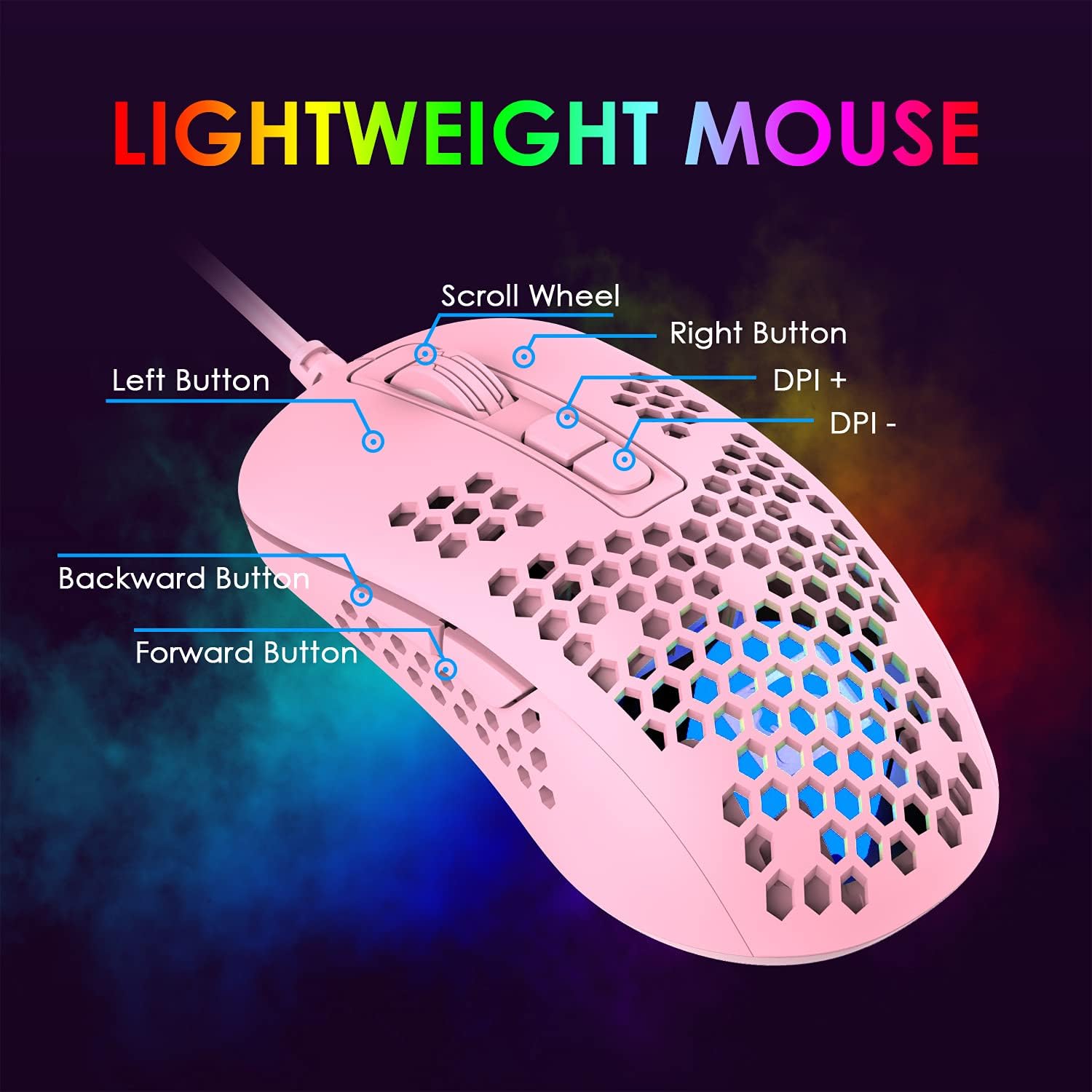
Image: Diagram illustrating the various buttons on the LexonElec gaming mouse, including left/right click, scroll wheel, forward/backward buttons, and DPI adjustment.
2.2 Adjusting DPI (Sensitivity)
The mouse features 4 adjustable DPI levels to suit different tasks and gaming preferences:
- 800 DPI
- 1200 DPI
- 1600 DPI
- 2400 DPI
Press the DPI adjustment buttons (usually located near the scroll wheel) to cycle through these sensitivity settings. Each DPI level may correspond to a different RGB color for visual indication.

Image: Visual representation of the 4 adjustable DPI settings (800, 1200, 1600, 2400) and their corresponding color indicators on the mouse.
2.3 RGB Backlighting
The mouse is equipped with 4 monochromatic RGB breathing lights. Use the dedicated RGB lighting mode button (if available, or a combination of buttons as per specific model instructions) to switch between different lighting modes and effects. The cool LOGO lighting effects enhance the aesthetic appeal during use.

Image: The LexonElec gaming mouse showcasing its vibrant 4-color RGB breathing backlight effects.
3. Maintenance
Proper maintenance ensures the longevity and optimal performance of your gaming mouse.
- Cleaning: Use a soft, dry cloth to wipe the surface of the mouse. For the honeycomb shell, a can of compressed air can help remove dust and debris. Avoid using harsh chemicals or abrasive materials.
- Cable Care: Avoid sharp bends or excessive pulling on the USB cable to prevent damage.
- Storage: When not in use, store the mouse in a clean, dry environment away from extreme temperatures.
- Avoid Liquids: Do not expose the mouse to liquids. If liquid spills occur, immediately disconnect the mouse and allow it to dry completely before re-connecting.
4. Troubleshooting
If you encounter issues with your LexonElec gaming mouse, refer to the following common solutions:
- Mouse Not Responding:
- Ensure the USB cable is securely plugged into a working USB port on your computer.
- Try plugging the mouse into a different USB port.
- Restart your computer.
- Cursor Movement is Erratic or Slow:
- Clean the optical sensor on the underside of the mouse with a soft cloth.
- Ensure you are using the mouse on a suitable surface (e.g., a mouse pad).
- Adjust the DPI settings using the DPI adjustment buttons to find a comfortable sensitivity.
- RGB Lights Not Working:
- Press the RGB lighting mode button to cycle through effects, as it might be set to an "off" mode or a static color.
- Ensure the mouse is properly connected to your computer.
- Buttons Not Functioning:
- Verify that the buttons are not physically obstructed.
- Test the mouse on another computer to rule out software conflicts.
5. Specifications
| Feature | Description |
|---|---|
| Brand | LexonElec |
| Model | Lightweight Wired Gaming Mouse with RGB Backlit |
| Connectivity | Wired USB |
| DPI Levels | 4 Adjustable Levels: 800-1200-1600-2400 DPI |
| Buttons | 7 Buttons (Left, Right, Scroll Wheel, Forward, Backward, DPI+, DPI-) |
| Sensor | Optical (PAW704 Gaming Chip) |
| Backlight | RGB Breathing Lights (4 monochromatic colors) |
| Shell Design | Lightweight Honeycomb Perforated Shell |
| Ergonomics | Ergonomic and Comfortable Shape |
| Compatibility | Windows XP/Vista/7/8/10, Linux, Macbooks, PCs, Laptops |
| Product Dimensions | 5.06 x 2.64 x 0.04 inches |
| Item Weight | 4.6 ounces |

Image: The lightweight honeycomb shell design of the LexonElec gaming mouse, emphasizing its minimal weight for extended use.

Image: Detailed dimensions of the LexonElec gaming mouse, showing its length (120mm), width (62mm), and height (40mm).
6. Warranty & Support
For warranty information and customer support, please refer to the contact details provided with your product packaging or visit the official LexonElec website. Keep your purchase receipt as proof of purchase for any warranty claims.
LexonElec is committed to customer satisfaction and innovation. For further assistance, please reach out to our support team.