
1. Introduction
This manual provides detailed instructions for the installation, operation, and maintenance of the NovaStar H Series 1x HDMI2.0 + 1x DP1.2 Input Card. This input card is designed for use with compatible NovaStar H Series video processors, offering high-definition video input capabilities for professional display applications. Please read this manual thoroughly before using the product to ensure proper functionality and to prevent damage.
The NovaStar H Series input card supports one HDMI 2.0 input and one DisplayPort 1.2 input, enabling connection to various high-resolution video sources. It is engineered for reliable performance in demanding environments.
2. Safety Information
Observe the following safety precautions to prevent injury and damage to the equipment:
- Electrical Safety: Ensure the power supply is disconnected from the main video processor before installing or removing the input card. Only use power adapters and cables specified by NovaStar.
- Handling: Always handle the input card by its edges. Avoid touching the electronic components or connectors directly to prevent electrostatic discharge (ESD) damage. Use an anti-static wrist strap if available.
- Environment: Do not expose the card to moisture, extreme temperatures, or corrosive substances. Operate within the specified environmental conditions.
- Ventilation: Ensure adequate ventilation around the video processor where the card is installed to prevent overheating.
- Servicing: Do not attempt to service the card yourself. Refer all servicing to qualified personnel.
3. Package Contents
Verify that all items are present in the package:
- NovaStar H Series 1x HDMI2.0 + 1x DP1.2 Input Card (1 unit)
- Quick Start Guide (1 copy)
- Anti-static bag (1 unit)
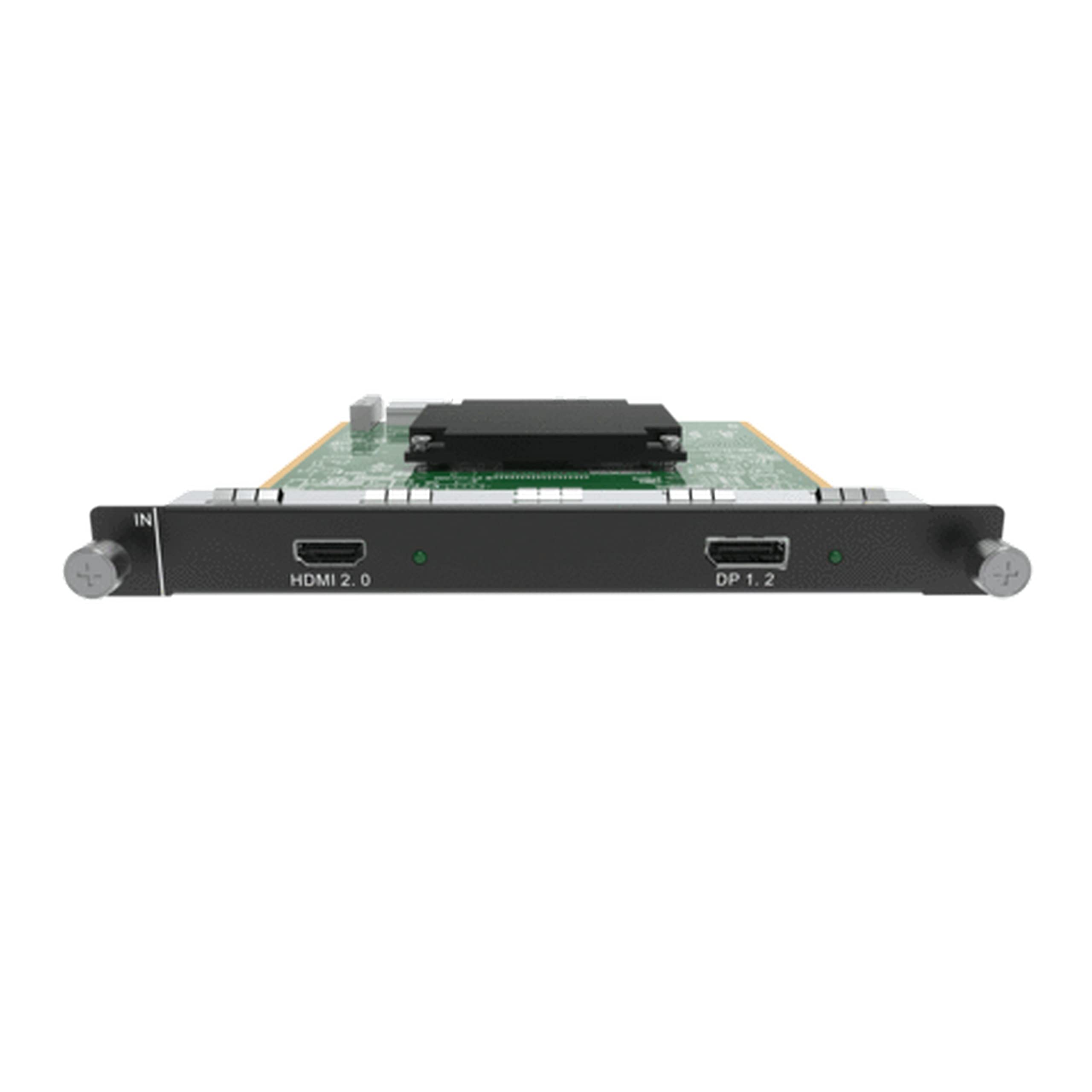
Figure 1: NovaStar H Series 1x HDMI2.0 + 1x DP1.2 Input Card. This image shows the front panel of the input card with its HDMI 2.0 and DisplayPort 1.2 connectors, along with the card's PCB and mounting bracket.
4. Setup and Installation
Follow these steps to properly install the input card into a compatible NovaStar H Series video processor:
- Power Off: Ensure the NovaStar H Series video processor is completely powered off and disconnected from the main power supply.
- Locate Slot: Identify an available input card slot on the rear panel of the video processor. Refer to your video processor's manual for slot locations.
- Remove Blank Panel: If a blank panel covers the slot, carefully remove it by unscrewing any retaining screws and gently pulling it out.
- Insert Card: Align the input card with the chosen slot. Gently push the card firmly into the slot until it is fully seated. Ensure the connectors on the card align with the backplane of the processor. Do not force the card.
- Secure Card: Once seated, secure the input card using the retaining screws provided with the video processor or the card itself.
- Connect Cables: Connect your HDMI 2.0 or DisplayPort 1.2 video sources to the corresponding ports on the newly installed input card.
- Power On: Reconnect the power supply to the video processor and power it on. The system should detect the new input card automatically.
Figure 2: Illustrative diagram of input card installation. This image would typically show a step-by-step visual guide for inserting the input card into a compatible video processor slot.
5. Operating Instructions
After installation, configure and operate the input card through the NovaStar video processor's control software or front panel interface.
5.1. Input Source Selection
To select the input source:
- Access the input source management menu on your NovaStar video processor.
- Identify the newly installed input card and its corresponding HDMI 2.0 or DisplayPort 1.2 ports.
- Select the desired input port as your active video source.
5.2. Resolution and EDID Management
The input card supports various resolutions up to 1080p (as per product specifications). For optimal display, ensure the input source resolution matches the display's native resolution or a supported resolution by the video processor.
- Automatic EDID: The card typically uses automatic EDID (Extended Display Identification Data) to communicate with the source device and negotiate the best common resolution.
- Manual EDID: If issues arise, you may need to manually configure EDID settings via the video processor's software. Refer to the video processor's manual for detailed EDID management procedures.
5.3. Signal Status Indicators
The input card may feature LED indicators on its front panel to show signal status:
- Green LED: Indicates a stable video signal is detected.
- Red/Orange LED: May indicate no signal, an unsupported signal, or an error.
- Off: No power or card not detected.
Consult the video processor's manual for specific LED indicator meanings.
6. Maintenance
The NovaStar H Series input card requires minimal maintenance. Follow these guidelines to ensure longevity and optimal performance:
- Cleaning: Periodically clean the external connectors with a soft, dry, lint-free cloth. Do not use liquid cleaners or solvents. Ensure the video processor is powered off before cleaning.
- Firmware Updates: Check the official NovaStar website for firmware updates for your H Series video processor and input card. Firmware updates can improve performance, add features, or fix bugs. Follow the update instructions provided by NovaStar carefully.
- Environmental Control: Maintain a stable operating environment, avoiding excessive dust, humidity, and temperature fluctuations.
7. Troubleshooting
If you encounter issues with your input card, refer to the following common problems and solutions:
| Problem | Possible Cause | Solution |
|---|---|---|
| No video output from the card. |
|
|
| Intermittent video signal. |
|
|
| Card not detected by video processor. |
|
|
8. Specifications
Technical specifications for the NovaStar H Series 1x HDMI2.0 + 1x DP1.2 Input Card:
| Feature | Detail |
|---|---|
| Model | H_1xHDMI2.0+1xDP1.2 |
| Input Ports | 1x HDMI 2.0, 1x DisplayPort 1.2 |
| Max Resolution (HDMI) | Up to 3840x2160@60Hz (4K@60Hz) (Note: Product description states 1080p, but HDMI 2.0 supports 4K. Refer to specific processor compatibility.) |
| Max Resolution (DisplayPort) | Up to 3840x2160@60Hz (4K@60Hz) (Note: Product description states 1080p, but DP 1.2 supports 4K. Refer to specific processor compatibility.) |
| Compatible Devices | NovaStar H Series Video Processors, Personal Computers |
| Video Capture Resolution | 1080p (as per provided specifications) |
| Operating Temperature | 0°C to 40°C (32°F to 104°F) (Typical) |
| Storage Temperature | -20°C to 60°C (-4°F to 140°F) (Typical) |
| Humidity | 10% to 90% non-condensing |
Note: Specifications are subject to change without prior notice. For the most current information, please refer to the official NovaStar website or product documentation. The "Video Capture Resolution: 1080p" from the product specifications might refer to a specific operational mode or a general compatibility statement, while HDMI 2.0 and DP 1.2 interfaces inherently support higher resolutions. Always verify compatibility with your specific video processor and source devices.
9. Warranty Information
NovaStar products typically come with a limited manufacturer's warranty. The exact terms and duration of the warranty may vary by region and product. Please refer to the warranty card included with your product or visit the official NovaStar website for detailed warranty information.
The warranty generally covers:
- Defects in materials and workmanship under normal use.
The warranty typically does not cover:
- Damage caused by improper installation, misuse, abuse, neglect, or accident.
- Damage caused by unauthorized modifications or repairs.
- Damage caused by natural disasters or acts of God.
- Consumable parts.
To claim warranty service, you may need to provide proof of purchase and contact NovaStar customer support or an authorized service center.
10. Customer Support
For technical assistance, product inquiries, or warranty claims, please contact NovaStar customer support through the following channels:
- Official Website: Visit the NovaStar official website for product documentation, FAQs, and support contact information.
- Email Support: Refer to the website for specific email addresses for technical support in your region.
- Phone Support: Check the NovaStar website for regional phone numbers for direct support.
- Authorized Dealers: Contact your local authorized NovaStar dealer or distributor for localized support and service.
When contacting support, please have your product model number (H_1xHDMI2.0+1xDP1.2) and proof of purchase readily available.


