
Introduction
The Vipxyc Wireless Bluetooth 5.0 Silent Office Computer Mouse is designed for quiet and efficient operation across various devices. It features adjustable DPI settings and advanced optical tracking technology for precise control.
This mouse is suitable for use in quiet environments such as libraries, meeting rooms, classrooms, and bedrooms due to its silent click design.

Image: The Vipxyc Wireless Bluetooth Mouse, illustrating its ergonomic design and the DPI adjustment button. The image also notes the adjustable DPI levels (800, 1200, 1600) and its silent operation feature.
Setup
- Install Battery: Open the battery compartment on the underside of the mouse. Insert one AA battery (not included) according to the polarity indicators. Close the compartment securely.
- Power On: Locate the ON/OFF switch on the bottom of the mouse. Slide the switch to the 'ON' position.
- Bluetooth Pairing: Once powered on, the mouse will automatically enter pairing mode, indicated by a flashing blue light. On your device (laptop, tablet, etc.), navigate to your Bluetooth settings and search for available devices. Select the 'Vipxyc Mouse' or similar name to connect. The mouse will automatically match the code after being powered on.

Image: The Vipxyc Wireless Bluetooth Mouse with its bottom cover removed, revealing the battery compartment. This image shows both a 'new type' and 'old type' of the mouse, indicating potential minor design variations in the battery cover.

Image: The underside of the Vipxyc Wireless Bluetooth Mouse, displaying the ON/OFF switch, battery rating (1.5V, 15mA), and a note about automatic code matching after power-on.

Image: The Vipxyc Wireless Bluetooth Mouse positioned next to a laptop, with a graphic overlay of a wireless signal icon, symbolizing its Bluetooth connectivity.
Operating Instructions
Basic Functions
- Left Click: Primary button for selecting items and interacting with software.
- Right Click: Secondary button for context menus and additional options.
- Scroll Wheel: Used for scrolling through documents and web pages.
DPI Adjustment
The mouse features an adjustable DPI (Dots Per Inch) setting, allowing you to change cursor sensitivity. Press the DPI button, usually located near the scroll wheel, to cycle through the available settings: 800, 1200, and 1600 DPI. Choose the setting that best suits your preference and task.

Image: The Vipxyc Wireless Bluetooth Mouse shown on a wooden desk alongside a laptop, illustrating its use with advanced optical tracking technology. This setup is suitable for laptops, OS X/Mi/Samsung devices, and other compatible devices.
Compatibility
This mouse is compatible with laptops, OS X/Mi/Samsung tablets, and other devices that support Bluetooth 5.0 connectivity.
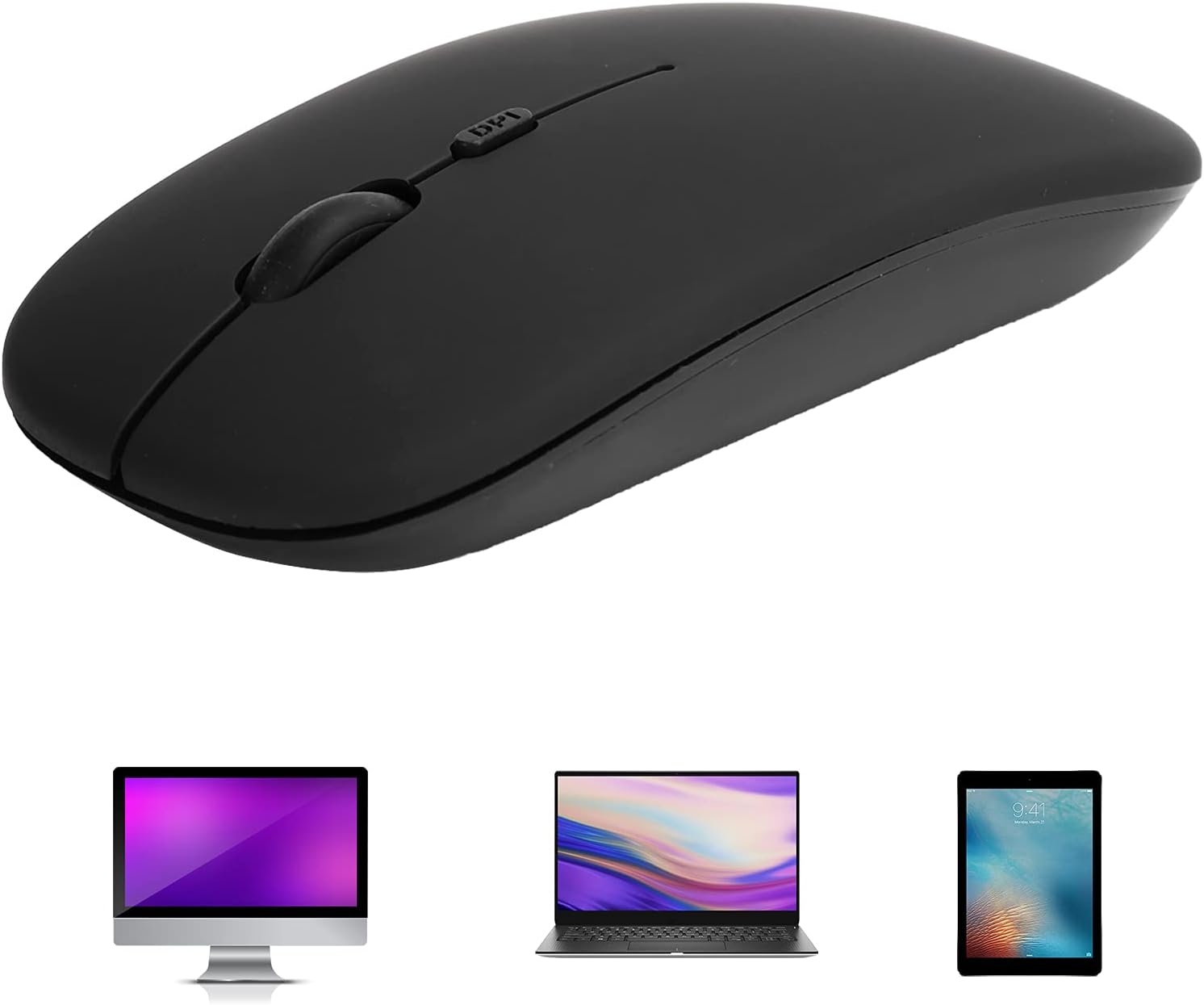
Image: The Vipxyc Wireless Bluetooth Mouse presented alongside illustrations of a desktop computer, a laptop, and a tablet, indicating its broad compatibility with different device types.
Maintenance
- Cleaning: To clean the mouse, use a soft, dry cloth. For stubborn dirt, slightly dampen the cloth with water or a mild cleaning solution. Avoid using harsh chemicals or abrasive materials.
- Battery Replacement: When the mouse performance degrades or it stops responding, replace the AA battery. Follow the battery installation steps outlined in the Setup section.
- Storage: When not in use for extended periods, turn off the mouse to conserve battery life. Store it in a cool, dry place.
Troubleshooting
- Mouse Not Responding:
- Ensure the mouse is powered on.
- Check the battery. Replace it if necessary.
- Verify Bluetooth connection. Re-pair the mouse with your device if the connection is lost.
- Ensure your device's Bluetooth is enabled and functioning correctly.
- Cursor Movement is Erratic or Inaccurate:
- Clean the optical sensor on the bottom of the mouse.
- Ensure you are using the mouse on a suitable surface. Advanced optical tracking technology ensures accurate tracking on most surfaces, but glass surfaces may affect performance.
- Adjust the DPI setting to a lower value if the cursor is too sensitive.
- Scroll Wheel Not Working:
- Check for any debris or obstruction around the scroll wheel.
- Restart the mouse and your device.
- Connection Issues:
- Ensure the mouse is within the effective range (approximately 10 meters / 32.8 feet) of your device.
- Minimize interference from other wireless devices.
Specifications
| Feature | Specification |
|---|---|
| Brand | Vipxyc |
| Model Number | Vipxyc_Wireless_Mouse |
| Color | Black |
| Connectivity Technology | Bluetooth 5.0, Wireless |
| Movement Detection Technology | Optical |
| Number of Buttons | 3 |
| DPI Settings | 800 / 1200 / 1600 (adjustable) |
| Compatible Devices | Laptops, Personal Computers, OS X/Mi/Samsung Tablets |
| Operating System | mac os x (and other compatible systems) |
| Effective Range | Approx. 10 meters / 32.8 feet |
| Power Source | 1 x AA Battery (not included) |
| Material | ABS (body), Glass (enclosure material) |
Warranty and Support
For support or warranty inquiries, please contact the manufacturer, Vipxyc. Refer to your purchase documentation for specific warranty terms and contact information.